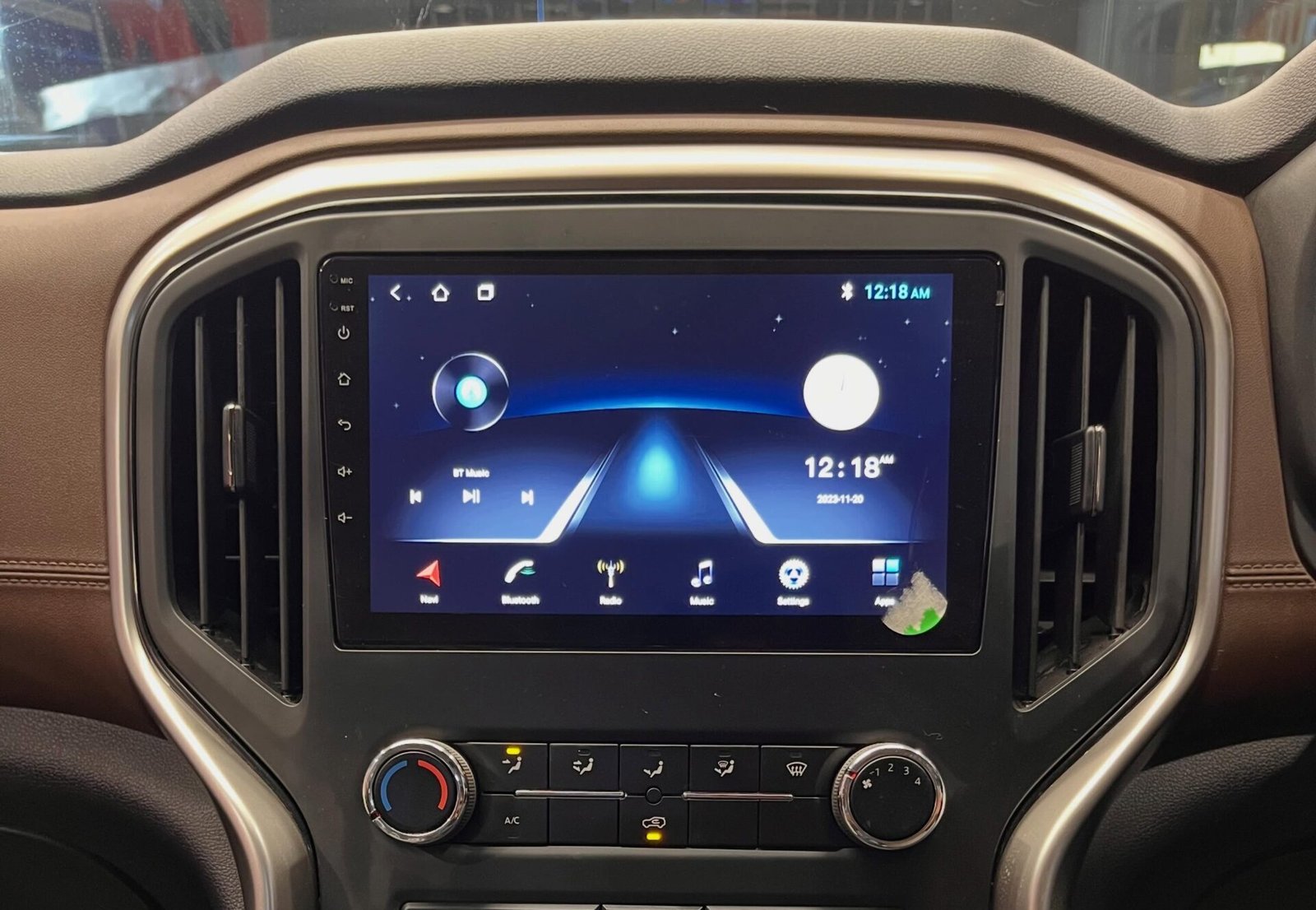
Wireless Android Auto dropouts on aftermarket Android head units (T3, T5, TS10, and Woodman stereos) are almost always caused by aggressive smartphone battery management, 2.4 GHz Wi-Fi interference, or corrupted Zlink/SpeedPlay application cache.
Why Wireless Android Auto Keeps Disconnecting on Aftermarket Screens
If your wireless android auto keeps disconnecting frequently, the problem usually lies in frequency interference rather than faulty hardware.
| Common Symptom | Root Cause | Instant Fix |
| Drops within 30–60 seconds after launch | Phone OS kills background process | Set Android Auto battery to Unrestricted |
| Random drops at toll plazas or signals | 2.4 GHz signal interference | Switch stereo hotspot band to 5.0 GHz |
| “Waiting for device” loop on stereo screen | Stuck bridge connection in Zlink | Clear Zlink app cache & force stop |
| Disconnects only when phone screen locks | Aggressive background power saving | Turn off adaptive battery for companion apps |
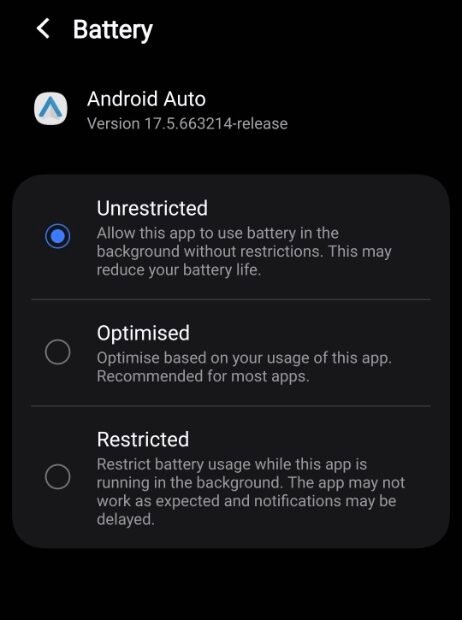
1. Set Android Auto to “Unrestricted” Battery Usage
Modern Android versions (Android 12, 13, 14, and 15) automatically terminate background connections to preserve battery life when the phone gets warm.
-
Go to phone Settings → Apps → Android Auto.
-
Tap on Battery.
-
Change the setting from Optimized to Unrestricted.
-
Repeat the exact same step for the Google Play Services app.
2. Switch Car Stereo Wi-Fi Band to 5.0 GHz
Wireless Android Auto uses Bluetooth only for the initial handshake; all screen mirroring and audio data transfer happens via direct Wi-Fi. Many cheap Android stereos default to a congested 2.4 GHz band.
-
Open stereo Settings → Network / Hotspot Settings.
-
Check AP Band / Wi-Fi Frequency.
-
If it is set to 2.4 GHz, switch it to 5.0 GHz.
-
If your stereo does not support 5 GHz, change the 2.4 GHz channel from Auto to Channel 6 or Channel 11 to reduce external interference.
- This frequency conflict is the primary reason wireless android auto keeps disconnecting on modern vehicles.
3. Clear Cache and Reset the Zlink / SpeedPlay App
The built-in bridge app inside your stereo (Zlink, SpeedPlay, or AutoLink) stores connection tokens that corrupt over time.
-
On the car head unit, open Settings → Apps & Notifications.
-
Find Zlink (or Zlink5).
-
Tap Force Stop, then go to Storage and tap Clear Cache (Do not tap Clear Data unless you know your activation status).
-
Restart the car ignition.
4. Perform a Clean Bluetooth & Wi-Fi Re-Pair
Corrupted network profiles cause constant reconnection handshakes.
-
In your phone’s Bluetooth settings, find your car head unit and select Forget Device.
-
In your phone’s Wi-Fi settings, forget the car stereo’s Wi-Fi network.
-
On the stereo, delete your phone from the paired devices list in the Bluetooth dialer app.
-
Reboot both the phone and the car stereo, then pair fresh via Bluetooth only (allow the stereo to launch Wi-Fi automatically).
- If wireless android auto keeps disconnecting after an update, a fresh handshake clears bad cache tokens.
5. Disable “Turn Off Wi-Fi Automatically” on Your Smartphone
-
Go to phone Settings → Wi-Fi → Wi-Fi Preferences / Intelligent Wi-Fi.
-
Disable Turn off Wi-Fi automatically.
-
Disable Switch to mobile data automatically (prevents the phone from dropping the stereo Wi-Fi in search of cellular data).
Bonus Tip: Reset Head Unit Network Settings
If Android Auto continues to drop out after applying these fixes, perform a network reset inside your car stereo settings. Navigate to Car Settings → System → Reset Options → Reset Wi-Fi & Bluetooth. This clears hidden IP assignment errors, stale hotspot cache, and handshake conflicts without deleting your installed applications or personal media files.
Following these five steps resolves the issue when wireless android auto keeps disconnecting on long drives.
Frequently Asked Questions
-
Why does wireless Android Auto drop near toll booths?
High-power RFID FASTag scanners and roadside microwave sensors emit radio frequencies on the 2.4 GHz and 5.8 GHz spectrums, momentarily jamming the wireless link between your phone and stereo. Switching to a high-speed wired USB cable prevents this entirely.
-
Can I use a wired USB cable if wireless keeps dropping?
Yes. Connect your phone using a 3A fast-charging data cable to the stereo’s primary 4-pin or 6-pin USB port. In Zlink settings, turn off “Wireless Auto-connect” to force stable wired mirroring.
For official device compatibility list, check Google’s official Android Auto Help Center.
For more car head unit troubleshooting guides, visit DashFix home.