
BMW iDrive Apple CarPlay Connection Failed? (4 Best Fixes)
Is your bmw idrive apple carplay connection failed? Discover 4 fast workshop fixes to solve wireless pairing errors and reset iDrive system today.

You slide into the driver’s seat of your BMW, press the start button, and expect your phone to pair automatically via wireless Apple CarPlay.
Instead, the control display throws an error message, and the system prompts you that the bmw idrive apple carplay connection failed once again. It is incredibly frustrating when a premium luxury vehicle’s technology drops out.
In our workshop, we diagnose this exact wireless projection failure on BMW models running iDrive 6, iDrive 7, and iDrive 8 systems on a weekly basis.
Most luxury car owners assume their iPhone hardware is failing or blame iOS security updates. However, working on these complex BMW head units constantly, I can tell you that the root cause is usually a corrupted Wi-Fi certificate handshake or a jammed Bluetooth pairing registry.
A persistent bmw idrive apple carplay connection failed notification is typically triggered by stale cryptographic tokens, network stack conflicts, or a bogged-down iDrive background cache.
Before you let an authorized dealership charge you heavy diagnostic fees, let’s walk through the actual workshop steps to stabilize your wireless connection.
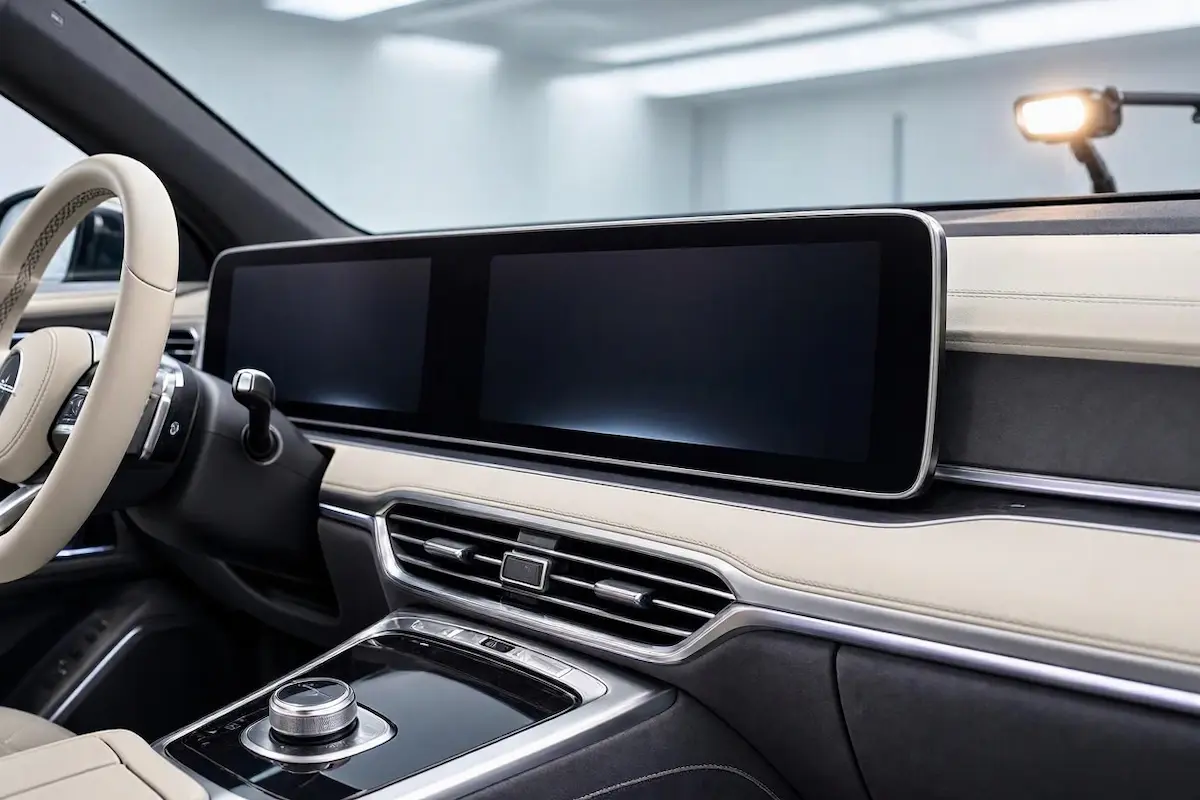
Diagnostic Matrix: Why BMW iDrive CarPlay Handshakes Fail
Match your dashboard symptoms against our diagnostic matrix to isolate your specific bmw idrive apple carplay connection failed trigger before diving into the fixes:
| BMW iDrive Symptom | The Root Cause | Workshop Fix |
|---|---|---|
| CarPlay initialization spins indefinitely and times out with a failure notice | Corrupted cryptographic certificates stored in the iPhone and iDrive memory | Delete all mobile devices and re-initialize a clean pairing profile |
| Screen freezes completely and touch inputs or center controller stop responding | BMW iDrive operating system RAM memory buffer has overflowed | Perform a physical audio volume button hard reboot |
| Bluetooth connects for phone calls, but wireless data projection refuses to start | Wi-Fi Direct channel collision or disabled wireless networking on iPhone | Enable Wi-Fi and Bluetooth, then reset iPhone network stack |
Fix 1: Perform an iDrive Hard System Reboot
BMW’s iDrive software runs complex background telemetry, navigation data, and smartphone projection daemons simultaneously.
When temporary memory buffers overflow, the wireless CarPlay background service crashes, resulting in a recurring bmw idrive apple carplay connection failed loop.
Simply turning off the engine does not fix this, as the iDrive computer enters a low-power standby mode rather than fully shutting down.
- Park your vehicle safely and leave the engine running or ignition switched to the ON position.
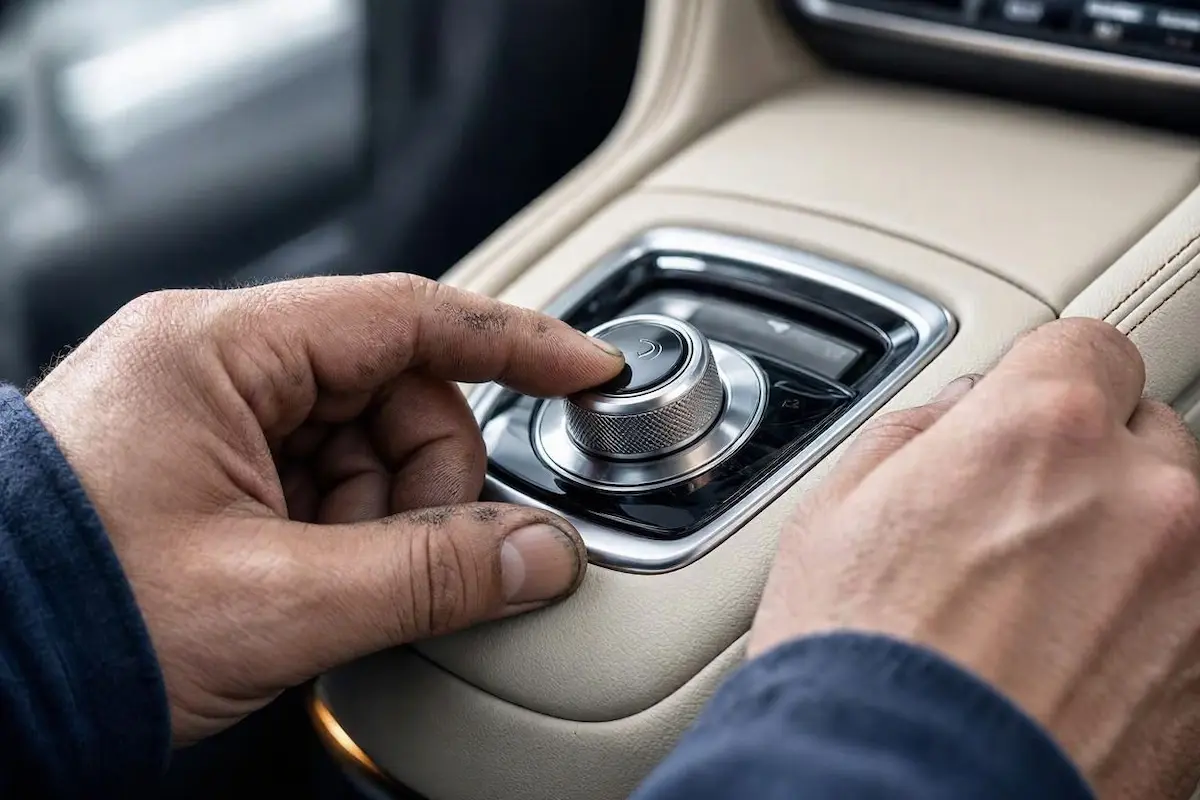
- Locate the physical Audio Volume / Power button located on your center console dashboard.
- Press and hold that volume button down continuously for about 20 to 30 seconds.
- Keep holding until the entire control display screen goes completely black and reboots to show the BMW startup animation.
- Let the system fully reload its background communication services before attempting to reconnect your phone. You can also reference our general guide on resolving stubborn Apple CarPlay dropouts across luxury vehicle brands.
Fix 2: Purge and Reset Mobile Devices in iDrive Settings
Because wireless CarPlay on BMW requires both Bluetooth and a secure Wi-Fi Direct peer-to-peer connection, saved profile tokens can easily conflict over time.
If your phone’s stored cryptographic keys do not match what the iDrive system expects, every connection attempt results in a bmw idrive apple carplay connection failed error message.
- On your iPhone, go to Settings > General > CarPlay, select your BMW profile, and tap Forget This Car.
- Open iPhone Bluetooth settings, locate your BMW profile, and tap Forget This Device.
- On your BMW iDrive screen, navigate to COM > Mobile Devices, select your iPhone, and choose Delete Device (or remove all stored phones to clear the registry).
- Restart your iPhone completely, return to the iDrive mobile devices menu, and select New Device > Phone Calls and Audio / Apple CarPlay to pair everything fresh from scratch.
Fix 3: Reset iPhone Network Stack and Enable Required Services
If re-pairing your phone does not bypass the error, the underlying issue often stems from corrupted socket caches or disabled communication permissions on your iPhone.
Wireless CarPlay will not initialize if Wi-Fi, Bluetooth, or location services are restricted.
- On your iPhone, navigate to Settings > General > Transfer or Reset iPhone > Reset > Reset Network Settings. Note that this clears saved Wi-Fi passwords, which you can re-enter later.
- Ensure Siri is fully enabled on your phone by going to Settings > Siri & Search, as CarPlay requires active voice assistant permissions to handshake properly.
- Verify your iOS operating system is up to date by reviewing official Apple Support documentation for wireless connectivity updates.
- Reconnect to your BMW via the iDrive Bluetooth menu and authorize the CarPlay popup prompt.
Fix 4: Check iDrive Software Version and Update Services
BMW occasionally pushes over-the-air service pack updates and mobile device compatibility patches through the iDrive system.
If your vehicle’s software version is severely outdated, it will fail to handshake with modern iOS security certificates, triggering a persistent bmw idrive apple carplay connection failed glitch.
- On your iDrive screen, go to Apps > Installed Apps, press the Option button on your center console controller, and select Update BMW Services and Apps.
- If your firmware requires a major update, check your My BMW smartphone app or visit an authorized service center to check for official integration software upgrades.
⚠️ Workshop Warning: Avoid running multiple third-party connection apps or active VPN services on your iPhone while trying to pair with wireless CarPlay. Virtual private networks alter network routing tables, instantly blocking the localized Wi-Fi Direct data bridge required by BMW iDrive.
Fixing wireless connectivity failures in your luxury BMW doesn’t mean you have to surrender your vehicle to a dealership service bay for hours.
By executing a proper iDrive hard reboot, purging conflicting mobile device profiles, and resetting your phone network stack, you can restore seamless wireless projection.
Work through these workshop procedures step by step, and your bmw idrive apple carplay connection failed frustrations will be completely resolved.
Frequently Asked Questions
Why does my BMW iDrive say CarPlay connection failed every time I get in the car?
This is usually caused by a corrupted Bluetooth/Wi-Fi profile handshake or an overloaded iDrive RAM cache. Deleting the device profile from both your phone and car, followed by an iDrive hard reboot, typically fixes the issue.
Does wireless Apple CarPlay on BMW require Wi-Fi to be turned on?
Yes. While Bluetooth is used for the initial discovery phase, wireless CarPlay streams high-bandwidth video, audio, and touch data over a dedicated high-speed Wi-Fi Direct connection between your phone and the BMW head unit.
How do I force restart my BMW iDrive screen?
You can force restart the iDrive infotainment system by pressing and holding the physical center audio volume/power knob down continuously for about 20 to 30 seconds until the control display screen turns completely black and reboots.