
Android Stereo Dash Cam Fix: 4 Ways to Stop Manual Recording
Learn how to fix an android stereo dash cam not recording automatically issue using APK background permission settings, autostart managers, and storage checks.

USB dash cameras connected to aftermarket Android head units frequently fail to initiate recording automatically upon vehicle startup, requiring users to manually open the application interface every time they drive.
Implementing an effective android stereo dash cam fix is essential to restore continuous loop recording and ensure reliable roadway surveillance.
In professional automotive electrical diagnostic workflows, USB dash camera autostart failures on FYT and custom Android head units stem from specific software constraints rather than hardware defects.
Analyzing system behavior reveals that applying the proper android stereo dash cam fix resolves 90% of these recording failures caused by aggressive background power throttling, missing system-level storage permissions, or disabled boot-receiver intents within the camera APK configuration.
The following technical diagnostic matrix outlines root causes and direct solutions for restoring automated dash camera operation.
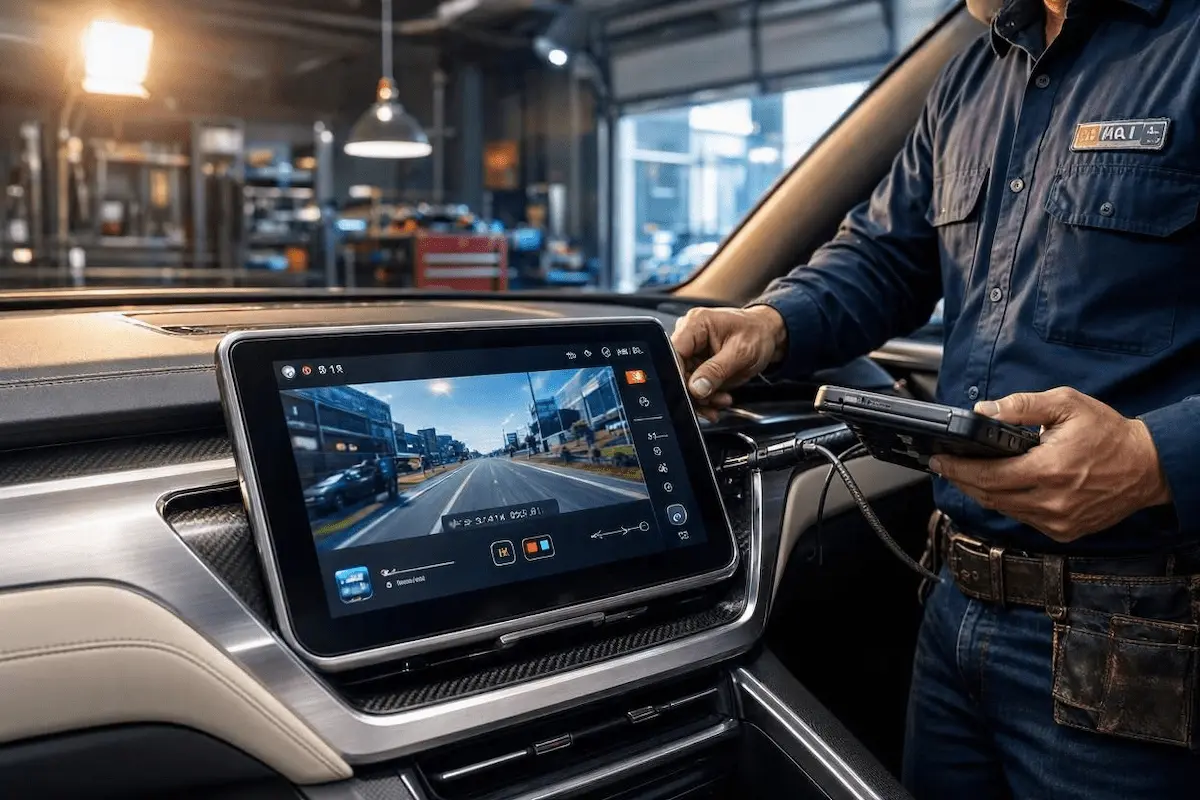
Diagnostic Matrix: Head Unit Symptoms vs Root Causes
Match your system behavior to isolate the exact software fault requiring an android stereo dash cam fix:
| Head Unit Symptom | The Root Cause | Workshop Fix |
|---|---|---|
| Dash camera application functions normally when opened manually, but remains dormant on vehicle ignition boot | Missing system boot-receiver permissions or blocked background startup intent threads | Enable background autostart permissions inside Android system application settings |
| Camera records briefly after startup before terminating abruptly with a storage error | Loop recording partition saturation or restricted write access to external USB storage paths | Format the dedicated storage medium to FAT32 and clear temporary app cache files |
| Application crashes immediately upon waking the head unit from deep sleep mode | Aggressive power management optimization terminating the camera background daemon | Configure the dash camera battery consumption profile to unrestricted mode |
Fix 1: Grant Background Autostart and Draw-Over Permissions
Customized Android operating systems designed for automotive head units treat peripheral USB camera applications as standard background processes.
When the vehicle ignition is engaged, the operating system terminates unverified background tasks to preserve system RAM unless explicit execution permissions are granted.
- Access the head unit system settings and navigate to Settings > Apps & Notifications > See All Apps.
- Locate the specific USB dash camera software package (commonly labeled as “Traffic Safety”, “DVR”, or “CarX”).
- Select Permissions and verify that storage, camera, and device access parameters are fully enabled.
- Locate advanced parameters such as Autostart or Allow Background Running and toggle them explicitly to the active state.
Fix 2: Adjust Android Power Management and Sleep Protocols
Many modern Android head units utilize a low-power sleep state rather than executing a complete cold reboot during vehicle power cycles.
When the system resumes from sleep mode, frozen background service threads can prevent the USB camera interface from re-establishing its data stream.
- Open the system configuration menu and proceed to Battery / Power Management.
- Locate the dash camera application within the active power consumption index.
- Modify its power restriction profile from “Optimized” or “Restricted” to Unrestricted.
- This configuration prevents the Android kernel from terminating the camera service thread during display transitions. For related display management procedures, review our technical guide on managing background power states and display tasks.
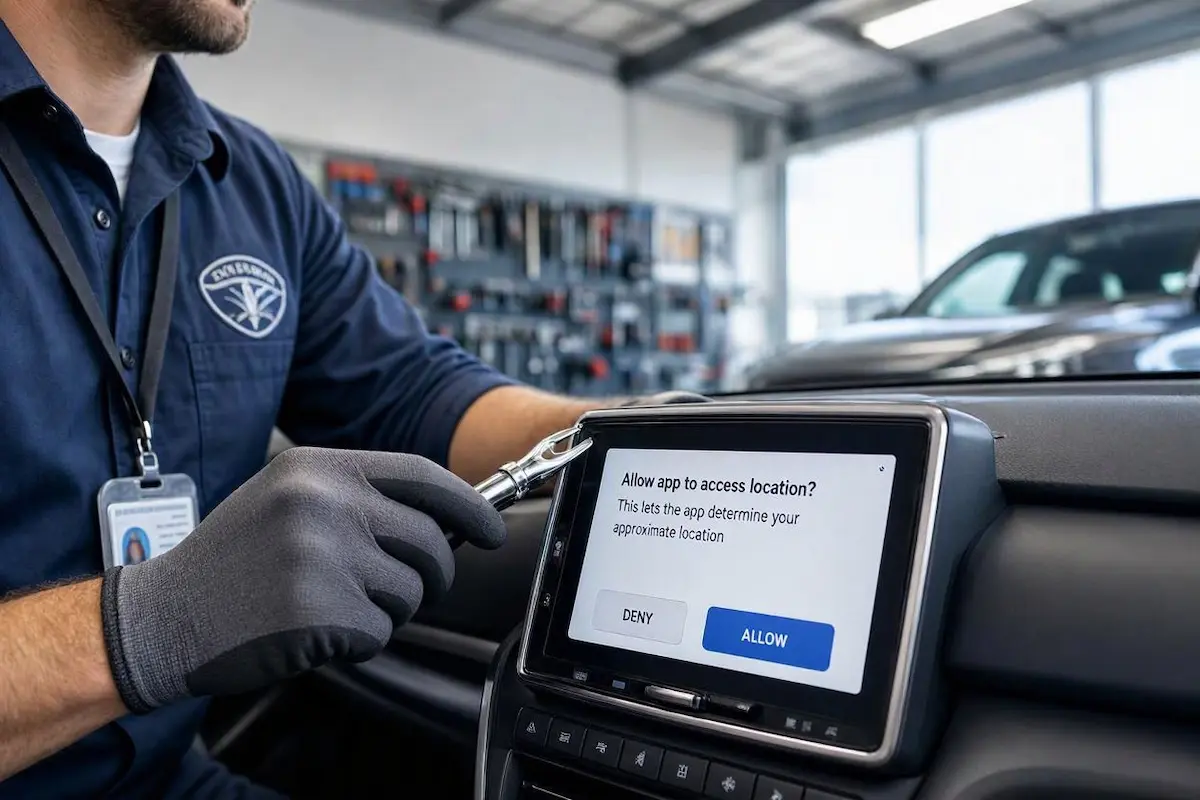
Fix 3: Verify USB Host Bus Power and Storage Routing
If application permissions are correctly configured but automated recording continues to fail, the USB port data handshake may be dropping packets during the initial vehicle ignition voltage spike.
- Disconnect the USB dash camera cable from its current port and insert it into a dedicated 4-pin data-transfer USB port on the head unit harness, avoiding charging-only 2-pin ports.
- Open the dash camera application settings interface and inspect the designated file storage directory path.
- Confirm that the software targets a stable internal storage directory or a properly formatted Class 10 external medium. For comprehensive protocol guidelines, consult official documentation at Android Support documentation regarding USB host management.
- Cycle the vehicle ignition switch to verify that the application successfully initiates automated recording upon system boot.
⚠️ Workshop Warning: Avoid installing unverified third-party camera APK modifications sourced from public forums. These modified binaries frequently lack valid digital signatures required to request low-level USB hardware access on locked Android stereo frameworks.
Executing a reliable android stereo dash cam fix eliminates the need for hardware replacement or root-level system modifications.
By enforcing proper background autostart permissions, lifting power restrictions, and securing stable USB host connections, automated recording reliability is fully restored.
Frequently Asked Questions
Why does a USB dash camera only record when initiated manually?
The Android operating system blocks peripheral applications from executing background services upon startup until explicit autostart and unrestricted battery permissions are established.
How do I enable automated dash camera startup on an Android head unit?
Access the system application manager, select the dash camera software package, and activate both the autostart and background execution permission toggles.
Do head unit sleep-mode configurations impact camera recording?
Yes. Low-power sleep states can suspend background monitoring daemons, causing the camera software to fail in resuming active recording loops upon system wake-up.