
The Magic Box CarPlay Not Connecting? (5 Proven Fixes)
Is the magic box carplay not connecting to your car screen? Discover 5 proven workshop fixes to solve black screens and continuous reboot loops instantly.

Plugging in a premium streaming AI device only to stare at a the magic box carplay not connecting error or a completely black dashboard screen defeats the purpose of upgrading your infotainment system. Customers often come into our shop assuming they received a defective unit.
The Magic Box and similar Android-based AI streaming adapters bypass your vehicle’s factory software by piggybacking on the wired Apple CarPlay protocol. When the box boots, it sends a digital handshake tricking the car into thinking a standard iPhone has been connected via USB.
If your dashboard display hangs on a “Reading USB” prompt, loops back to the factory radio, or goes pitch black, the hardware inside the box is rarely broken.
In our daily workshop experience, these high-end streaming modules fail to connect due to USB power starvation, resolution (DPI) mismatches with the vehicle’s screen, or conflicting Bluetooth network tunnels. Fixing a the magic box carplay not connecting issue is actually straightforward once you identify the bottleneck.
Here are five workshop-tested procedures to fix a the magic box carplay not connecting error and restore full streaming access to your dashboard.
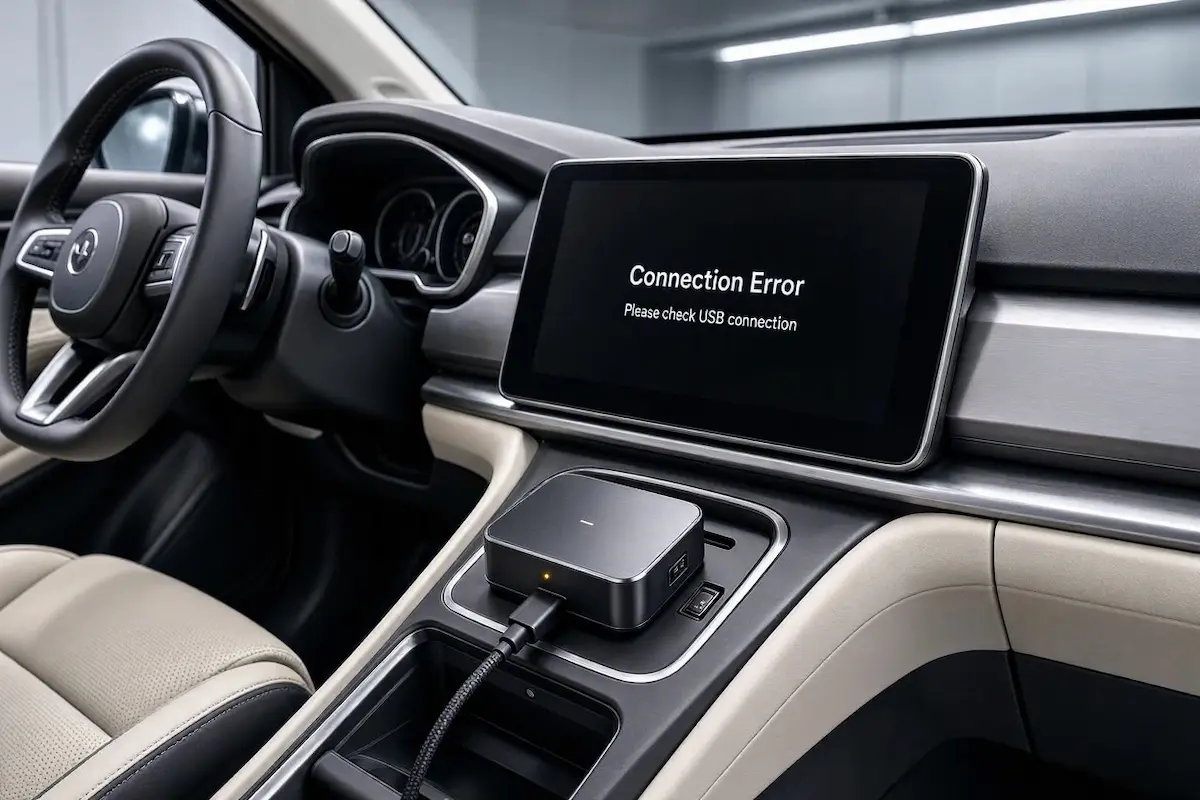
Diagnostic Matrix: Why The Magic Box Fails to Connect
Match your specific dashboard behavior against our bench-testing matrix to isolate a the magic box carplay not connecting symptom before assuming the device needs a return:
| Observed Box / Screen Symptom | Underlying Hardware / Software Cause | Immediate Workshop Action |
|---|---|---|
| Screen goes completely black after the boot logo | Resolution or DPI mismatch between the box and the car screen. | Plug the box into a TV via HDMI to adjust output resolution. |
| Box LEDs blink red, or unit reboots continuously | Vehicle USB port cannot deliver the required 5V / 2A of current. | Install a USB Y-splitter power injector cable for extra current. |
| “Apple CarPlay Connection Failed” error on dash | Corrupted cryptographic handshake tokens in the car’s memory. | Delete the Apple CarPlay profile from the vehicle’s factory settings. |
| Box connects, but iPhone refuses to cast or mirror | Active VPN on the iPhone blocking local network ad-hoc tunnels. | Disable NordVPN, WARP, or corporate MDMs before linking. |
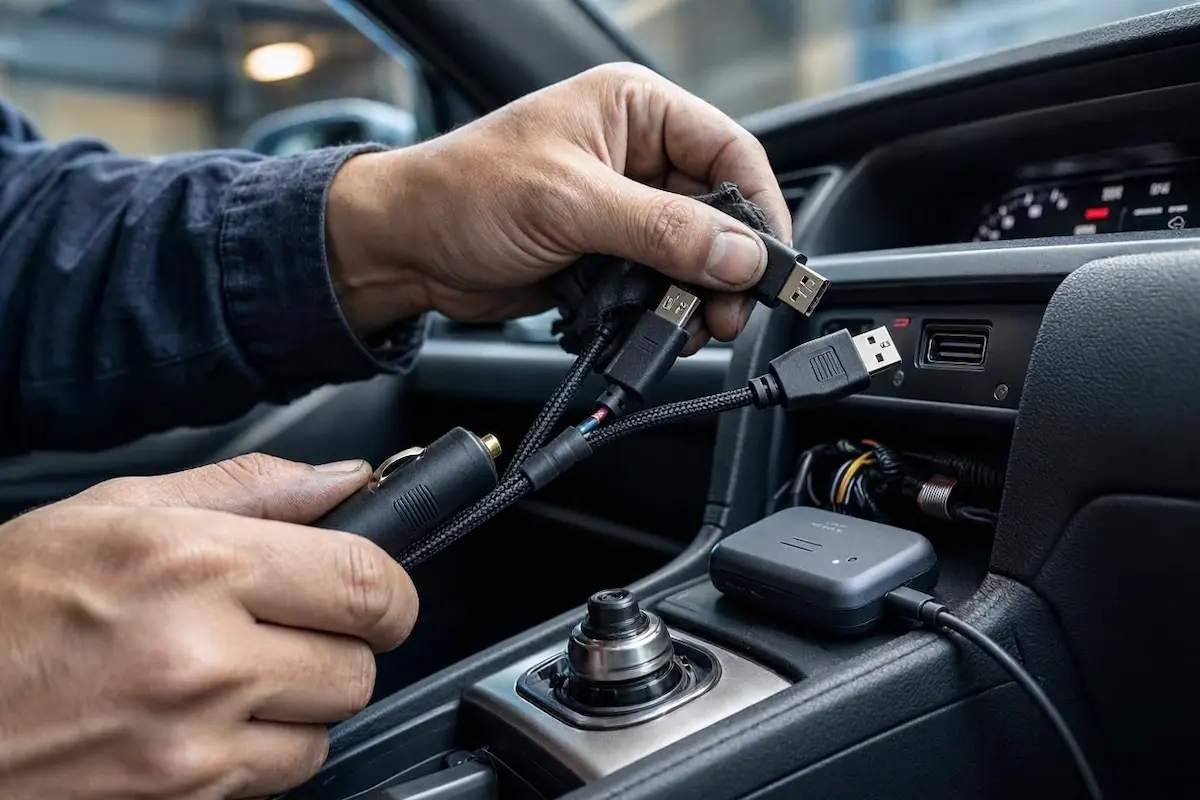
Step 1: Fix USB Power Starvation with a Y-Splitter Cable
The absolute number one reason behind a the magic box carplay not connecting loop is extreme power starvation.
Standard vehicle USB data ports (especially in older Ford, Chevy, and Toyota models) are engineered to deliver a maximum of 0.5 Amps to 1.0 Amps. The Magic Box houses an octa-core processor, dual Wi-Fi bands, and a GPS chip, requiring a stable 5V / 2.0 Amps to boot successfully.
If your vehicle’s USB port cannot supply enough juice, the box will attempt to boot, crash, and restart in an endless cycle, very similar to an android car stereo boot loop condition.
- The Workshop Fix: Purchase a USB Y-Splitter Power Cable.
- Plug the primary data end of the Y-cable into your car’s CarPlay USB port.
- Plug the secondary power-only end of the Y-cable into a high-output 12V cigarette lighter USB charger (QC 3.0).
- Connect the single female end to The Magic Box. This routes high-speed data to the head unit while pulling high-amperage power directly from the 12V socket, curing the boot loop instantly.
Step 2: Correct a Resolution/Black Screen Mismatch via HDMI
If your car stereo displays the startup logo but immediately drops to a pitch-black screen, you are facing a video resolution mismatch.
By default, The Magic Box attempts to push a 1080p high-definition video signal. If your vehicle’s factory screen is limited to 720p or has an unusual widescreen aspect ratio, the display driver crashes, resulting in a black screen despite the box having full power. This is a very common trigger for a the magic box carplay not connecting failure.
- Take The Magic Box into your home and plug it into a standard computer monitor or TV using a mini-HDMI to HDMI cable.
- Power the box using a standard 5V wall charger.
- Once the Android interface loads on your TV, go to Settings → Display → Resolution.
- Force the output resolution down to 720p (1280×720) or enable the Auto-Adapt toggle.
- Save the settings, bring the box back to your vehicle, and plug it in. The car stereo will now parse the video feed correctly without blacking out.
Step 3: Delete Conflicting CarPlay Profiles in the Vehicle
The Magic Box uses the Apple CarPlay protocol to hijack the vehicle screen. If your car’s infotainment system has cached a corrupted security token from your actual iPhone, it will reject the Magic Box’s handshake.
Clearing the vehicle’s projection registry forces a fresh authentication sequence, resolving persistent the magic box carplay not connecting errors. You can verify proper connection sequences via official Apple CarPlay support guidelines.
- Unplug the Magic Box from the dashboard.
- Navigate to your car’s native Settings → Phone / Bluetooth → Smartphone Integration (or Projection Settings).
- Locate the list of saved Apple CarPlay devices and delete/forget every profile listed.
- On your iPhone, go to Settings → General → CarPlay and delete the vehicle profile.
- Turn the vehicle off, open the driver’s door to cut accessory power, and restart the engine. Plug the Magic Box in cold and allow it 60 seconds to negotiate a brand-new handshake.
Step 4: Disable Active VPNs on Your Smartphone
Once The Magic Box launches on your dashboard, you must connect your iPhone to the box via a local Wi-Fi hotspot to share cellular internet data.
If your iPhone is running a Virtual Private Network (VPN) such as NordVPN, ExpressVPN, Cloudflare WARP, or a strict corporate MDM profile, iOS will block local ad-hoc network traffic.
This security block prevents your phone from sharing data with the box, leaving the interface frozen offline. Active VPNs are a hidden reason why you might face a the magic box carplay not connecting issue. Always toggle your VPN OFF inside the iOS Settings app before firing up a mobile hotspot for your streaming box.
Step 5: Perform a Hard Firmware Update via MicroSD
If the device remains unresponsive across multiple vehicles and you still face a the magic box carplay not connecting error, the Android partition on the box has likely been corrupted during a previous sudden power loss.
You can force a clean operating system installation using the physical TF/MicroSD card slot:
- Format a 32GB MicroSD card to FAT32 on your computer.
- Download the latest official
update.zipfirmware file directly from The Magic Box support portal. - Place the file on the root of the MicroSD card (do not extract the ZIP file).
- Insert the card into the box while it is powered off, then plug the box into a high-powered wall charger.
- The device’s LED will flash rapidly (usually red/blue) as it unpacks the firmware. Do not unplug the device for at least 10 minutes. Once the light stabilizes to solid blue, the re-flash is complete.
Frequently Asked Questions (FAQ)
Why does The Magic Box show a black screen after booting?
A black screen is a direct symptom of a the magic box carplay not connecting issue when the box tries to output a 1080p video signal to a vehicle display that only supports 720p or lower. Connecting the box to a TV via HDMI and manually lowering the display resolution to 720p will fix this mismatch instantly.
How do I fix The Magic Box continuously rebooting?
Continuous reboot loops mean the box is starving for electrical current, which leads directly to a the magic box carplay not connecting state. Standard car USB ports output less than 1.0 Amp, while the box requires 2.0 Amps. You must install a USB Y-Splitter cable to pull auxiliary power from a 12V cigarette lighter adapter.
Does The Magic Box work if my car only has Android Auto?
No. The Magic Box is engineered strictly to bridge through the wired Apple CarPlay protocol. Your vehicle must have factory-wired Apple CarPlay active in the infotainment system for the box to project video to the dashboard.