
Android Auto Audio Keeps Cutting Out: 5 Proven Fixes for Stuttering Sound
Fix Android Auto audio stuttering and cutting out by disabling aggressive battery optimization, resolving dual Bluetooth/Wi-Fi routing conflicts, and adjusting audio buffer packet loss.

Cruising on the highway with your favorite playlist only to experience your android auto audio keeps cutting out turns an enjoyable drive into an annoying cycle of skips and silent gaps.
Your navigation maps render smoothly on the dashboard display, but Spotify, YouTube Music, or podcast streams drop sound for 2 to 3 seconds every few minutes.
In professional 12-volt car audio workshop diagnostics, intermittent audio stuttering rarely points to a blown amplifier circuit or a defective dashboard speaker.
Common causes typically include aggressive Android OS background battery optimization throttling media codecs, high-latency USB transfer packet drops, wireless 2.4 GHz radio frequency interference, or conflicting dual-channel Bluetooth audio routing.
Because Android Auto streams visual screen data and PCM digital audio across separate software pipelines, an overloaded data buffer can easily drop audio frames while the navigation display continues running normally, directly causing an android auto audio keeps cutting out glitch.
Before replacing vehicle stereo hardware or scheduling dealership diagnostic scans, methodical adjustments to operating system priorities and hardware buffer feeds will restore uninterrupted sound quickly.
Here are five practical workshop procedures to troubleshoot why your android auto audio keeps cutting out and re-establish clean, continuous audio playback.
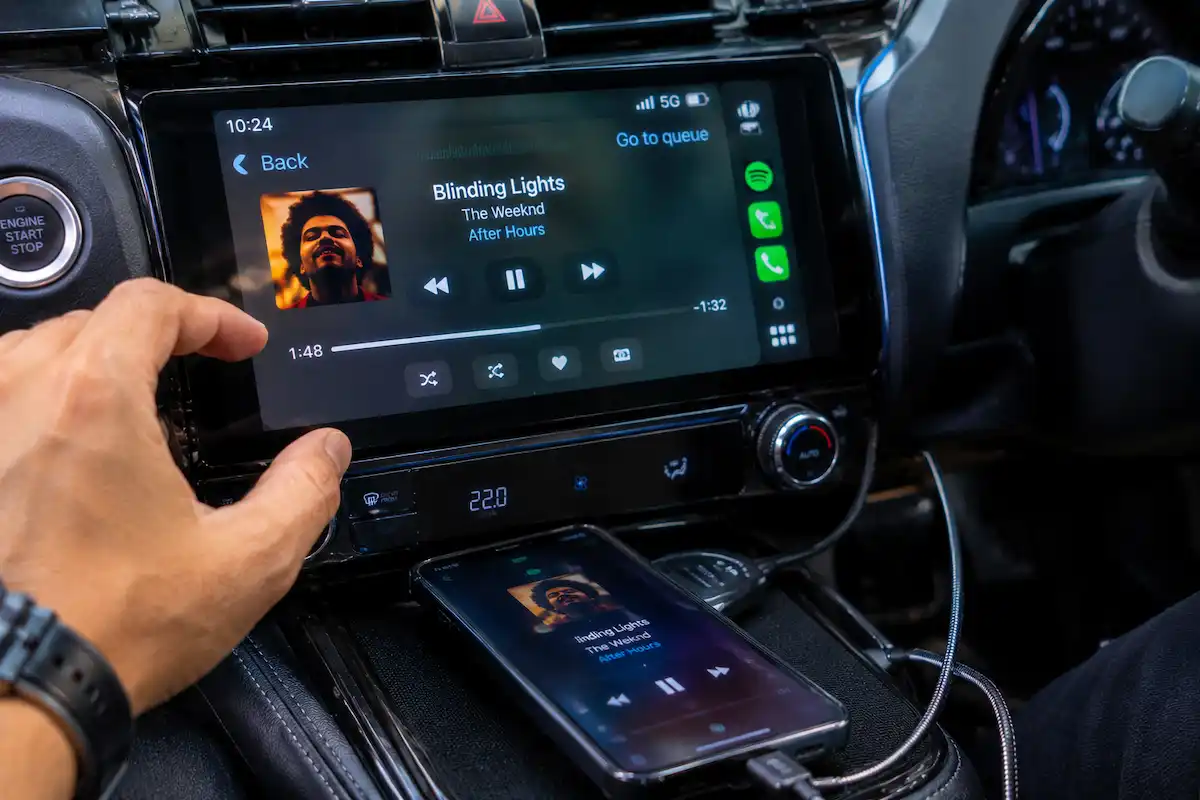
Diagnostic Matrix: Pinpointing Android Auto Audio Dropouts
Cross-reference your vehicle’s audio playback symptoms against our workshop matrix whenever an android auto audio keeps cutting out issue interrupts your listening:
| Observed Playback Symptom | Underlying Hardware or Software Cause | Immediate Workshop Action |
|---|---|---|
| Audio cuts out every 3 to 5 minutes like clockwork | Android OS Doze mode placing background streaming app into sleep. | Set streaming music apps to “Unrestricted” under Battery usage settings. |
| Sound stutters violently when driving under toll gantries | Wireless 2.4 GHz Wi-Fi channel suffering localized RF congestion. | Force wireless projection head unit to operate on clean 5 GHz Wi-Fi channel. |
| Music micro-skips specifically during turn-by-turn prompts | Media audio attenuation buffer overrun inside navigation software. | Disable navigation audio ducking or raise system prompt baseline volume. |
| Sound cuts off when touching or moving the phone physically | USB port terminal oxidation or degraded 4-wire data line cable. | Switch to a certified USB-IF 3.1 Type-C cable rated for 10 Gbps data. |
| Rapid clicking/popping audio before sound dies completely | Bluetooth hands-free audio sink conflict with Wi-Fi audio stream. | Disable “Media Audio” permission under car profile in Bluetooth settings. |
Step 1: Disable Android Battery Optimization on Media and Projection Apps
Modern Android versions feature aggressive battery-saving management (Doze Mode) engineered to prolong handheld battery life.
When your phone screen turns off inside the vehicle, the operating system limits background CPU cycles for active streaming applications.
This micro-sleep state starves the audio rendering pipeline of continuous data, leaving your android auto audio keeps cutting out at regular intervals while screen navigation continues unobstructed:
- Open Settings on your Android phone and navigate to Apps.
- Locate your primary music streaming app (such as Spotify, YouTube Music, Amazon Music, or Tidal).
- Tap Battery (or App Battery Usage).
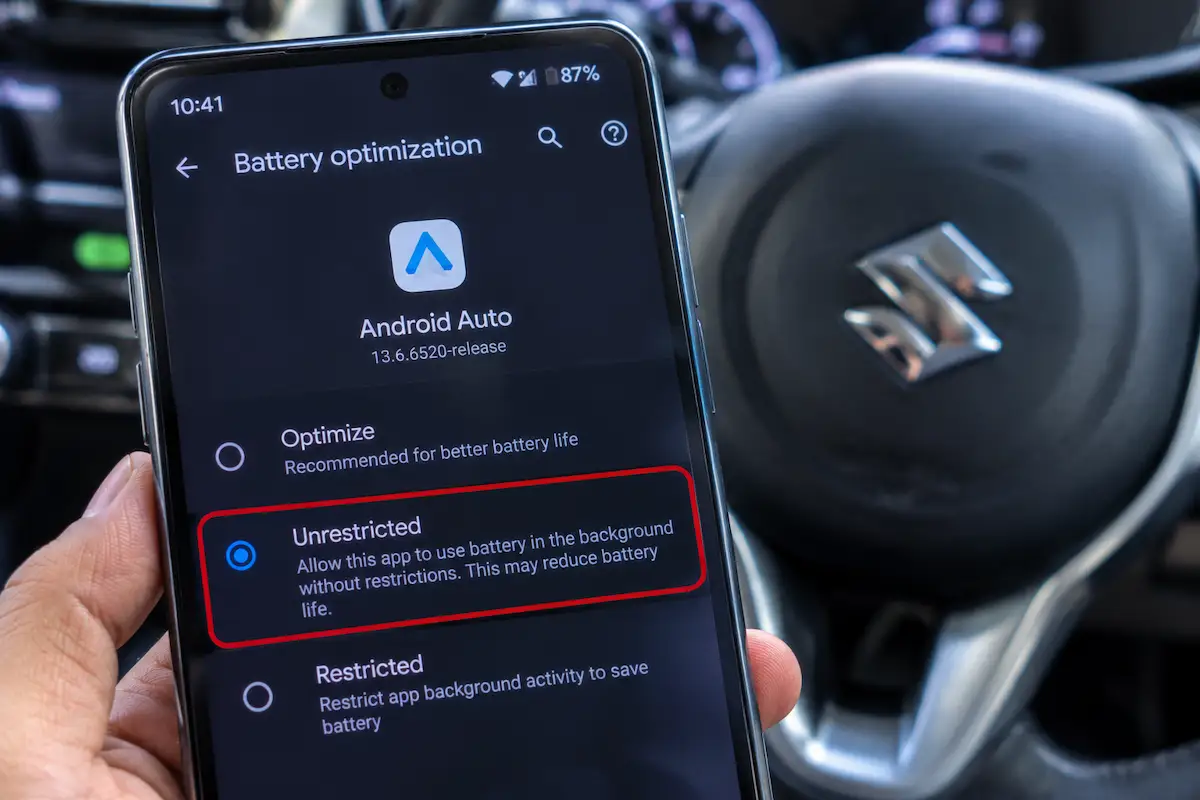
- Switch the mode from Optimized to Unrestricted.
- Repeat this exact configuration for the Android Auto system application and Google Play Services.
- Restart your smartphone to apply these persistent thread priorities into runtime memory.
Whenever your android auto audio keeps cutting out, setting unrestricted background execution ensures the operating system never pauses audio buffer transfers when the phone screen sleeps.
For technical reference on real-time background audio buffer priorities, review the Android Open Source Project (AOSP) Audio Architecture Standards.
RELATED AUDIO FIX
👉 Audio shutting off completely at higher volumes? Amplifier thermal cut diagnosis walkthrough →
Step 2: Isolate Bluetooth Media Routing Conflicts
Android Auto routes high-fidelity stereo audio through a direct digital transport stream (over the physical USB cable or high-speed Wi-Fi).
At the same time, it maintains a legacy Bluetooth connection for phone call audio (Hands-Free Profile / HFP).
If your vehicle’s factory infotainment unit attempts to simultaneously pull music over Bluetooth A2DP while Android Auto pushes audio packets over Wi-Fi, the audio sink crashes, resulting in your android auto audio keeps cutting out:
- Open Settings > Connected Devices > Bluetooth on your phone while connected to the vehicle.
- Tap the gear icon next to your car’s paired Bluetooth profile.
- Look for the Media Audio toggle switch.
- Toggle Media Audio OFF while leaving Calls and Contact Sharing toggled ON.
- This forces all music and navigation media strictly through Android Auto’s native digital channel, preventing the car from fighting over Bluetooth audio focus.
Eliminating dual-path protocol competition stops audio transmission bottlenecks that cause an issue where your android auto audio keeps cutting out randomly during playback.
Step 3: Replace Degraded USB Cables and Clean Data Terminals
Wired Android Auto requires steady, high-bandwidth USB communication to transmit 1080p display frames alongside uncompressed PCM audio streams simultaneously.
Cheap aftermarket charging cables lack internal shielding or feature thin 28-AWG data lines that suffer from packet corruption under vehicle vibration.
When packet loss spikes across the physical USB interface, the receiver drops audio frames first, creating an irritating android auto audio keeps cutting out symptom:
- Disconnect the current USB cable and inspect the phone’s Type-C port using a flashlight.
- Use a non-conductive wooden or plastic pick to gently dislodge compressed pocket lint from the bottom of the phone’s charging port.
- Inspect the vehicle’s dashboard USB receptacle for loose inner plastic pins or bent terminals.
- Replace thin generic cables with a USB-IF Certified USB 3.1 or 3.2 Gen 2 cable measuring 3 feet (1 meter) or shorter.
- Avoid using unshielded multi-port USB hubs, extension dongles, or pass-through adapters between the phone and dash port. If physical buttons also freeze up, check our guide on fixing car stereo buttons not working.
⚠️ High-Speed Cable Precaution: Avoid long 6-foot (2-meter) charging cables for vehicle data transfer. Extended wire runs induce digital signal attenuation and line impedance drops, which silently corrupt audio sync packets without disconnecting the video stream.
RELATED HEAD UNIT GUIDE
👉 Head unit completely silent across all inputs? Complete internal amplifier test guide →
Step 4: Shift Wireless Android Auto to 5 GHz Wi-Fi Bands
Wireless Android Auto streams high-bitrate audio packets over a local Wi-Fi direct connection.
If your head unit or wireless adapter connects over the older 2.4 GHz Wi-Fi frequency band, it shares spectrum with dashboard Bluetooth antennas, dashcams, and mobile cell towers.
Severe radio frequency interference drops streaming packets, resulting in an unbearable android auto audio keeps cutting out error whenever you pass cell towers or commercial radar installations:
- Access your wireless Android Auto adapter’s internal browser settings (typically by browsing to 192.168.50.2 or 192.168.1.101 on your phone).
- Navigate to the Wi-Fi Settings or Radio Band tab.
- Change the operating frequency from 2.4 GHz to 5.8 GHz (or 5 GHz Band 4, Channels 149–161).
- If your aftermarket screen runs an internal Wi-Fi antenna, ensure the external pigtail antenna wire behind the dashboard is not pinched against vehicle metal bracing.
- Save the configuration and reboot the system to latch onto the cleaner, high-bandwidth 5 GHz spectrum.
Operating over a clean 5 GHz wireless pipeline prevents crowded 2.4 GHz radio frequencies from creating an environment where your android auto audio keeps cutting out during normal travel.
RELATED WIRELESS FIX
👉 Struggling with wireless auto-connection handshakes? Step-by-step auto-join repair guide →
Step 5: Clear Android Auto System Cache and Re-pair Bluetooth
Over months of daily connection cycles and periodic Google app updates, the local audio buffer cache inside the Android Auto package can corrupt.
Stale audio configuration files lead to asynchronous clock timing errors between the phone decoder and head unit DSP.
Wiping this application cache restores factory audio timing parameters, permanently curing a stubborn android auto audio keeps cutting out fault:
- Open Settings > Apps > Android Auto on your smartphone.
- Tap Storage & Cache.
- Tap Clear Cache, then tap Clear Storage (this safely resets projection app parameters without deleting personal phone data).
- Unpair your phone from the car’s touchscreen device list and unpair the vehicle from your phone’s Bluetooth menu.
- Power cycle your smartphone and restart your car stereo.
- Re-connect via USB cable to re-initialize a brand new clean digital audio handshake profile.
- If your vehicle navigation map drifted following electrical disconnects, check our workshop walkthrough on car GPS showing wrong location after battery replacement.
Resolving an annoying android auto audio keeps cutting out problem comes down to eliminating background OS throttling and maintaining an uncorrupted digital data stream.
Setting streaming apps to unrestricted battery usage, isolating conflicting Bluetooth media audio channels, running high-spec shielded USB cabling, shifting wireless projection to clean 5 GHz channels, and flushing application cache ensures crystal-clear, uninterrupted acoustic performance on every road trip.
Follow these workshop steps whenever sound dropouts degrade your dashboard infotainment system, ensuring you eliminate any android auto audio keeps cutting out errors permanently.
Frequently Asked Questions (FAQ)
Why does my android auto audio keeps cutting out while driving?
An android auto audio keeps cutting out issue is typically caused by Android battery optimization putting streaming apps into background sleep, a worn or low-bandwidth USB cable dropping audio packets, or 2.4 GHz wireless frequency interference.
Why does Android Auto music stutter only on wireless connections?
Wireless Android Auto relies on Wi-Fi to transmit audio. If the system operates on crowded 2.4 GHz channels instead of 5 GHz, localized radio frequency interference from cell towers and dashcams disrupts the packet stream, causing audio stutter.
Does clearing the Android Auto cache fix audio cutting out?
Yes. Clearing the cache and storage for Android Auto and Google Play Services deletes corrupted audio buffer settings and re-establishes clean digital handshakes between your smartphone and the vehicle’s head unit.