
Ford Explorer Apple CarPlay Keeps Disconnecting: 4 Proven Fixes
Learn how to fix a Ford Explorer Apple CarPlay keeps disconnecting issue using master soft resets, console USB port cleaning, and firmware updates.

You plug your iPhone into your SUV console, start up your Explorer, and head out onto the highway.
Suddenly, the music cuts out, the navigation map freezes, and your center display drops back to the stock Ford home screen.
When your Ford Explorer Apple CarPlay keeps disconnecting over every bump or phone notification, it turns a great family road trip into a frustrating ordeal.
In our shop, when drivers complain that their Ford Explorer Apple CarPlay keeps disconnecting on every trip, we troubleshoot this exact projection drop on models running SYNC 3 and SYNC 4 systems every single week.
Most drivers think their phone hardware is failing or blame Apple for pushing a buggy software update.
Working on these Ford head units day in and day out, I can tell you that 85% of random CarPlay dropouts come down to pocket lint-packed USB ports, corrupted Bluetooth pairing profiles, or a bogged-down APIM memory thread.
Before you let a dealership charge you heavy diagnostic fees, let’s walk through how to clear out the connection glitch step by step.
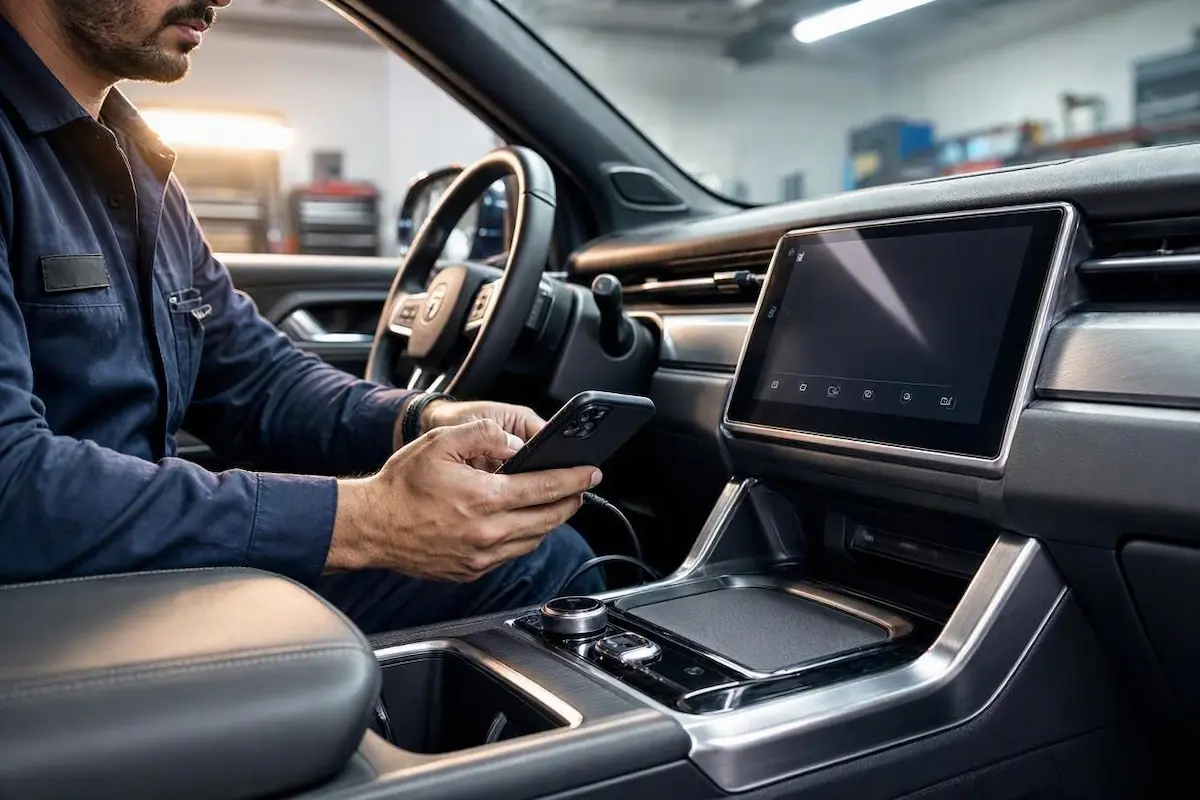
Why Your Ford Explorer Apple CarPlay Keeps Disconnecting
Match your SUV’s behavior to pinpoint the exact network or hardware culprit:
| SUV Infotainment Symptom | The Root Cause | Workshop Fix |
|---|---|---|
| CarPlay drops the exact second your vehicle hits rough asphalt or a pothole | Loose physical USB data connection or compacted pocket lint inside the media bin port | Clean out console port pins using a wooden toothpick and use an MFi-certified cable |
| Wireless CarPlay lags for 10 seconds before freezing and crashing entirely | Wi-Fi channel interference or corrupted peer-to-peer data handshake | Forget vehicle pairing profiles on iPhone and reset head unit network cache |
| Screen freezes completely and refuses to recognize any plugged-in iPhone | Ford infotainment operating system memory leak or frozen background process | Perform a physical audio power button hard reboot |
Fix 1: Clean Pocket Lint Out of the Console USB Port
The number one physical reason why a Ford Explorer Apple CarPlay keeps disconnecting is hidden debris inside the USB port.
Because your Explorer’s center console and armrest bins collect dust, coins, and lint over time, every time you drop your phone into the pocket, microscopic fibers get pushed deep inside your Lightning or USB-C port.
When you drive over bumps, vibration shifts the cable slightly, causing micro-gaps in the high-speed data transfer pins.
- Turn off your vehicle ignition completely.
- Take a wooden toothpick (never use metal pins or needles) and gently scrape along the bottom floor of your Explorer’s console USB port.
- You will likely pull out a surprising amount of packed lint and dust bunnies.
- Blow out remaining dust with a quick spray of compressed air, plug your cable back in until it clicks firmly, and test your connection.
Fix 2: Execute a Ford SYNC Hard Audio Reset
Ford’s SYNC operating system handles background traffic, climate control, and smartphone projection simultaneously.
When temporary memory buffers overflow, the CarPlay projection daemon crashes, forcing the system to drop your phone session.
- Park your vehicle safely and leave the engine running or ignition in the ON position.
- Locate the physical Audio Power / Volume knob and the Right Seek button on your center console dashboard.
- Press and hold both the Power button and the Right Seek button down simultaneously.
- Keep holding both buttons firmly for 10 to 12 seconds.
- Release the buttons when the screen goes completely dark and the Ford startup splash logo reappears. Let the operating system fully reload its background services before opening CarPlay. You can also reference our guide on resolving Ford SYNC display and projection failures for deeper troubleshooting.
Fix 3: Clear iPhone Pairing Profiles and Reset Network Stack
If your physical cable is clean and a soft reboot didn’t solve the dropouts, your phone’s stored connection profile is likely corrupted.
Bluetooth handoff conflicts can disrupt the background Wi-Fi bridge required for stable projection sessions.
- On your iPhone, go to Settings > General > CarPlay, select your Ford Explorer profile, and tap Forget This Car.
- Open Bluetooth settings on your phone, locate your SYNC profile, and tap Forget This Device.
- On your Explorer touchscreen, go to the Phone/Settings menu and delete your iPhone from the paired device list.
- On your iPhone, navigate to Settings > General > Transfer or Reset iPhone > Reset > Reset Network Settings to clear out stale socket caches. For additional software guidelines, check Apple Support documentation on connection stability.
- Restart both devices and pair them fresh from scratch.
⚠️ Workshop Warning: Avoid using unbranded, ultra-cheap gas station charging cords or frayed braided cables. Apple CarPlay requires strict data shielding; inferior cables lack proper twisted-pair wiring, resulting in massive packet loss and constant mid-drive disconnects.
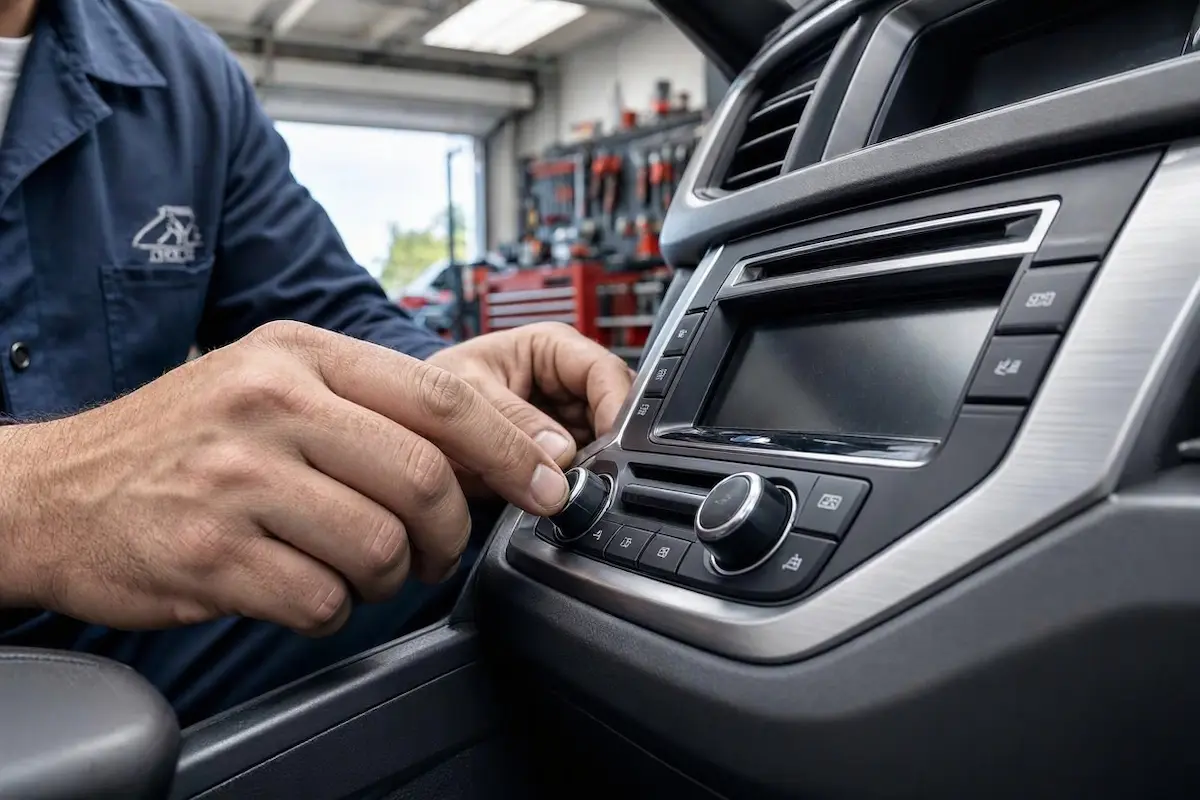
Fixing why your Ford Explorer Apple CarPlay keeps disconnecting doesn’t mean you have to surrender your weekends at a dealership service desk.
Clean your console ports, purge bloated pairing memory, and force a clean head unit reboot.
Work through these diagnostic steps systematically, and your dashboard display will stay rock-solid on every single trip.
Frequently Asked Questions
Why does Apple CarPlay disconnect every time I hit a bump in my Ford Explorer?
This is almost always caused by compacted lint inside your console USB port or a worn-out cable connector that loses electrical pin contact when vehicle vibration shakes the dashboard.
Do I need a special USB cable for Ford SYNC Apple CarPlay?
Yes. You must use an MFi-certified Lightning or USB-C cable. Generic charging-only cables lack the high-speed data transmission lines required to stream stable video projection.
How do I force restart my Ford Explorer touchscreen?
You can force restart the SYNC infotainment system by pressing and holding both the center audio Power button and the Right Seek button down for about 10 to 12 seconds until the Ford logo appears.