
How to Change Boot Logo in Android Car Stereo: 5 Proven Steps
Replace the boring default robot screen with your real car brand badge. Step-by-step guide on how to change boot logo in android car stereo using secret codes or USB.

Learning how to change boot logo in android car stereo units is the first customization you should do if you are tired of staring at a generic green robot or a cheap “Welcome” animation on your dashboard.
When you upgrade your car’s interior with a high-res touchscreen, you want the display to boot up with your vehicle’s genuine badge—whether that is Tata, Suzuki, Hyundai, Mahindra, Toyota, or Honda.
Most aftermarket head units already store dozens of official automotive emblems inside a protected engineering menu. If your exact car brand is missing from the list, you can load your own custom high-resolution graphic using a simple thumb drive.
Here is a complete workshop guide on how to change boot logo in android car stereo systems using factory passcodes and USB sideloading.
| System / Mainboard | Menu Path | Secret Passcode |
|---|---|---|
| XY Auto (MTK 8227L / 8163) | Car Settings → Factory Settings → Logo | 5678 or 1617 |
| Topway (TS7 / TS10 / TS18) | Settings → Factory → Logo Select | 123456 or 8888 |
| Allwinner (T3 / T3L / T5) | Car Settings → Extra Settings → Logo | 123456 or 3368 |
| UIS7862 / FYT Systems | Settings → Factory → Logo Set | 3368 or 000000 |
1. How to Change Boot Logo in Android Car Stereo via Factory Settings
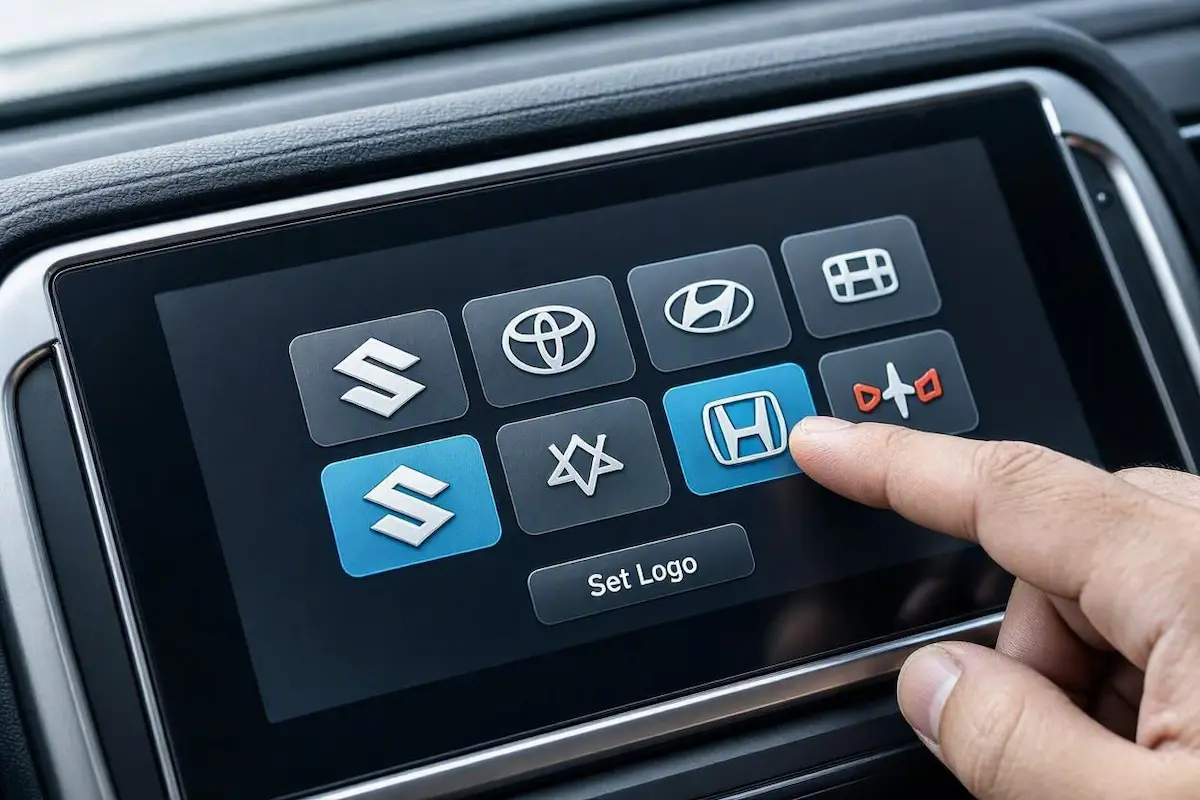
The fastest and safest approach for how to change boot logo in android car stereo setups is through the built-in library already stored in the system firmware:
- Switch your car ignition to the ACC position and let the Android stereo boot completely.
- Open the app drawer and tap on Car Settings (or Settings → Factory Settings).
- When prompted with a keypad, enter your platform’s master PIN:
- 5678 (Standard for XY Auto boards)
- 8888 or 1617
- 123456 or 000000
- 3368 or 7890
(If your unit rejects these, find your exact chipset passcode in our Android car stereo factory settings passwords list).
- Locate the menu option labeled Car Logo, Logo Setting, or Boot Logo Select.
- Scroll through the car brands, select your emblem, and hit Set Logo (or Confirm).
- Turn off the ignition, wait 10 seconds, and turn it back on to verify your new boot screen.
2. How to Change Boot Logo in Android Car Stereo via USB Flash Drive
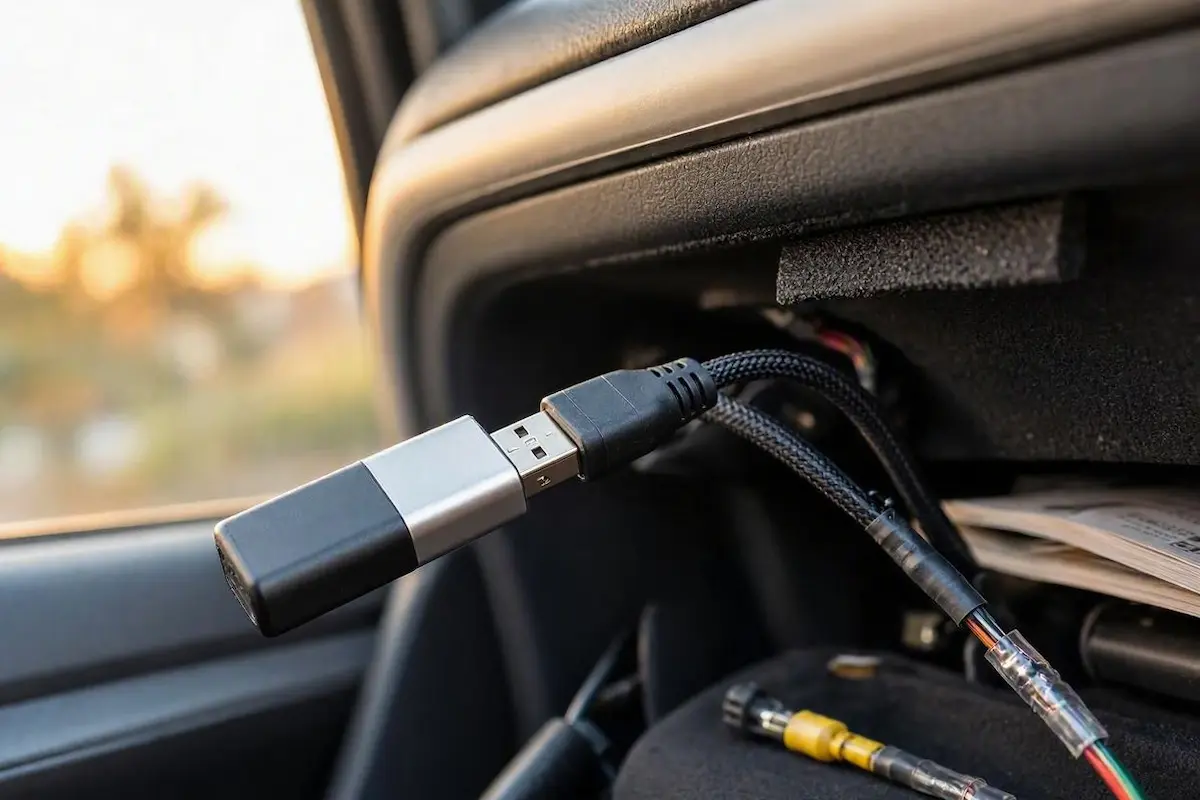
If you drive an older vehicle trim, want an aftermarket performance badge (like RS, N-Line, or AMG), or own a custom graphic, here is how to change boot logo in android car stereo storage using an external USB flash drive:
- Format Your File Correctly:
- Resize the image to your screen’s exact native resolution—either 1024×600 or 1280×720 pixels. Incorrect aspect ratios cause the bootloader to reject the file.
- Export the file strictly as an uncompressed 24-bit Windows Bitmap (.BMP). The preloader executes before the Android kernel mounts and cannot parse compressed JPG or PNG files.
- Name the file
mycar.bmporbootlogo.bmp.
- Prepare the Thumb Drive:
- Use an older USB 2.0 thumb drive (16GB or 32GB) formatted to FAT32 with a 4096-byte allocation unit size.
- Copy the
.bmpimage directly into the root directory (do not put it inside any folders).
- Import the Image:
- Plug the flash drive into the stereo’s primary 4-pin USB cable inside your glovebox.
- Navigate back to Settings → Factory Settings → Logo Setting and tap the “User” or “Import” tab.
- Tap your custom image file, confirm the prompt, and reboot the system.
Why Does the Startup Logo Keep Reverting to Default?
If your custom emblem disappears and resets back to the Android robot every morning, the problem is hardware wiring rather than software memory loss:
- Swapped Constant and ACC Power Leads: The Yellow wire (B+) provides uninterrupted 12V power to preserve system RAM, clock time, and custom settings. The Red wire (ACC) only tells the display to wake up. If an installer swapped these or bridged them together, the motherboard suffers a hard power cut on key-off, resetting your boot configuration. If you experience power cuts or dead batteries, read our guide on fixing car stereo battery drain.
- Sleep Mode Bypass: Modern head units enter a fast-boot sleep state when parked. On short stops, the screen turns on instantly from RAM and skips the boot screen entirely. The custom logo only appears during a cold start.
Frequently Asked Questions (FAQ)
Is learning how to change boot logo in android car stereo safe without bricking the unit?
Yes. Selecting a pre-loaded car emblem from the factory settings menu is 100% safe and cannot damage your operating system. When sideloading via USB, stick strictly to the 24-bit .BMP file format so the display driver reads the file cleanly.
Why does my custom boot logo display as a blank black screen?
This happens when the image resolution does not match your display panel or if the image was exported as a 32-bit BMP instead of a 24-bit BMP. Stick to native 1024×600 or 1280×720 dimensions with a 24-bit depth.
Can I use an animated GIF or MP4 video as a boot animation?
Yes, on higher-tier TS10, TS18, or UIS7862 chipsets. These require a compiled bootanimation.zip archive placed in the system media directory rather than a static bitmap image file.
[…] Want to replace the default startup animation with your vehicle’s badge? Check our guide on how to change boot logo in Android car stereo. […]
[…] कार स्क्रीन का स्टार्टअप लोगो बदलना चाहते हैं? हमारा पूरा गाइड देखें: how to change boot logo in Android car stereo. […]