
Reverse Camera Guidelines Not Moving: 4 Best Proven Ways to Fix Steering Lines
Fix frozen dynamic trajectory parking lines on Android car stereos by recalibrating CAN Bus steering angle sensors, matching decoder baud rates, and toggling guideline settings.

Shifting into reverse only to discover your reverse camera guidelines not moving when turning the steering wheel eliminates dynamic trajectory assistance during tight parking maneuvers.
The camera feed displays clearly on your dashboard touchscreen, but the parking grid remains completely static regardless of steering input.
In professional workshop diagnostics, a sudden reverse camera guidelines not moving failure rarely indicates a broken camera lens or damaged video cable.
Dynamic guidelines do not originate from the physical camera lens itself.
Instead, they are drawn electronically by the head unit using Steering Angle Sensor (SAS) data packets broadcast over the vehicle CAN Bus network.
When the CAN decoder protocol profile is misconfigured or steering calibration data desynchronizes, the system produces an unyielding reverse camera guidelines not moving fault.
Before disassembling trunk tailgate trim or replacing aftermarket cameras, bench isolation will pinpoint the exact CAN protocol breakdown in under ten minutes.
Here are four practical workshop procedures to troubleshoot why a reverse camera guidelines not moving error occurs and restore responsive steering angle trajectory.
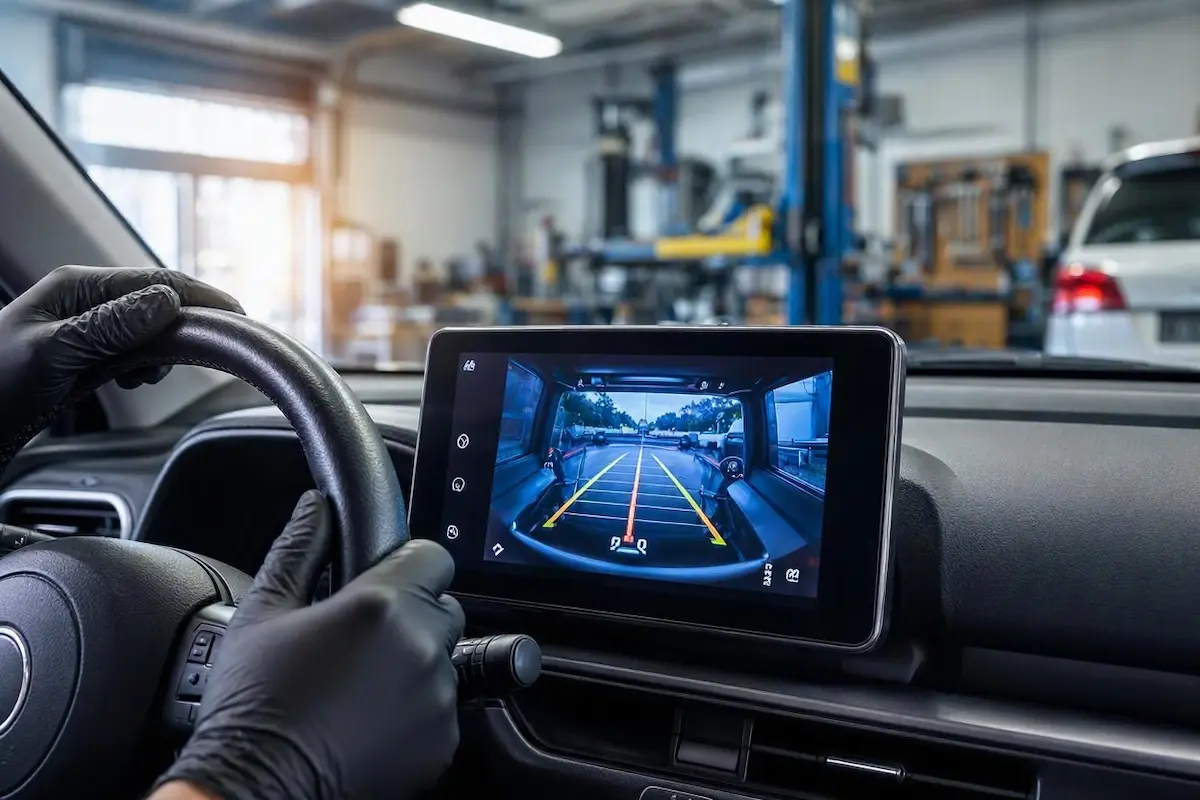
Diagnostic Matrix: Why Parking Guidelines Stay Frozen
Cross-reference your head unit’s video feed and steering behavior against our workshop diagnostic matrix whenever a reverse camera guidelines not moving condition affects your vehicle:
| Observed Display Symptom | Underlying Hardware or Software Cause | Immediate Workshop Action |
|---|---|---|
| Camera displays video, but lines remain dead straight | Steering Angle Sensor (SAS) telemetry not decoding through CAN Bus box. | Re-match CAN Bus decoder box brand and vehicle trim in factory settings. |
| Two overlapping sets of parking lines appear on screen | Hardware camera built-in grid clashing with head unit software grid. | Cut the camera white/green loop wire to disable static sensor lines. |
| Guidelines move in reverse direction to steering wheel | Trajectory polarity inverted within head unit reversing parameters. | Toggle “Trajectory Polarity” or “Rudder Direction” in reverse menu. |
| Trajectory lines glitch or freeze midway through turn | CAN Bus high/low baud rate mismatch or loose OBD2 TX/RX serial tap. | Inspect CAN-H and CAN-L twisted pair pins behind radio harness. |
| Guidelines disappear completely after firmware update | Reverse trajectory overlay disabled inside factory settings toggle. | Enable “Backcar Track” or “Dynamic Trajectory” in engineering menu. |
Step 1: Re-match CAN Bus Decoder Brand and Vehicle Model Profile
Aftermarket Android head units utilize an external decoder box (such as Raise, Hiworld, Simple Soft, or Bagoo) to interpret vehicle data streams.
If the head unit firmware defaults to a generic protocol profile, it fails to read vehicle steering rack angle packets, directly causing a reverse camera guidelines not moving lockout on your screen.
Matching the exact decoder firmware restores real-time steering telemetry:
- Access your car stereo’s Car Settings or Factory Settings menu.
- Input your hardware manufacturer’s factory PIN code. If you require access codes, reference our master list of Android car stereo factory settings passwords.
- Navigate to the CAN Bus / Protocol Settings section.
- Identify the physical brand printed on your plastic decoder box behind the radio (e.g., Raise, XP, or Hiworld).
- Select your exact vehicle make, chassis model, and manufacturing year from the drop-down list.
- Save configuration parameters and allow the head unit to perform a cold system reboot.
For official automotive networking standards, review the SAE Vehicle Network Architecture Specifications.
RELATED REVERSE SYSTEM FIX
👉 Screen not switching to reverse camera automatically when shifting gear? Workshop trigger wire fix →
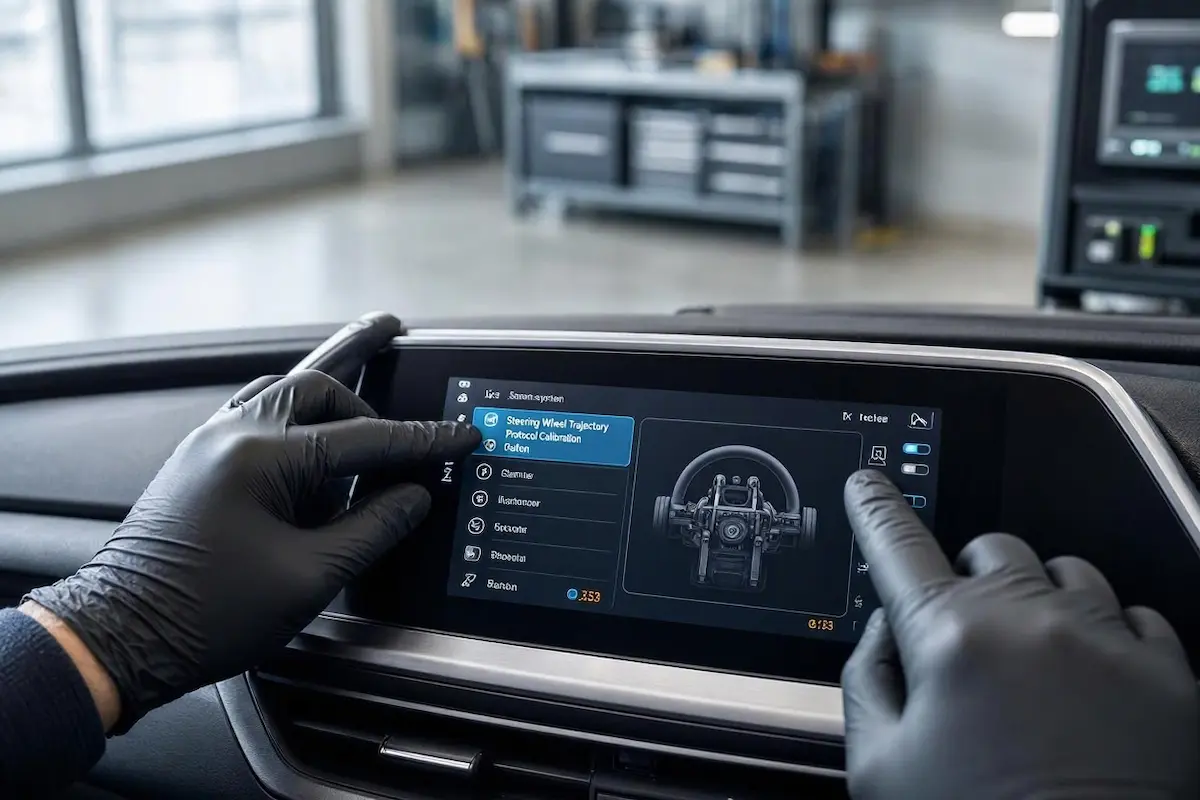
Step 2: Recalibrate Steering Wheel Angle Sensor Endpoints
Vehicle Steering Angle Sensors track the absolute center position of your steering wheel in relation to wheel hub speed sensors.
Disconnecting vehicle battery leads or installing a new car battery wipes steering zero-point calibration, causing a persistent reverse camera guidelines not moving state.
Without baseline endpoint limits, the radio processor refuses to sweep dynamic trajectory lines across the display:
- Park the vehicle on smooth, flat level ground and start the engine.
- Turn the steering wheel smoothly all the way to the full left lock until it stops, holding it for two seconds.
- Turn the steering wheel smoothly all the way to the full right lock, holding it for two seconds.
- Return the steering wheel directly back to dead center.
- Shift into Reverse; cycling end-stops forces the vehicle ECU to broadcast verified steering rack angles to the CAN decoder box.
Step 3: Eliminate Conflicting Camera Hardware Parking Lines
Many aftermarket backup cameras feature an internal microchip that hardcodes static grid lines directly onto the analog video output.
When this static grid overlaps with the Android head unit’s dynamic rendering engine, lines appear frozen or visually garbled.
This optical overlap is frequently mistaken for a technical reverse camera guidelines not moving failure when the software grid is actually hidden behind hardware lines:
- Inspect the camera wiring tail located inside the rear trunk lid or behind the license plate frame.
- Locate the tiny paired loop wires extending from the camera cable (typically thin white, green, or blue loops).
- Cutting the Static Grid Loop: Cutting the specified loop (usually the white or green wire) disables the camera’s built-in static overlay. Review your camera pinout card before cutting.
- Insulate cut wire ends with heat shrink tubing to prevent electrical chassis ground shorts.
- With hardware static lines removed, the head unit can cleanly project moving software guidelines.
⚠️ CAN Bus Wire Caution: Never probe the twisted green (CAN-High) and green/black (CAN-Low) serial wires with a standard 12-volt incandescent test light. Use high-impedance digital multimeters or an oscilloscope to prevent triggering vehicle airbag and ABS fault codes.
RELATED REVERSE SYSTEM FIX
👉 Backup camera screen showing black screen or “No Signal”? Complete workshop video line fix →
Step 4: Verify CAN-High and CAN-Low Physical Serial Harness
Dynamic guidelines require continuous communication across the vehicle controller area network.
If the CAN-H or CAN-L pins in your primary wiring harness suffer from terminal pin push-out, steering data never reaches the radio, resulting in a persistent reverse camera guidelines not moving alert:
- Unmount the car stereo trim to inspect the rear wiring loom. Reference our workshop guide on connecting factory wiring harnesses to Android units.
- Locate the tightly twisted pair of wires running into the multi-pin CAN decoder plug.
- Ensure pins are fully seated in the locking connector and have not backed out during dashboard installation.
- Turn the ignition to ON and measure voltage across CAN-High (should read ~2.5V to 3.5V) and CAN-Low (should read ~1.5V to 2.5V) using a digital multimeter.
- If voltages are missing or flatlined, inspect your steering wheel control harness by reviewing our guide on steering wheel controls not working.
RELATED PROTOCOL GUIDE
👉 Setting up a new Android head unit? Complete guide to configuring CAN Bus decoder protocols →
Resolving an unresponsive reverse camera guidelines not moving issue requires restoring communication between the vehicle steering angle sensor and the head unit.
Matching your decoder brand in factory settings, cycling steering locks to calibrate center zero-points, and verifying clean CAN data bus wiring restores dynamic parking guidelines fast.
Follow these procedures whenever a reverse camera guidelines not moving error leaves your dashboard trajectory grid locked in place.
Frequently Asked Questions (FAQ)
Why are my reverse camera guidelines not moving?
Your reverse camera guidelines not moving issue usually happens when the head unit CAN Bus decoder is not receiving Steering Angle Sensor (SAS) data packets from the vehicle computer, or when the camera displays a static hardware grid.
Do all backup cameras have moving guidelines?
No. Standard standalone cameras only output a static grid. Dynamic moving lines require a vehicle equipped with a factory Steering Angle Sensor and an Android head unit connected to a compatible CAN Bus decoder box.
How do you calibrate moving guidelines on an Android car stereo?
Turn the vehicle engine on, steer the wheel fully to the left lock for two seconds, steer fully to the right lock for two seconds, and return to center. Ensure the correct CAN Bus box brand is selected in factory settings to stop reverse camera guidelines not moving errors.