
CarPlay Audio Delay: 5 Best Proven Ways to Fix Lag
Learn how to fix a carplay audio delay on wireless adapters and factory infotainment systems by adjusting Wi-Fi buffer sizes, sample rates, and Bluetooth handshakes.

Experiencing an annoying carplay audio delay turns clean cabin entertainment into a frustrating out-of-sync mess during phone calls, navigation prompts, and video streaming.
You press skip or pause on your steering wheel controls, and your vehicle takes one to three full seconds before reacting.
In professional 12-volt workshop diagnostics, this audio latency rarely stems from a damaged head unit amplifier or defective dashboard touchscreen.
Over 90% of chronic latency issues trace back to wireless Wi-Fi buffer bloat, mismatched audio sampling rates, or competing Bluetooth audio streaming profiles.
Apple CarPlay uses dedicated network packets to transmit uncompressed audio. When wireless adapters or factory infotainment modules introduce excessive buffer caching to prevent audio stutter, they create a noticeable carplay audio delay.
Before unmounting trim panels or booking expensive dealer diagnostics, running through a methodical bench isolation test will isolate the latency root cause in under ten minutes.
Here are five practical workshop procedures to troubleshoot a persistent carplay audio delay and restore immediate, responsive playback.
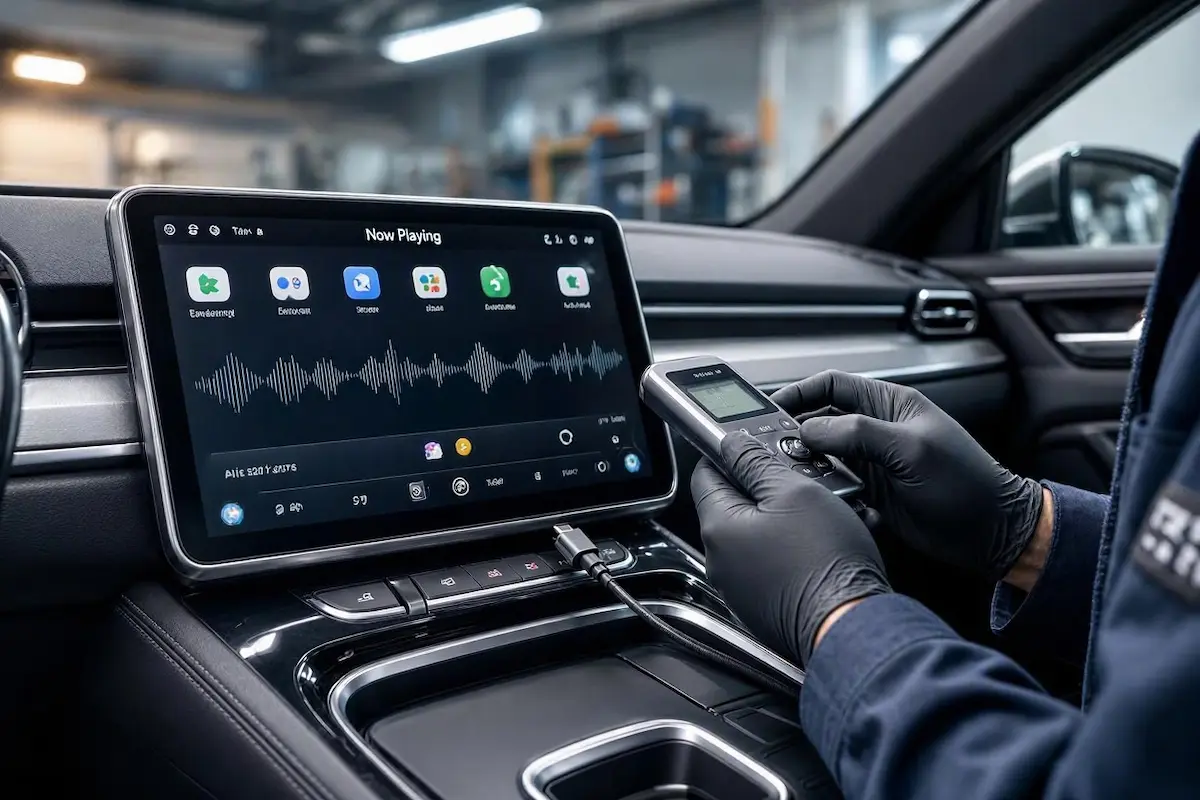
Diagnostic Matrix: Why CarPlay Audio Delay Happens
Cross-reference your infotainment system’s audio playback behavior against our workshop diagnostic matrix whenever an unexpected carplay audio delay disrupts your driving:
| Observed Latency Behavior | Underlying Hardware or Software Cause | Immediate Workshop Action |
|---|---|---|
| 1-2 second lag on steering wheel track skip | Excessive media audio buffer size configured inside wireless adapter. | Access adapter backend settings and lower audio delay to 300ms–500ms. |
| Audio falls out of sync during video playback | Apple CarPlay design architecture prioritizing navigation synchronization. | Switch to a wired high-speed USB connection or bypass adapter caching. |
| Phone calls echo or show severe conversational lag | Simultaneous active Bluetooth profile competing with CarPlay Wi-Fi channel. | Delete factory vehicle Bluetooth profile from iPhone paired devices. |
| Intermittent audio micro-stuttering and pitch drop | 2.4 GHz Wi-Fi band congestion from vehicle dash cams or hotpots. | Force wireless CarPlay adapter Wi-Fi transmission to clean 5.8 GHz band. |
| Audio delay gets progressively worse during long trips | Infotainment RAM cache exhaustion and background thermal throttling. | Perform an infotainment hard reboot and clear background navigation apps. |
Step 1: Reduce Wireless Adapter Audio Buffer in Backend Settings
If you use an aftermarket wireless adapter (such as Carlinkit, Ottocast, or generic dongles), the device firmware incorporates a built-in media buffer.
Manufacturers deliberately set this buffer between 1000ms and 2000ms out of the box to prevent audio dropouts on weak Wi-Fi links.
This conservative factory buffer is the number one cause of a severe carplay audio delay on steering wheel controls and media switching:
- Ensure your iPhone is connected to your wireless CarPlay adapter inside the vehicle.
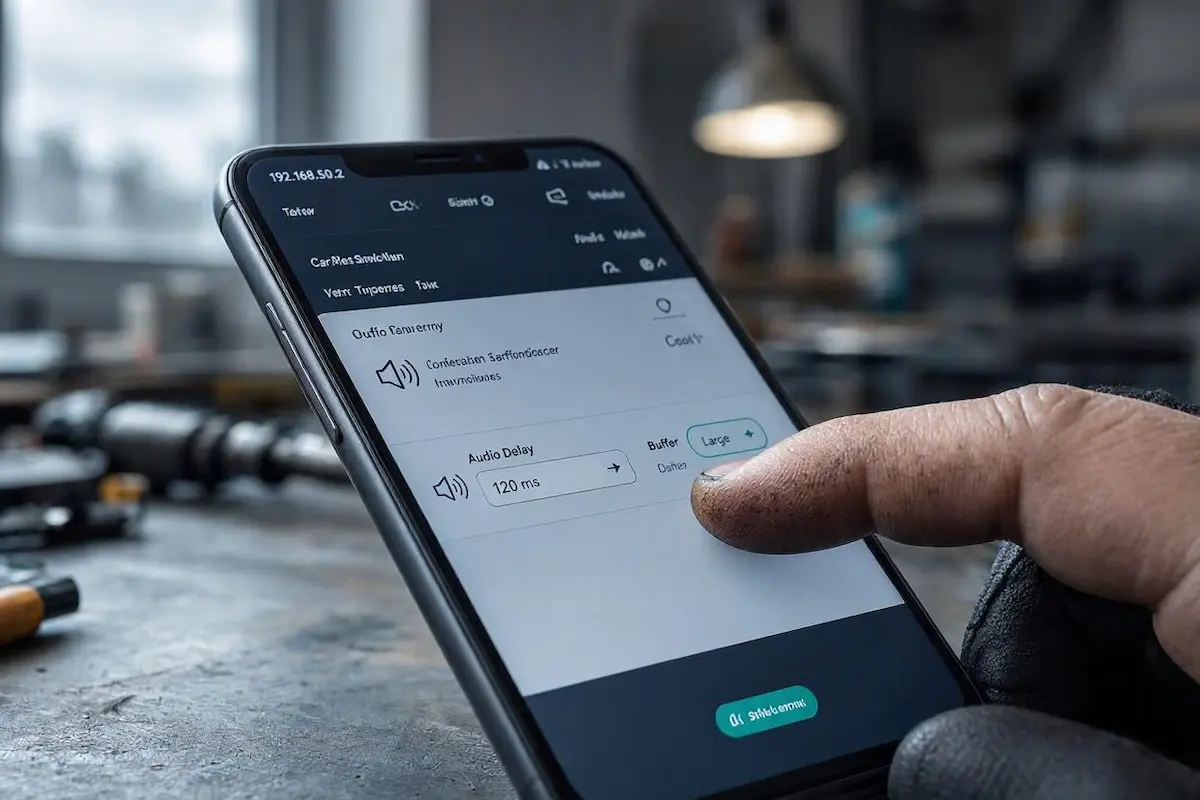
- Open the Safari mobile browser on your iPhone and type the adapter’s gateway IP address into the search bar (commonly
192.168.50.2or192.168.1.101). - Locate the setting labeled “Audio Delay”, “Media Delay”, or “Buffer Size”.
- Lower the value from the default 1000ms down to 300ms or 500ms.
- Locate the “Frame Rate” or “Audio Quality” setting and toggle it to CD Quality (44.1 kHz) or DVD mode depending on your head unit’s DAC capability.
- Save configuration changes and let the dongle perform an automated reboot.
For more detailed technical guidelines on vehicle wireless stacks, consult the official Apple CarPlay Architecture Documentation.
RELATED TROUBLESHOOTING GUIDE
Step 2: Unpair Competing Factory Vehicle Bluetooth Profiles
When you start your car, your iPhone frequently connects to two wireless paths at the same time: the factory car stereo Bluetooth and the CarPlay Wi-Fi network.
This dual connection forces iOS to constantly negotiate audio routing, introducing serious packet jitter and a frustrating carplay audio delay during calls and media playback:
- On your iPhone, navigate to Settings > Bluetooth.
- Locate your car’s native hands-free system under “My Devices” (not the CarPlay adapter name).
- Tap the blue “i” (Info) icon next to the factory car connection.
- Tap “Forget This Device” to remove conflicting hands-free audio links.
- CarPlay handles all high-definition phone call audio and media playback directly over its encrypted Wi-Fi channel, making the car’s native Bluetooth connection unnecessary.
Step 3: Force Wireless Transmission to Clean 5.8 GHz Band
Most modern wireless CarPlay adapters support dual-band Wi-Fi (2.4 GHz and 5.8 GHz).
The 2.4 GHz band is crowded with interference from dashboard dash cams, keyless entry transmitters, and tire pressure sensors.
Switching your adapter to an exclusive 5.8 GHz frequency maximizes packet bandwidth and eliminates micro-stuttering that compounds a carplay audio delay:
- Access your adapter management web page in your mobile browser (
192.168.50.2). - Navigate to Wi-Fi Settings or Advanced System Config.
- Change the Wi-Fi Frequency Band from “Auto” or “2.4G” directly to “5.8G” (or 5 GHz Band 4, Channel 149/153).
- Reboot the adapter, reconnect your iPhone Wi-Fi, and verify low-latency audio transmission.
⚠️ Workshop Precaution: Setting your audio buffer value below 200ms can cause severe audio stuttering or robotic voice distortion on vehicles with unshielded alternators or weak dashboard Wi-Fi antennas. Maintain an optimal 300ms–500ms balance between speed and audio stability.
RELATED TROUBLESHOOTING GUIDE
👉 Facing screen casting issues on TLink? Complete guide to fixing TLink projection failures →
Step 4: Isolate Wired USB Latency vs Wireless Wi-Fi Lag
To definitively determine whether your carplay audio delay originates from your car’s internal audio DSP or external wireless compression, conduct a direct wired test:
- Disconnect the wireless adapter completely from the vehicle.
- Plug your iPhone directly into the primary dashboard CarPlay USB port using an original Apple OEM Lightning or USB-C cable.
- Test a track skip command using steering wheel controls.
- Analyzing the Wired Result: If the wired response is immediate (under 200ms), your factory head unit is operating normally, confirming the delay is caused exclusively by wireless adapter caching. If the delay persists even over a wired cable, your car’s infotainment firmware requires an official dealer update to clear internal DSP buffer bloat.
RELATED TROUBLESHOOTING GUIDE
👉 Trouble with USB data cables? Complete guide to wiring harnesses and 4-pin data leads →
Step 5: Perform a Hard Infotainment Reset to Clear Cached Audio Queues
Automotive infotainment computers keep audio processes suspended in standby RAM over hundreds of ignition cycles without performing a genuine cold reboot.
Over time, audio buffer queues desynchronize, causing an expanding carplay audio delay that worsens during extended commutes:
- Factory Infotainment Hard Reset: Press and hold down the physical Volume Power knob on your dashboard for 10 to 15 seconds until the screen goes completely black and displays the boot logo.
- Reset iPhone Network Settings: On your phone, go to Settings > General > Transfer or Reset iPhone > Reset > Reset Network Settings. This flushes corrupt Wi-Fi handshakes and stale Bluetooth caches.
- Review our workshop guide on diagnosing car stereo battery drain to ensure your head unit cuts accessory power properly on vehicle shutdown.
Overcoming an irritating carplay audio delay does not require replacing your dashboard hardware or ditching wireless integration.
Lowering the wireless dongle buffer threshold, unpairing competing vehicle Bluetooth connections, and utilizing clean 5.8 GHz Wi-Fi channels permanently eliminates audio lag and restores responsive cabin sound.
Follow these steps whenever a carplay audio delay ruins your music playback or navigation calls.
Frequently Asked Questions (FAQ)
Why is there a 2-second audio delay on wireless CarPlay?
Wireless CarPlay transmits audio over a local Wi-Fi link. Wireless dongles and car manufacturers introduce a 1-to-2-second buffer cache to prevent audio stuttering caused by electrical interference, which creates noticeable latency during track skipping.
Can you fix audio lag on wireless CarPlay adapters?
Yes. You can log into your wireless adapter’s backend web interface (typically at 192.168.50.2 via Safari) and lower the audio delay or media buffer setting from 1000ms down to 300ms–500ms.
Why is YouTube or video audio out of sync on CarPlay?
Apple designs CarPlay strictly for automotive audio and navigation, not video streaming. Video apps feed video frames immediately while the CarPlay Wi-Fi network buffers the audio stream, causing a permanent out-of-sync playback experience.