
Fix Zlink Not Connecting on Android Car Stereo: 5 Proven Steps (100% Working)
Touchscreen frozen on "Waiting for Device" or spinning endlessly? Learn how to clear ZLink cache safely without losing licensing keys, force 5 GHz Wi-Fi frequencies, and rebuild Bluetooth projection handshakes.

Facing an aftermarket car stereo connection glitch right when you step into your vehicle can ruin the drive before it even begins.
Whether your touchscreen sits on an endless spinning wheel or you are dealing with zlink not connecting to your smartphone, this headache is almost always software-related rather than a permanent hardware failure.
Wireless phone projection relies on a tight, synchronized handshake between Bluetooth and a local ad-hoc Wi-Fi Direct network. When that handoff trips up due to zlink not connecting properly, the projection stream hangs indefinitely.
If your wireless phone projection refuses to launch, work through these field-tested workshop diagnostic steps to fix your connection glitch and get your dashboard mirroring smoothly.
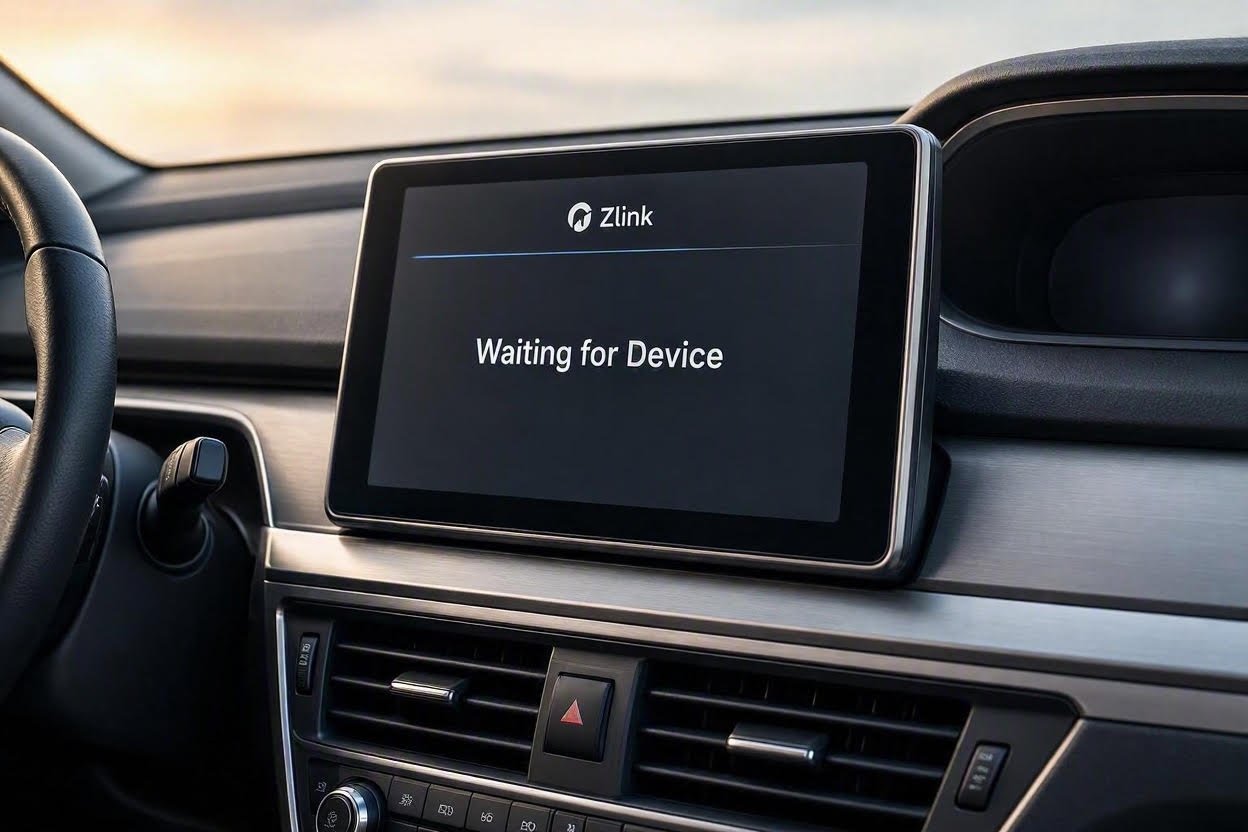
Zlink Not Connecting: Quick Diagnostic Matrix
Before pulling dashboard panels, match your screen symptom below if you are facing persistent zlink not connecting errors:
| Display Symptom | Underlying Root Cause | Immediate Workshop Fix |
|---|---|---|
| “Waiting for Device” Loop | Bluetooth security authentication dropped. | Wipe paired registry on both devices; pair cleanly from car screen. |
| Spinning Circle / App Freeze | Corrupted temporary session tokens. | Force Stop app & wipe Zlink cache in Android Settings. |
| Random Disconnects While Driving | 2.4 GHz channel congestion & radar interference. | Switch stereo hotspot broadcast strictly to 5 GHz in Factory Menu. |
| Wired USB Not Recognized | Harness port locked in Charge-Only mode. | Toggle Default USB Configuration to File Transfer / Android Auto. |
| CarPlay Blank / Not Launching | iOS Siri disabled or USB accessories restricted. | Enable “Allow Siri When Locked” & toggle USB Accessories to ON. |
Step 1: Clear Application Cache & Reset Zlink Handshake
When Zlink, Zlink5, or SpeedPlay displays an indefinite spinning circle without pushing video, corrupted session tokens are the main trigger behind zlink not connecting states.
⚠ Crucial Workshop Warning: Tap Clear Cache only. Do NOT press “Clear Data” or “Wipe Storage” unless your car stereo is actively tethered to a live Wi-Fi hotspot. Wiping app data clears Zlink’s offline cryptographic activation key, locking you out until it re-authenticates with the overseas licensing server.
Follow these steps to safely reset the background projection service:
- On your Android head unit, open the native Settings app (do not use the car launcher skin).
- Navigate to Apps & Notifications (or App Manager → All Apps).
- Scroll through the system directory and select Zlink (or Zlink5 / SpeedPlay).
- Tap Force Stop to terminate hung background threads.
- Tap Storage & Cache, then select Clear Cache.
- Reboot your head unit using the top status notification bar pull-down, and perform a full power cycle on your smartphone.
Step 2: Resolve Bluetooth Handshake & Pairing Lockouts
Bluetooth handles the initial 10-second authentication handshake before commanding your handset to switch over to local Wi-Fi.
If this initial protocol fails, it results in sync issues and a recurring zlink not connecting loop during startup.
RELATED TROUBLESHOOTING GUIDE
Fixing Bluetooth Intermittent Errors
If your phone profile becomes desynchronized from the stereo’s internal hardware dialer, execute a clean Bluetooth rebuild:
- On your smartphone, open Settings → Bluetooth, locate your car stereo name (such as CarBT, Topway, or GOCSDK), and tap Unpair / Forget Device.
- On the car head unit, launch the native Bluetooth Phone app, open the Paired Device History, and delete all registered entries.
- Toggle Bluetooth OFF and ON on both devices.
- Initiate pairing from the car stereo display by scanning for your phone, rather than searching from your phone screen.
- Grant all requested permissions on your phone immediately (Contacts, Calling, and Nearby Devices).
Troubleshooting the “Waiting for Device” Loop
When the screen indefinitely displays “Waiting for Device”, the stereo is waiting for your phone to establish the background Wi-Fi tunnel. A persistent connection failure during this step indicates an IP assignment timeout.
Never manually connect to the car stereo’s Wi-Fi hotspot inside your phone settings. Zlink provisions and negotiates this private hotspot password automatically via Bluetooth. Manual connections prevent the app from establishing the encrypted video pipeline.
Step 3: Force Stereo Hotspot Frequency to 5 GHz Band
Budget Android head units (particularly those powered by Allwinner T3, T5, or UIS/FYT TS10/TS18 boards) default their local Wi-Fi broadcast to the congested 2.4 GHz channel.
Highway toll sensors, dashcams, and mobile hotspots easily disrupt 2.4 GHz frequencies, causing packet loss and frequent wireless dropouts while driving.
- Open Car Settings or navigate to the Factory Settings menu.
- Enter your master administrator code (refer to our updated directory of Android car stereo factory settings passwords if prompted).
- Locate Wireless Settings, Hotspot Settings, or AP Band.
- Change the broadcast frequency strictly from 2.4 GHz to 5.0 GHz (or 5.8 GHz).
- Save your configuration and let the unit reboot to initialize the high-speed channel.
RELATED TROUBLESHOOTING GUIDE
Step 4: Platform-Specific Connection Protocol Adjustments
Operating system permission policies often block third-party aftermarket screens from accessing screen projection drivers.
Android Auto Troubleshooting (USB & Wireless)
If your phone connects via Bluetooth but projection fails over a USB tether:
- Unlock USB Transfer Mode: Enable Developer Options on your smartphone (open Settings → About Phone and tap Build Number 7 times). Under Google Android Auto developer settings, change Default USB Configuration from Charging Only to File Transfer / Android Auto.
- Verify Rear Harness Ports: Aftermarket units feature two distinct USB leads: a 4-pin OTG lead and a 6-pin storage lead. Ensure your phone connects to the 4-pin OTG lead, as the secondary port only reads flash drives.
- Dual Apps Clash: Disable dual WhatsApp or parallel work profiles on your phone, as duplicate app sandboxes block projection protocols.
Apple CarPlay Troubleshooting (iOS Security Locks)
Apple iOS restricts data access across external car adapters unless explicit permissions are toggled. To prevent connection lockouts on iPhones:
- Siri Access: Open Settings → Siri & Search. Verify that “Press Side Button for Siri” and “Allow Siri When Locked” are both turned ON. CarPlay will refuse to launch if Siri is disabled.
- Allow Accessories: Open Settings → Face ID & Passcode, scroll down, and set USB Accessories to ON to prevent iOS from locking communication after one hour of idle time.
- Charging Without Mirroring: If your iPhone receives power but fails to launch projection, consult our dedicated guide on why CarPlay only charges phone without establishing a data connection.
- External Dongles: If you use an external plug-in USB dongle rather than internal Zlink firmware, review our troubleshooting steps for Carlinkit adapter disconnection issues.
Step 5: Verify Cloud License Activation Status
If your vehicle battery was recently replaced, discharged, or if the unit underwent an MCU flash, projection software may drop its digital license token, resulting in constant activation errors upon boot:
- Turn on your phone’s personal Wi-Fi hotspot and connect your car stereo to it so the head unit has active internet access.
- Launch the Zlink app on the car display.
- Tap the Settings (Gear) icon or locate the About screen.
- Examine the bottom status line. If it reads “Not Activated”, leave the head unit connected to hotspot data for 2 to 3 minutes while it contacts the activation server to restore its operational certificate.
Troubleshooting aftermarket connection faults comes down to establishing a clean Bluetooth handshake and clearing congested Wi-Fi channels.
In more than 90% of our workshop cases, pairing cleanly from the car screen, enforcing a 5 GHz hotspot frequency, and ensuring your phone’s USB mode is set to File Transfer solves any zlink not connecting loop permanently.
Frequently Asked Questions (FAQ)
Why is Bluetooth not working properly when I start my vehicle?
This typically occurs due to pairing priority conflicts when a secondary passenger device connects first, or when the head unit’s Bluetooth stack desynchronizes. Wiping old registered profiles from the stereo dialer and pairing freshly restores clean priority handshakes.
How do I resolve a persistent “Waiting for Device” freeze?
Force stop the Zlink application inside Android Apps settings, toggle Wi-Fi and Bluetooth on your phone, and ensure the wired connection uses the primary 4-pin OTG port behind the dashboard rather than the secondary media storage lead.
Why is wireless Android Auto failing to connect?
Wireless Android Auto requires a clear 5 GHz Wi-Fi Direct frequency. If your head unit is locked to congested 2.4 GHz channels, or if your phone runs active VPN tunnels or clone applications (Dual Apps), the handshake cannot complete.
Why does CarPlay fail to mirror on my iPhone?
CarPlay requires active Siri voice assistant privileges and unrestricted USB access. Enabling “Allow Siri When Locked” and turning ON “USB Accessories” inside iOS Face ID settings resolves the majority of screen projection lockouts.
[…] Zlink Activation & USB Mode: Having persistent handshake errors? Read our walkthrough on fixing Zlink Waiting for Device errors. […]
[…] Zlink Activation & USB Mode: अगर Zlink ऐप डिवाइस ढूंढने में अटका है, तो USB प्रोटोकॉल को रीसेट करें। पढ़ें: Zlink Waiting for Device एरर का समाधान। […]
[…] Find Zlink (if your app is frozen, consult our guide to fix Zlink not connecting on Android car stereo). […]
[…] English […]