
Ottocast Keeps Disconnecting? 5 Tested Fixes (CarPlay/Auto)
Fix Ottocast wireless adapter disconnections, reboots, and CarPlay freezes with 5 tested bench solutions.

Diagnosing an issue where your ottocast keeps disconnecting every ten to fifteen minutes or reboots whenever the vehicle hits rough road surfaces exposes an electrical power or frequency conflict rather than a broken dongle.
In our workshop bench testing across customer vehicles, intermittent dropouts are rarely caused by defective hardware components.
The failure almost always comes down to two electrical realities: factory automotive USB bus voltage brownouts or dynamic Wi-Fi frequency channel preemption.
Ottocast wireless adapters—including the U2-Air, Play2Video, and PICASOU AI Box series—run multi-core ARM processors to decode and compress real-time 60fps CarPlay and Android Auto video frames.
When processing heavy navigation graphics, current draw surges past 800mA.
If the vehicle’s factory USB port only provides a baseline 500mA, supply voltage sags below 4.75V, triggering an automatic watchdog reboot.
Before modifying smartphone operating system settings or assuming internal hardware failure, reading the adapter’s diagnostic status LED isolates the communication bottleneck in seconds.
Here are five practical workshop steps to resolve why an ottocast keeps disconnecting and lock in a permanent, rock-solid connection.
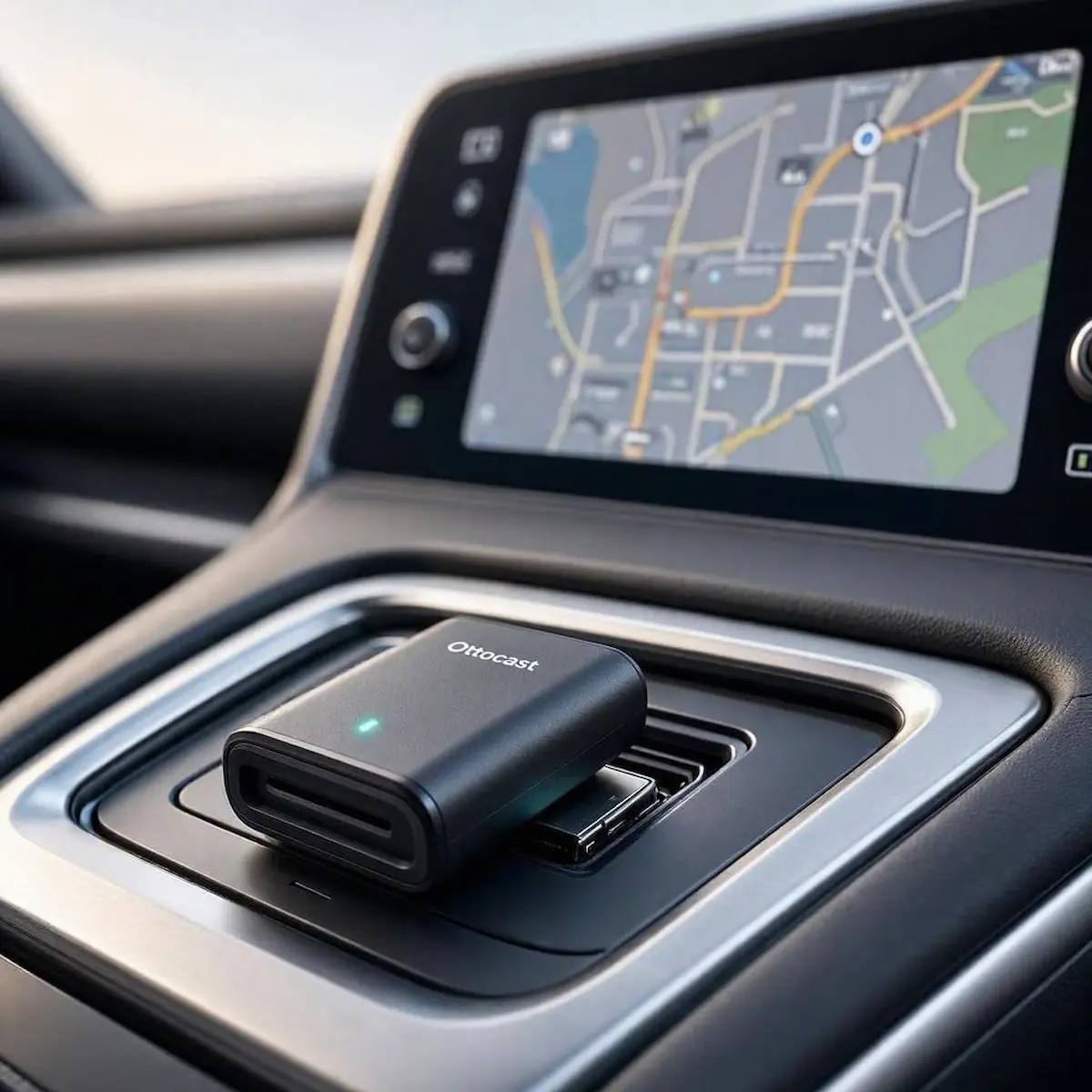
Diagnostic Matrix: Why Your Ottocast Keeps Disconnecting
The multi-color status LED on your Ottocast unit delivers real-time hardware telemetry. Match your adapter’s light pattern against our workshop matrix to isolate why your ottocast keeps disconnecting before changing network values:
| Observed LED Pattern | Hardware Operational State | Immediate Workshop Action |
|---|---|---|
| Solid Red Light | Powered ON, but idling (No phone handshake detected). | Verify smartphone Bluetooth is enabled; remove stale vehicle profiles. |
| Blinking Green or Blue | Attempting peer-to-peer Wi-Fi network handshake. | Wait 15 seconds; if persistent, toggle smartphone Airplane mode. |
| Solid Green or Blue | Normal projection session actively transmitting. | Normal operation. If screen stays black, inspect head unit USB input source. |
| Rapid Flashing Red / Blue | Firmware update flashing or MCU recovery mode active. | Do NOT unplug adapter; allow 3 to 5 minutes to finalize flash cycle. |
| No Light / Completely Dark | Total loss of 5V DC electrical power at the USB port. | Check vehicle multimedia fuse, test with a 10Gbps cable, or test on bench power. |
Step 1: Lock Wi-Fi to Channel 36 and Configure Boot Delay
By default, Ottocast firmware utilizes dynamic channel hopping across the 5GHz spectrum.
Radio frequency congestion from municipal radar towers or highway toll scanners is the primary reason an ottocast keeps disconnecting near toll plazas or airport perimeters.
Logging into the adapter’s internal web server allows you to lock transmission to clean, non-DFS channels and give the vehicle head unit adequate time to initialize:
- Plug the adapter into your vehicle’s multimedia data USB port and switch the ignition to ON / RUN.
- On your smartphone, open Wi-Fi settings and connect directly to the Ottocast network (default network password is
88888888). - Open Safari or Chrome on your phone and navigate to IP address:
http://192.168.1.101(or192.168.50.2on earlier board revisions). - Scroll down to Wi-Fi Settings:
- Ensure the frequency band is set to 5.0 GHz / 5.8 GHz rather than 2.4 GHz.
- Switch the channel setting from Auto to Channel 36 or Channel 149 to avoid Dynamic Frequency Selection (DFS) radar preemption.
- Locate the setting labeled Start Delay (or Boot Delay) and change the timer from 0 up to 8 or 10 seconds. This delay prevents the dongle from sending initialization packets before the car head unit’s internal USB host controller has finished booting.
- Tap Submit / Save and allow the unit to reboot completely.
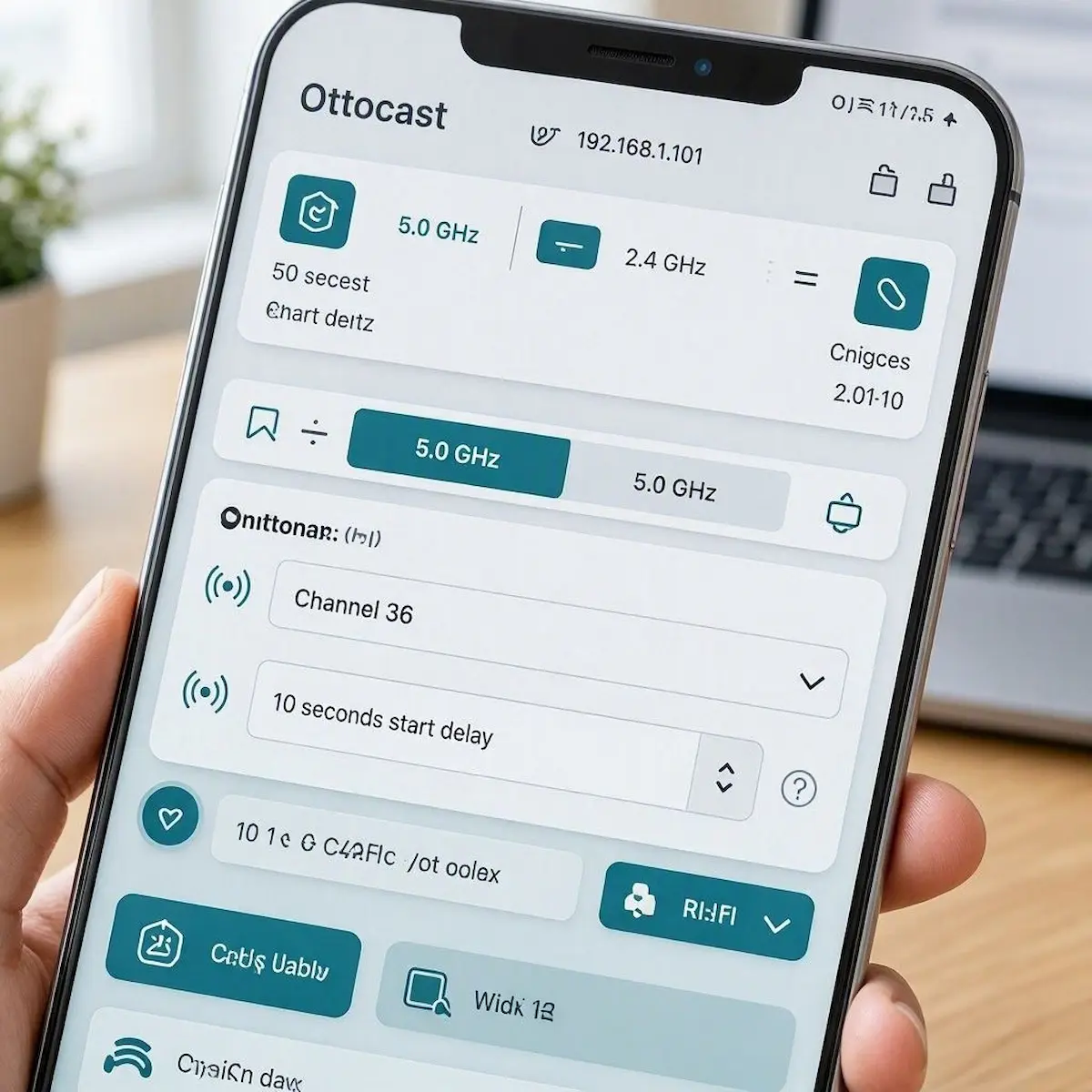
Assigning a static frequency completely eliminates RF dropouts, curing symptoms where an ottocast keeps disconnecting during highway toll booth passes.
RELATED TROUBLESHOOTING GUIDE
👉 Hearing a 2-second lag in your music or navigation voice? How to fix wireless CarPlay audio delay →
Step 2: Prevent USB Voltage Brownouts with an Auxiliary Splitter
Automotive USB ports in many European vehicles (Volkswagen, Audi, BMW) and older domestic models were engineered to read flash memory drives, delivering only 500mA (2.5 Watts) of power.
Insufficient electrical current is the leading electrical reason why an ottocast keeps disconnecting under heavy route navigation.
When the adapter’s CPU throttles up to render complex 3D map tiles, the voltage rail dips below 4.75V.
This power dip forces the processor into an emergency undervoltage reset, cutting your center screen feed:
- Eliminate Dashboard Extension Cables: Unpowered USB splitters or long armrest extension cords add high resistance. Connect the adapter directly to the primary media port.
- Deploy a USB-Y Power Splitter Cable: A USB-Y splitter separates data lines from electrical power lines. The primary male USB connector plugs into your car’s media port for high-speed data transfer, while the secondary power lead plugs into an auxiliary 12V cigarette lighter charger providing a clean 5V at 2.4 Amps.
- Upgrade the Type-C Lead: Factory-bundled short cables often develop hairline fractures from cabin vibrations. Replace the lead with a certified, heavy-gauge 10Gbps USB-C data cable.
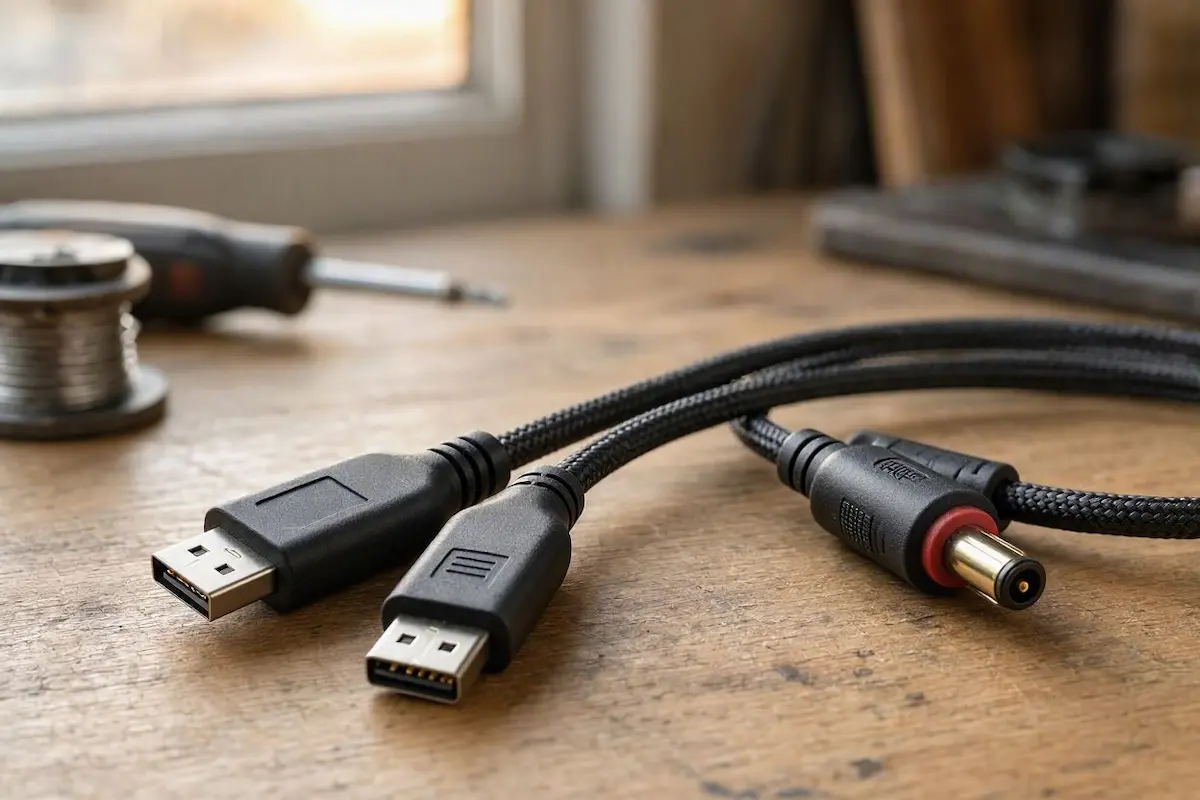
⚠️ Start-Stop Battery Voltage Sag: In customer vehicles where an ottocast keeps disconnecting during heavy alternator loads or engine auto-start cycles, installing a USB-Y cable connected to an auxiliary 12V socket completely isolates the dongle from transient vehicle voltage drops.
Step 3: Unpair Factory Head Unit Native Bluetooth Profiles
Leaving your smartphone paired simultaneously to the vehicle’s factory hands-free system and the Ottocast adapter can cause a conflict where your ottocast keeps disconnecting whenever an incoming call or text pings the infotainment system.
When an alert triggers, the car stereo attempts to snatch exclusive Hands-Free Profile (HFP) control over standard Bluetooth.
This audio sink collision breaks the active Wi-Fi Direct projection bridge immediately:
- Sit inside your vehicle with the ignition powered.
- Open Bluetooth Settings on your smartphone.
- Locate your car’s factory hands-free profile (commonly named SYNC, HandsFree, MyCar, or Uconnect).
- Tap the info (
i) or gear icon and select Forget This Device / Unpair. - Ensure only the Ottocast Bluetooth profile (typically named AUTO-xxxx or OTTO-xxxx) remains paired. The adapter manages hands-free calling and media distribution natively through the projection stream.
Severing this duplicate link prevents profile tug-of-wars that leave your ottocast keeps disconnecting setup crashing during incoming calls.
FACTORY CONFIGURATION RESOURCE
Step 4: Execute a Clean OTA Firmware Update or USB Recovery Flash
When major mobile operating system updates roll out, Bluetooth handshake frameworks and security certificates shift.
Outdated adapter firmware frequently leads to continuous handshake crashes where an ottocast keeps disconnecting upon screen unlock.
Flashing current firmware binaries directly refreshes these cryptographic libraries:
- Park the vehicle with the engine idling so power is not cut mid-installation.
- Connect your phone to the adapter Wi-Fi network and open
http://192.168.1.101in your mobile browser. - Scroll down to the Firmware Update section and tap Check for Updates.
- If a newer firmware build is detected, click to download and install. Never unplug the adapter or shut down the vehicle while the status LED is flashing rapidly.
- Emergency USB Recovery: If the adapter is trapped in an unrecoverable boot loop, download the clean factory firmware file from the official Ottocast support portal, place it onto a FAT32-formatted USB flash drive, and flash it manually via an OTG adapter cable. Review our harness guide to connect factory wiring to android head unit ports if you require pinout data.
Step 5: Disable VPN Daemons and Mobile Battery Restrictions
Wireless CarPlay and Android Auto project video by routing local TCP/IP data packets through an ad-hoc local subnet (typically 192.168.1.x).
Active VPN services and aggressive background battery savers frequently terminate this local socket connection.
These background restrictions are a widespread reason why an ottocast keeps disconnecting during routine highway commutes:
- Disable Active VPN Connections: Privacy and security apps (such as Cloudflare WARP, NordVPN, or corporate MDM profiles) force all network traffic through remote external servers, severing the local ad-hoc communication tunnel. Disable VPNs before starting your vehicle.
- Turn Off Private Wi-Fi Addresses (iPhone): In iOS Settings → Wi-Fi, tap the info (
i) icon next to your Ottocast network. Toggle OFF both Private Wi-Fi Address and Limit IP Address Tracking to prevent MAC address cycling. - Set Android Auto Battery to Unrestricted: On Android devices, open Settings → Apps → Android Auto → Battery Usage, and choose Unrestricted. Repeat this for Google Play Services to ensure background projection daemons are not put to sleep when the phone screen turns off. If your stereo cycles on reboot, check our guide to fixing an Android car stereo boot loop.
RELATED TROUBLESHOOTING GUIDE
👉 Using an AAWireless dongle instead? Complete diagnostic guide for AAWireless connection drops →
Diagnosing why an ottocast keeps disconnecting comes down to separating automotive USB voltage starvation from wireless radio frequency drops.
Locking the Wi-Fi transceiver to non-DFS Channel 36, adding an 8-second boot delay in the backend web interface, and supplying dedicated 5V power via a USB-Y splitter resolves dropouts on over 90% of vehicles.
Following this structured workshop sequence permanently eliminates an ottocast keeps disconnecting defect without the unnecessary expense of returning the adapter or buying replacement units.
Frequently Asked Questions (FAQ)
How do I factory reset an Ottocast adapter?
Plug the adapter into any powered USB port, connect your smartphone to its Wi-Fi network, and open 192.168.1.101 in your browser. Scroll to the bottom of the configuration page and tap Restore Factory Settings. This clears all paired devices and restores factory defaults.
Why does my Ottocast disconnect at the exact same location every day?
When an ottocast keeps disconnecting issue occurs near toll plazas or intersections, localized radio frequency interference is the culprit. Highway toll gantries, municipal radar towers, and high-voltage transmission lines blast microwaves that disrupt dynamic Wi-Fi channels. Log into 192.168.1.101 and lock your channel to non-DFS Channel 36 or Channel 149 to maintain a clean link.
Can a weak car battery cause Ottocast disconnections?
Yes. When your vehicle’s alternator regulator fluctuates at stoplights under heavy air conditioning or audio load, the car’s Body Control Module (BCM) will temporarily drop voltage to auxiliary USB ports, triggering an immediate brownout reboot on the adapter.
What does a flashing red and blue light mean on Ottocast?
A flashing red and blue pattern indicates that the unit is actively writing firmware or operating in recovery mode. Never unplug the adapter during this stage, as interrupting the flash will corrupt the internal bootloader.