
How to Fix Wireless CarPlay & Android Auto Audio Delay (Tested Workshop Fixes)
Eliminate wireless CarPlay and Android Auto audio delay, latency, and lip-sync lag with 5 workshop fixes.

Troubleshooting a persistent wireless carplay audio delay—where track skips take two full seconds to respond, navigation prompts cut off late, or phone calls suffer from an echo—exposes network buffer congestion rather than blown speakers or a damaged iPhone.
Wired CarPlay delivers uncompressed 16-bit PCM audio directly across copper data pins with under 10 milliseconds of latency.
Wireless projection, by contrast, relies on a compressed local network bridge that inherently introduces processing overhead.
To project wirelessly, your iPhone establishes an ad-hoc 5GHz Wi-Fi Direct network with the car head unit or wireless dongle.
To prevent audio dropouts when driving past high-voltage power lines or cellular towers, manufacturers inject an intentional hardware safety buffer.
This buffer is frequently configured by default between 1000ms and 2000ms inside the adapter firmware.
This intentional software queue is the direct cause of distracting lip-sync lag during everyday driving.
Before abandoning wireless convenience or reverting to charging cords, a few minutes of structured bench adjustments will trim unnecessary network queues.
Here are five practical workshop steps to minimize wireless carplay audio delay and lock in responsive, near-instant sound delivery.
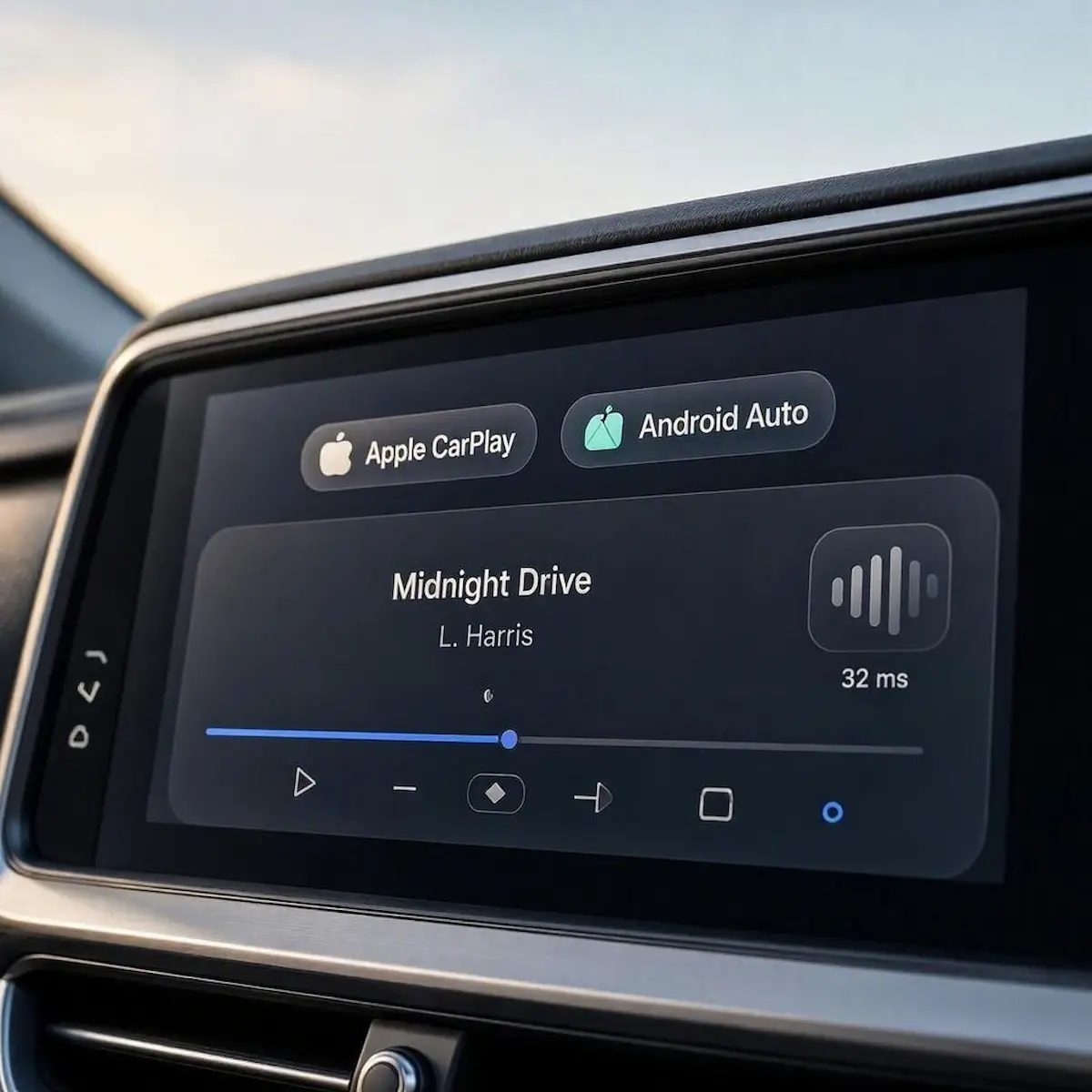
Diagnostic Matrix: Why Wireless CarPlay Audio Delay Occurs
Match your specific audio lag behavior against our workshop matrix to isolate why a wireless carplay audio delay affects your drive before adjusting system firmware:
| Observed Audio Lag Symptom | Underlying Network / Hardware Cause | Immediate Workshop Action |
|---|---|---|
| 1–2 second delay when pausing or skipping music | Dongle hardware media safety buffer set excessively high. | Lower media buffer from 1000ms down to 300ms in backend settings. |
| Audio stutters and crackles alongside command lag | Dongle Wi-Fi transceiver operating on congested 2.4 GHz band. | Force Wi-Fi band to 5.0 GHz / 5.8 GHz via gateway IP. |
| Noticeable lip-sync lag on aftermarket Android screens | Zlink or SpeedPlay audio stream type set to “High Quality”. | Switch Zlink audio profile from High Quality to “Fluency”. |
| Callers report hearing an echo of their own voice | Simultaneous connection to car factory Bluetooth and CarPlay. | Forget factory car radio Bluetooth profile in iPhone settings. |
| Severe 2-second desync when parked watching YouTube | Absence of active video-clock sync in CarPlay projection stack. | Normal framework behavior; CarPlay excludes video lip-sync compensation. |
Step 1: Lower the Media Delay Buffer in Dongle Backend Settings
If you connect through an aftermarket wireless adapter (such as Carlinkit, Ottocast, or Binize), the dongle adds its own hardware safety buffer on top of iOS’s native projection stream.
Trimming this buffer is the single most effective way to eliminate an irritating wireless carplay audio delay during daily driving:
- Ensure your iPhone is actively paired and connected to your wireless CarPlay adapter.
- Open Safari on your iPhone and enter the adapter’s gateway IP address:
- Carlinkit & Ottocast:
192.168.50.2 - Generic Aftermarket Dongles:
192.168.1.101or192.168.43.1
- Carlinkit & Ottocast:
- Navigate to the settings menu and locate Media Delay (or Audio Latency / Audio Buffer).
- The factory default is typically set to
1000ms. Lower this slider down to 300ms to 500ms. - Tap Save & Reboot. The adapter will restart and re-establish the connection with significantly tighter audio response.
⚠️ Zero Buffer Warning: Never adjust your dongle media delay all the way down to
0ms. While 0ms offers instantaneous response, road vibrations and external cellular handoffs will cause the audio stream to cut in and out continuously. A buffer between 300ms and 400ms provides the optimal balance of speed and stability.
RELATED TROUBLESHOOTING GUIDE
Step 2: Force Adapter and Head Unit Wi-Fi to 5.0 GHz
Many entry-level Android car stereos and budget dongles default their internal Wi-Fi hotspot to the 2.4 GHz frequency band.
Vehicle cabins are dense with electromagnetic noise from TPMS tire sensors, dashcams, and mobile Bluetooth signals.
On congested 2.4 GHz frequencies, high packet loss forces the audio decoder to buffer aggressively.
When troubleshooting a persistent wireless carplay audio delay, switching to the 5.0 GHz band provides wider channel bandwidth and faster packet delivery:
- Access the adapter’s web management portal (e.g.,
192.168.50.2) while connected to the vehicle. - Locate the setting labeled Wi-Fi Frequency / Wi-Fi Band.
- Switch the selection from 2.4 GHz to 5.0 GHz (or 5.8 GHz if supported by your hardware revision).
- If channel selection is available, lock the frequency to non-DFS Channel 36 or Channel 149 to avoid dropouts near municipal radar towers.
- Save your configuration and allow the transceiver to execute a clean restart.
Clearing this RF congestion significantly reduces overall packet re-transmissions that make a wireless carplay audio delay noticeable over morning commutes.
Step 3: Switch Zlink Audio Stream to “Fluency” on Android Stereos
If you run an aftermarket Android head unit (such as Topway, TS10, FYT, or Allwinner boards) utilizing Zlink (or Zlink5 / SpeedPlay) for projection, the app’s internal digital sound processor configuration directly dictates audio latency.
By default, Zlink favors high-bitrate audio fidelity at the expense of processing speed.
Toggling this parameter optimizes throughput to reduce wireless carplay audio delay across aftermarket touchscreens:
- Open the Zlink application on your car stereo display.
- Tap the inner Settings (Gear icon) located in the corner of the interface.
- Locate the setting labeled Audio Stream Type (or Sound Quality Mode).
- Change the setting from High Quality to Fluency / Low Latency.
- If your stereo firmware includes a Driver Position or Mic Gain setting in this menu, ensure it matches your vehicle cabin layout.
- Close Zlink completely, cycle your vehicle ignition key, and reconnect your iPhone to test latency.
Adjusting this internal decoder mode stops situations where a wireless carplay audio delay causes map navigation announcements to speak over music tracks.
FACTORY CONFIGURATION RESOURCE
Step 4: Unpair Factory Car Stereo Bluetooth to Prevent Audio Sink Clashes
A widespread installation error occurs when a smartphone maintains simultaneous connections to both the car’s native factory Bluetooth hands-free profile and the wireless CarPlay adapter.
Under official Apple CarPlay architecture, Bluetooth is required strictly for the initial 10-second security handshake.
Once connected, iOS hands audio over to the Wi-Fi Direct network.
If your iPhone remains paired to the car’s native stereo Bluetooth, the vehicle’s sound processor continuously attempts to toggle audio streams between the two profiles.
This profile conflict introduces severe command stutter, worsening your wireless carplay audio delay during cellular calls:
- Sit in your vehicle with the ignition turned ON.
- Open Settings → Bluetooth on your iPhone.
- Find your car’s factory stereo connection (often named HandsFree, CarBT, SYNC, or MyCar).
- Tap the info (
i) icon next to the factory profile and tap Forget This Device. - Ensure only the wireless CarPlay adapter profile remains paired in your Bluetooth device list.
Severing this duplicate wireless profile ensures clean audio routing, permanently ending an wireless carplay audio delay caused by audio sink collisions.
Step 5: Keep Background App Refresh Active on iOS
To conserve battery, iOS aggressively suspends background application data pipelines when the iPhone screen locks.
If streaming services cannot buffer upcoming track chunks, audio processing stalls.
This operating system suspension makes an existing wireless carplay audio delay feel significantly worse while driving:
- Open Settings → General → Background App Refresh on your iPhone.
- Ensure Background App Refresh is toggled ON over Wi-Fi & Cellular Data.
- Scroll down the list and verify that your primary media apps have individual permissions enabled.
- Open Settings → Battery and confirm that Low Power Mode is switched OFF while driving, as Low Power Mode throttles background network polling rates. Review our harness guide to connect factory wiring to android head unit ports if you require physical checks.
RELATED TROUBLESHOOTING GUIDE
👉 Experiencing sound latency on an Android device instead? Android Auto audio delay fix guide →
Minimizing a wireless carplay audio delay comes down to reducing redundant software queues.
Because Wi-Fi compression will always introduce roughly 100ms to 150ms of baseline network latency, true zero-delay audio is physically limited to direct wired USB cables.
However, reducing dongle buffers to 300ms, locking Wi-Fi to 5GHz, and removing conflicting vehicle Bluetooth profiles brings latency down to a level that is virtually imperceptible.
Following this structured workshop procedure permanently cures an annoying wireless carplay audio delay, delivering fluid track skipping and synchronized navigation prompts across every drive.
Frequently Asked Questions (FAQ)
Can you completely eliminate wireless CarPlay audio delay?
No wireless projection system can achieve true zero latency because digital video and audio compression require a processing window of roughly 100ms to 200ms across Wi-Fi. However, lowering the media buffer to 300ms and operating on a clean 5GHz band resolves noticeable wireless carplay audio delay, making the response completely imperceptible for phone calls and music playback.
Why does YouTube audio lag behind video on CarPlay?
Apple CarPlay was engineered strictly for automotive driving safety, focusing on navigation and music rather than video playback. Sideloaded streaming apps and screen-mirroring adapters lack hardware-level Audio/Video clock synchronization, resulting in a permanent 1-to-2 second lip-sync desync when playing videos.
Does a wired USB cable fix CarPlay audio delay?
Yes. A direct wired USB connection bypasses the local Wi-Fi packet compression pipeline entirely, transmitting uncompressed PCM audio with latency under 10ms. If you require perfect real-time lip-sync while parked, connecting via an original USB cable is the most reliable solution.
Why does an echo occur on hands-free CarPlay phone calls?
An echo on phone calls usually happens when an unmanaged wireless carplay audio delay prevents the car’s acoustic echo cancellation (AEC) algorithm from matching spoken words to speaker output in real time. Lowering the adapter buffer eliminates this echo.