
Fix Android Car Stereo Bluetooth Pairing Problem & Incorrect PIN (Tested)
Struggling with an Android car stereo Bluetooth pairing problem or persistent "Incorrect PIN" errors? Follow this tested workshop guide to resolve handshake timeouts, clear the paired device memory buffer, and reconfigure MCU BT module drivers.

Confronting an annoying android car stereo bluetooth pairing problem—frequently displaying an immediate “Couldn’t pair. Incorrect PIN or password” error before you can even type—exposes an encryption timing mismatch rather than a broken smartphone or a burned-out hardware receiver.
Modern mobile operating systems manage Bluetooth communication directly through their system kernels.
They utilize Secure Simple Pairing (SSP) protocols featuring dynamic numerical comparison keys.
Conversely, generic automotive head units running Allwinner, Topway, FYT, or UIS7862 motherboards use a dedicated hardware daughterboard managed through the Android Open Source Project (AOSP) Bluetooth stack.
When the car stereo’s legacy firmware fails to negotiate modern security handshakes within a 500-millisecond window, the link drops instantly.
The smartphone operating system then defaults to reporting an incorrect PIN prompt on the display.
In our workshop bench testing, this failure is rarely caused by broken internal silicon.
Before assuming your stereo requires warranty replacement, a systematic sequence of bench checks will identify whether the lockout is caused by legacy PIN negotiation, saturated device memory, or an unselected hardware driver.
Here are six practical workshop procedures to resolve an android car stereo bluetooth pairing problem and restore a dependable, automatic wireless link.
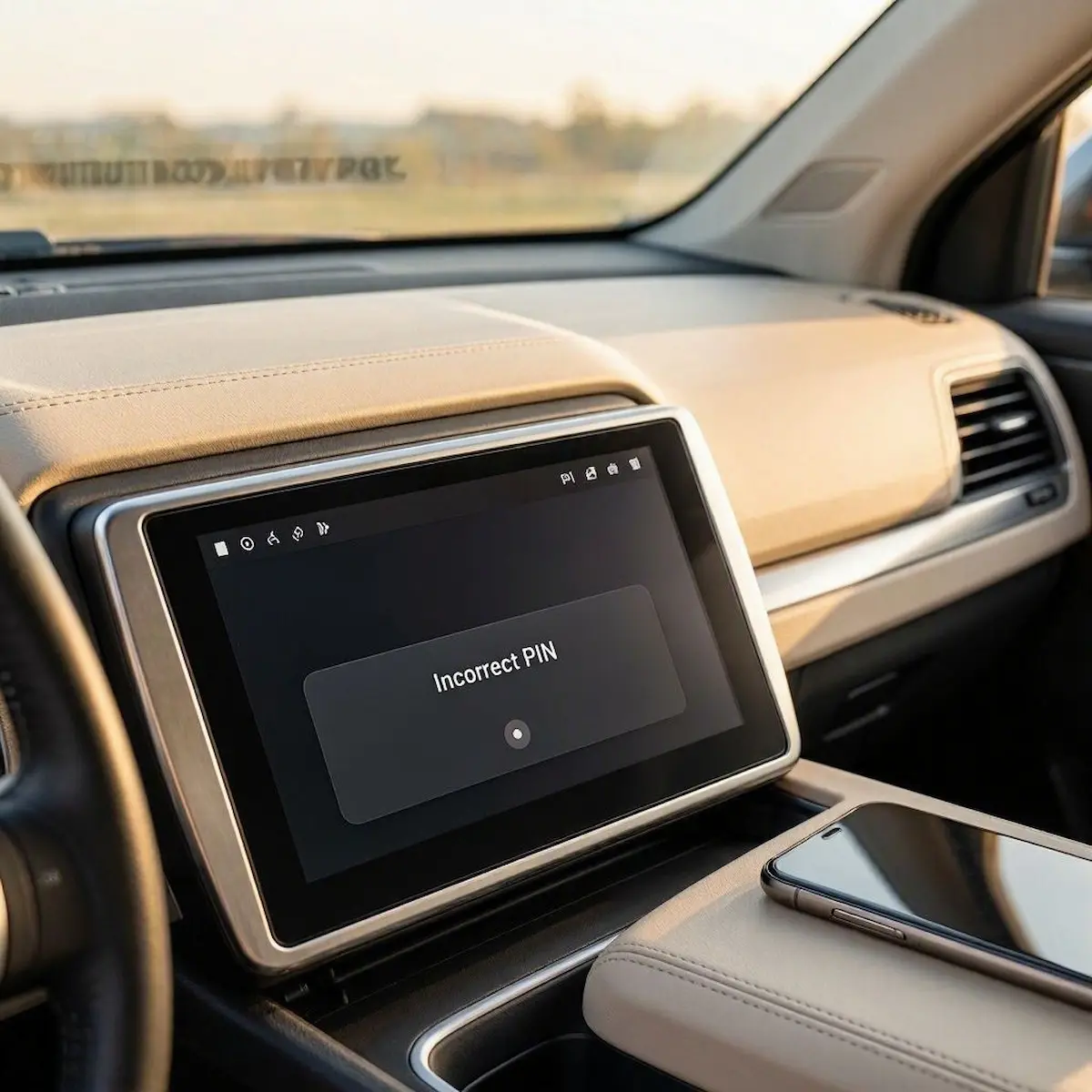
Diagnostic Matrix: Fixing an Android Car Stereo Bluetooth Pairing Problem
Review our workshop failure matrix to isolate your specific android car stereo bluetooth pairing problem before modifying deeper firmware values:
| Observed Pairing Symptom | Underlying Hardware / Software Cause | Immediate Workshop Action |
|---|---|---|
| “Couldn’t pair. Incorrect PIN” appears instantly | Phone’s dynamic 6-digit SSP handshake timing out against legacy 4-digit PIN. | Change stereo PIN from 0000 to 1234; initiate search from the car display. |
| Head unit never appears in phone’s Bluetooth scan list | Pairing visibility switched OFF or internal Bluetooth daemon frozen in RAM. | Toggle “Discoverable” in car BT app; execute a 5-second front-bezel RST reset. |
| Pairs successfully, then severs the link after 2 seconds | EEPROM device history buffer saturated (holding max 5–8 MAC addresses). | Delete all historical paired devices from the head unit internal memory. |
| Bluetooth toggle switch is greyed out; MAC shows 00:00:00 | MCU firmware loaded the wrong hardware daughterboard driver profile. | Assign correct module type (GOC, BC8, or Realtek) inside Factory Settings. |
| Connection works only when phone touches the screen glass | External rear BT/Wi-Fi pigtail antenna lead is pinched, cut, or unfastened. | Straighten rear “BT ANT” harness wire or thread on the external brass SMA antenna. |
Step 1: Resolve the Legacy PIN Code and SSP Handshake Mismatch
When diagnosing an android car stereo bluetooth pairing problem, an encryption protocol mismatch between legacy car firmware and modern mobile operating systems is the most frequent culprit.
Modern iOS and Android smartphones utilize Secure Simple Pairing (SSP), which expects a dynamic 6-digit cryptographic verification prompt.
Budget aftermarket stereos strictly enforce a fixed 4-digit numeric password.
When the handshake fails to complete immediately, the phone automatically terminates the request and displays an “Incorrect PIN” error:
- Never Pair via System Android Settings: Do not open the standard white Android OS Settings menu on the head unit to pair your phone. Always open the dedicated launcher application titled “Bluetooth”, “BT Phone”, or “CarBT”.
- Re-assign the Master PIN to 1234: Tap the Settings (Gear icon) inside the stereo’s Bluetooth app. If the PIN field displays
0000or is blank, manually clear it, type1234, and press confirm. Many Android 13, 14, and 15 firmware builds reject0000over modern security profiles. - Reverse the Pairing Direction: Set your smartphone’s Bluetooth screen to “Visible to nearby devices.” On the car stereo screen, tap “Search / Scan”. Select your smartphone name directly from the car touchscreen and confirm the pairing prompt from the dashboard side first.
Reversing the pairing initiation bypasses mobile timeout clocks, resolving an android car stereo bluetooth pairing problem without flashing firmware.
Step 2: Clear the Saturated EEPROM “Device List Full” Buffer
Another common cause of an android car stereo bluetooth pairing problem is EEPROM hardware register saturation on the radio circuit board.
Budget Android head units utilize low-capacity EEPROM storage registers for wireless profiles.
These memory blocks are typically limited to holding 5 to 8 registered MAC addresses.
Once this buffer reaches capacity from previous phones, family members, or workshop testing, incoming pairing handshakes are silently rejected without any warning displayed on the screen:
- Open the Bluetooth / Phone app on your head unit.
- Tap the Device History / Paired List icon (indicated by a phone or directory symbol).
- Individually highlight and delete every previously paired phone until the list is completely clear.
- On your smartphone, navigate to Settings → Bluetooth, find your car unit’s name (commonly CAR-BT, GOCSDK, CarKit, or Android-BT), tap the settings cog or info icon, and tap Forget This Device.
- Turn off the vehicle ignition, remove the key to cut retained accessory power (RAP), wait 15 seconds, and restart both devices before attempting a fresh pairing.
Purging these stale MAC registrations clears memory bottlenecks, stopping cycles where an android car stereo bluetooth pairing problem drops paired devices after two seconds.
RELATED TROUBLESHOOTING GUIDE
Step 3: Force Clear the Bluetooth System Daemon Storage
If your android car stereo bluetooth pairing problem involves a frozen system service where the pairing search spinner hangs indefinitely, flushing the Bluetooth daemon cache will force the operating system to re-read the hardware transceiver.
Flushing the operational registry forces the operating system to re-initialize communication with the physical transceiver module:
- Navigate to Car Settings → Android Settings → Apps & Notifications.
- Tap See all apps, tap the three dots in the top-right corner, and select Show system apps.
- Scroll down and locate Bluetooth (or BT Suite / Bluetooth Share depending on your board manufacturer).
- Tap Storage & Cache.
- Tap Clear Cache, then select Clear Storage (Clear Data).
- Restart the head unit to allow the core Bluetooth daemon to rebuild its hardware registry with clean configuration files.
Resetting the internal driver cache cures underlying bugs where an android car stereo bluetooth pairing problem prevents your handset name from appearing in discovery lists.
Step 4: Reassign the BT Module Driver Type in Factory Settings
When an android car stereo bluetooth pairing problem causes the Bluetooth toggle to grey out completely or display a dummy MAC address of 00:00:00:00:00:00, the MCU is attempting to drive the physical daughterboard using an incompatible driver profile.
This mismatch frequently happens after applying general system firmware updates or executing factory resets.
Re-linking the correct hardware driver directly in the MCU configuration menu restores functionality:
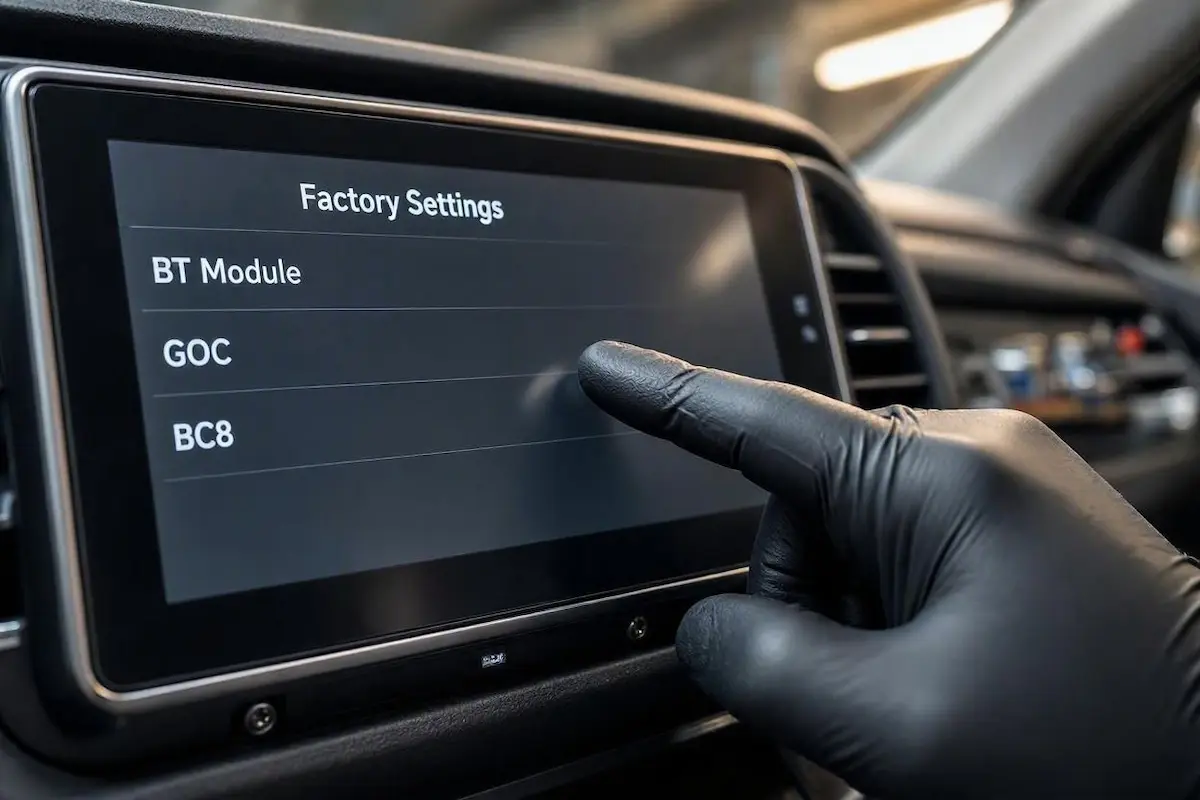
- Open Car Settings → Factory Settings (you will be prompted for an administrator passcode).
- Enter your platform’s engineering PIN. If you do not have it, refer to our comprehensive directory of Android car stereo factory settings passwords (standard codes include
8888,1617,3368,126, or000000). - Locate the tab labeled Original Setting, Hardware, or BT Module.
- Examine the assigned module type. Most budget head units utilize GOC, BC8, BC6, SD-968, or Realtek 8761 hardware. If an MCU update altered this setting, toggle between the primary drivers (e.g., switch from GOC to BC8 or vice versa).
- Tap Save & Reboot to write the correct hardware driver to the MCU flash memory.
RELATED TROUBLESHOOTING GUIDE
Step 5: Eliminate Zlink and Wireless Projection Handover Conflicts
If your vehicle utilizes wireless phone integration platforms such as Zlink for CarPlay or Android Auto, Bluetooth functionality operates under different rules than standalone media streaming:
- 10-Second Handshake Role: During wireless projection, Bluetooth is utilized strictly for initial authentication and passing Wi-Fi Direct network credentials.
- Automated Profile Disconnect: Once authenticated, the head unit commands your phone to switch to a local 5GHz Wi-Fi link. The system actively disconnects standard Bluetooth A2DP audio profiles to prevent bandwidth contention and audio stuttering.
- Secondary Device Lockout: Attempting to link a second phone via regular Bluetooth while Zlink, SpeedPlay, or AutoLink is active triggers an immediate disconnect. Understanding this wireless handover prevents drivers from mistaking normal projection switching for an android car stereo bluetooth pairing problem. Always close active projection apps before pairing a secondary device.
Step 6: Inspect the Physical External Bluetooth/Wi-Fi Antenna Lead
When software adjustments fail to resolve an android car stereo bluetooth pairing problem, the physical antenna wiring behind the dashboard requires inspection.
Unlike smartphones that incorporate internal ceramic patch antennas, aftermarket head units depend on an external antenna wire running from the rear harness.
If your phone pairs only when held inches from the display glass or drops the signal whenever placed in a cup holder, the antenna circuit is compromised:
- Extract the head unit from the dashboard using plastic trim removal tools. Check our harness guide to connect factory wiring to android head unit ports properly.
- Inspect the main 16-pin or 20-pin RCA breakout harness plugged into the rear chassis.
- Locate the short, isolated wire labeled “BT ANT”, “WIFI/BT”, or the brass threaded SMA coaxial port.
- Verify this wire is uncoiled and not pinched tightly against the metal dashboard subframe. If your unit features an SMA port, ensure the small black stubby antenna is securely threaded on. If your radio cycles off unexpectedly during use, see our guide to fixing an Android car stereo boot loop.
Troubleshooting an android car stereo bluetooth pairing problem comes down to recognizing that aftermarket head units separate Bluetooth processing from the main Android OS.
Manually setting your PIN to 1234, initiating the scan from the car screen, clearing full device memory buffers, and assigning the correct daughterboard driver in Factory Settings restores instantaneous pairing.
Following this structured bench diagnostic sequence permanently resolves an android car stereo bluetooth pairing problem without spending money on unnecessary replacement hardware.
Frequently Asked Questions (FAQ)
Why does my Android car stereo say “Incorrect PIN” before I can type?
When an android car stereo bluetooth pairing problem causes this error, an automated timeout has occurred between modern dynamic 6-digit SSP smartphone security standards and legacy head unit firmware. Open the custom “Bluetooth” app on your stereo, navigate to its settings menu, change the PIN from 0000 to 1234, and initiate the pairing scan directly from the car stereo rather than your phone.
What is the standard Bluetooth pairing code for aftermarket Android head units?
The vast majority of aftermarket Android stereos use either 0000 or 1234. Certain platform ROMs (such as MTCE or Topway builds) default to 123456 or 8888. You can verify or edit this code inside the stereo’s dedicated BT application settings menu.
Why can’t my smartphone find the car stereo on Bluetooth?
First, verify that the stereo’s internal Bluetooth toggle is active and visibility is set to “Discoverable” in the BT app. If the device name still fails to appear, the internal Bluetooth daemon is likely frozen in RAM. Perform a soft reboot by depressing the RST pinhole on the stereo’s front faceplate using a paperclip for 5 seconds.
Why does Bluetooth drop whenever wireless Android Auto or CarPlay starts?
This is standard behavior rather than an android car stereo bluetooth pairing problem. Wireless projection platforms use Bluetooth only for the initial 10-second security handshake. Once the high-speed 5GHz Wi-Fi Direct connection is established, the stereo intentionally disconnects the standard Bluetooth media profile to avoid bandwidth interference.