
How to Fix Android Car Stereo Bluetooth Connected But No Sound
Bluetooth shows connected and phone calls work, but Spotify, YouTube, and GPS voice guidance remain dead silent? Learn how to enable A2DP audio profiles, adjust hidden Bluetooth gain in Factory Settings, and resolve media routing clashes.

Observing a failure where your android car stereo bluetooth connected but no sound plays through vehicle speakers points directly to a software profile handshake breakdown rather than a blown amplifier IC or broken hardware antenna.
Modern mobile operating systems split wireless communications across two entirely independent software pipelines.
The Hands-Free Profile (HFP) manages low-bandwidth telephone voice calls.
Conversely, high-fidelity music streaming and turn-by-turn navigation prompts rely on the Advanced Audio Distribution Profile (A2DP) pipeline.
Because these profiles negotiate separate digital streams, a smartphone can establish a working phone connection while the high-bandwidth media audio channel drops entirely.
In routine workshop bench testing, discovering an android car stereo bluetooth connected but no sound issue is rarely caused by fried internal circuit boards.
The root cause almost always traces back to an unselected media toggle in phone settings, zeroed digital gain inside the stereo’s factory engineering menu, or a codec sync deadlock between the handset and the head unit’s Bluetooth module.
Before unbolting center console trim panels or checking speaker wiring continuity, fifteen minutes of structured bench troubleshooting will pinpoint the software deadlock.
Here are five practical workshop procedures to resolve an android car stereo bluetooth connected but no sound error and restore crystal-clear audio playback.
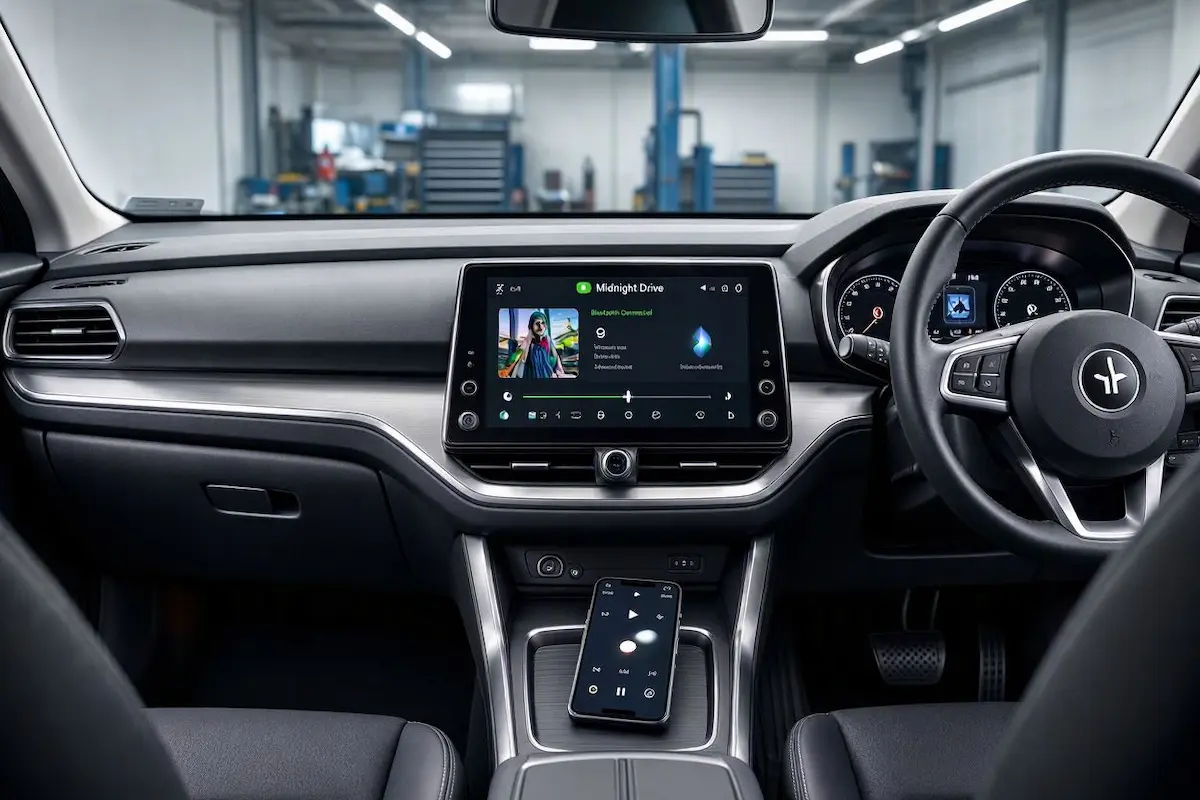
Diagnostic Matrix: Why an Android Car Stereo Has Bluetooth Connected But No Sound
Match your specific audio symptoms against our workshop matrix to isolate an android car stereo bluetooth connected but no sound communication fault before modifying system settings:
| Observed Audio Symptom | Underlying Software Root Cause | Immediate Workshop Action |
|---|---|---|
| Phone calls work, but zero music or navigation | A2DP “Media Audio” profile toggled OFF on the smartphone. | Open paired Bluetooth device settings and enable Media Audio. |
| Music progress bar moves, but speakers stay silent | Internal Bluetooth input gain set to zero in factory settings. | Increase “BT Volume” slider in the stereo Factory Settings menu. |
| FM Radio plays loud, but Bluetooth produces silence | Audio routing daemon hung on a secondary background app. | Switch Media Output playback destination on phone to car stereo. |
| Sound plays for 2 seconds, then cuts out permanently | AVRCP playback handshake desync or audio codec mismatch. | Switch Bluetooth Audio Codec to SBC in phone Developer Options. |
| Worked yesterday, stopped working after phone update | Corrupted Bluetooth network cache and encryption keys. | Reset Wi-Fi, Mobile & Bluetooth stack on your smartphone. |
Step 1: Verify the A2DP Media Audio Profile Toggle on Your Phone
The leading cause of audio loss over wireless links is an unselected media streaming profile on your connected smartphone.
When connecting, your mobile handset attempts to negotiate both HFP voice and A2DP media streams simultaneously.
If a connected smartwatch or wireless earbuds hold active priority over media routing, the phone defaults to “Connected for calls (no media)”, triggering an immediate android car stereo bluetooth connected but no sound condition on your dashboard:
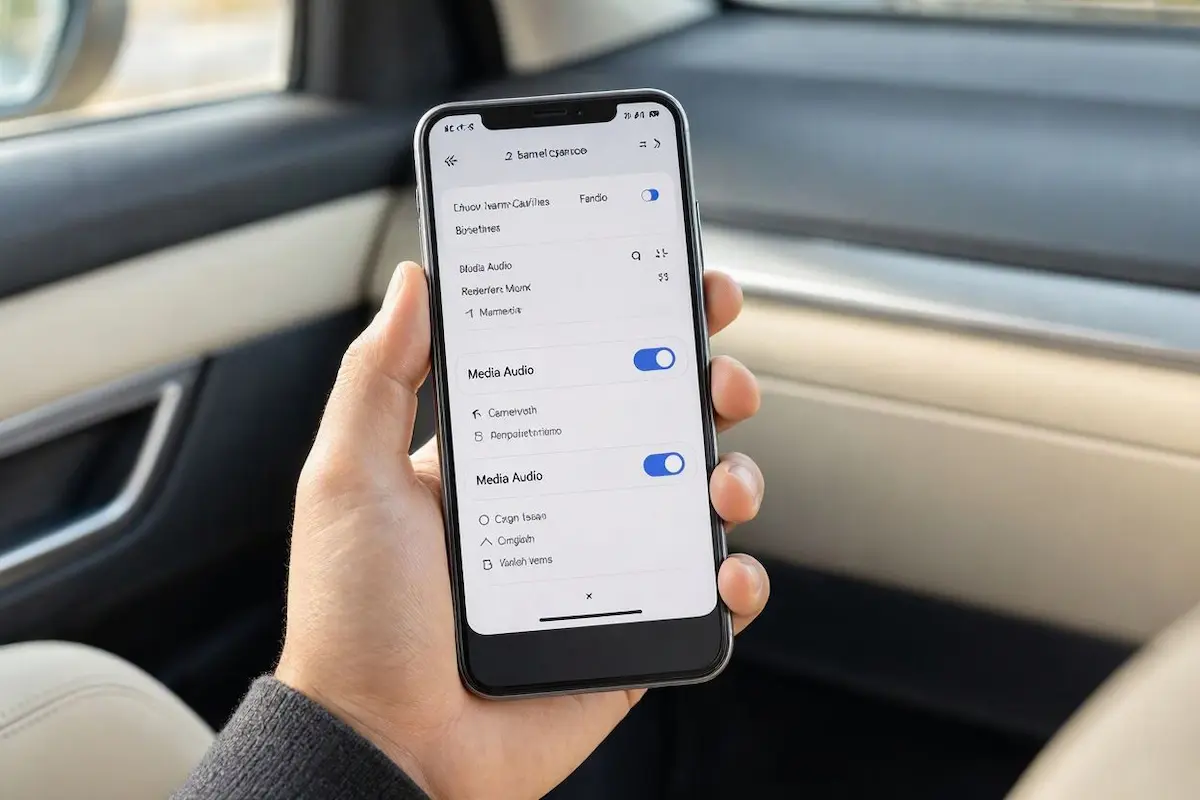
- On your Android phone, swipe down to expand the notification shade and long-press the Bluetooth quick-settings tile.
- Find your car stereo under Paired Devices (commonly labeled CarBT, Topway, TS10, or GOCSDK) and tap the Gear (Settings) icon beside it.
- Inspect the profile toggle switches:
- Calls: Manages cellular and messaging voice calls.
- Media Audio: Streams music tracks, podcasts, and GPS navigation prompts.
- If Media Audio is switched OFF, turn it ON. If it is already ON, toggle it OFF for 5 seconds and switch it back ON to force an immediate profile renegotiation.
- If using an iPhone, swipe down to open Control Center, tap the AirPlay icon in the music widget, and verify that your car stereo is checked rather than “iPhone”. Confirming this link prevents your android car stereo bluetooth connected but no sound issue during morning commutes.
⚠️ Peripheral Conflict Warning: If your phone displays “Connected for calls (no media)”, the mobile OS is actively blocking the A2DP pipeline. Disconnect any smart fitness trackers, smartwatches, or Bluetooth headsets paired to the phone, as they frequently seize exclusive control over the media bus.
RELATED TROUBLESHOOTING GUIDE
Step 2: Unmute Independent Bluetooth Volume Gain in Factory Settings
Modern Android head units run independent digital sound mixers for each hardware input source.
The FM radio tuner, navigation speech, reverse parking chimes, and Bluetooth audio stream all operate on separate software gain sliders.
If the Bluetooth input gain is set to zero in the engineering menu, your android car stereo bluetooth connected but no sound issue will persist even if both the phone volume and physical stereo knob are turned up to 100%:
- Open your stereo app drawer and select Car Settings.
- Navigate to Factory Settings and enter your developer passcode. (Grab your PIN from our master list of Android car stereo factory settings passwords).
- Locate the menu named Volume, Gain Balance, or Sound Config.
- Inspect the individual source sliders. Locate BT (Bluetooth) Volume or Media Gain.
- If this slider sits at 0 or 1, drag it up to match the Radio (FM) volume level (typically between 12 and 15).
- Tap Save & Reboot to commit the gain setting directly into the stereo’s audio DSP chip.
Raising this internal input gain prevents recurring scenarios where an android car stereo bluetooth connected but no sound error mutes streaming playback while FM broadcast radio plays at full volume.
RELATED TROUBLESHOOTING GUIDE
Step 3: Resolve Audio Routing Conflicts and Disable Absolute Volume
Modern smartphones support simultaneous connections to multiple wireless automotive accessories.
If the operating system becomes confused by background services, media output is often routed to an internal ear speaker or an unattached accessory.
Applying targeted developer adjustments prevents software deadlocks that leave your android car stereo bluetooth connected but no sound outputting through cabin speakers:
- Check Media Output Target (Samsung / Pixel): Swipe down from the top of your screen to reveal the notification panel and tap Media Output. Confirm that your car head unit is selected as the primary playback destination rather than the phone’s internal speaker.
- Disable Absolute Volume: In phone Settings, navigate to Developer Options, locate Disable Absolute Volume, and toggle it ON. This unlinks the phone’s volume keys from the car stereo’s hardware mixer, eliminating a common bug where the phone forces the head unit amplifier into silent standby.
- Lock Bluetooth Audio Codec to SBC: Budget automotive head units frequently fail to decode advanced codecs like AAC, aptX, or LDAC. In Developer Options, change the Bluetooth Audio Codec strictly to SBC to guarantee universal stream compatibility. Locking codecs resolves instances where an android car stereo bluetooth connected but no sound bug causes playback to halt after two seconds.
Step 4: Clear Bluetooth System Cache and Reset the Wireless Stack
Over months of pairing handshakes, mobile devices accumulate temporary encryption keys and codec profiles.
Corrupted cache files prevent the operating system from initializing the A2DP stream properly.
Purging these corrupted network profiles stops cycles where your android car stereo bluetooth connected but no sound setup refuses to stream following a mobile OS update:
- On your smartphone, open Settings → Apps → See All Apps.
- Tap the three vertical dots in the upper-right corner and select Show System Apps.
- Scroll down and tap Bluetooth (or Bluetooth Legacy / Bluetooth MIDI Service).
- Tap Storage & Cache, then select Clear Cache and Clear Data.
- Next, go to Settings → System → Reset Options and choose Reset Wi-Fi, Mobile & Bluetooth.
- Restart your smartphone, boot your car stereo, and pair the two devices cleanly from the car screen. Check our harness guide to connect factory wiring to android head unit pinouts if you require physical wiring checks.
Step 5: Perform a Cold MCU Hardware Reset on the Head Unit
If your smartphone streams media cleanly to other Bluetooth speakers, the breakdown is isolated to the car stereo’s internal Bluetooth receiver module.
When the stereo’s microcontroller unit (MCU) encounters a soft lockup during engine cranking, it can freeze the audio serial bus.
Executing a cold hardware reset clears persistent lockups that make an android car stereo bluetooth connected but no sound glitch recur across daily trips:
- Switch your vehicle ignition to the ON / ACC position so the head unit boots up fully.
- Locate the small recessed RST (Reset) pinhole on the faceplate bezel.
- Insert an unbent paperclip into the hole until you feel the tactile switch click.
- Hold the button down firmly for 10 to 12 seconds until the display screen shuts off.
- Release the pin and let the microcontroller execute a cold hardware reboot. Once the system loads, launch the Bluetooth music app and test playback. Clearing firmware states permanently eliminates scenarios where an android car stereo bluetooth connected but no sound fault leaves your speakers completely silent. If your unit is stuck cycling on reboot, consult our Android car stereo boot loop recovery guide.
RELATED TROUBLESHOOTING GUIDE
👉 Switching from Bluetooth to wireless projection? Master Zlink connection recovery guide →
Diagnosing an audio dropout where an android car stereo bluetooth connected but no sound occurs comes down to checking profile allocation and digital mixer levels.
Verifying that the Media Audio A2DP toggle is active, balancing the Bluetooth gain slider in factory settings, and disabling absolute volume resolves the vast majority of silent connections.
Following this structured diagnostic sequence permanently resolves an android car stereo bluetooth connected but no sound problem without the unnecessary expense of buying a replacement head unit.
Frequently Asked Questions (FAQ)
Why is my Android car stereo Bluetooth connected but no sound plays?
When an android car stereo bluetooth connected but no sound problem occurs, Bluetooth has separated phone calls from media audio. Your phone connects successfully for phone calls (HFP profile), but the media streaming channel (A2DP profile) is either disabled, muted in Factory Settings gain controls, or hijacked by a connected smartwatch.
How do I fix Bluetooth connected with no media audio on Android?
Go to your phone Settings → Bluetooth, tap the gear icon next to your car stereo name, and ensure the Media Audio toggle switch is turned ON. Next, open the car stereo Factory Settings to verify that the internal BT Volume gain slider is not set to zero.
Why does Bluetooth play phone calls but won’t play music from Spotify?
Phone calls run over a low-bandwidth Hands-Free Profile (HFP), while music streaming requires the high-bandwidth Advanced Audio Distribution Profile (A2DP). If the stereo DSP chip encounters a codec mismatch or unassigned audio output route, it drops media streaming while maintaining voice calls.
Will resetting my car stereo delete my saved radio stations and apps?
Pressing the physical RST pinhole performs a soft MCU reboot and does not delete your installed apps, offline maps, or saved radio stations. Only executing a full “Erase All Data (Factory Reset)” inside Android settings will wipe your local files.
[…] 👉 Does your screen project navigation properly but play zero music through car speakers? Audio routing… […]