
How to Fix Android Auto Only Charges Phone (Won’t Connect Fix)
Phone battery icon turns green and charges smoothly, but Android Auto refuses to launch on your car screen? Learn how to identify charge-only cables, configure Android default USB settings, extract compacted USB-C port lint, and bypass unpowered dashboard USB ports.

Connecting your smartphone to your dashboard only to discover that android auto only charges phone hardware exposes an interrupted digital data handshake rather than a dead infotainment screen or damaged Android operating system.
According to standard USB hardware pinout specifications, automotive USB connections deliver 5V charging current and high-speed data transmission across separate dedicated physical copper conductors.
Charging current flows through the outer VBUS and Ground pins.
Conversely, digital audio and video projection requires continuous bi-directional communication over the center Data Positive (D+) and Data Negative (D-) conductor pairs.
When the vehicle head unit supplies power but fails to launch projection, the 5V electrical circuit is complete, but the USB host controller cannot enumerate the smartphone as a media client.
In routine workshop diagnostics, this breakdown stems from cheap charge-only cables, compressed pocket lint obstructing the phone’s center data pins, or plugging into an auxiliary dash socket that has no physical data link to the vehicle processor.
Before replacing factory vehicle hardware or paying for expensive dealership diagnostics, fifteen minutes of structured bench troubleshooting will isolate the exact bottleneck.
Here are six practical workshop procedures to resolve why your android auto only charges phone setup fails and restore responsive, full-screen dashboard projection.
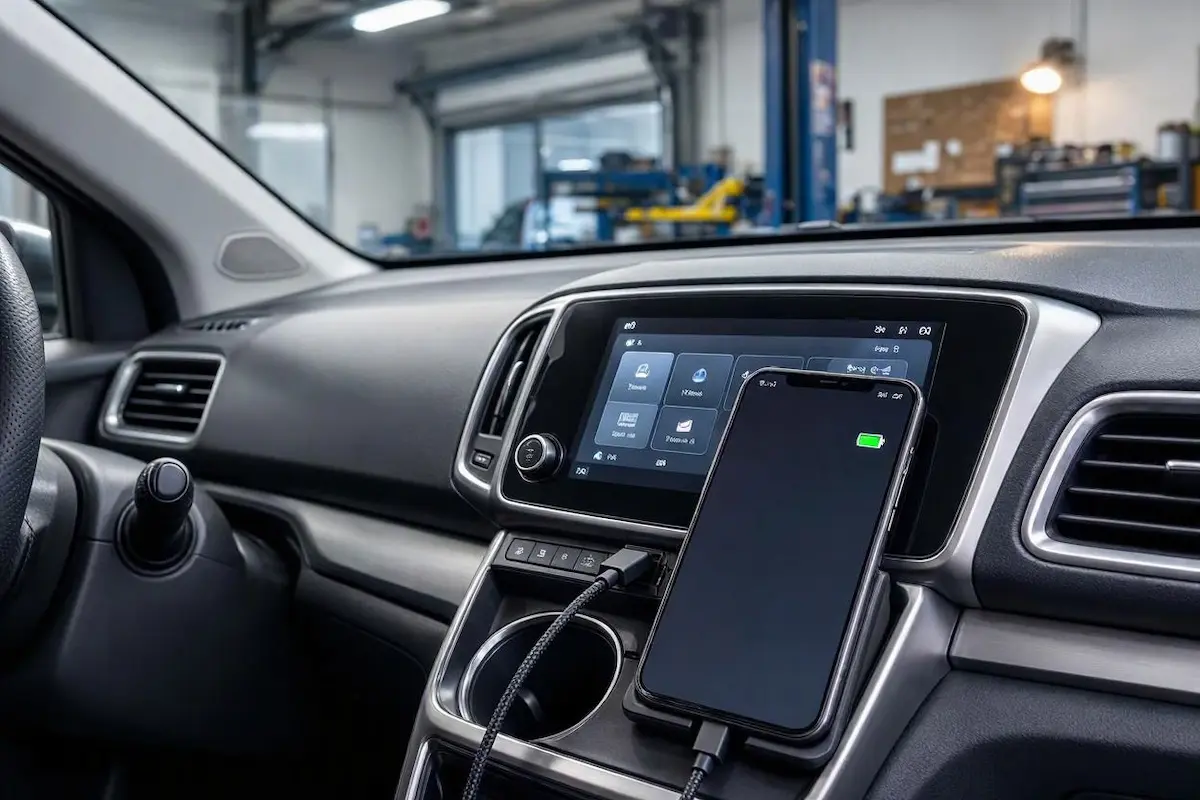
Diagnostic Matrix: Why Android Auto Only Charges Phone
Match your specific connection behavior against our workshop diagnostic matrix to isolate why android auto only charges phone hardware before stripping dashboard trim panels:
| Observed USB Behavior | Underlying Hardware / Software Cause | Immediate Workshop Action |
|---|---|---|
| Phone charges; head unit displays “No Device Found” | Using a 2-wire “Charge-Only” cord lacking internal D+/D- data lines. | Replace with a USB-IF certified 480Mbps high-speed shielded data cable. |
| Phone charges; notification bar reads “Charging via USB” | Android USB default configuration locked to power intake mode only. | Switch USB operating mode to “File Transfer / Android Auto”. |
| Cable connector fits loosely and wobbles inside the phone port | Compacted denim pocket lint inside the phone’s USB-C cavity. | Gently extract compressed lint from port corners using a wooden pick. |
| Charges in center console armrest, but head unit ignores phone | Plugging into an auxiliary 12V power port instead of the media host bus. | Move cable to the primary dashboard port stamped with a smartphone icon. |
| Projection drops and reconnects intermittently over road bumps | Work-hardened copper data strands fractured inside the cable jacket. | Replace cable with a short, heavy-gauge braided automotive lead. |
Step 1: Eliminate 2-Wire “Charge-Only” USB Cables
The leading cause of a handset taking in battery power without launching projection is using a cable manufactured solely for electrical charging.
Standard USB data cables contain four internal conductors: +5V Power, Ground, Data+ (D+), and Data- (D-).
Inexpensive convenience store cords and free promotional cables omit the internal copper data pair to cut manufacturing costs.
Deploying one of these power-only cords ensures that android auto only charges phone batteries without transmitting a single byte of video data:
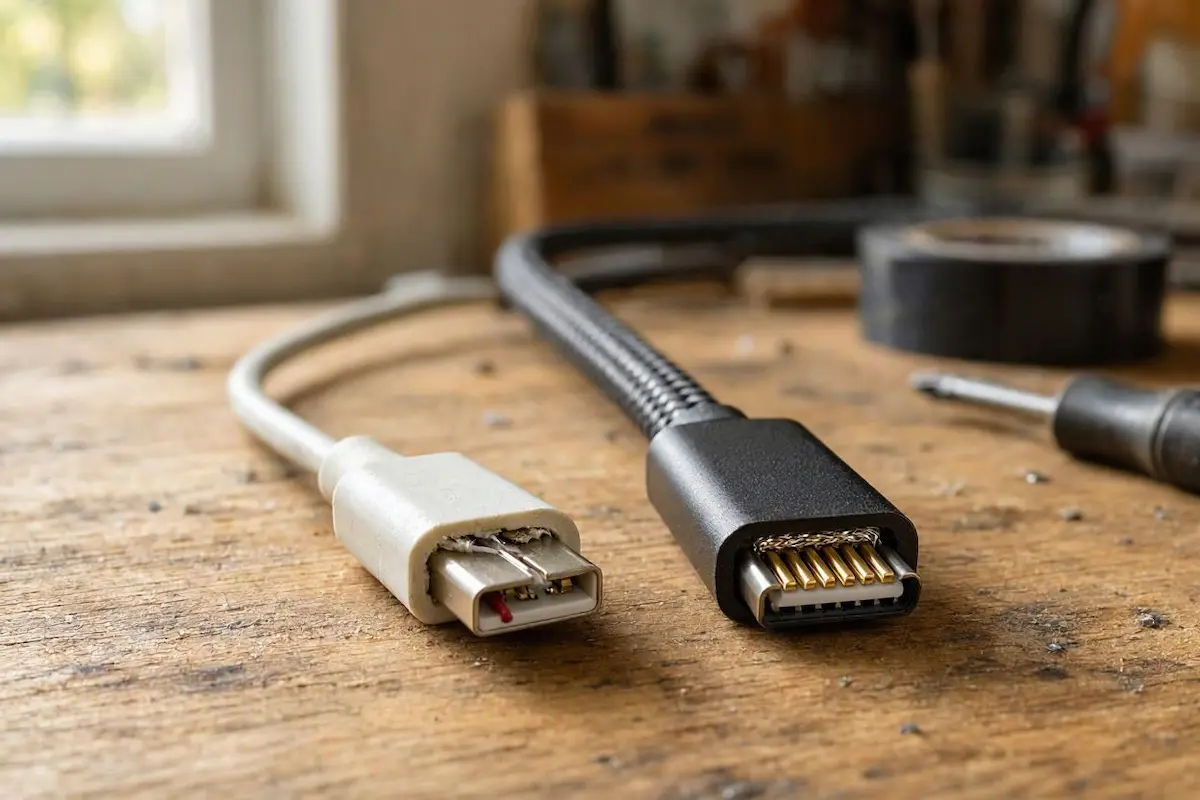
- Inspect the outer jacket thickness. Ultra-thin, exceptionally flexible cables rarely contain internal aluminum foil shielding or twisted copper data pairs.
- The PC Verification Test: Connect your smartphone to a desktop PC or laptop using the suspect cable. If the computer chimes and opens a file browser displaying your internal phone storage, the cable carries data. If the phone only takes a charge with zero computer recognition, the cable cannot run Android Auto.
- Always use an original manufacturer cable (Samsung, Google Pixel, Motorola) or an aftermarket USB-IF certified cord rated for a minimum transfer speed of 480 Mbps.
⚠️ Cable Length Restriction: For stable automotive video projection, keep your USB cord under 3.3 feet (1 meter). Cables exceeding 6 feet suffer from severe 5V digital signal degradation, introducing packet drops that force the infotainment host to drop data communication.
RELATED TROUBLESHOOTING GUIDE
Step 2: Change Default USB Configuration in Android Developer Settings
Modern Android operating systems incorporate strict security policies to protect mobile devices against untrusted public charging terminals.
Whenever a physical USB connection is detected, the operating system defaults to “No Data Transfer (Charging Only)” to block malicious host attacks.
If your device locks into power intake mode, your android auto only charges phone setup will refuse to initialize projection automatically:
- Plug your phone into your vehicle’s multimedia USB port with the vehicle ignition turned ON.
- Swipe down from the top edge of your phone screen to expand the notification shade.
- Locate the notification labeled “Charging this device via USB” or “Android System • USB Configuration” and tap it.
- Under the “Use USB For” options list, switch the selection from Charging Only to “Transferring Files / Android Auto”.
- To prevent the setting from reverting, open Settings → System → Developer Options, scroll down to Default USB Configuration, and set it permanently to “Transferring Files”. (If Developer Options is hidden, tap Build Number 7 times in About Phone).
Configuring file transfer as the default prevents repeated cycles where an android auto only charges phone alert blocks dashboard mapping.
Step 3: Clean Compacted Pocket Lint from the Phone USB-C Port
Carrying a smartphone inside denim pockets compacts microscopic lint, dust, and fabric fibers deep into the bottom of the USB-C connector cavity.
Because the outer pins handle 5V power, charging current continues to flow normally.
However, compressed debris prevents the shorter center data pins from seating flush against the contact tongue.
This physical barrier is a frequent workshop reason why an android auto only charges phone connection drops over road bumps:
- Power down your smartphone completely before cleaning.
- Use a bright flashlight to inspect the bottom recess of the phone’s USB-C port, checking the corners around the center contact tongue.
- Take a non-conductive wooden toothpick, plastic dental flosser pick, or fine anti-static nylon probe. (Never insert metal pins or sewing needles, which short internal battery contacts).
- Carefully scrape along the base of the connector to dislodge compressed lint, then clear the cavity with a short burst of compressed air.
- Reinsert your USB cable: you should feel a distinct, firm mechanical snap when the connector seats fully flush against the phone frame.
RELATED TROUBLESHOOTING GUIDE
👉 Did projection fail immediately after an Android system update? Post-update troubleshooting guide →
Step 4: Verify Vehicle Dashboard USB Port Type (Power vs. Media)
Automakers routinely install multiple USB sockets across vehicle cabins, including center consoles, armrest storage bins, and rear passenger seats.
However, rarely are all cabin ports wired into the infotainment computer.
Plugging into an auxiliary power port explains why an android auto only charges phone connection takes in electrical power while leaving the dashboard screen blank:
- Primary Media Host Port: Usually located directly below the center dash climate controls or inside the forward storage tray. This port is explicitly stamped with a white Smartphone Icon, a USB Trident logo, or labeled “PORT 1”. This is the only physical socket wired directly to the head unit host controller.
- Auxiliary Fast-Charge Ports: Sockets found inside center armrest cubbies, glove compartments, or rear consoles are typically connected to a standalone 12V-to-5V step-down buck converter. They supply high-amperage charging current (2.1A to 3.0A) but possess zero data traces to the infotainment processor, meaning your android auto only charges phone battery indefinitely without projecting.
Step 5: Clear Android Auto App Cache and Flush Saved Vehicles
Over months of daily connection handshakes, the Android Auto companion service caches temporary encryption handshakes and resolution tokens.
A corrupted vehicle profile will cause the system to abandon the data protocol while continuing basic power intake.
Purging these cached device handshakes resolves scenarios where your android auto only charges phone setup halts during startup:
- Unplug your smartphone from the vehicle USB cable.
- On your phone, navigate to Settings → Apps → See all apps → Android Auto.
- Tap Storage & Cache, tap Clear Cache, then select Clear Storage (Clear Data).
- Open the Android Auto app settings menu, find Previously Connected Cars, tap the three dots in the upper-right corner, and choose Forget all cars.
- Restart your smartphone. Reconnect to your vehicle’s primary multimedia USB port using an original data cable and accept the pairing permissions on your phone screen.
RELATED TROUBLESHOOTING GUIDE
👉 Planning to switch to wireless projection to bypass cable wear? Wireless Android Auto dropout fix →
Step 6: Hard Reboot the Infotainment System and Inspect Rear Pigtails
Vehicle head units operate embedded microkernels that rarely undergo a full cold power cycle during brief daily trips.
A soft lockup inside the head unit’s USB host controller daemon will supply 5V bus power while refusing to initialize digital enumeration.
Executing a cold system reset clears frozen host drivers, ending cycles where an android auto only charges phone device upon turning the ignition key:
- Hyundai / Kia: Press the small recessed RST pinhole beside the rotary volume knob for 5 seconds using a paperclip until the screen restarts.
- Honda: Press and hold down the audio Power knob for 10 seconds until the system presents a reboot confirmation prompt.
- Toyota / Lexus: Press and hold the primary Volume knob down for 12 seconds until the brand splash animation appears.
- Ford SYNC 3 / SYNC 4: Press and hold the Volume Power and Seek Forward (>>) buttons together for 10 seconds.
- Aftermarket Android Radios: If your stereo was installed recently, pull the chassis forward and verify that the 4-pin or 6-pin rear USB pigtail harness is seated into the correct port. Installers frequently plug the dashboard USB lead into the secondary 4-pin camera port rather than the 6-pin OTG data port, which explains why an android auto only charges phone connection never launches. Check our guide to connect factory wiring to android head unit ports properly.
Diagnosing why an android auto only charges phone setup occurs is straightforward once you separate 5V electrical power lines from high-speed digital data pairs.
Verifying your cable supports 480Mbps data, clearing compacted lint from the phone’s charging port, setting Android’s default USB mode to File Transfer, and ensuring you are plugged into the vehicle’s primary multimedia host socket will restore instant dashboard projection.
Following this workshop diagnostic sequence ensures your android auto only charges phone problem disappears permanently, keeping your map navigation and hands-free calls active on every drive.
Frequently Asked Questions (FAQ)
Why does Android Auto only charge my phone instead of launching?
When an android auto only charges phone error happens, the USB cable usually lacks internal D+ and D- data wires (a charge-only cable), your phone’s default USB configuration is restricted to “Charging Only”, or compacted pocket lint is preventing the port’s center data pins from seating fully.
How do I change my phone from charging only to Android Auto?
Connect your phone to the car, swipe down the notification shade, tap “Charging this device via USB”, and select “Transferring Files / Android Auto”. To keep this setting active permanently, navigate to phone Developer Options and set Default USB Configuration to “Transferring Files”.
Can a dirty USB port cause Android Auto to only charge?
Yes. Pocket lint compressed into the bottom of a USB-C port acts as a physical spacer. Outer pins responsible for 5V power can still make contact, while the shorter center pins that transmit data are blocked, preventing the car from detecting Android Auto.
Do all car USB ports support Android Auto?
No. Most vehicles feature only one dedicated multimedia USB port connected directly to the infotainment processor (usually marked with a phone or USB symbol). Other ports located in armrests or rear consoles provide power only for battery charging.
[…] 👉 Did your voice recognition fail immediately following an Android firmware update? Post-update diagno… […]