
Wireless Android Auto Keeps Disconnecting? 5 Easy & Proven Fixes (100% Working)
Wireless Android Auto cutting out right before your turn? Learn why smartphone battery optimizations choke projection daemons, how 2.4 GHz radar causes packet drops, and how to stabilize 5 GHz Wi-Fi links permanently.

You are halfway through a long highway drive, relying on Google Maps for your next exit, and out of nowhere the screen freezes and drops back to the radio menu.
Having a setup where your wireless android auto keeps disconnecting like this is pure headache on the road.
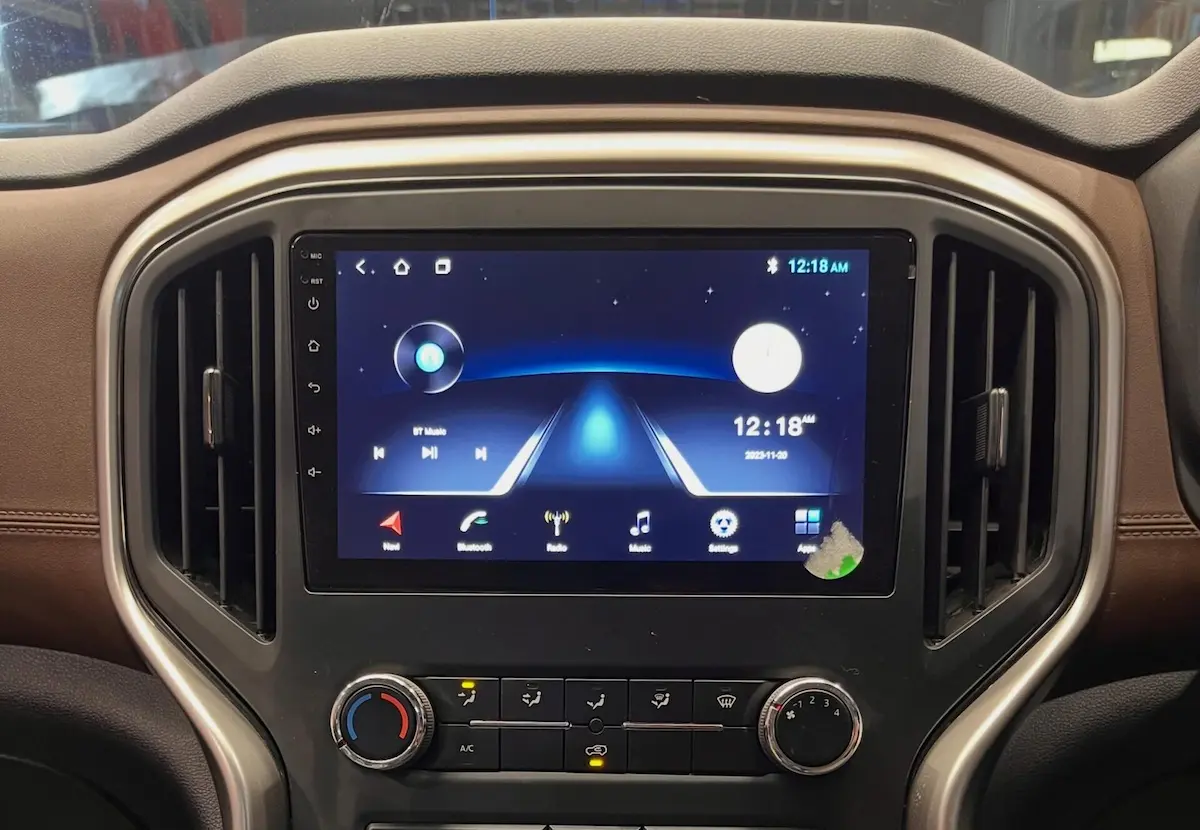
Every week we get drivers walking into the shop ready to rip out their Woodman, TS10, or generic Android touchscreen because they think the motherboard is trash.
Almost every single time, the car screen itself is totally fine.
Wireless projection is a two-part relay: Bluetooth hooks up the first handshake, and then a local 5GHz Wi-Fi link takes over to push the live screen frames.
If your phone battery saver decides to put background data to sleep, or if a highway toll sensor jams your radio channel, that link snaps shut immediately.
Before you waste money paying an electrician or shopping for a new head unit, check these five garage fixes first.
Here is how to track down why your wireless android auto keeps disconnecting and get a solid connection that actually stays connected.
Quick Diagnostic: Connection Drop Symptoms & Root Causes
Take a look at what your screen is doing right before it cuts out to find out why your wireless android auto keeps disconnecting while driving:
| What Happens on Screen | The Real Problem Behind It | Quick Shop Fix |
|---|---|---|
| Drops after 30 to 60 seconds of driving | Phone battery saver putting the app to sleep. | Set Android Auto battery setting to Unrestricted. |
| Cuts out at the exact same toll booths or signals | 2.4GHz frequency interference from traffic cams. | Force your car stereo hotspot to 5.0 GHz. |
| Screen stuck on “Connecting, please wait…” | Corrupted session token locked inside the bridge app. | Clear cache on Zlink or SpeedPlay in stereo settings. |
| Disconnects the second your phone screen goes black | Android Doze mode cutting off Wi-Fi packet transfer. | Turn off adaptive battery for Google Play Services. |
| Constantly dropping and reconnecting every minute | Phone hopping over to nearby saved Wi-Fi networks. | Turn off intelligent auto-network switching on phone. |
Step 1: Stop Your Phone from Killing Android Auto in the Background
Modern Android phones are ruthless when it comes to battery management.
The second your phone gets a little warm on the dashboard or sits locked in your pocket, the system looks for heavy apps to shut down.
This aggressive battery saving is by far the biggest reason your wireless android auto keeps disconnecting out of nowhere.
Because the car screen needs an unbroken stream of high-resolution video frames, even a split-second pause from your phone will crash the link.
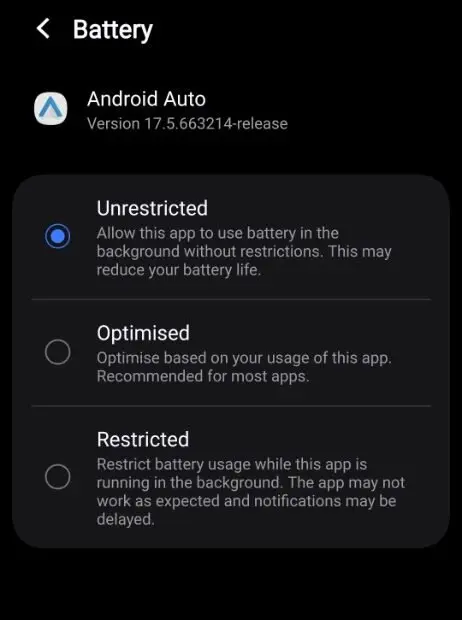
- Grab your phone, jump into Settings → Apps → See all apps.
- Scroll down until you find Android Auto and tap it.
- Tap Battery (on Samsung phones, this might say App Battery Usage).
- Move the tick mark from Optimized over to Unrestricted.
- Now back out to the app list, look for Google Play Services, and do the exact same thing—set it to Unrestricted too.
- Head into your main Battery settings menu and toggle off Adaptive Battery so your device stops throttling background tasks.
Letting the app run freely stops Android from killing the stream, fixing those silent drops where your wireless android auto keeps disconnecting without any phone warning.
RELATED TROUBLESHOOTING GUIDE
Step 2: Force Your Car Stereo Hotspot to Use 5.0 GHz
A lot of car owners think everything runs over Bluetooth, but Bluetooth only handles the initial phone pairing.
All the heavy lifting—your live map rendering, music streaming, and screen touches—travels over a direct local Wi-Fi connection.
Most budget aftermarket Android units leave the factory set to a basic 2.4 GHz Wi-Fi hotspot.
The 2.4 GHz band is choked with radio noise from dashcams, traffic signals, and security cameras all over the city.
Whenever you pull up near a busy junction or toll gate, that radio noise drowns out your car stereo Wi-Fi signal.
This radio crowding is why your wireless android auto keeps disconnecting at the exact same highway spots every single day:
- Open up Car Settings or Factory Settings on your head unit. (If it asks for an installer PIN, check our master list of Android car stereo factory settings passwords).
- Look for Hotspot Settings → AP Band (or Network Band).
- Change that toggle from 2.4 GHz over to 5.0 GHz.
- If your deck is older and only supports 2.4 GHz, stop leaving the channel on “Auto”—lock it down to Channel 6 or Channel 11 manually.
Moving over to 5GHz cuts right through local radio static and stops interference that makes your wireless android auto keeps disconnecting around traffic scanners.
Step 3: Clear Out Corrupted Cache in Zlink or SpeedPlay
Most Android stereos do not have native Google projection built directly into the operating system.
Instead, they run bridge apps installed on the board—usually called Zlink, SpeedPlay, or AutoLink.
Every time you get in the car, these apps save temporary session files and tokens to help you reconnect faster next time.
Over a few months of daily driving, these cache files get corrupted and cause the bridge app to crash in the background.
Wiping that junk cache gives the software a clean slate, putting a stop to crashes where your wireless android auto keeps disconnecting right after startup:
- On your car touchscreen, head to Settings → Apps → See All Apps.
- Find your projection app (look for Zlink5, SpeedPlay, or AutoLink).
- Hit Force Stop, then tap into Storage & Cache.
- Tap Clear Cache.
- Switch off your vehicle ignition, wait 10 seconds for the unit to click off, and turn the key back on to let the app reboot fresh.
⚠️ Big Workshop Precaution: Only tap Clear Cache! Do NOT hit “Clear Storage” or “Clear Data” on Zlink unless your car stereo is connected to working home Wi-Fi. Clearing data wipes your factory activation key, and you will be locked out of projection until the deck can phone home to re-verify its license.
Flushing bad cache files gets rid of stuck background tokens so your wireless android auto keeps disconnecting bug does not show up on your morning commute.
RELATED TROUBLESHOOTING GUIDE
Step 4: Wipe Bluetooth Pairing and Start with a Clean Slate
Old, broken Bluetooth pairing profiles in phone memory cause tons of handshake failures behind the scenes.
Your phone talks to the car, starts launching the projection app, gets confused by old encryption keys, and drops the connection.
Wiping out those old saved profiles and pairing from scratch builds a clean bridge:
- On your smartphone, open Settings → Bluetooth, find your car stereo name (like CarBT, Topway, or GOCSDK), and tap Forget Device.
- Open your phone’s Wi-Fi list and forget the stereo’s direct network name too.
- Now on the car touchscreen, open the Bluetooth app, pull up the paired list, and delete your phone completely.
- Restart both your phone and the car stereo to wipe out lingering connection files from temporary memory.
- Pair freshly through your phone’s Bluetooth menu only. Accept all pop-up prompts for contacts and location, and let the stereo start up the Wi-Fi tunnel on its own without you touching anything.
Pairing fresh clears out broken handshake keys, making sure an unstable setup where your wireless android auto keeps disconnecting gets replaced with a solid handshake.
Step 5: Turn Off Smart Wi-Fi Switching on Your Phone
Smartphones have smart Wi-Fi features built in to automatically switch to the fastest internet connection available.
When your phone hooks up to the car stereo’s local Wi-Fi, it quickly figures out that the network has no real internet running through it.
If automated switching is turned on, your phone will kick the car stereo off Wi-Fi and jump right back to cellular data or your home router.
Turning off these automated roaming settings stops your phone from killing its own link, fixing a constant wireless android auto keeps disconnecting loop as you pull out of your driveway:
- Go into your phone’s Settings → Wi-Fi → Intelligent Wi-Fi (or Wi-Fi Preferences).
- Turn off Switch to mobile data automatically so your phone does not ditch the local projection link.
- Turn off Turn off Wi-Fi automatically so your phone does not shut down its Wi-Fi antenna during long highway stretches.
- Turn off any active VPN apps like Cloudflare WARP or Google One, because virtual networks mess with local IP connections per Google Android Auto support guidelines.
Switching off smart data hopping keeps the wireless connection locked, preventing drops that make your wireless android auto keeps disconnecting every time you pass a familiar Wi-Fi spot.
Bonus Hardware Check: USB Voltage Drops on External Dongles
If you use an external wireless adapter (like a Motorola MA1 or Carlinkit dongle) plugged into a dash port instead of built-in stereo software, check your power delivery.
Many older factory car USB ports only push around 500mA of power.
When a wireless dongle is busy rendering high-definition maps and streaming audio, it pulls upwards of 800mA to 1.0 Amp.
When the port cannot supply enough power, the voltage dips below 4.75V, causing the dongle to restart mid-drive.
If your dongle is restarting randomly, check out our guides on how to fix Carlinkit disconnects or how to stop a Motorola MA1 from disconnecting using a dedicated USB-Y power splitter.
Giving your dongle solid 5V power stops brownout reboots that make a setup where your wireless android auto keeps disconnecting look like broken hardware.
PROJECTION TROUBLESHOOTING
👉 Is your Zlink app completely failing to launch projection? Step-by-step Zlink repair guide →
Fixing wireless projection drops really comes down to getting phone battery limits out of the way and locking in a clean 5GHz Wi-Fi path.
Setting Android Auto to Unrestricted, shifting your stereo hotspot over to 5GHz, and turning off smart Wi-Fi roaming takes care of almost every dropped session we see in the garage.
Work through these simple bench checks one by one to permanently kill that annoying bug where your wireless android auto keeps disconnecting, and get back to smooth, reliable maps on every drive.
Frequently Asked Questions (FAQ)
Why does my wireless Android Auto keep disconnecting near highway tolls?
Highway dropouts happen because toll booths and traffic sensors blast powerful radio signals. These signals wipe out crowded Wi-Fi channels. Locking your stereo hotspot to a clean frequency (like Channel 36 or 44) stops that issue where your wireless android auto keeps disconnecting near toll plazas.
What should I do if Android Auto is not showing up on the car screen at all?
Make sure your phone’s default USB settings are set up right. Turn on Developer Options on your phone, find Default USB Configuration, and pick File Transfer / Android Auto rather than Charging Only so the phone allows the video feed to run.
Why does phone Wi-Fi disconnect automatically when entering the vehicle?
If your phone has auto-connect turned on for your home or office router, it will ditch the car stereo Wi-Fi to jump onto the internet router outside. Forget overlapping home networks from your phone Wi-Fi list to stop your phone from jumping around.
Can I force a wired USB connection if wireless projection remains unstable?
Yes. Plug an original phone cable into the stereo’s primary 4-pin USB port behind the dash. Open your projection app (like Zlink), head into settings, and turn off “Wireless Auto-Connect” to run strictly in wired mode, permanently avoiding bugs where your wireless android auto keeps disconnecting over bumps.
[…] network. When that protocol stumbles, the system freezes. If you frequently experience issues where wireless Android Auto keeps disconnecting on aftermarket head units, use these 5 tested troubleshooting steps to get your screen connected […]