
How to Fix Apple CarPlay Only Charges Phone
Plugged your iPhone into the dashboard and only getting battery charge without Apple CarPlay launching? Discover how to fix issues where CarPlay only charges phone devices by identifying 4-pin OTG ports, replacing charge-only cables, and enabling USB Host mode in Android head units.

Plugging your iPhone into the dashboard only to find that carplay only charges phone batteries without launching navigation or music exposes an interrupted data stream rather than a blown head unit fuse or broken touchscreen.
Universal Serial Bus (USB) architecture physically separates electrical power delivery from high-speed digital communication across distinct copper conductors.
Inside standard Lightning and USB-C cables, independent 5V power rails (VBUS and Ground) deliver charging current to your device.
Meanwhile, separate twisted differential wire pairs (Data+ and Data-) negotiate communication protocols compliant with official Apple CarPlay connection guidelines.
When data lines are severed, pinched, or unassigned by system firmware, the power circuit continues to supply 5V charging current.
However, the vehicle’s infotainment computer remains completely blind to the smartphone.
In our workshop bench testing, this failure is almost never an unrecoverable motherboard fault.
Before paying for dealership electrical diagnostics or replacing expensive dashboard hardware, fifteen minutes of structured bench troubleshooting will isolate whether the communication failure is caused by an inexpensive charging cord or a misconfigured rear USB harness.
Here are five practical workshop steps to resolve why carplay only charges phone connections and restore responsive dashboard projection.
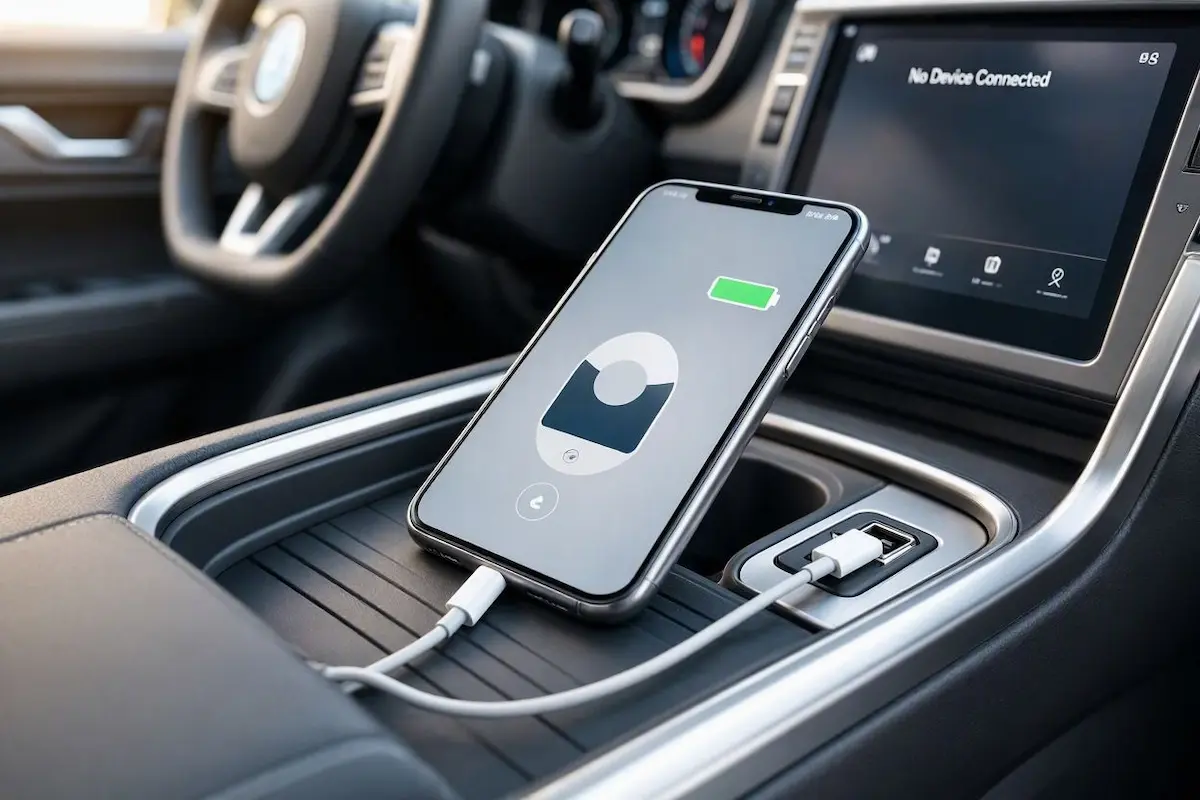
Diagnostic Matrix: Why CarPlay Only Charges Phone Without Connecting
Match your specific vehicle symptoms against our workshop failure matrix to isolate an issue where carplay only charges phone batteries before pulling dashboard trim panels or altering core settings:
| Observed Vehicle Symptom | Underlying Hardware / Software Cause | Immediate Workshop Action |
|---|---|---|
| Battery charges; car screen displays “No Device Detected” | Charge-only cable lacking physical D+ and D- internal data lines. | Replace cable with an Apple MFi-certified 4-wire high-speed data lead. |
| iPhone charges; stereo displays local USB flash drive menu | Cable plugged into secondary 6-pin slave USB storage port behind dash. | Extract stereo chassis and move USB harness lead to the 4-pin OTG port. |
| Charges normally; projection app stuck on “Connecting…” | Stereo USB controller configured as Device/Slave instead of Host Mode. | Enter Factory Settings (PIN: 8888 or 1617) and enable USB Host Mode. |
| Charging disconnects and reconnects over rough road bumps | Compacted pocket lint preventing Lightning / Type-C pin seating. | Clean phone port bottom corners gently using a wooden toothpick. |
| Charges fine; CarPlay menu completely missing in phone settings | iOS Content & Privacy restrictions blocking projection daemon. | Enable CarPlay under Screen Time Allowed Apps in iPhone settings. |
Step 1: Check 4-Pin OTG vs. 6-Pin Slave USB Ports (Aftermarket Stereos)
If you recently installed an aftermarket Android head unit (such as Allwinner, TS10, Topway, FYT, or UIS7862 platforms), the primary reason why carplay only charges phone devices is plugging into the incorrect rear wiring harness lead.
Almost all aftermarket Android stereos provide two distinct USB pigtail cables that connect to the rear aluminum heatsink: a 4-pin plug and a 6-pin plug.
While both connectors power a smartphone battery, their internal data communication routing is entirely different:

- The 4-Pin USB Port (OTG / Data): This socket connects directly to the core application processor’s On-The-Go (OTG) bus. It supports bidirectional protocol switching, Apple MFi cryptographic handshakes, and high-speed screen mirroring. Apple CarPlay and Android Auto operate strictly through this 4-pin lead.
- The 6-Pin USB Port (Slave / Mass Storage): This port is routed through a secondary low-speed USB controller designed strictly for flash memory sticks, offline MP3/video playback, and 500mA trickle charging. It completely lacks the hardware data registers required for mobile screen projection.
- The Workshop Solution: Use plastic trim tools to unclip the radio faceplate, trace the USB extension cable running into your glovebox, and ensure it is plugged firmly into the 4-pin socket on the rear chassis. Review our complete wiring pinout guide to connect factory wiring to android head unit harnesses for exact pin positions.
Plugging into the verified OTG lead ends scenarios where carplay only charges phone hardware without establishing projection.
RELATED TROUBLESHOOTING GUIDE
Step 2: Inspect Cable Data Lines and Test for Pin 4 Carbonization
Inexpensive charging cables purchased from gas stations or convenience stores frequently contain only two copper wires inside the outer jacket.
Manufacturers omit the twisted data wires to cut production costs.
If your cable lacks high-speed data pairs, your carplay only charges phone hardware while the head unit remains completely deaf to incoming data.
Furthermore, even high-quality OEM Apple cables degrade over time due to electrical arcing inside vehicles:
- Perform the Laptop Verification Test: Plug your iPhone into a Windows PC or Mac using your car cable. If your computer does not chime, prompt “Trust This Computer,” or display your device in Finder/File Explorer, the cable has damaged data conductors. It will only deliver power in your vehicle.
- Inspect Cable Gold Contacts: Examine the connector tip under bright sunlight. On Lightning cables, Pin 4 (VBUS power) and Pin 5 frequently develop a black, burnt smudge caused by electrical arcing when plugging in under live 12V current. This microscopic carbon layer introduces electrical resistance that breaks high-speed data handshakes.
- Clean Packed Pocket Lint: Use a flashlight to peer into your iPhone’s Lightning or USB-C port. In 70% of workshop cases, compacted pocket lint prevents the cable collar from seating fully into the chassis. Outer power pins make contact, but the shorter inner data pins fail to seat. Gently scrape out compacted lint using a non-conductive wooden toothpick.
Cleaning contacts ensures an carplay only charges phone symptom does not occur due to microscopic pin oxidization.
⚠️ Port Safety Warning: Never insert metal safety pins, sewing needles, or paperclips into a phone port. Shorting the live battery pins inside a USB-C or Lightning port can permanently destroy your iPhone’s Tristar/Hydra power management IC.
Step 3: Enable USB Host Mode in Factory Settings
When an aftermarket head unit’s internal USB controller is misconfigured, carplay only charges phone devices because the stereo acts like a passive peripheral rather than a master host.
Universal Serial Bus technology relies on a master-slave relationship.
For CarPlay projection to initialize, the car stereo must operate in Host Mode, querying the smartphone for its digital identity.
If firmware defaults to Device / Slave Mode, the stereo expects to be controlled by an external computer, ignoring incoming projection signals:
- Open the application drawer on your Android stereo and launch Car Settings.
- Navigate to Factory Settings (or Extra Settings) and enter your board manufacturer’s passcode (such as
8888,1617,3368, or123456). Check our verified directory of Android car stereo factory settings passwords if your code is rejected. - Locate the menu option labeled USB Settings, USB Mode, or OTG Protocol.
- If the setting is assigned to Device or Slave, switch it to Host Mode.
- Locate a toggle named Force USB 1.1 and ensure it is turned OFF / Disabled. High-definition screen projection requires USB 2.0 High-Speed throughput.
- Tap Save & Reboot to commit the hardware driver profile to the system MCU flash memory.
Re-enabling host control guarantees that an carplay only charges phone defect is not caused by incorrect internal USB controller modes.
FACTORY CONFIGURATION RESOURCE
Step 4: Verify iOS USB Accessories & Screen Time Permissions
To defend against hardware brute-force exploits, Apple enforces an operating system security policy known as USB Restricted Mode.
If iOS security settings block vehicle communication, carplay only charges phone batteries without ever waking the center console display.
By default, if your iPhone has been locked for more than one hour, iOS cuts data transmission capabilities across the Lightning or USB-C port.
This automated lockout allows only 5V battery charging until the device is manually unlocked:
- On your iPhone, open Settings → Face ID & Passcode (or Touch ID & Passcode).
- Enter your passcode to view security settings.
- Scroll down to the section titled Allow Access When Locked.
- Locate Accessories (or USB Accessories) and toggle the switch ON (green). When enabled, your iPhone permits your car head unit to access data lines immediately without requiring manual unlocking every time you start the car.
- Next, navigate to Settings → Screen Time → Content & Privacy Restrictions.
- If restrictions are enabled, tap Allowed Apps and confirm that the switch for CarPlay is turned ON. If restricted here, iOS suppresses all projection services entirely.
- If your vehicle utilizes factory Ford infotainment rather than an aftermarket deck and faces connection drops, review our diagnostic guide on resolving Ford SYNC CarPlay black screen failures.
Enabling accessory permissions eliminates situations where carplay only charges phone units while resting in your pocket.
Step 5: Flush Zlink Handshake Daemons and Cold Reboot the Head Unit
Aftermarket Android stereos run bridge projection applications such as Zlink, TLINK, or SpeedPlay to negotiate Apple CarPlay protocols.
When projection daemons crash in background RAM, carplay only charges phone handsets because the USB host controller stops polling for data packets.
When the vehicle key is turned off, the head unit does not perform a cold reboot; it enters an ultra-low-power standby sleep state.
If the projection listener daemon froze during vehicle cranking, that crashed process remains locked in volatile memory:
- On your car stereo screen, open Settings → Apps → See All Apps → Zlink (or TLINK).
- Tap Force Stop, then tap Storage & Cache → Clear Cache. (Do NOT tap Clear Storage / Clear Data unless you have your activation code backed up, as this can de-authorize your software license!)
- Locate the small recessed RST pinhole on the stereo faceplate bezel.
- Insert an unbent paperclip and hold the tactile microswitch down for 5 seconds.
- Release the pin and let the system execute a cold hardware reboot from the car brand splash screen. Once the interface stabilizes, plug your iPhone back into the 4-pin USB port. If your stereo cycles on reboot, check our guide to fixing an Android car stereo boot loop.
RELATED TROUBLESHOOTING GUIDE
👉 Does your connection drop out over road bumps? Master guide to Apple CarPlay disconnects →
Understanding why carplay only charges phone connections comes down to verifying differential data wire continuity and USB host assignments.
Swapping cheap charging cords for certified MFi data leads, ensuring the harness connects to the 4-pin OTG port, and enabling USB Host Mode in Factory Settings eliminates the charging-only fault.
Following this structured workshop procedure permanently resolves an issue where carplay only charges phone batteries, restoring instant, reliable dashboard projection on every trip.
Frequently Asked Questions (FAQ)
Why does my car stereo charge my iPhone but won’t play music through CarPlay?
When carplay only charges phone batteries without projection, the USB cable lacks internal D+ and D- data wires, or the cable is plugged into a secondary 6-pin USB port that only supports basic flash drives. Without high-speed data lines, the phone receives 5V charging power while the head unit remains unable to negotiate projection protocols.
Can an Android car stereo run CarPlay if it lacks built-in Zlink?
Yes. If your Android head unit lacks an internal CarPlay license chip or Zlink application, you can install the AutoKit APK and connect an external Carlinkit USB dongle into the 4-pin OTG port to add wired and wireless Apple CarPlay functionality.
Will switching to a wireless CarPlay adapter fix the charging-only issue?
Yes, provided the wireless adapter is plugged into an OTG-capable 4-pin data port. If an issue where carplay only charges phone hardware occurred due to a damaged physical phone cable, a wireless adapter eliminates the cable bottleneck completely. If you experience dropouts with an adapter, see our guide on fixing Carlinkit adapter connection drops.
Why does CarPlay disconnect when I touch the USB cable?
Disconnecting when moving the cable indicates worn retention latches, oxidization on contact pins (specifically Pin 4 and Pin 5), or compacted pocket lint inside the phone’s charging port. Cleaning the port with a wooden pick or swapping to a new MFi-certified cable resolves physical connection drops.