
How to Fix Android Auto Microphone Not Working (Voice & Assistant Fix)
Google Assistant says "I didn't catch that" or callers can't hear your voice in Android Auto? Learn how to fix Android microphone permissions, resolve vehicle roof mic hardware conflicts, toggle Bluetooth audio profiles, and clear Play Services cache.

Diagnosing an issue where an android auto microphone not working error appears on your vehicle touchscreen usually exposes a digital audio routing conflict rather than a physically damaged cabin microphone assembly.
Android Auto splits voice communications across two entirely independent software pipelines inside your handset operating system.
Voice commands and Google Assistant dictation are converted into digital audio streams over the USB or Wi-Fi projection bus via Google Speech Services.
Conversely, traditional cellular telephone calls bypass projection protocols entirely.
Phone calls are transmitted through the infotainment system’s legacy Bluetooth Hands-Free Profile (HFP) audio sink.
Because these communication paths operate on discrete software daemons, a desynced Bluetooth link will mute telephone calls while leaving Google Assistant fully responsive.
Similarly, an operating system privacy update or acoustic token corruption will disable voice search while allowing phone conversations to function without issue.
Before pulling overhead console trim or booking dealership appointments, fifteen minutes of structured bench troubleshooting will isolate the exact bottleneck.
Here are six practical workshop procedures to resolve an android auto microphone not working glitch and restore crisp, two-way hands-free communication.
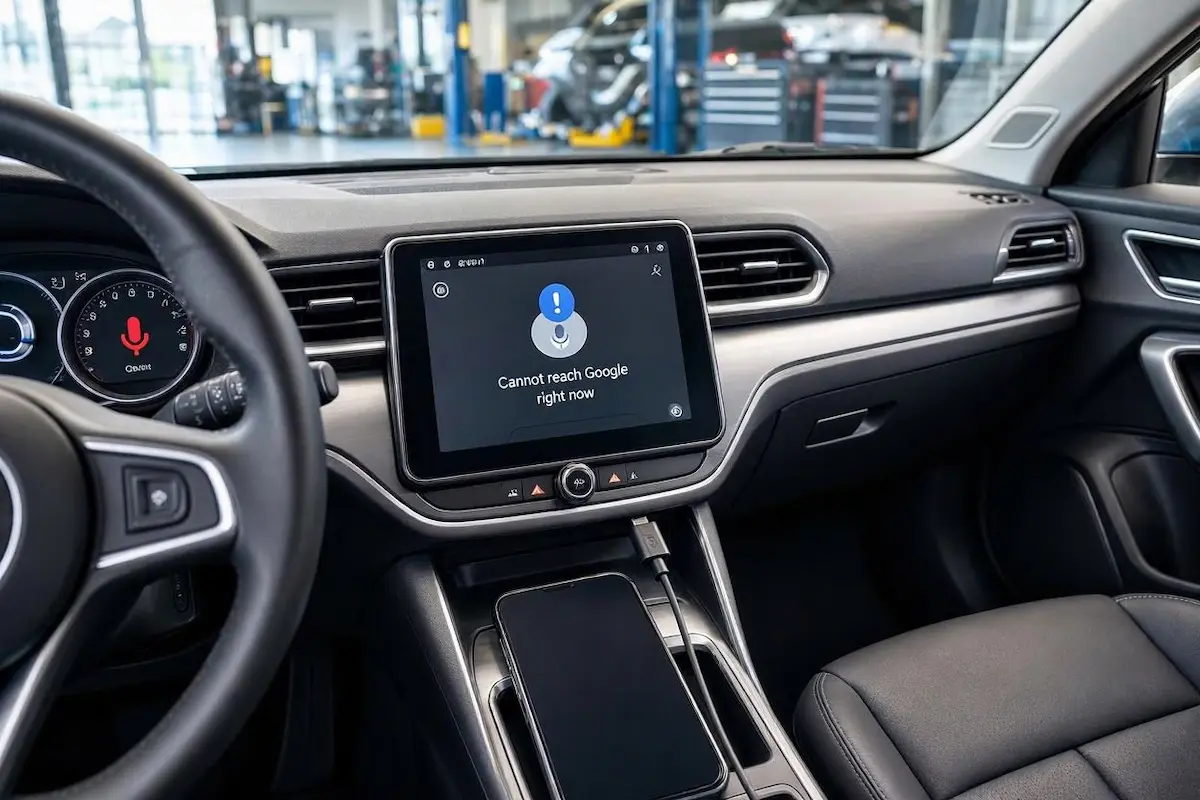
Diagnostic Matrix: Why an Android Auto Microphone Not Working Error Occurs
Match your specific vehicle symptoms against our workshop matrix to isolate an android auto microphone not working failure before dismantling dashboard trim:
| Observed Microphone Symptom | Underlying Hardware / Software Cause | Immediate Workshop Action |
|---|---|---|
| Assistant hears nothing; phone calls work normally | Google App microphone access revoked by an Android OS security update. | Grant “Allow all the time” permission to Google and Android Auto apps. |
| Callers hear silence; Assistant responds perfectly | Bluetooth Hands-Free Profile (HFP) channel desynced from stereo receiver. | Toggle “Phone Calls” off and back on in Bluetooth device settings. |
| Assistant tone beeps and immediately dismisses itself | Speech Recognition acoustic cache corrupted in Google Play Services storage. | Clear cache and application data on Google App and Speech Services. |
| Voice input only works when speaking directly into phone | Head unit failing to initialize external roof console microphone bus. | Inspect external 3.5mm microphone jack on the rear radio chassis. |
| Microphone works for two minutes, then voice input freezes | Aggressive Android battery optimization terminating background audio daemons. | Set battery usage for Android Auto and Google App to “Unrestricted”. |
Step 1: Grant Unrestricted Hardware Microphone Permissions
Android security updates periodically revoke sensitive hardware permissions from background projection services.
If the mobile operating system revokes recording privileges from underlying projection daemons, an immediate android auto microphone not working failure triggers whenever you tap the on-screen microphone icon or touch the steering wheel voice button.
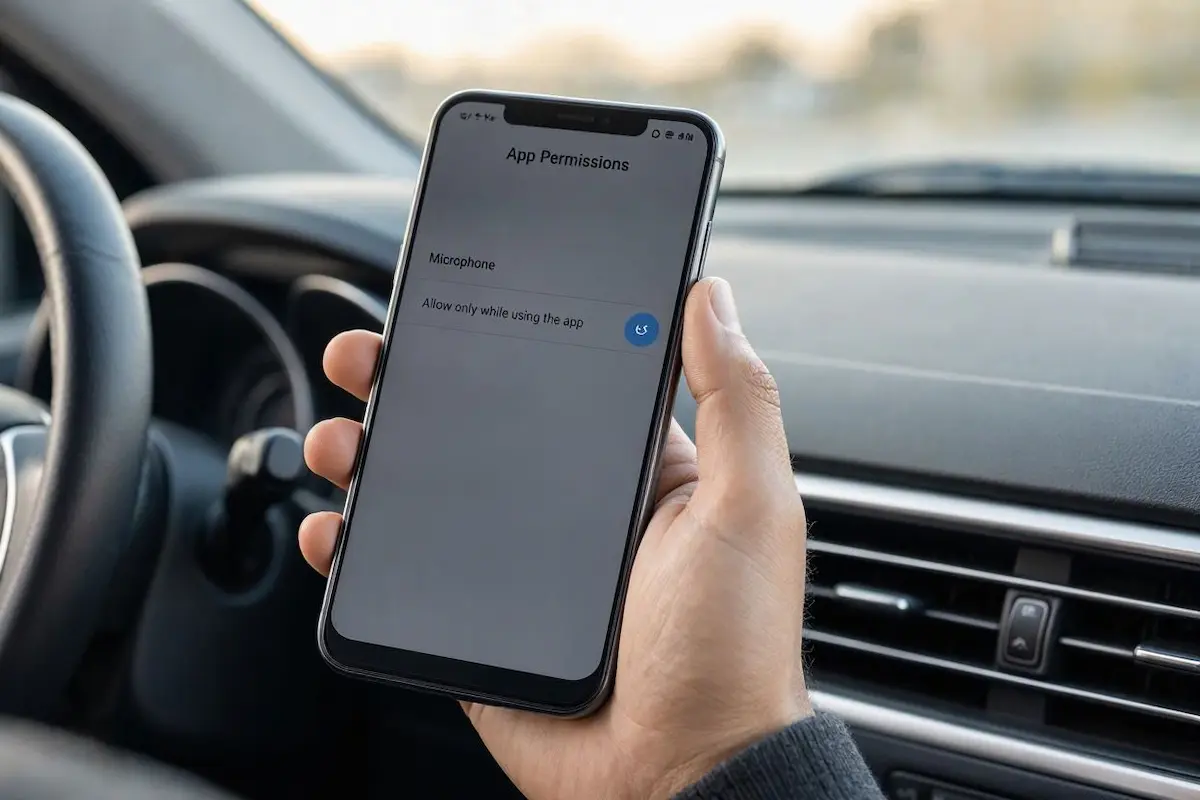
- Disconnect your smartphone from the vehicle USB port or wireless projection adapter.
- Open Settings → Apps → See all apps on your phone.
- Scroll down and select Android Auto, then tap Permissions.
- Tap Microphone and select “Allow only while using the app” (or Allow all the time).
- Return to your applications list, tap the primary Google app, tap Permissions → Microphone, and verify that it is explicitly assigned to “Allow”.
- Repeat this permission verification for Google Play Services and Speech Services by Google.
⚠️ Global Privacy Toggle Notice: On modern Android versions, open Settings → Security & Privacy → Privacy → Permission Manager. Ensure the global “Microphone Access” master switch is turned ON. If this master toggle is disabled, all hardware microphone inputs are cut at the kernel level across all apps, leaving your system completely silent.
RELATED TROUBLESHOOTING GUIDE
👉 Experiencing voice input silence on an iPhone setup instead? Apple CarPlay microphone fix guide →
Step 2: Clear Speech Recognition and Google App Acoustic Cache
Voice dictation inside Android Auto relies on local speech-to-text token processing managed by speech recognition algorithms embedded inside Google application packages.
Corrupted acoustic language models cause the system audio listener daemon to crash the moment speech capture initializes.
Flushing temporary cache storage eliminates persistent software deadlocks that make an android auto microphone not working alert pop up during map navigation:
- On your smartphone, navigate to Settings → Apps → Google.
- Tap Storage & Cache, tap Clear Cache, then select Manage Space → Clear All Data.
- Return to the application list and tap Speech Services by Google (or Android System Intelligence on Pixel devices).
- Tap Storage & Cache and tap Clear Cache.
- Restart your smartphone completely.
Rebooting rebuilds acoustic language tokens and establishes a clean microphone listener thread upon re-entering your car.
Step 3: Reset Bluetooth Hands-Free Profile (HFP) Audio Routing
Even when connected through a high-speed USB data cable, Android Auto transmits two-way telephone conversations across the car stereo’s wireless Bluetooth Hands-Free Profile (HFP).
If the Bluetooth audio sink fails to negotiate input bandwidth alongside projected media streams, phone calls will drop all voice capture while music continues to play normally.
This profile desynchronization is a primary factor behind an android auto microphone not working during cellular calls:
- Connect your phone to your car so Android Auto projects fully onto your dashboard display.
- On your smartphone, open Settings → Bluetooth (or Connected Devices).
- Tap the Gear Icon adjacent to your car stereo’s Bluetooth profile name.
- Verify that the toggles for Calls, Audio, and Contact Sharing are active.
- Switch the Calls toggle OFF, pause for 5 seconds, and switch it back ON.
Forcing this toggle renegotiates the bidirectional voice channel, clearing instances where an android auto microphone not working during incoming phone conversations leaves callers unable to hear you.
RELATED TROUBLESHOOTING GUIDE
Step 4: Resolve Aftermarket External vs. Internal Mic Wiring Conflicts
If your car uses an aftermarket Android head unit (such as FYT, Topway, TS10, or Allwinner platforms), the chassis contains two microphone inputs: a tiny pinhole condenser on the front faceplate and a 3.5mm external mic jack on the rear harness.
Hardware wiring conflicts on these aftermarket units are among the most frequent workshop causes of an android auto microphone not working failure:
- The Parallel Microphone Conflict: Many budget aftermarket units do not physically disconnect the faceplate microphone when you plug an external mic into the rear 3.5mm jack. Both microphones run in parallel, creating destructive acoustic phase cancellation that reduces voice pickup to faint, muffled static.
- Verify Rear 3.5mm Jack Placement: Slide the radio chassis forward slightly and check that your external microphone is plugged firmly into the port labeled “MIC” rather than the adjacent “AUX-L” or “SWC” input jacks. Review our harness guide to connect factory wiring to android head unit ports properly.
- Increase Microphone Gain: Open your stereo Car Settings → Factory Settings (enter your platform PIN, such as
8888,1617, or126). Find the Voice / Mic Gain slider and increase sensitivity from the default setting to compensate for cabin wind noise. Grab your unlock code from our Android car stereo factory settings passwords list.
Step 5: Disable Secondary Voice Assistants (Bixby & Alexa Conflicts)
On Samsung Galaxy and Motorola devices, multiple assistant engines compete for exclusive control of the hardware microphone register.
If Samsung Bixby or Amazon Alexa runs continuous background wake-word listening, it blocks Google Assistant from capturing input.
Eliminating background voice engine clashes permanently cures situations where an android auto microphone not working glitch freezes navigation voice input:
- On your Samsung device, open Settings → Advanced Features → Bixby.
- Switch Voice Wake-up (“Hi Bixby”) to OFF.
- Navigate to Settings → Apps → Choose Default Apps → Digital Assistant App.
- Confirm that Device Assistant App is explicitly assigned to Google rather than Bixby or None.
- Open the primary Google app, tap your profile icon → Settings → Google Assistant → Hey Google & Voice Match, and retrain your voice profile cleanly in a quiet room.
RELATED TROUBLESHOOTING GUIDE
Step 6: Hard Reboot the Car Head Unit to Clear Audio DSP Deadlocks
Automotive infotainment computers run microkernel operating systems that rarely experience a cold power cycle during normal daily driving.
An internal audio DSP driver deadlock will disable microphone input buses entirely until a hardware-level restart flushes memory registers.
Executing a cold restart flushes locked driver states, ending cycles where an android auto microphone not working error recurs every time you start the car:
- Hyundai / Kia: Press the small recessed Reset pinhole beside the volume knob for 5 seconds using a paperclip until the screen cycles black.
- Honda Infotainment: Press and hold down the physical Power knob for 10 seconds until the infotainment display presents a reboot confirmation prompt.
- Toyota / Lexus: Press and hold the primary Volume knob down for 12 seconds until the brand boot animation appears.
- Ford SYNC 3 / SYNC 4: Press and hold the Volume Power and Seek Forward (>>) buttons together for 10 seconds until the system reboots.
- Aftermarket Stereos: Depress the faceplate RST pinhole for 10 seconds with a SIM tool to restart the internal microcontroller. If your unit is stuck cycling on reboot, consult our Android car stereo boot loop recovery guide.
Diagnosing an android auto microphone not working failure comes down to verifying software permissions, ensuring Bluetooth Hands-Free Profiles are synced for phone calls, and eliminating dual-microphone interference on aftermarket head units.
Following this structured troubleshooting sequence restores clear voice commands and hands-free calls permanently whenever an android auto microphone not working error interrupts your drive.
Frequently Asked Questions (FAQ)
Why does Google Assistant not hear me on Android Auto?
When an android auto microphone not working problem affects Google Assistant, the Google app or Android Auto lacks microphone permissions, the global Android microphone privacy toggle is switched off, or temporary speech recognition cache tokens have become corrupted after an operating system update.
Why can callers not hear me on Android Auto phone calls?
Android Auto routes phone calls through your car stereo’s Bluetooth Hands-Free Profile (HFP). If the Bluetooth call audio profile desyncs or the stereo is attempting to pull audio from an unattached external microphone port, callers will hear complete silence.
Does Android Auto use my phone mic or the car mic?
When properly connected via USB or wireless projection, Android Auto is engineered to prioritize your vehicle’s factory roof or overhead console microphone. However, if the car microphone bus fails to initialize, the system may attempt and fail to pick up your voice from your phone in the center console.
How do I fix microphone issues on an aftermarket Android stereo?
Verify that your external 3.5mm microphone is plugged into the dedicated “MIC” port on the rear harness. Additionally, access Factory Settings using your unit’s PIN code and increase the internal microphone gain setting to boost audio pickup sensitivity.