
Apple CarPlay Microphone Not Working: 5 Best Tested Fixes (Proven)
Fix Apple CarPlay microphone issues, muted phone calls, and Siri voice command failures permanently.

Diagnosing an unexpected issue where an apple carplay microphone not working during cellular calls or voice commands leaves callers hearing complete silence or muffled static points to an isolated audio routing failure rather than a destroyed microphone capsule.
Unlike standard Bluetooth Hands-Free Profile (HFP) connections, Apple CarPlay routes analog voice input through encrypted, virtual audio pipelines.
These pipelines are managed strictly between iOS and the vehicle’s digital sound processor (DSP).
When voice transmission drops completely, the video stream and outgoing speaker audio remain fully functional because they operate on completely independent hardware channels.
In our workshop bench testing, the root cause is almost always dual-microphone phase cancellation on aftermarket Android screens, zeroed pre-amplifier gain inside hidden engineering menus, missing 5V phantom bias power on factory roof harnesses, or aggressive iOS neural voice isolation.
Because automotive multimedia systems utilize separate input buffers, a display can operate flawlessly while incoming speech is entirely discarded.
Before replacing factory wiring harnesses or booking dealership electrical diagnostics, fifteen minutes of structured bench troubleshooting will isolate the exact point of failure.
Here are five practical workshop steps to resolve why an apple carplay microphone not working condition occurs and restore crystal-clear voice communication.
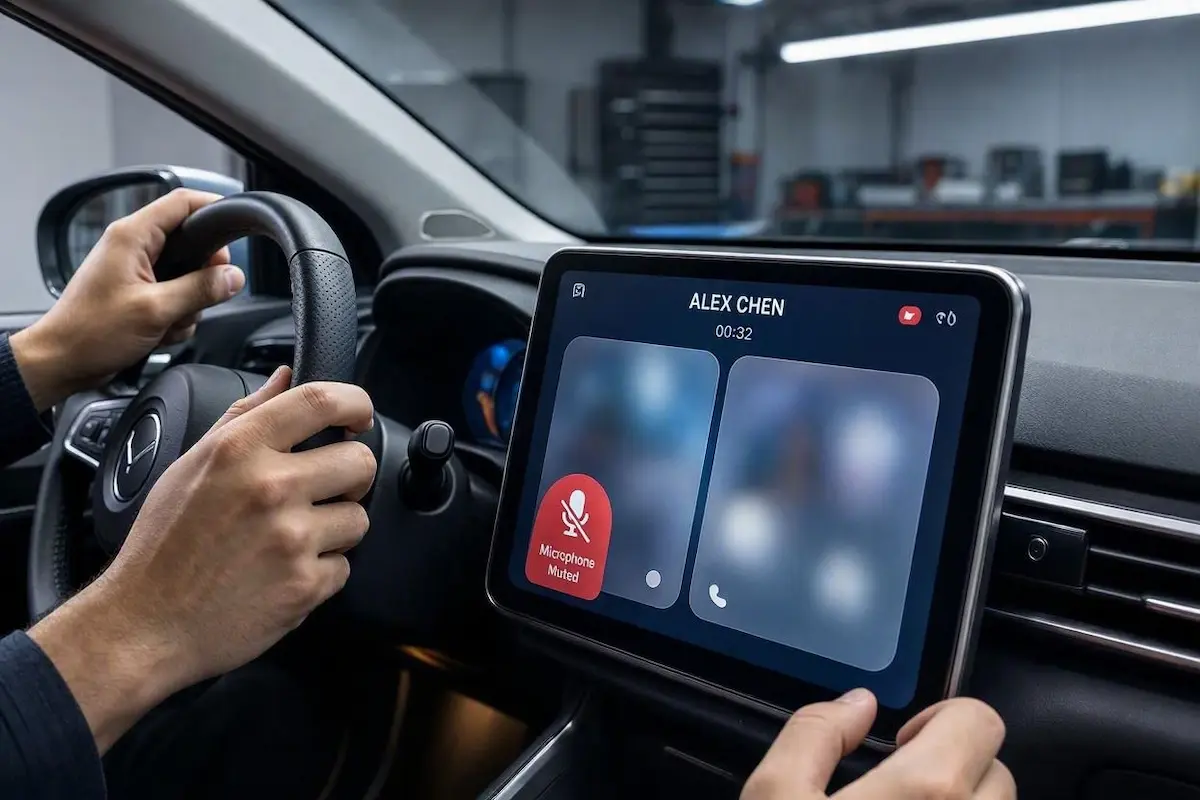
Diagnostic Matrix: When Apple CarPlay Microphone Is Not Working
Match your specific audio input symptoms against our workshop matrix to isolate an apple carplay microphone not working error before pulling dashboard panels or modifying system firmware:
| Observed Microphone Symptom | Underlying Hardware / Software Cause | Immediate Workshop Action |
|---|---|---|
| Total dead silence (Callers hear zero audio) | Siri lock screen restrictions active or 3.5mm mic jack unseated. | Enable “Allow Siri When Locked”; push rear 3.5mm plug firmly until it clicks. |
| Muffled or hollow voice (“Sounds far away”) | Internal front-bezel mic and external 3.5mm mic causing phase cancellation. | Snip front-panel internal mic capsule; boost MIC Gain in Factory Settings. |
| Voice cuts in and out mid-sentence while driving | iOS Control Center “Voice Isolation” filtering out cabin speech as road noise. | Swipe down Control Center during an active call and switch Mic Mode to Standard. |
| Loud electrical buzzing or alternator whine on calls | Unshielded 3.5mm microphone wire routed parallel to main 12V power harness. | Reroute microphone line up driver A-pillar away from vehicle fuse block. |
| Factory roof microphone completely dead after radio swap | OEM ceiling microphone unpowered due to missing 5V phantom bias supply. | Install a dedicated aftermarket 3.5mm directional microphone near the visor. |
Step 1: Re-enable iOS Siri, Dictation, and Privacy Permissions
CarPlay protocol architecture routes all speech capture directly through the iOS Siri speech recognition engine, as detailed in Apple’s official CarPlay connection guidelines.
If an iOS patch or privacy profile disables Siri background permissions, the operating system silences the vehicle microphone line completely without presenting an error dialog on the dash.
Checking these settings is the fastest zero-cost test when diagnosing an apple carplay microphone not working on both factory and aftermarket consoles:
- Disconnect your iPhone from the vehicle USB port or wireless projection adapter.
- Open Settings → Siri & Search (or Apple Intelligence & Siri):
- Ensure Listen for “Hey Siri” (or “Siri”) is switched ON.
- Ensure Press Side Button for Siri is switched ON.
- Verify that Allow Siri When Locked is strictly enabled. If Siri cannot run while the device is locked, incoming and outgoing call audio pipelines remain closed.
- Navigate to Settings → General → Keyboard, scroll down, and confirm that Enable Dictation is toggled ON. If already active, toggle it OFF for 5 seconds and switch it back ON to flush the audio daemon.
- Go to Settings → Screen Time → Content & Privacy Restrictions → Allowed Apps, and ensure both CarPlay and Siri & Dictation are permitted (green).
- Reconnect the iPhone to your vehicle and test an outbound phone call.
Restoring these system voice flags eliminates operating system barriers that leave an apple carplay microphone not working during morning hands-free calls.
RELATED TROUBLESHOOTING GUIDE
👉 Dealing with delayed audio response or lip-sync lag? How to fix wireless CarPlay audio delay →
Step 2: Eliminate Dual Microphone Hardware Phasing (Aftermarket Screens)
If you installed an aftermarket Android head unit (running Zlink, SpeedPlay, or AutoKit on Allwinner, FYT, or Topway motherboards), internal hardware routing is the single leading mechanical culprit behind an apple carplay microphone not working properly.
Most budget Android stereos incorporate a tiny electret microphone capsule soldered directly onto the front faceplate PCB behind a pinhole labeled “MIC”.
Simultaneously, the manufacturer provides a female 3.5mm microphone jack on the rear RCA harness:
- The Impedance Conflict: Many budget boards wire both the front pinhole mic and the rear 3.5mm jack to the exact same audio input trace on the mainboard without an impedance buffer. When you plug in an external microphone, the two capsules run in parallel, creating severe phase cancellation. The external mic grounds out, leaving your voice distant, muffled, or completely muted.
- The Workshop Solution: Plug a high-sensitivity directional microphone into the dedicated MIC 3.5mm female plug on the rear harness, and route it to your sun visor or steering column.
- The Hardware Mod (Desoldering): If call audio remains hollow or unintelligible, remove the head unit faceplate and gently desolder or snip one leg of the front-panel internal microphone capsule. This forces the onboard pre-amplifier circuit to draw 100% of its voice signal from the external directional microphone.
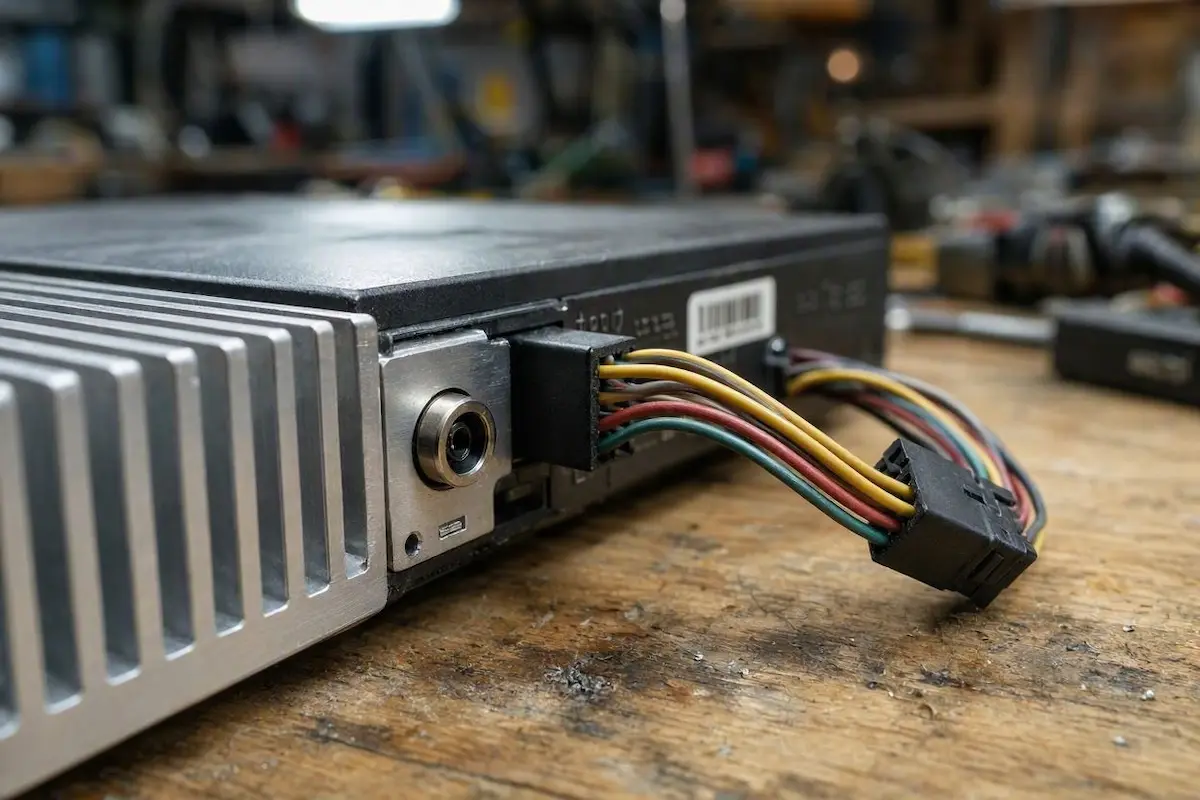
Eliminating dual-mic phase cancellation permanently resolves issues where an apple carplay microphone not working condition makes your voice sound far away to callers.
Step 3: Boost Pre-Amplifier Microphone Gain in Factory Settings
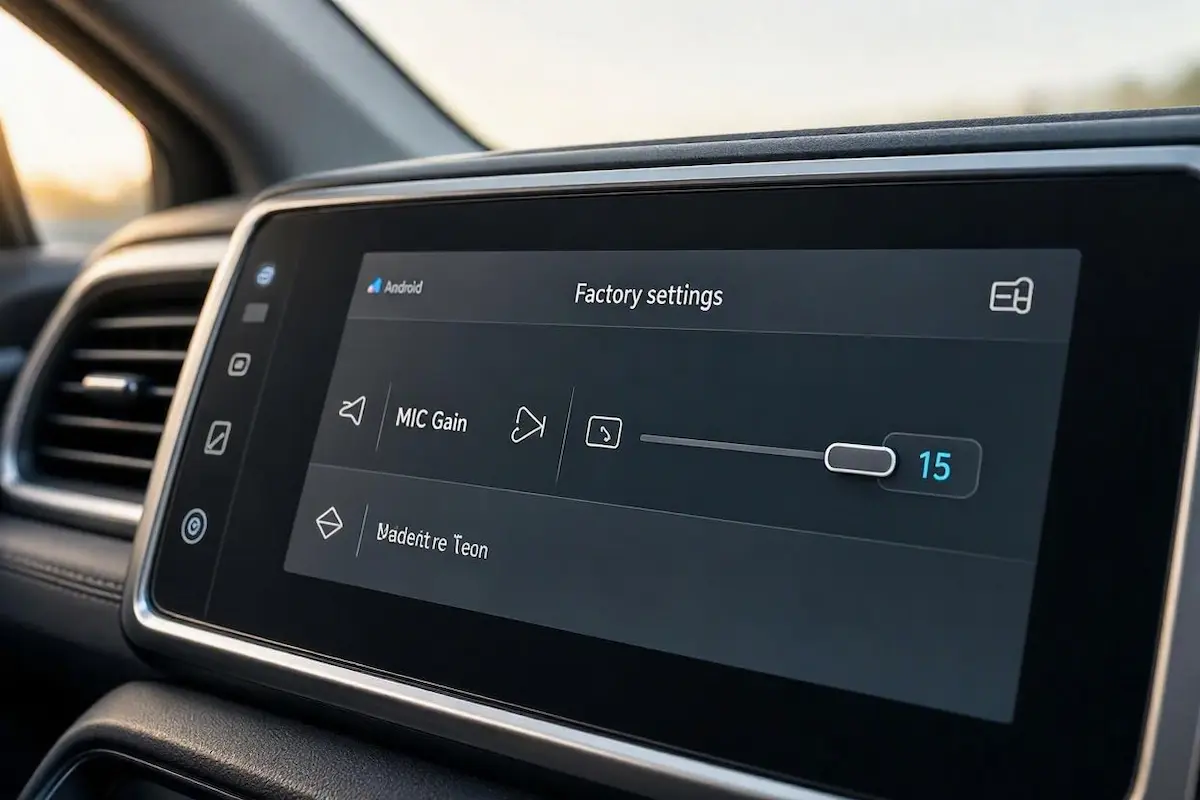
In many aftermarket head units, the physical microphone is fully functional, but the operating system’s software input gain slider is set too low for the audio DSP to process spoken frequencies.
Raising this gain parameter restores normal volume immediately, resolving an apple carplay microphone not working glitch across dashboard integration apps:
- Open the application drawer on your Android stereo and launch Car Settings.
- Navigate to Factory Settings and enter your board manufacturer’s passcode (such as
8888,1617,3368, or123456). Check our complete Android car stereo factory settings passwords directory if your PIN is rejected. - Locate the tab labeled Voice, Audio, or Volume / Gain Balance.
- Locate the slider labeled MIC Gain or CarPlay / BT Voice Volume.
- Factory default settings often sit at
0or3. Increase this slider to a value between 12 and 15 (out of 20). - Tap Save & Reboot to write the gain configuration to the stereo’s audio DSP chip.
⚠️ Gain Calibration Rule: Never max out the MIC Gain slider to 20. Excessive input gain over-amplifies vehicle cabin road noise and creates severe digital clipping, making your voice sound heavily distorted and robotic to callers.
RELATED TROUBLESHOOTING GUIDE
Step 4: Check 3.5mm Jack Seating and OEM Ceiling Mic Phantom Power
If you recently upgraded a factory stereo to an aftermarket unit in vehicles manufactured by Honda, Toyota, Hyundai, or Subaru, missing hardware power explains why an apple carplay microphone not working fault occurs right after the installation.
Inspect these two physical connection factors before assuming the harness is defective:
- The 3.5mm TRS Mechanical Click: A common installation mistake is failing to push the external microphone plug fully into the rear female harness lead. If the connector sits even 1 millimeter out, the contact tip shorts against ground, completely silencing audio input. Push firmly until you feel a definitive mechanical snap.
- OEM Ceiling Mic Phantom Bias Power: Factory roof-mounted microphones contain active operational pre-amps that require 5V to 8V of phantom bias power delivered through the vehicle’s original factory wiring harness. Aftermarket Android stereos only provide a passive, unpowered 3.5mm microphone input. If you attempt to wire a factory ceiling microphone directly into an aftermarket harness without a 12V-to-5V step-down regulator, the microphone remains totally unpowered. In our workshop, running a new aftermarket directional microphone up the driver A-pillar is significantly cleaner and avoids phantom power grounding loops. Check our guide on how to connect factory wiring to android head unit looms properly.
Supplying dedicated hardware lines ends repetitive instances where an apple carplay microphone not working problem silences Siri commands.
Step 5: Switch iOS Call “Mic Mode” from Voice Isolation to Standard
Modern iOS versions incorporate neural audio filtering features into the Control Center.
When connected to a vehicle infotainment system, this processing can mistakenly treat your spoken voice as cabin ambient noise and aggressively suppress it.
Disabling aggressive neural filtering solves an apple carplay microphone not working defect where words cut out mid-sentence:
- Connect your iPhone to CarPlay and initiate an outbound phone call.
- While the call is actively connected, swipe down from the top-right corner of your iPhone screen to access the iOS Control Center.
- In the upper-right corner of the Control Center, tap the button labeled Mic Mode.
- If the setting is set to Voice Isolation, change it to Standard.
- Voice Isolation is engineered for holding an iPhone directly against your ear. Inside a moving vehicle with tire hum, HVAC blowers, and exhaust resonance, the neural algorithm often cuts off sentence beginnings, leading callers to report dead air. If your unit is stuck cycling on reboot, check our guide to fixing an Android car stereo boot loop.
Diagnosing an apple carplay microphone not working condition comes down to isolating software permissions from hardware pre-amplifier routing.
Ensuring Siri lock screen access is enabled, resolving dual-mic phase cancellation by disconnecting the front-bezel capsule, and calibrating Factory Settings mic gain between 12 and 15 restores clear, reliable communication.
Following this structured diagnostic sequence ensures your apple carplay microphone not working problem is eliminated permanently, restoring flawless hands-free calling and instant voice command recognition to your vehicle dashboard.
Frequently Asked Questions (FAQ)
Why is my Apple CarPlay microphone not working for calls when Siri hears me fine?
When an apple carplay microphone not working issue affects only phone calls while Siri operates, your car stereo software is separating communication pipelines. Inside projection settings (such as Zlink or factory console audio menus), change the Phone Call Audio Stream protocol from A2DP to System Passthrough, or unpair the vehicle’s native Bluetooth profile to prevent audio channel contention.
Can I use my car’s built-in factory microphone with an aftermarket Android stereo?
In most vehicles, no. Factory OEM ceiling microphones require an active 5-volt or 8-volt phantom bias power supply embedded in the original vehicle harness. Aftermarket Android stereos support only unpowered passive 3.5mm microphones. The most reliable fix is routing the aftermarket stereo’s bundled 3.5mm microphone up the A-pillar to the roof console.
Where is the best place to mount an external CarPlay microphone?
Mount the external microphone at the top of the driver’s A-pillar trim or beside the rearview mirror housing, aimed directly toward the driver’s head. Never place the microphone inside air conditioning vents or low on the center console, as direct HVAC airflow and road vibration will completely overpower your voice, mimicking an apple carplay microphone not working hardware failure.
Why does my voice sound muffled and far away on CarPlay calls?
Muffled voice audio on aftermarket stereos is almost always caused by dual-microphone phase cancellation. If an external 3.5mm microphone is plugged in while the stereo’s front-panel internal microphone capsule remains active, the two signals interfere with each other, dropping voice volume significantly.