
Android Auto Google Maps Dark Mode Not Working: Best Fixes
Fix Android Auto Google Maps stuck in day or night mode by troubleshooting vehicle illumination wire voltage triggers, developer day/night overrides, and phone display theme sync.

Driving after sunset expecting a comfortable, glare-free navigation screen only to find your android auto google maps dark mode not working leaves you staring at a blinding white display on the highway.
Alternatively, your screen remains locked in pitch-black night colors under direct midday sunlight, making roadway exits and navigation paths nearly impossible to read.
In professional 12-volt car audio diagnostics, a theme synchronization failure rarely indicates a burned-out LCD panel or a corrupt Google Maps installation.
Common causes typically include missing 12V illumination trigger voltage from vehicle headlights, contradictory theme overrides inside the Android Auto developer menu, smartphone power-saving display profiles, or unsynchronized app-level color schemes.
Because Android Auto relies on dual data feeds—a physical illumination wire signal from your car’s wiring harness and a software theme token from your phone’s operating system—any signal conflict causes an android auto google maps dark mode not working fault.
Before pulling out dashboard trim panels or replacing your aftermarket head unit, systematic verification of your digital theme parameters will restore automated day/night switching quickly.
Here are five practical workshop procedures to troubleshoot why your android auto google maps dark mode not working and re-establish seamless ambient display adjustment.
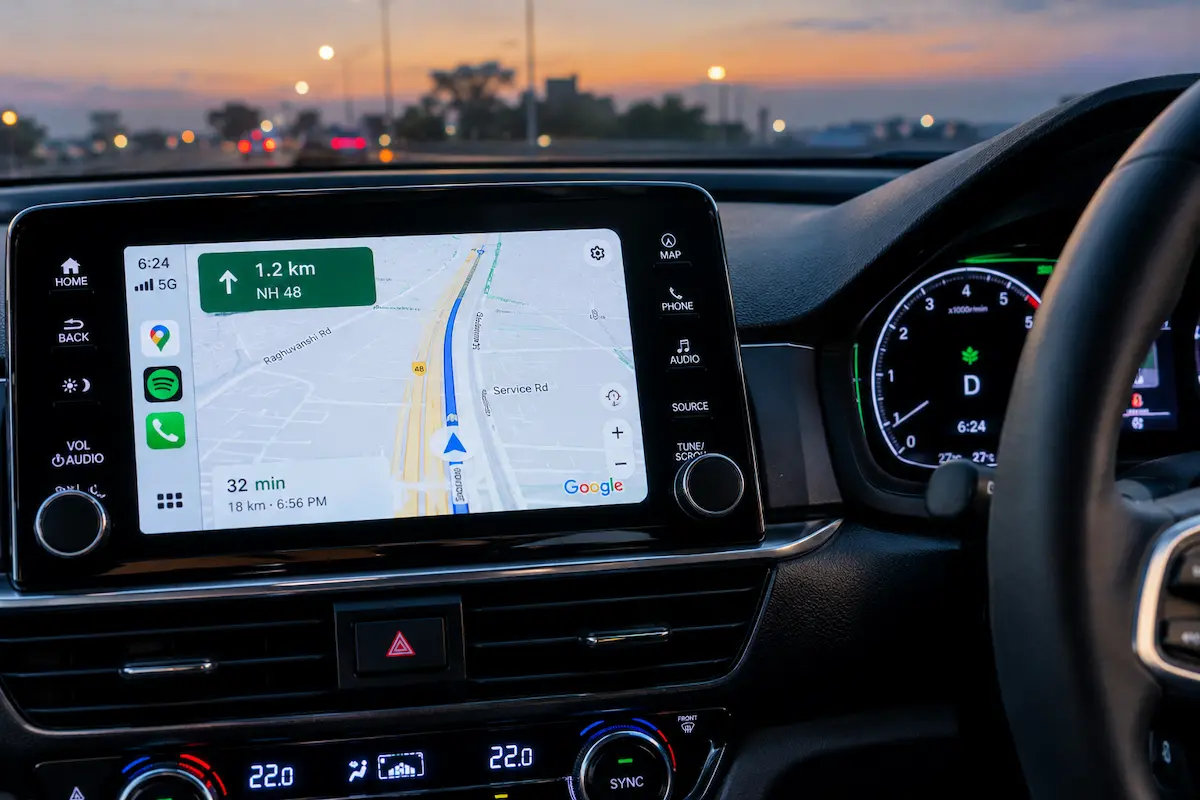
Diagnostic Matrix: Resolving Android Auto Night Mode Failures
Cross-reference your vehicle’s navigation theme symptoms against our workshop matrix whenever an android auto google maps dark mode not working condition occurs:
| Observed Display Theme Symptom | Underlying Electrical or Software Cause | Immediate Workshop Action |
|---|---|---|
| Screen stays bright white even with headlights switched ON | Illumination wire (Orange/White) not sending 12V trigger to head unit. | Switch Android Auto Developer Day/Night mode to “Phone-controlled”. |
| Stuck permanently in dark mode even under direct sunlight | Google Maps in-app navigation theme hardcoded to “Always in night theme”. | Set Google Maps navigation color scheme to “Automatic” or “Same as device”. |
| Flickers between light and dark when passing under tree shadows | Vehicle automatic ambient light dash sensor threshold set too sensitive. | Adjust instrument cluster dimming sensitivity in vehicle factory cluster settings. |
| Dark mode engages on phone screen, but dashboard remains light | System-level dark mode active without projection permission granted. | Clear Android Auto app cache and re-authorize vehicle projection profile. |
| Aftermarket head unit ignores car headlight switch completely | CAN bus decoder box protocol mismatch failing to output digital ILL signal. | Select correct CAN bus brand profile in head unit factory settings. |
Step 1: Reconfigure Android Auto Developer Day/Night Mode
By default, Android Auto attempts to take day/night cues directly from your vehicle’s telematics system.
If your car’s light sensors or aftermarket wiring do not report illumination state data reliably, your android auto google maps dark mode not working error becomes permanent.
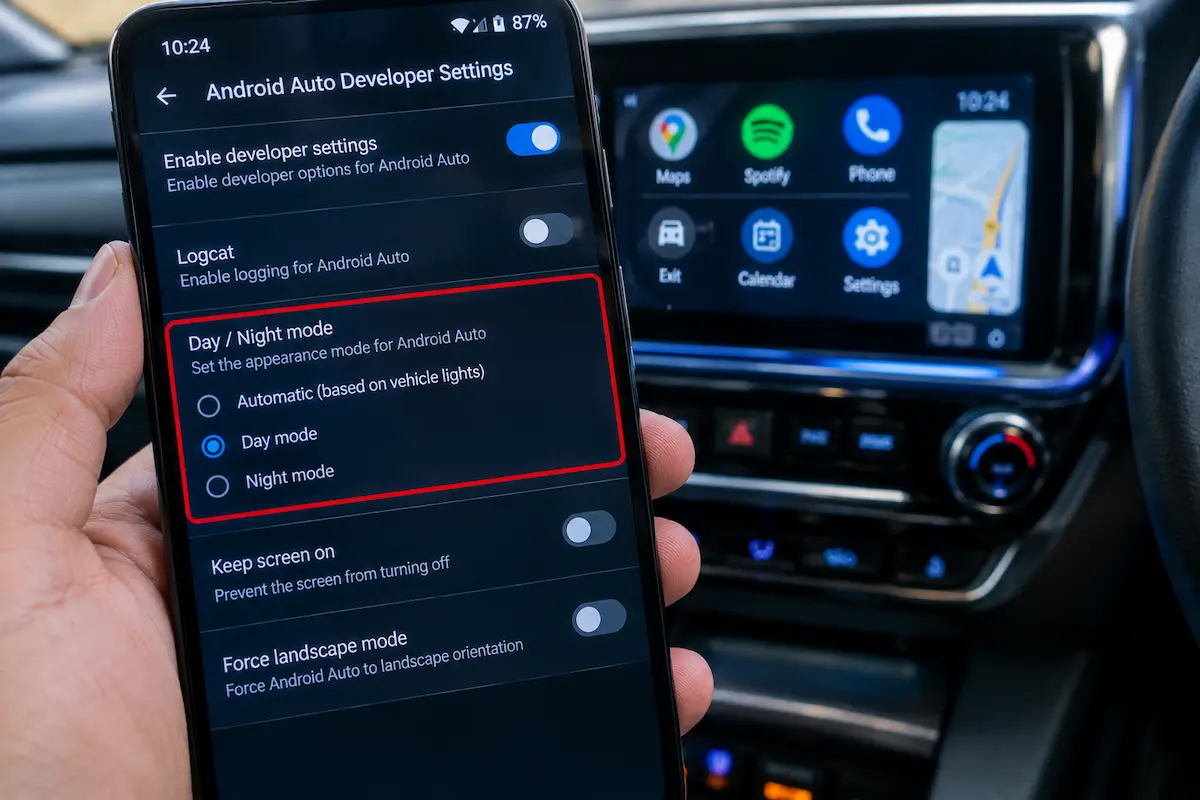
Overriding the hardware trigger using Android Auto’s hidden developer menu forces the display to synchronize directly with your smartphone’s sunrise/sunset schedule:
- Open Settings on your Android phone and search for Android Auto.
- Scroll down to the bottom of the Android Auto settings menu to locate Version.
- Tap repeatedly (about 10 times) on Version until a popup asks to allow developer settings; tap OK.
- Tap the three-dot menu icon in the top right corner and select Developer settings.
- Tap Day/Night mode.
- Change the setting from Car-controlled to Phone-controlled.
- If you frequently experience sound skips while tweaking projection settings, review our guide on Android Auto audio keeps cutting out.
Whenever your android auto google maps dark mode not working, switching control over to the phone bypasses absent or misconfigured vehicle illumination inputs instantly.
For technical reference on automotive display theme states, review the Google Android Auto Help Center Guidelines.
RELATED DISPLAY FIX
👉 Infotainment display black but music continues playing normally? Black screen diagnostic guide →
Step 2: Correct Google Maps In-App Navigation Theme Settings
Google Maps contains independent color settings that can override both Android Auto preferences and device system themes.
If the in-app navigation color scheme was accidentally pinned to daytime or nighttime during a past drive, the map layout locks in place.
Correcting this internal setting resolves an android auto google maps dark mode not working loop:
- Open the Google Maps application directly on your phone (disconnected from the car).
- Tap your profile avatar in the upper right corner and select Settings.
- Navigate to Navigation settings.
- Scroll down to the section titled Map display.
- Under Color scheme, verify whether it is set to Day, Night, or Automatic.
- Select Automatic (or Same as device theme).
- Close the app, connect your phone back to your vehicle, and turn your headlights on to confirm that the map smoothly switches into night mode.
Aligning app-level parameters prevents internal software preferences from causing an issue where your android auto google maps dark mode not working persists despite proper wiring.
Step 3: Test Head Unit Illumination (ILL) Wire Voltage
On aftermarket stereos (such as Pioneer, Kenwood, Sony, or Android head units), day/night switching relies on an analog 12-volt trigger wire.
This wire—almost universally colored Orange or Orange/White (ILL / Dimmer) in standard aftermarket harnesses—taps into your vehicle’s parking light circuit.
If this connection is severed, unpinned, or miswired, your head unit never detects when headlights engage, leaving your android auto google maps dark mode not working:
- Verify if your aftermarket stereo buttons light up when you turn on your car’s headlights. If button backlighting stays completely dark, the illumination circuit is unpowered.
- Access the rear wiring harness behind the receiver.
- Using a digital multimeter set to DC volts, ground the black probe to the vehicle chassis.
- Touch the red probe to the Orange/White (ILL) wire terminal.
- With headlights OFF, the meter should read 0V. With parking lights or headlights ON, the meter must register +12V DC.
- If the meter stays at 0V, connect the illumination lead to a switched 12V parking light wire or rely on the Step 1 phone-controlled workaround. For button issues, consult our guide on fixing car stereo buttons not working.
⚠️ Rheostat Dimmer Precaution: Never connect the stereo illumination wire to a variable-voltage dashboard dimmer switch (rheostat wire). Dimming rheostats drop voltage down to 3V–7V, which confuses head unit microcontrollers and causes rapid screen flashing or theme glitching.
RELATED HARNESS GUIDE
👉 Wiring an aftermarket harness to factory car plugs? Complete pinout walkthrough →
Step 4: Update CAN Bus Protocol Parameters on Android Head Units
If your vehicle utilizes a CAN bus interface box (such as Raise, Hiworld, or Simple Soft) to communicate with an Android touchscreen, lighting signals travel digitally over serial bus packets.
When the CAN bus decoder firmware profile is mismatched, it fails to translate vehicle headlight broadcast messages into Android system intents.
This software disconnect keeps your android auto google maps dark mode not working even though your factory headlights operate normally:
- Open the Car Settings or Factory Settings menu on your head unit (common passcodes:
123456,8888, or3368). - Navigate to the CAN Bus / Protocol Settings page.
- Confirm that the selected manufacturer, car model, and production year accurately match your specific vehicle trim.
- Check if there is a dedicated toggle for Headlight Detect or Illumination Control; ensure it is set to CAN Protocol rather than Small Light Wire.
- Save the configuration and allow the head unit MCU to reboot. For CAN bus setup troubleshooting, review our guide on Android car stereo CAN bus configuration.
Selecting the correct digital protocol ensures headlight events register immediately across your dashboard operating system, preventing an android auto google maps dark mode not working failure.
RELATED SYNC GUIDE
👉 Head unit dropping automatic connections on vehicle start? Step-by-step wireless repair guide →
Step 5: Flush Android Auto Cache and Re-sync System Dark Theme
During system updates across major Android OS versions, saved display preference cache files can fall out of synchronization.
When these cached UI parameters corrupt, the Android Auto presentation service fails to update its color scheme dynamically.
Wiping temporary cache data restores default responsive behavior, curing persistent android auto google maps dark mode not working issues:
- Open Settings > Display on your smartphone and ensure your device Dark theme is configured to follow sunset-to-sunrise schedules.
- Go to Settings > Apps > Android Auto.
- Tap Storage & Cache.
- Tap Clear Cache, then tap Clear Storage (this safely refreshes projection settings without removing personal media).
- Repeat cache clearing for the Google Maps app.
- Disconnect and reconnect your USB data cable to initiate a clean presentation session. If your navigation location shifted after power loss, refer to our workshop walkthrough on car GPS showing wrong location after battery replacement.
Resolving an annoying android auto google maps dark mode not working problem comes down to aligning vehicle lighting triggers with smartphone application themes.
Setting Android Auto developer preferences to phone-controlled, configuring Google Maps navigation themes to automatic, verifying 12V illumination wire feeds, correcting CAN bus protocol models, and flushing stale application cache ensures clear, glare-free maps day and night.
Follow these workshop steps whenever map dimming fails on your dashboard display, ensuring you eliminate any android auto google maps dark mode not working errors permanently.
Frequently Asked Questions (FAQ)
Why does my android auto google maps dark mode not working when headlights turn on?
An android auto google maps dark mode not working issue is usually caused by a missing 12V trigger on the aftermarket stereo illumination wire, Google Maps navigation theme locked to Day mode, or a CAN bus protocol communication mismatch.
Can I force Android Auto Google Maps to switch dark mode with my phone?
Yes. By enabling Android Auto Developer Settings and changing the Day/Night mode setting from “Car-controlled” to “Phone-controlled”, the map theme will automatically synchronize with your phone’s sunset schedule rather than relying on vehicle headlights.
Why is Google Maps stuck in dark mode during the day on Android Auto?
If Google Maps is stuck in night mode in broad daylight, check the Google Maps in-app navigation settings. If the color scheme is manually selected as “Always in night theme” instead of “Automatic”, the display refuses to return to light mode.