
Android Car Stereo Touch Screen Inverted? 5 Proven Fixes (100% Working)
Tapping left opens right? If your Android car stereo touch screen inverted after a reset, learn how to trigger the 4-finger calibration recovery menu, bypass dead inputs with a USB mouse, and reverse X/Y axis coordinates in factory settings.

You just did a factory reset or updated firmware, and suddenly nothing works right. You tap the bottom-left corner to open settings, and an app opens in the top-right corner.
When an android car stereo touch screen inverted bug leaves you unable to click a single button properly, it can feel like your screen digitizer is completely broken.
Do not panic, and definitely do not rip the glass off your dash. In almost every car stereo that enters our workshop, the physical digitizer is completely intact.
What happened is simple: the controller board lost its coordinate configuration map. This flips the horizontal (X) and vertical (Y) axes backwards.
Here is how to fix an android car stereo touch screen inverted glitch and recalibrate your touch grid in under five minutes.
Why Is Your Android Car Stereo Touch Screen Inverted?
Capacitive touchscreens use a grid of microscopic electrostatic sensors across the display glass.
When you touch the glass, the digitizer chip reads that point as a raw coordinate. For instance, it registers X=120, Y=450.
The core operating system relies on a software mapping layer to match those sensor numbers with the actual pixels displayed on your LCD panel.
When an android car stereo touch screen inverted bug occurs, that translation matrix gets scrambled.
According to Android touch input architecture standards, mismatched orientation flags cause the system to mirror input across the X-axis, Y-axis, or swap them entirely.
1. The 4-Finger (or 5-Finger) Emergency Calibration Trick
Before grabbing screwdrivers, try the built-in emergency recovery gesture engineered into most Chinese Android head units (Allwinner, Topway, and FYT platforms).
This hardware-level interrupt bypasses the corrupted touch driver without requiring screen navigation:
- Turn on your car stereo and let it boot completely to the main home launcher.
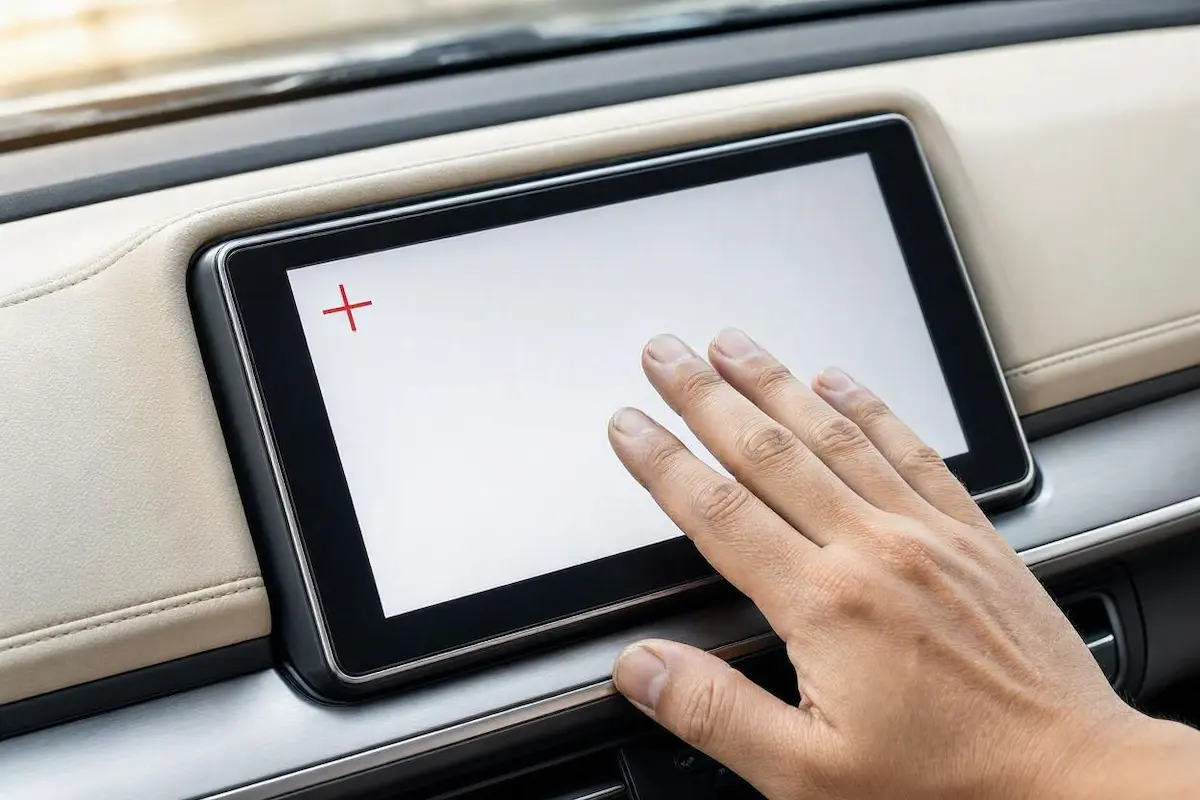
- Place four fingers (or five fingers of one hand) spread apart flat against the center of the touchscreen.
- Hold your fingers firmly against the glass without moving them for 8 to 12 seconds.
- Listen for a sharp beep from the internal buzzer or watch for the screen to show a white background with a crosshair (
+) or calibration dot.
Running the Calibration: Use a stylus or fingernail to tap dead-center on each crosshair as it jumps across corners. Tap Top-Left → Top-Right → Bottom-Right → Bottom-Left → Center to restore coordinate tracking.
2. Connect a Standard USB Computer Mouse (The Workshop Secret)
If the multi-finger gesture does not trigger on your MCU firmware, tapping menus while your android car stereo touch screen inverted bug persists is nearly impossible.
Every tap lands opposite to where your finger touches the glass. Here is how workshop technicians bypass this without guessing:
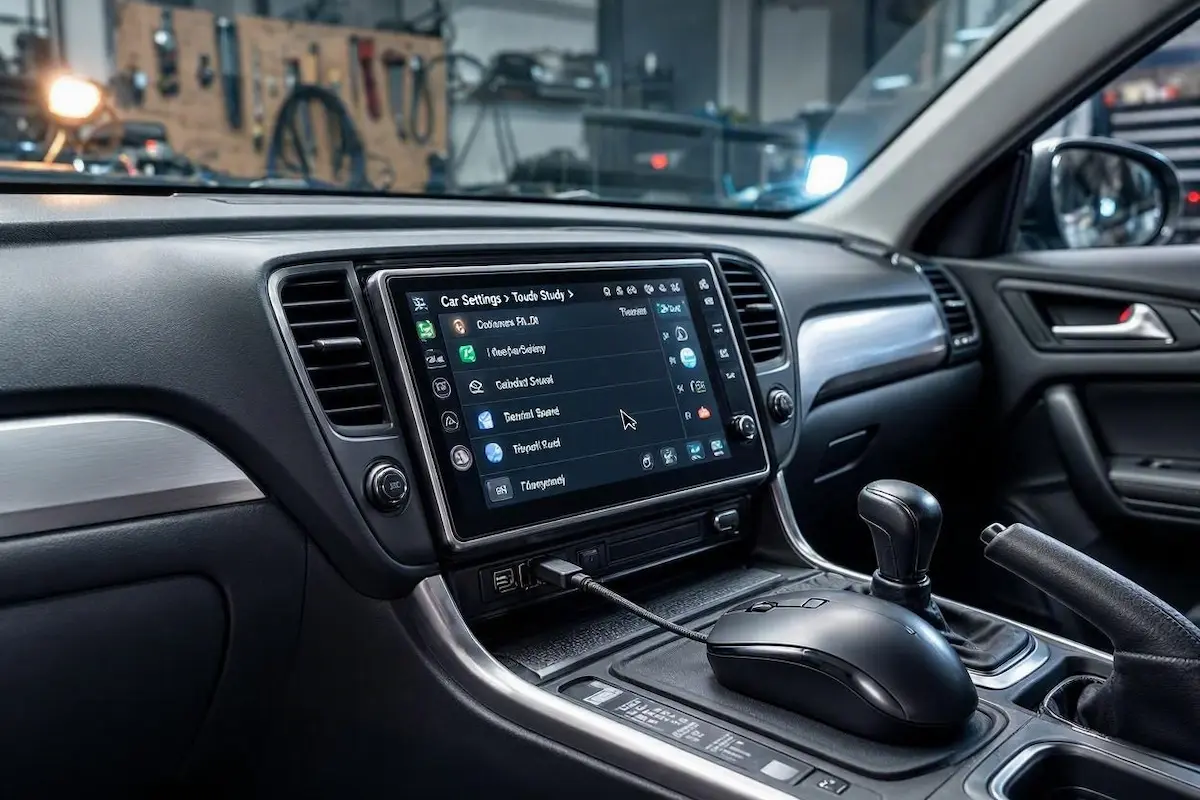
- Grab any standard wired or wireless USB computer mouse.
- Plug the mouse dongle or USB cable into one of the stereo’s rear USB pigtails.
- A black mouse cursor will immediately appear on the car screen.
Because Android handles USB HID mice independently from the touchscreen digitizer, the cursor moves normally.
You can effortlessly click menus, enter developer codes, and open calibration menus without fighting reversed touch inputs.
3. Correct the X/Y Axis in Factory Settings
Once you connect a mouse, navigate into system menus to flip the coordinate toggles back to their correct orientation:
- Open Settings or Car Settings.
- Scroll down and click on Factory Settings (or Extra Settings).
- Enter your board’s master PIN code. If you do not know yours, grab the correct code from our Android car stereo factory settings passwords guide (common ones are
8888,1617,3368, or123456). - Look for a sub-menu named Touch Settings, Touch Study, or Screen Parameters.
| What You See On Screen | The Underlying Problem | Factory Setting Toggle to Change |
|---|---|---|
| Tapping Left clicks Right (Mirrored horizontally) | X-Axis polarity is reversed | Toggle X-Reverse (or X-Mirror) to ON / OFF |
| Tapping Top clicks Bottom (Mirrored vertically) | Y-Axis polarity is reversed | Toggle Y-Reverse (or Y-Mirror) to ON / OFF |
| Tapping Top moves cursor to the Right side | X and Y axes are swapped (Orientation mismatch) | Toggle X/Y Swap (or XY Exchange) |
| Touch is completely dead after a screen swap | Incorrect digitizer driver protocol selected | Switch Touch IC from GT911 to FT5426 (or vice versa) |
Make one change at a time, click Save, and tap the glass to test.
Once tracking aligns with your finger, reboot the unit so the MCU writes the configuration to permanent storage.
If system reboots trigger continuous boot loops or software freezes, follow our recovery guide on fixing Android car stereo boot loop issues.
4. Retrain the Side Touch Keys (Touch Study / Key Learning)
A common side effect of an android car stereo touch screen inverted issue is unresponsive side touch keys on the glass bezel.
Buttons like Power, Home, Back, and Volume may stop responding or light up without registering clicks.
To remap these touch keys:
- Open Factory Settings → Touch Study (or Panel Key Learning).
- Click Clear to wipe corrupt key assignments.
- Tap the on-screen Power button on the display.
- Press and hold the physical glass Power icon on the bezel for two seconds until the stereo beeps.
- Repeat this process for Home, Back, Vol+, and Vol-.
- Click Save & End. Your side panel buttons will immediately regain their original functions.
Frequently Asked Questions
Why did my android car stereo touch screen inverted issue happen right after a factory reset?
When you perform a hard factory wipe, the stereo reloads its base ROM profile. Generic ROMs often default to a 7-inch orientation profile. On 9-inch or 10-inch screens with flipped ribbons, coordinates invert until manually recalibrated.
Can a power cut or battery disconnect cause an android car stereo touch screen inverted bug?
Yes. Voltage drops while writing flash memory can corrupt the digitizer driver table. If your vehicle experiences frequent voltage dips, check our car stereo battery drain troubleshooting guide.
What if calibration fails to fix the inverted touch screen?
If coordinates jump erratically even with a mouse plugged in, inspect the flat flexible ribbon cable (FFC). A loose digitizer ribbon clamp or moisture behind the glass can short out coordinate lines.
Using the emergency multi-finger gesture or connecting a USB mouse permanently resolves an android car stereo touch screen inverted error in under five minutes.