
Carlinkit Flashing Green: 4 Proven Ways to Fix Wireless Connection
Discover why an aftermarket wireless adapter status LED remains flashing green and how to resolve Wi-Fi broadcast lockups and firmware boot errors on car infotainment.

Observing your wireless adapter indicator stuck with a carlinkit flashing green LED status means the dongle has initialized its core operating bootloader but cannot finalize a peer-to-peer Wi-Fi handshake with your smartphone.
You plug the adapter into your dashboard USB port, the light transitions from solid red to a rapid green flash, but the infotainment display never switches over to Apple CarPlay or Android Auto.
In professional 12-volt car audio workshop diagnostics, this flashing state indicates an incomplete pairing handshake rather than internal hardware failure.
The adapter relies on a two-stage connection protocol: initial discovery occurs across low-energy Bluetooth, while live projection shifts to an ad-hoc 5.8 GHz Wi-Fi link.
When RF interference, outdated device microcode, or stale network certificates block this transition, the unit becomes trapped in an infinite discovery cycle, resulting in a persistent carlinkit flashing green lockout.
Before throwing away the adapter or purchasing replacement hardware, methodical bench isolation will resolve this wireless communication fault in under ten minutes.
Here are four practical workshop procedures to troubleshoot why a carlinkit flashing green fault occurs and restore seamless cabin projection.
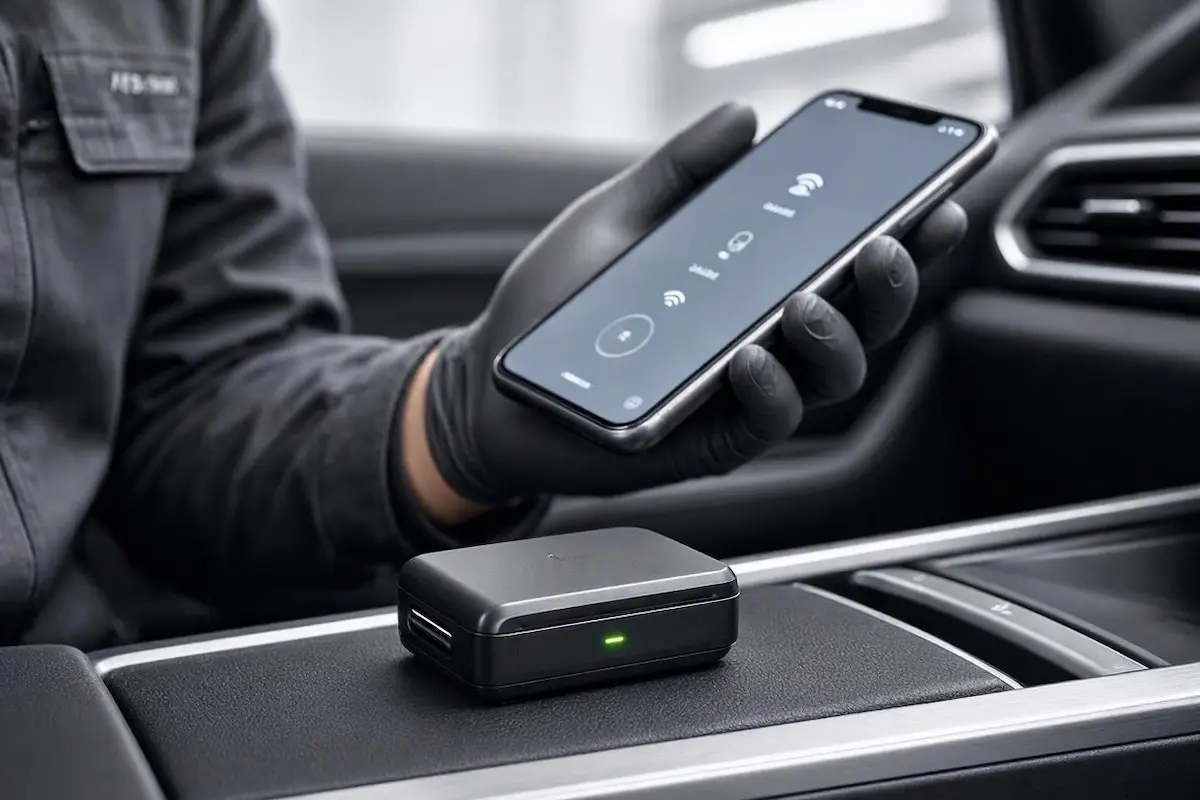
Diagnostic Matrix: Decoding Wireless Adapter LED Behaviors
Cross-reference your dongle’s LED flash frequency and system response against our workshop diagnostic matrix whenever a carlinkit flashing green error interrupts your commute:
| Observed LED Behavior | Underlying Hardware or Software Cause | Immediate Workshop Action |
|---|---|---|
| Blinks green rapidly every 0.5 seconds | Broadcasting Bluetooth discovery beacon; waiting for initial phone handshake. | Select the adapter Bluetooth ID (e.g., AutoKit_xxxx) inside phone settings. |
| Pulses green slowly every 2 seconds | Wi-Fi channel handshake deadlock caused by conflicting vehicle networks. | Forget vehicle factory Bluetooth and cycle iPhone Wi-Fi connection. |
| Stays solid green with black dashboard screen | Handshake completed successfully, but head unit USB video decoder hung. | Reboot head unit or toggle video display resolution to 720p in backend. |
| Alternates between red and flashing green | USB port insufficient amperage causing repeating power supply brownouts. | Move adapter to primary data port or install an auxiliary USB power splitter. |
| Stuck flashing green after interrupted firmware update | Corrupted bootloader memory partition preventing main application launch. | Execute emergency offline recovery via USB flash drive and reset image. |
Step 1: Clear Bluetooth Discovery Queues and Force Wi-Fi Handshake
Carlinkit adapters use Bluetooth strictly as a temporary initialization bridge to negotiate IP routing and WPA2 security credentials.
Once this exchange is complete, Bluetooth disconnects and your phone migrates entirely to the dongle’s Wi-Fi network.
If your phone keeps a lingering data lock on another in-car wireless network, this migration stalls, leaving your carlinkit flashing green continuously:
- Disconnect the Carlinkit adapter from the dashboard USB socket.
- On your smartphone, open Settings > Bluetooth, find the adapter identifier, tap the info icon, and tap Forget This Device.
- Navigate to Settings > Wi-Fi and forget any previously saved adapter network profiles.
- Reboot your smartphone to flush stale wireless cache daemons.
- Plug the Carlinkit dongle back into the vehicle USB port and wait until the LED begins flashing green.
- Open Bluetooth settings on your phone, select the adapter name, and confirm both the Bluetooth pairing prompt and the subsequent “Use CarPlay” dialog.
For official technical documentation regarding wireless pairing frameworks, consult the Bluetooth SIG Technology Overview.
RELATED TROUBLESHOOTING GUIDE
Step 2: Access Web Management Backend to Clear Stale Device Caches
Carlinkit units run an internal Linux or Android micro-kernel accessible via an embedded web server.
Over hundreds of short vehicle trips, stored connection logs can become corrupted, preventing the device from completing authentication handshakes.
Accessing the backend web panel clears corrupt pairings and resolves a persistent carlinkit flashing green status:
- Keep the adapter plugged into your car or an external 5V USB wall charger.
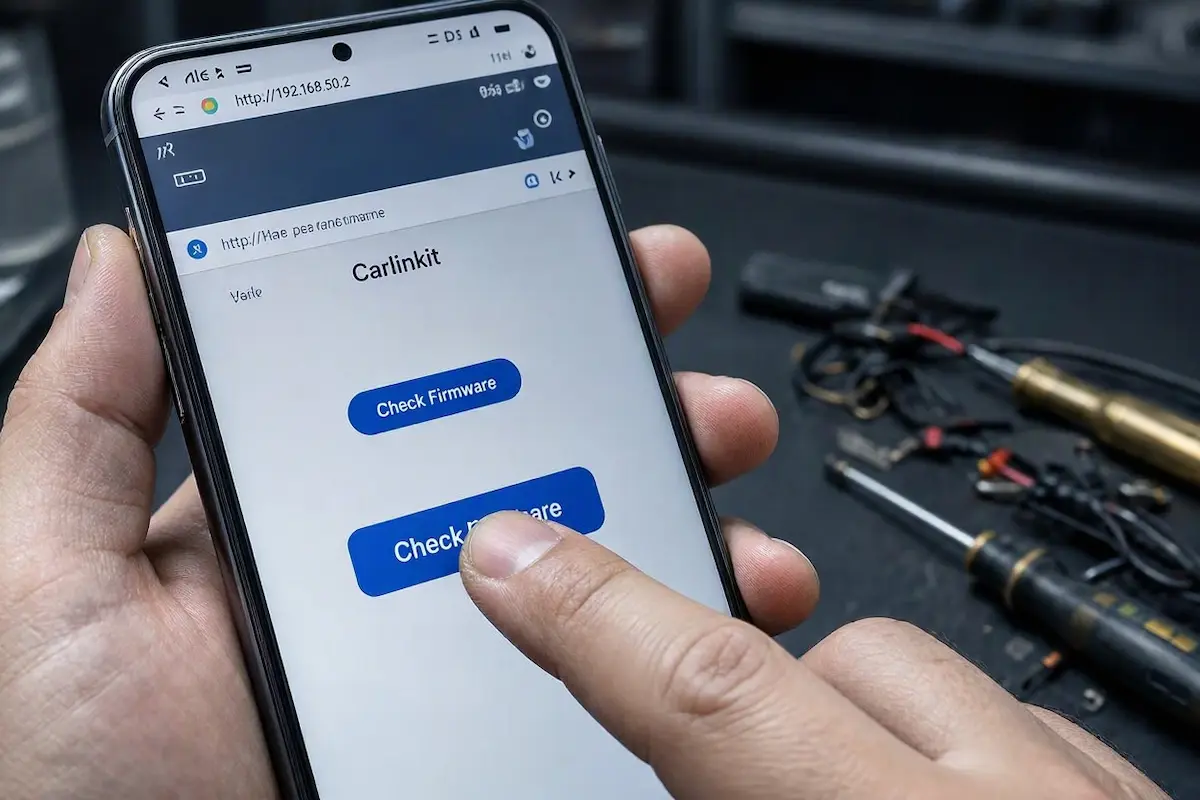
- Open Wi-Fi settings on your phone and manually connect to the adapter’s Wi-Fi network (default password is usually
12345678). - Open your mobile Safari or Chrome browser and enter
192.168.50.2into the address bar. - Tap the Settings tab at the bottom of the management console.
- Tap Restore Factory Settings (Reset) to clear corrupted wireless profiles.
- Confirm the command and allow the adapter two full minutes to reboot until the LED transitions back to its standard discovery cycle.
Step 3: Reflash Adapter Microcode via Emergency USB Recovery
If your dongle started flashing green immediately after a failed OTA firmware update or an unexpected vehicle ignition cutoff, the internal firmware image has suffered a checksum error.
Standard over-the-air updates cannot execute while the device is offline, making an offline USB flash recovery necessary to clear the carlinkit flashing green boot loop:
- Take a standard USB flash drive (32GB or smaller) and format it as FAT32 with a master boot record partition table.
- Download the verified firmware
.imgorupdate.imgspecific to your exact Carlinkit hardware revision (e.g., U2W, CPC200-CP2A, or 5.0 2Air). - Copy the firmware file directly to the root directory of the flash drive without altering its filename.
- Connect the flash drive to the adapter using a USB female OTG adapter, or plug the drive into the adapter’s pass-through USB port.
- Connect the Carlinkit to a steady 5V 2A USB power source; the LED will begin flashing red and green alternately as it burns the fresh kernel.
- Do not interrupt power until the LED stabilizes to a solid illumination pattern.
⚠️ Voltage Brownout Hazard: Never flash adapter firmware using an unpowered dashboard USB port while the vehicle engine is turned off. An alternator drop or accessory sleep timer cutoff during a flash write will permanently brick the internal NAND flash controller.
RELATED TROUBLESHOOTING GUIDE
Step 4: Resolve USB Port Power Sag and High-Speed Data Pinout
A wireless adapter requires a constant minimum supply of 500mA to 900mA at 5 volts to power its Wi-Fi transceiver chip during initial broadcast pairing.
Many vehicle front consoles feature auxiliary USB sockets wired through high-resistance resistive shunts or splitters intended solely for low-power media drives.
When the adapter ramps up RF output power during connection attempts, voltage sags below 4.75V, causing internal brownout resets that keep a carlinkit flashing green indefinitely:
- Ensure the adapter is connected directly to the primary factory smartphone USB port (usually identified by a phone or battery symbol).
- Eliminate loose 90-degree adapter elbows, extension cables, or unshielded USB hubs between the dongle and the dashboard port.
- If your vehicle dashboard port provides marginal amperage, install a dual-USB power delivery Y-cable that draws supplementary 5V current from an adjacent 12V cigarette lighter plug.
- Review our workshop guide on connecting factory wiring harnesses to Android units to ensure high-speed 4-pin data leads are properly grounded.
- If your stereo suffers from erratic standby drain issues, reference our diagnostic walkthrough on car stereo battery drain to verify clean accessory relay cutoff.
RELATED TROUBLESHOOTING GUIDE
Diagnosing an unresponsive carlinkit flashing green condition comes down to methodically clearing network conflicts and providing clean USB voltage.
Flushing paired Bluetooth certificates, resetting adapter configuration memory via the 192.168.50.2 management portal, and ensuring adequate USB bus power resolves over 90% of connection lockouts immediately without purchasing replacement hardware.
Follow this diagnostic sequence whenever a persistent carlinkit flashing green LED prevents your dashboard from launching CarPlay or Android Auto.
Frequently Asked Questions (FAQ)
What does it mean when my Carlinkit is flashing green?
A flashing green light indicates that the Carlinkit adapter has booted its internal operating system and is broadcasting its Bluetooth and Wi-Fi pairing beacon, but has not completed the security handshake with your smartphone.
Why won’t my phone connect when Carlinkit is flashing green?
This occurs when your phone is tied to conflicting vehicle Wi-Fi networks, corrupted Bluetooth pairing keys exist, or the adapter’s internal connection cache has crashed, requiring a reset via the 192.168.50.2 management page.
Can low USB power cause Carlinkit to stay flashing green?
Yes. If the vehicle dashboard USB port drops below 4.75V when the adapter activates its high-power 5.8 GHz Wi-Fi chip, the dongle undergoes a micro-brownout and restarts its discovery cycle, creating an endless green flashing loop.