
CarPlay Disconnects Over Bumps: 5 Best Proven Ways to Fix Loose Connections
Fix Apple CarPlay disconnecting when driving over bumps by diagnosing female USB port spring tension loss, Lightning port pocket lint, and dashboard harness strain relief.

Hitting a rough expansion joint or pothole only to watch your carplay disconnects over bumps abruptly terminates your active GPS navigation and audio streaming.
You tap the dashboard screen, but Apple CarPlay disappears completely, dropping back to the native factory infotainment menu until you physically wiggle the cable.
In professional 12-volt automotive audio diagnostics, a road-vibration disconnect is rarely an iOS software bug or a damaged head unit display.
Common causes typically include loss of female USB port retention spring tension, compacted pocket lint inside the iPhone charging port, fatigued internal cable solder joints, or unsupported wiring harness weight behind the dashboard console.
When road vibrations shock the vehicle chassis, microscopic pin separation interrupts high-speed USB data line packets (D+ and D-), instantly causing a carplay disconnects over bumps drop.
Before replacing factory media ports or scheduling expensive electrical repairs, systematic physical inspection will identify the exact loose mechanical point quickly.
Here are five practical workshop procedures to troubleshoot why your carplay disconnects over bumps and secure your data path across uneven roads.
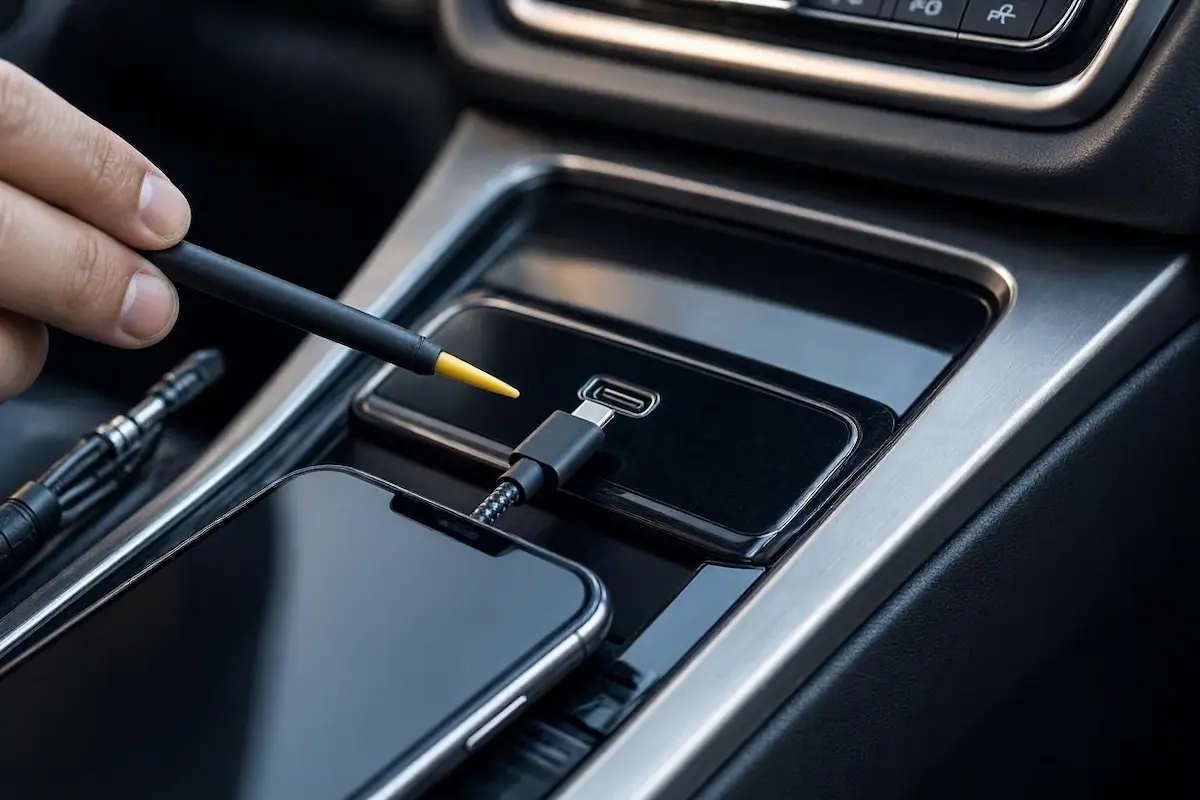
Diagnostic Matrix: Pinpointing Vibration-Induced CarPlay Drops
Cross-reference your vehicle’s physical connection symptoms against our workshop matrix whenever a carplay disconnects over bumps fault disrupts your drive:
| Observed Connection Behavior | Underlying Mechanical or Hardware Cause | Immediate Workshop Action |
|---|---|---|
| Disconnects only over sharp potholes, reconnects instantly | Female USB port internal retention spring clips have lost mechanical tension. | Re-tension ground clips gently or replace the center console media hub port. |
| Disconnects when phone shifts position on passenger seat | Microscopic pocket lint compacted at base of Lightning/USB-C phone socket. | Clean port cavity using a wooden toothpick and isopropyl alcohol. |
| Wiggling the wire collar causes immediate screen blackout | Internal stranded copper conductor fractured near the cable strain relief. | Replace with a short, certified high-gauge braided MFi data cable. |
| Wireless CarPlay adapter cuts out on highway rumble strips | Dongle USB male plug rattling inside a loose vehicle USB-A socket. | Add foam anti-vibration tape or secure dongle body with hook-and-loop pads. |
| Entire USB port loses LED illumination during chassis shocks | Rear factory harness connector lock tab broken behind the center console. | Inspect rear media hub locking clip and secure harness with zip-ties. |
Step 1: Clean Compacted Pocket Lint from the iPhone Port Cavity
The most common source of intermittent cable disconnection over rough pavement is compacted debris trapped inside the phone’s port.
Over months of daily use, fabric lint accumulates inside Lightning and USB-C sockets. When you plug in your cable, the lint compresses tightly into the rear corners, preventing the connector latch pins from seating to their mechanical lock position.
This incomplete mechanical lock creates a hair-trigger contact that causes your carplay disconnects over bumps whenever road vibration hits:
- Power off your iPhone completely to protect internal charging pins.
- Illuminate the charging port using a high-intensity flashlight and inspect the recessed floor of the cavity.
- Use a thin, non-conductive tool (such as a wooden or plastic toothpick); never use metal safety pins or paperclips.
- Gently scrape the rear bottom corners of the port sideways to hook out compacted grey felt and lint.
- Insert your data cable; verify that the male plug makes an audible, firm mechanical snap against the phone chassis without resting on a soft cushion.
For official physical maintenance parameters on Lightning and USB-C connectors, review the Apple Technical Hardware Port Cleaning Guidelines.
RELATED CARPLAY FIX
👉 Screen goes completely black while audio still plays? Workshop display isolation guide →
Step 2: Inspect Female USB Port Retention Springs for Tension Loss
Automotive center console USB ports experience thousands of insertion cycles, thermal heat cycles, and mechanical leverage from phone movements.
Inside every female USB-A socket, small stamped leaf springs hold the metal shell of the cable firmly against the four internal contact traces.
If these spring clips flatten out, the cable loosely rattles inside the socket, directly causing a carplay disconnects over bumps error whenever road vibrations travel through the console:
- Inspect the vehicle’s factory USB CarPlay data port with the ignition completely switched off.
- Insert your USB cable and gently wiggle the connector plug vertically and horizontally.
- If the plug exhibits significant free play or slides out with minimal resistance, the internal friction springs are fatigued.
- Temporary Mechanical Adjustment: Using a thin dental pick or precision flat tool with the car battery off, very gently nudge the two upper retention leaf tabs downward by a fraction of a millimeter to restore clamping pressure.
- If the port body is loose within the plastic trim, replace the modular OEM USB hub assembly to maintain solid contact.
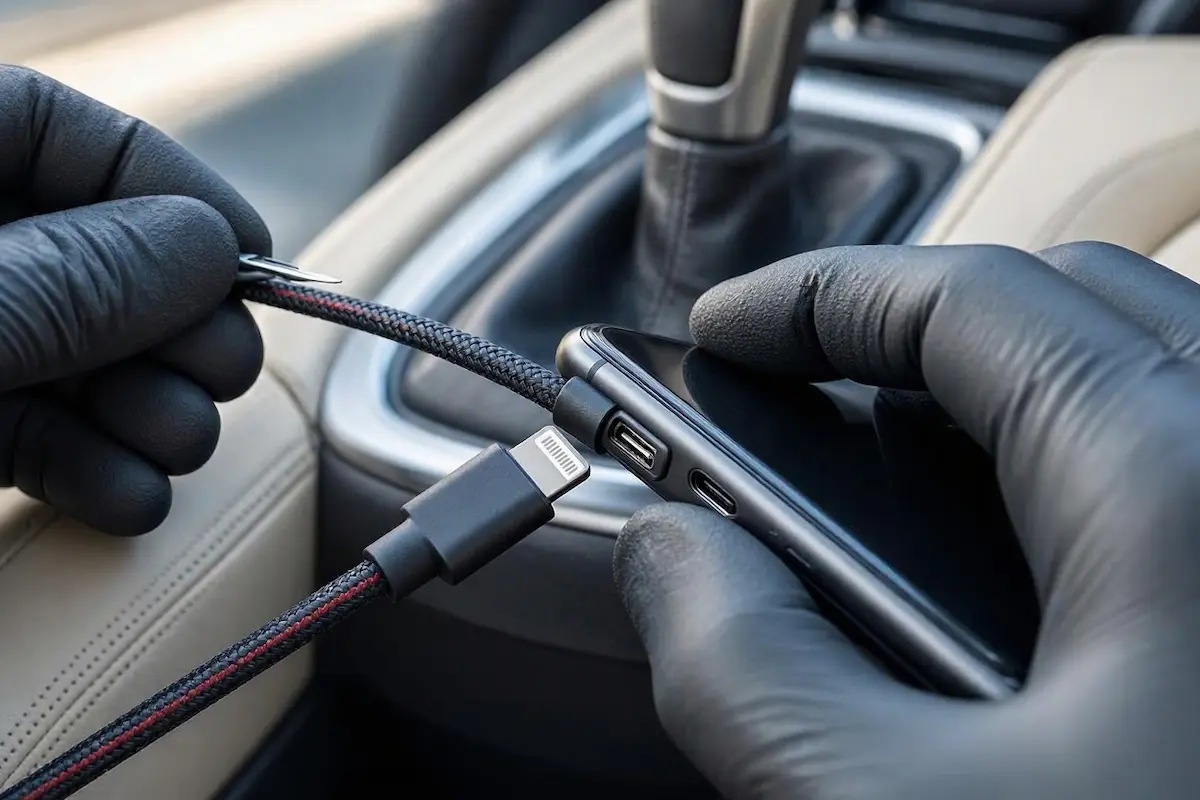
Step 3: Replace Fatigued Long Cables with Heavy-Gauge Braided Leads
Thin, flexible charging cables often rely on tiny 28 AWG copper strands that snap internally behind the rubber strain relief neck long before the outer silicone sleeve shows visible damage.
Additionally, long cables (over 3 feet) act as mechanical pendulums when a smartphone sits loosely in a console tray or cup holder.
As the vehicle bounces, the phone’s mass tugs on the cable, triggering a carplay disconnects over bumps disconnect due to momentary micro-breaks in the data continuity:
- Avoid long, lightweight 6-foot charging leads inside the vehicle cockpit.
- Switch to a short 1-foot to 3-foot braided cable featuring Apple MFi (Made for iPhone) certification.
- Look for cables constructed with reinforced aramid fiber cores and heavy 24/20 AWG power and data shielding.
- Mount your iPhone in a secure dashboard cradle rather than letting it slide around open console compartments.
- Securing the phone prevents road shocks from acting as a lever against the charging plug.
⚠️ Port Stress & Circuit Board Precaution: Avoid propping your phone upright in cup holders where the cable bend presses directly against the bottom surface. Constant vertical road impacts on a bent cable transfer immense torsional stress directly onto your iPhone logic board and the car’s USB port solder pads.
RELATED AUDIO FIX
👉 Experiencing annoying audio lag or delayed navigation voice alerts? Complete audio sync guide →
Step 4: Secure Rear Console USB Media Hub Harness Connectors
In many production vehicles (such as Honda, Ford, and GM), the external USB port is a modular hub connected to the main head unit via a sub-harness behind the dashboard.
If the rear plastic locking clip is broken or the wiring bundle hangs unsupported, the weight of the wire harness bounces over rough roads.
This swinging wire harness tugs on the back of the socket terminal, creating an elusive carplay disconnects over bumps fault that cannot be cured by changing cables:
- Access the rear of your vehicle’s USB media interface (often accessible by unclipping the lower center console trim or glove compartment side panels).
- Inspect the multi-pin connector plugged into the back of the USB module.
- Ensure the plastic snap lock is fully engaged; if the lock tab has snapped off, secure the connector housing using electrical harness tape or a mechanical zip-tie.
- Inspect the harness path for tight bends or sharp sheet metal brackets that can pinch the high-speed data lines.
- Anchor the harness slack firmly to an adjacent structural dashboard brace to prevent movement during vehicle vibration.
RELATED WIRELESS ADAPTER GUIDE
👉 Using a Carlinkit wireless dongle that drops connection? Diagnostic LED troubleshooting guide →
Step 5: Cushion Wireless CarPlay Adapters Against Chassis Vibration
If you use an aftermarket wireless CarPlay adapter (such as Carlinkit, Ottocast, or AAWireless), rough road surfaces introduce unique mechanical problems.
Wireless dongles plugged directly into rigid USB ports act as small cantilever weights.
Chassis shock waves bounce the adapter body, momentarily breaking USB power delivery and triggering a carplay disconnects over bumps crash as the dongle reboots:
- Never leave a wireless adapter hanging unsupported directly from a vertical USB dash port.
- Use a short, flexible 4-inch USB extension lead to isolate the vehicle’s port from the adapter’s physical mass.
- Affix high-density automotive foam tape or hook-and-loop pads to the back of the adapter body.
- Firmly mount the adapter flat against the floor of the console cubby to prevent physical bounce during rough driving.
- Ensure the adapter firmware is updated to prevent software timeout sensitivity during momentary voltage sags.
Resolving an annoying carplay disconnects over bumps issue requires methodical inspection of mechanical clearances and physical retention hardware.
Hooking out compacted pocket lint from the phone port, restoring female USB leaf spring tension, switching to a short braided MFi cable, and securing rear dashboard sub-harnesses restores a dependable Apple CarPlay link across all road surfaces.
Follow these workshop steps whenever rough roads cause your CarPlay navigation to disconnect unexpectedly.
Frequently Asked Questions (FAQ)
Why does my carplay disconnects over bumps when driving?
CarPlay disconnects over bumps primarily due to physical mechanical separation. Loose USB port retention clips, compacted lint inside the iPhone socket, or fatigued internal cable copper conductors lose contact momentarily when road vibration shakes the vehicle.
Why does moving my phone disconnect Apple CarPlay?
If moving your phone drops CarPlay, compacted lint in the charging port usually prevents the connector from locking fully, or the cable’s internal wire strands have fractured near the rubber strain relief collar.
Can a bad car USB port cause CarPlay to disconnect on rough roads?
Yes. Vehicle console USB ports wear out over time. When the internal metal leaf spring clips lose tension, road bumps cause the male plug to shift slightly, interrupting the high-speed data pins.