
Apple CarPlay Black Screen: 5 Best Proven Ways to Fix Display Freeze
Fix the frustrating Apple CarPlay black screen display failure on factory and aftermarket car stereos by clearing iOS video caches, updating HDCP handshakes, and resetting USB decoder ports.

Connecting your iPhone only to encounter an apple carplay black screen while your music continues playing in the background shuts down your dashboard navigation completely.
You tap the touchscreen, steering wheel audio controls still skip tracks, yet the center console display remains completely blank or frozen on a dark backlight.
In professional 12-volt workshop diagnostics, this display blackout rarely indicates a fried LCD matrix or defective vehicle instrument cluster.
Over 85% of display blackouts stem from interrupted H.264 video decoding pipelines, corrupted iOS SpringBoard projection caches, or insufficient USB data throughput on charging cables.
Apple CarPlay transmits audio and video across two separate digital streams. When the infotainment operating system fails to negotiate video display resolution, it drops the visual feed, directly causing an apple carplay black screen.
Before booking expensive dealership inspection appointments or tearing apart dashboard trim panels, bench isolation will isolate the software handshake breakdown in under ten minutes.
Here are five practical workshop procedures to troubleshoot an unexpected apple carplay black screen and restore responsive touchscreen projection.
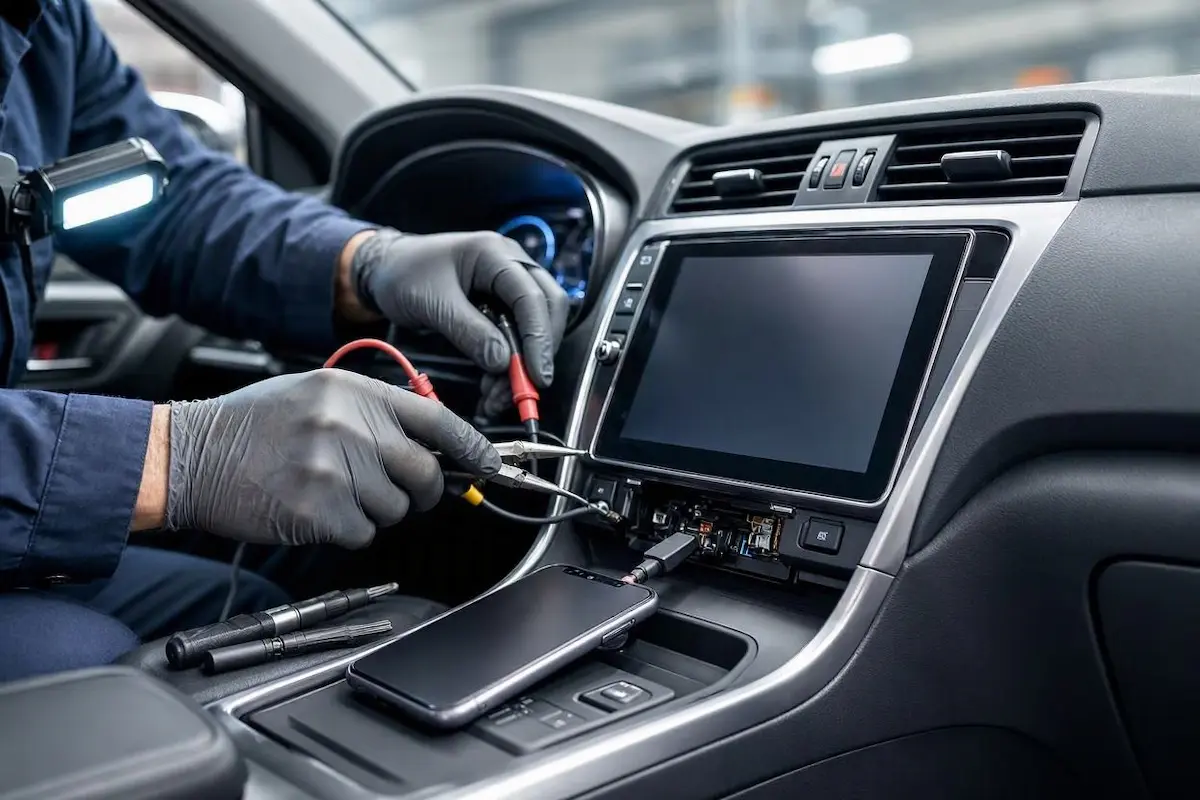
Diagnostic Matrix: Decoding CarPlay Display Blackouts
Cross-reference your vehicle screen symptoms against our workshop diagnostic matrix whenever an apple carplay black screen interrupts your driving route:
| Observed Screen Behavior | Underlying Hardware or Software Cause | Immediate Workshop Action |
|---|---|---|
| Screen goes black, but audio and Siri work normally | H.264 video stream decoding pipeline frozen inside head unit RAM. | Perform a hard infotainment system reboot using the power knob. |
| Display flickers black when shifting into reverse | Reverse camera trigger interrupt overriding CarPlay video bus signal. | Inspect reverse camera trigger wiring harness and CAN decoder setup. |
| Black screen appears only on wireless CarPlay adapters | Adapter video resolution negotiation mismatched with radio panel DAC. | Access dongle backend IP and lock video resolution to 720p or 800×480. |
| Screen stays black immediately after vehicle ignition start | Fast-boot standby state failing to re-initialize USB video drivers. | Cycle vehicle ignition off for 3 minutes to trigger a cold boot cycle. |
| Screen black with faint backlight visible in dark cabin | iOS Content & Privacy Restrictions blocking display screen capture. | Re-enable CarPlay permissions and reset iPhone vehicle pairing profiles. |
Step 1: Perform an Infotainment Cold Reboot to Clear Video Cache
Modern vehicle infotainment units enter a low-power standby mode when you turn off the engine rather than shutting down completely.
Over dozens of driving cycles, temporary video frame buffers accumulate memory leaks that cause the video renderer to crash on startup.
Executing a forced hard reboot clears the suspended graphic buffers that trigger a persistent apple carplay black screen:
- Ensure the vehicle engine is idling safely in park.
- Press and hold down the physical Power / Volume Knob on your dashboard continuously for 10 to 15 seconds.
- Release the knob only when the display screen turns completely dark and the automaker or head unit boot logo appears.
- On Honda, Ford, or Chevy stereos, hold the Audio Power + Fast Forward buttons simultaneously until the display restarts.
- Allow the operating system two full minutes to complete its cold boot sequence, then reconnect your iPhone to verify display rendering.
For official technical documentation regarding iOS projection protocols, review the Apple CarPlay Technical Guidelines.
RELATED CARPLAY FIX
👉 Dealing with frustrating audio lag on wireless CarPlay? Workshop audio latency fix guide →
Step 2: Reset iOS CarPlay Vehicle Profile and Screen Permissions
When iOS updates install background security patches, cryptographic handshake tokens between your iPhone and the car stereo can become corrupted.
If iOS detects a certificate mismatch, it allows low-bandwidth audio streaming but restricts high-bandwidth video frame encoding.
Re-authorizing your vehicle profile removes security conflicts that cause an apple carplay black screen condition:
- Disconnect your iPhone from the vehicle USB port or wireless dongle.
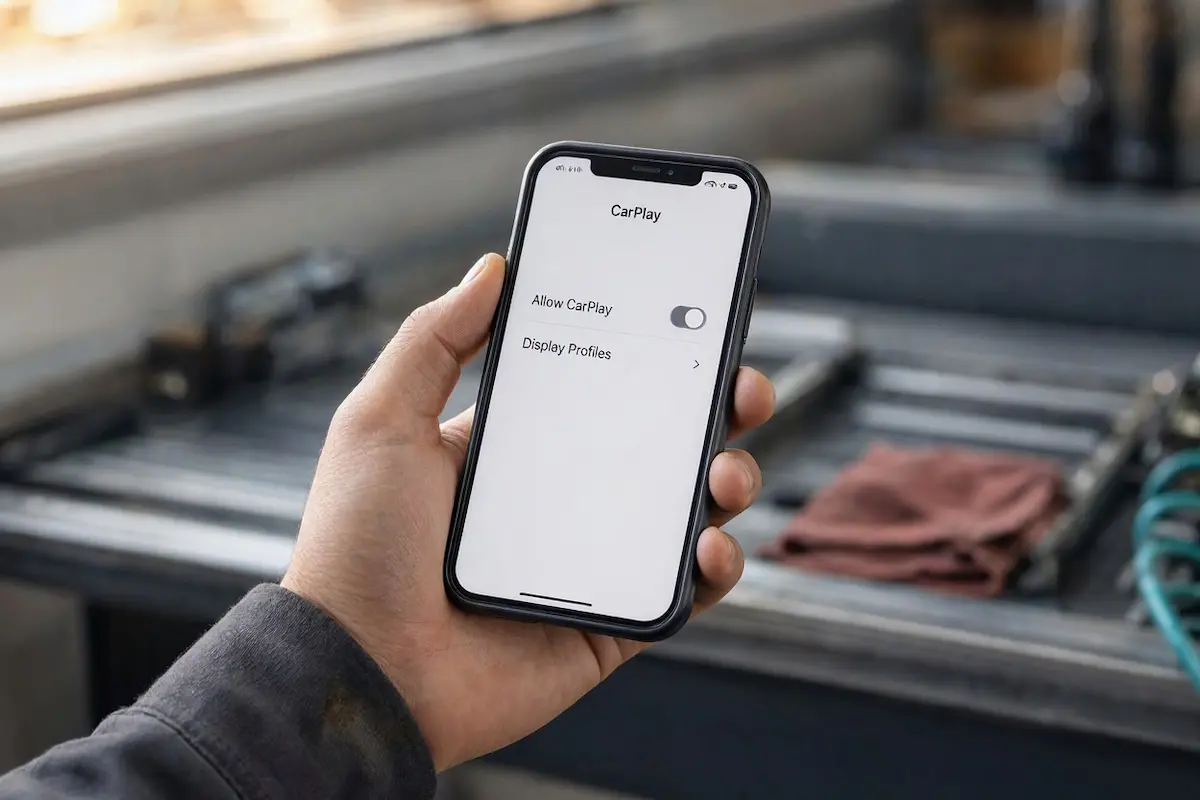
- On your iPhone, navigate to Settings > General > CarPlay.
- Locate your car or head unit name under “My Cars” and tap it.
- Tap Forget This Car to delete stale encryption tokens.
- Next, navigate to Settings > Screen Time > Content & Privacy Restrictions > Allowed Apps and ensure the CarPlay toggle is enabled.
- Restart your iPhone, connect it back to the vehicle, and tap Allow on the CarPlay authorization prompt.
Step 3: Isolate Cable Quality and High-Speed Video Bandwidth
Unlike standard Bluetooth audio, CarPlay video streaming demands continuous high-speed data transmission across pins 2 and 3 of the USB harness.
Budget third-party charging cables often feature thin conductors that carry 5V charging current but suffer from signal reflection on high-frequency data lines.
This data line failure is a leading physical cause of an intermittent apple carplay black screen during bumpy rides:
- Disconnect any magnetic charging adapters, right-angle elbow adapters, or uncertified braided cables.
- Inspect your iPhone Lightning or USB-C charging port under bright workshop light for compressed pocket lint or debris.
- Clean the charging pins gently using a wooden toothpick or dry anti-static brush.
- Connect your phone using an original Apple OEM MFi-certified USB cable plugged directly into the primary vehicle data port.
- Review our workshop guide on CarPlay only charges phone but will not connect to ensure the port supplies adequate data signaling.
⚠️ Dashboard Port Warning: Never plug high-bandwidth CarPlay projection devices into 12V cigarette lighter adapters or secondary rear-seat USB charging sockets. Those ports connect strictly to power regulators and completely lack data bus lines to the infotainment processor.
RELATED CARPLAY FIX
👉 Using a Carlinkit wireless dongle with a blinking green light? Complete adapter repair guide →
Step 4: Lock Video Output Resolution in Wireless Adapter Backend
If you use an aftermarket wireless adapter (such as Carlinkit, Ottocast, or generic Android projection boxes), the dongle auto-detects dashboard screen resolution.
When the adapter attempts to force a 1080p video feed onto a 720p or 800×480 vehicle display, the video decoder crashes instantly.
Manually locking the resolution profile prevents an unexpected apple carplay black screen freeze during launch:
- Ensure your iPhone is connected to your wireless adapter’s Wi-Fi network inside the vehicle.
- Open Safari on your iPhone and type the management gateway IP address (commonly
192.168.50.2or192.168.1.101). - Navigate to the Settings or Advanced System Configuration tab.
- Locate the Video Resolution parameter and change it from “Auto” to 1280×720 or 800×480.
- Set the Frame Rate setting to 30 FPS to reduce graphical load on older factory infotainment processors.
- Save configuration settings and allow the dongle to reboot completely.
RELATED HARNESS GUIDE
Step 5: Inspect Reverse Camera Trigger and Video Override Line
Vehicle infotainment screens prioritize safety video feeds (such as the backup camera) above all media applications.
If the reverse trigger wire on your head unit harness has a loose pin or voltage leakage, the radio enters an empty camera state, causing an artificial apple carplay black screen.
Verifying the reverse trigger prevents unwanted video blackouts:
- Shift your car into reverse gear and verify whether the backup camera activates. Review our guide on reverse camera guidelines not moving to verify CAN Bus trajectory.
- Shift back into park; if the screen remains black, the head unit reverse sensing circuit is staying latched high.
- Unmount the radio to inspect the pink or orange reverse trigger lead.
- If the stereo displays an erratic standby state, consult our walkthrough on car stereo battery drain to verify clean accessory relay cutoff.
Diagnosing an unexpected apple carplay black screen comes down to systematically isolating video stream handshake errors from physical harness bottlenecks.
Performing a forced infotainment system cold reboot, forgetting corrupted vehicle pairing profiles, and utilizing certified data cables permanently restores crystal-clear dashboard navigation.
Follow these workshop steps whenever an apple carplay black screen error interrupts your daily commute.
Frequently Asked Questions (FAQ)
Why is my Apple CarPlay screen black but sound works?
An apple carplay black screen with functioning audio occurs because CarPlay transmits sound and video across separate data channels. A crash in the head unit video decoding pipeline mutes the visual display while audio continues playing normally.
How do I force restart my car screen to fix CarPlay black screen?
Hold down the stereo physical volume power knob for 10 to 15 seconds until the display shuts off completely and reboots with the manufacturer logo. This clears temporary video RAM buffers.
Can a damaged cable cause Apple CarPlay black screen?
Yes. If the high-speed data pins inside your USB cable are damaged or dirty, the cable can still carry 5V charging power and compressed audio packets while completely dropping high-bandwidth video frame streams.