
TLink Android Auto Not Working: 5 Proven Fixes for Screen Mirroring (Tested)
Connecting your Android phone only to see TLink launch screen mirroring instead of real Android Auto? Learn why cheap stereo licenses restrict Android Auto, how to check MCU switches, and how to bypass TLink using Headunit Reloaded.

Discovering a failure where tlink android auto not working triggers an A-Link QR code or defaults to sluggish screen mirroring points directly to a missing firmware licensing token rather than a damaged dashboard USB port.
In our workshop bench testing, we observe this projection barrier constantly on budget Allwinner T3L, AC8227L, and Topway TS7 automotive motherboards.
Apple CarPlay connects instantly on these platforms because factory assemblers purchase a basic iOS projection certificate.
However, to minimize manufacturing costs, budget factories routinely omit Google’s Android Auto projection handshake license.
Screen mirroring merely duplicates your handset screen onto the car touchscreen.
This forced casting keeps your phone display continuously awake, generates extreme battery heat, drains power rapidly, and disables steering wheel volume controls.
Native Android Auto runs through Google’s encrypted projection protocol.
This official link turns off the phone display while rendering independent split-screen Google Maps, music widgets, and voice control.
Before assuming your hardware is defective or attempting to flash unstable custom ROMs, structured troubleshooting isolates the exact software conflict.
Here are five workshop-tested steps to resolve why tlink android auto not working errors happen and get authentic Android Auto running on your dashboard.
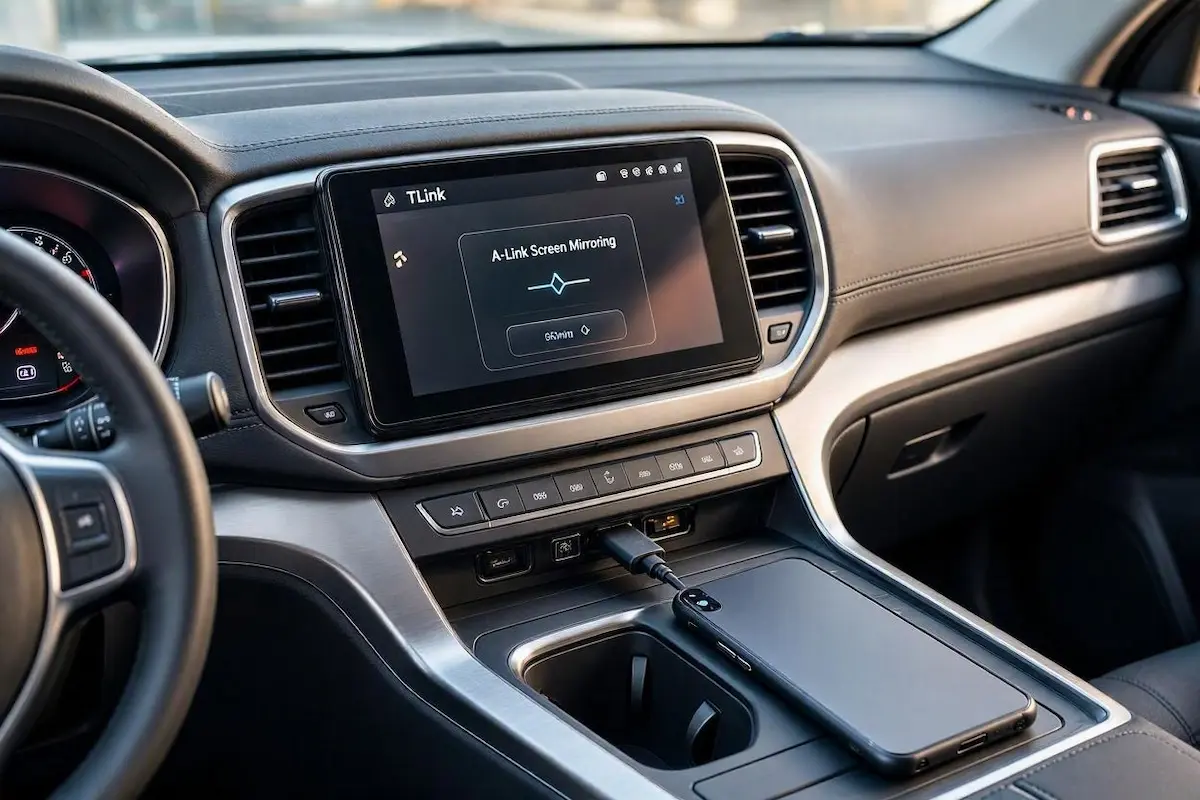
Diagnostic Matrix: Why TLink Android Auto Is Not Working
Match your specific screen behavior against our workshop matrix to isolate an issue where tlink android auto not working interrupts your drive before pulling dashboard trim panels:
| Observed TLink Behavior | Underlying Software Root Cause | Immediate Workshop Action |
|---|---|---|
| CarPlay works instantly; Android displays a QR code | Stereo board licensed only for Apple CarPlay and A-Link mirroring. | Bypass TLink completely using Headunit Reloaded (HUR). |
| Screen says “Connecting…” then drops back to home screen | Android Auto software switch toggled OFF inside MCU settings. | Enable Google AA toggle in Factory Settings (Pin: 123456 / 8888). |
| Mirroring connects, but touch controls do not register | USB communication throttled in slow USB 1.1 or Charge Only mode. | Disable Force USB 1.1; set phone USB mode to File Transfer (MTP). |
| TLink hijacks the display whenever any USB cable is plugged in | Background auto-start daemon configured for aggressive priority. | Turn off “Auto-connect” and “Background launch” inside TLink settings. |
| Black screen occurs immediately after handshake animation | Head unit GPU resolution mismatch with the phone’s video stream. | Cap video stream to 720p or configure graphics override in HUR. |
Step 1: Check Factory Settings for Hidden Android Auto Toggles
Before installing third-party emulators, verify whether your tlink android auto not working problem is simply caused by an unselected software toggle inside the system’s engineering menu.
Certain budget manufacturers ship head units with Android Auto disabled by default to clear regional radio compliance standards while leaving Apple CarPlay active.
Enabling the native feature flag can restore direct projection without third-party tools:
- Open your stereo’s primary Settings app and select Car Settings.
- Scroll down and tap Extra Settings or Factory Settings.
- Enter your board manufacturer’s engineering passcode:
123456(Standard on Allwinner T3L and CLD3 motherboards)8888(Topway, TS7, and generic quad-core Android units)1617or3368(FYT and newer octa-core boards)
If these codes fail, reference our complete directory of Android car stereo factory settings passwords.
- Inside the engineering menu, tap Function Config, Feature Switch, or App Control.
- Find the setting labeled Android Auto or Google AA, toggle it ON, and tap Save & Reboot.
- Locate a setting named Force USB 1.1 and ensure it is set to Disabled / OFF. Android Auto requires USB 2.0 High-Speed data throughput to stream live navigation frames without dropping the signal.
⚠️ Developer Code Distinction: If your stereo accepts passcode
345543, that opens standard Android OS Developer Options (animation scales and USB debugging), not the MCU Factory Settings menu where hardware projection toggles are located.
Step 2: Bypass TLink with Headunit Reloaded (HUR)
If your factory menu lacks an Android Auto toggle, your head unit was shipped with a budget TLink license that permanently excludes Google’s projection handshake tokens.
Updating the TLink APK or performing a factory reset will not solve this because licensing keys are burned directly into the MCU hardware ID.
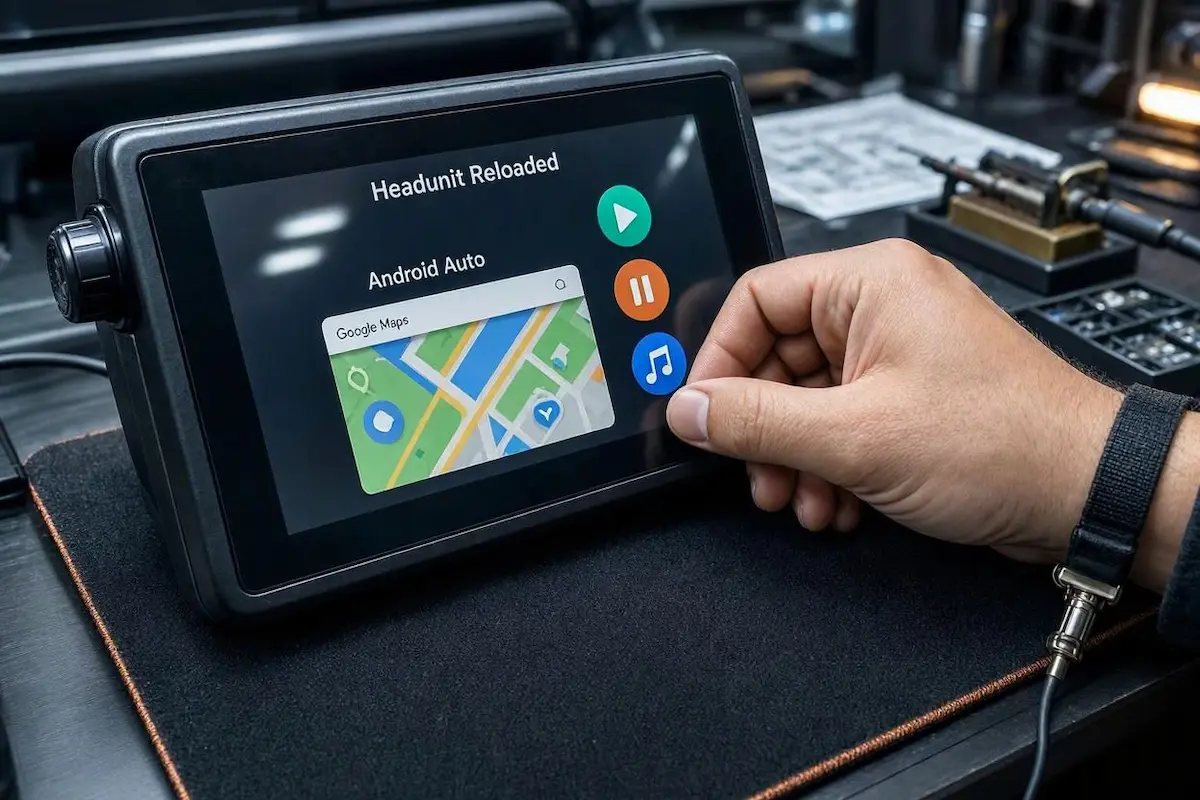
The universal workshop workaround when dealing with a tlink android auto not working fault is installing Headunit Reloaded (HUR).
HUR is an independent emulator that turns your Android stereo into a genuine Android Auto receiver, completely bypassing TLink’s restrictive licensing:
- Connect your car stereo to your home Wi-Fi network or smartphone mobile hotspot.
- Open the Google Play Store directly on the car stereo and install Headunit Reloaded Emulator (HUR). (You can also sideload the APK using a USB flash drive and the stereo’s built-in File Manager).
- Open HUR once and grant all requested permissions: Storage, Microphone, and Display over other apps.
- Exit the app, plug your phone into the dashboard USB cable, and open HUR.
- Tap the USB button on the HUR home screen.
- When Android prompts “Allow Headunit Reloaded to access this USB device?”, check the box for Always and tap OK.
Your dashboard will instantly load native split-screen Android Auto with live Google Maps, media controls, and full touchscreen support.
Using HUR permanently fixes scenarios where an unauthenticated tlink android auto not working screen leaves you trapped in low-resolution screen mirroring.
RELATED TROUBLESHOOTING GUIDE
👉 Using ZLink instead of TLink on your dashboard? Workshop guide to fixing ZLink connection drops →
Step 3: Enable Developer Projection Settings on Your Smartphone
To ensure your smartphone communicates smoothly with HUR or modified TLink configurations, you must authorize external projection permissions inside the phone’s Android Auto settings.
Skipping these handset developer permissions frequently causes projection deadlocks where your tlink android auto not working interface fails to handshake with modern Android versions:
- On your Android phone, navigate to Settings → Connected Devices → Android Auto.
- Scroll to the bottom of the screen and tap the Version field 10 times consecutively until a prompt confirms “Developer mode enabled”.
- Tap the three vertical dots in the upper-right corner and select Developer settings.
- Check the boxes for Wireless projection and Add projection to cars.
- Return to your main phone settings, search for Default USB Configuration, and set it to File Transfer / MTP instead of Charge Only.
Adjusting these developer switches prevents recurring errors where your tlink android auto not working setup drops the USB data line as soon as the phone display sleeps.
Step 4: Disable TLink Background Launch and USB Hijacking
Once you install Headunit Reloaded, an aggressive software conflict can occur where TLink repeatedly seizes control of the USB data stream.
This port interception knocks HUR offline and attempts to force unwanted screen mirroring.
Disabling TLink’s background listener daemon prevents this port conflict, stopping repeated cycles where tlink android auto not working crashes your navigation:
- Open the TLink (or TLink5) application on your dashboard.
- Tap the Settings (Gear) icon inside the TLink interface.
- Turn OFF the toggles for “Background connection” and “Auto-start on USB insertion”.
- Now, whenever you plug your phone in, the Android operating system routes the high-speed data stream directly to Headunit Reloaded without TLink intercepting the connection.
RELATED TROUBLESHOOTING GUIDE
Step 5: Verify USB Cable Data Pinout and Rear Harness Wiring
Android Auto requires high-speed bidirectional data synchronization across dedicated copper conductors.
Budget Android head units feature two distinct USB leads on the rear wiring harness: a 4-pin data lead and a 6-pin auxiliary lead.
Plugging into the incorrect harness pigtail prevents Android Auto from completing its security handshake, creating a situation where tlink android auto not working hardware only supplies battery charge:
- Ensure your phone cable is connected to the 4-pin USB harness lead. On many budget motherboards, the 6-pin lead is wired strictly for low-speed USB flash drives and lacks the high-speed synchronization lines needed for mobile projection.
- Ditch thin third-party charging cables. Use your phone’s original OEM cable or a certified high-speed data cable under 3.3 feet (1 meter) in length.
- Avoid dashboard USB extension splitters or cigarette-lighter adapters. Plug directly into the primary pigtail harness in compliance with standard Google Android Auto connection standards. If your screen is stuck on a boot loop, review our guide to fixing an Android car stereo boot loop.
Overcoming screen mirroring lockouts on budget Android stereos comes down to understanding hardware licensing limitations.
If your head unit firmware lacks an Android Auto feature switch in Factory Settings, installing Headunit Reloaded completely bypasses TLink’s license limitations.
Following this workshop diagnostic sequence permanently resolves a tlink android auto not working problem, giving you authentic Android Auto navigation without the expense of replacing your head unit.
Frequently Asked Questions (FAQ)
Why is TLink only showing screen mirroring instead of Android Auto?
When you discover tlink android auto not working for projection, budget head unit manufacturers have purchased lower-tier TLink software licenses that only include Apple CarPlay and basic Android screen mirroring (A-Link/CarbitLink). Because the stereo firmware lacks Google’s native Android Auto security handshake token, TLink defaults to basic screen casting.
Why does CarPlay work in TLink but Android Auto fails?
CarPlay and Android Auto use completely different licensing architectures. Car stereo manufacturers frequently pay for the basic Apple CarPlay projection license while omitting the more expensive Android Auto token, forcing Android users into screen mirroring.
Will updating the TLink app enable Android Auto?
No. TLink licensing tokens are bound directly to the head unit’s MCU motherboard ID. Updating the TLink APK or performing a factory reset will not unlock Android Auto if the board lacks the underlying license token. Using Headunit Reloaded (HUR) is the best way to bypass this restriction when tlink android auto not working issues occur.
Can I use wireless Android Auto with Headunit Reloaded?
Yes. Headunit Reloaded supports both wired USB and wireless Wi-Fi projection. By launching the HUR WiFi launcher companion app on your phone, you can establish an ad-hoc Wi-Fi projection link directly to your head unit display.