
How to Fix YouTube Not Working on Android Car Stereo (“Switch to youtube.com”)
Encountering the robotic "Switch to youtube.com" error or endless update loops on your head unit? Learn why Google API deprecation breaks stock YouTube apps on automotive Android stereos and how to deploy lightweight, lag-free alternatives.

Encountering a failure where youtube not working on android car stereo displays—leaving you staring at an illustrated graphic declaring “Switch to youtube.com” or getting trapped in an endless application update loop—points to backend API deprecation rather than a damaged Wi-Fi antenna.
Most budget and mid-tier aftermarket Android head units (built on Allwinner, Topway TS10, FYT, and MediaTek platforms) report heavily spoofed system specifications.
While “About Device” menus frequently claim the stereo runs Android 12 or 13, the underlying Linux kernel is actually compiled on legacy Android 6.0, 7.1, or 8.1.
Because Google periodically retires obsolete API handshakes and terminates Google Play Services communication across legacy architectures, the factory-installed YouTube client stops communicating with video servers permanently.
Furthermore, these head units lack official Google Play Protect certification, meaning standard over-the-air Play Store application updates will crash immediately upon launch.
Before attempting to flash experimental custom ROMs or replacing the entire center console display, several lightweight software configurations bypass Google Play Services restrictions entirely.
Here are five practical workshop methods to solve why your youtube not working on android car stereo setup fails and restore seamless, high-definition video streaming.

Diagnostic Matrix: Why YouTube Not Working on Android Car Stereo Occurs
Use this symptom breakdown to identify the exact technical cause behind youtube not working on android car stereo consoles before adjusting deeper firmware parameters:
| Observed Screen Symptom | Underlying System Root Cause | Immediate Workshop Action |
|---|---|---|
| “Switch to youtube.com” robotic graphic screen | Stock YouTube APK version deprecated by Google streaming servers. | Install SmartTube Stable APK via direct web browser download. |
| App closes immediately upon opening (Instant Crash) | Outdated or missing Google Play Services cryptographic framework. | Switch to NewPipe or a lightweight progressive web app container. |
| Green screen flickering during full-screen video | Hardware video decoder sync mismatch on entry-level automotive SoCs. | Enable “Always use ExoPlayer configuration” in NewPipe media settings. |
| Audio plays smoothly but video display stays black | Stereo “Brake Wire” safety interlock engaged while vehicle is in motion. | Ground the pink/brown “Brake” wire or disable the parking lock in settings. |
| Endless buffering circle on all video resolutions | Hotspot 2.4GHz interference or local DNS resolver lookup timeout. | Change Wi-Fi DNS to 8.8.8.8 and lock streaming resolution to 720p. |
Method 1: Install SmartTube (Best Dedicated Landscape Interface)
The cleanest and most reliable workshop solution when youtube not working on android car stereo hardware occurs is installing SmartTube.
SmartTube is an open-source, lightweight streaming client engineered specifically for Android TV and horizontal automotive touchscreens.
SmartTube communicates directly with YouTube video endpoints without querying Google Play Services daemons.
Because it bypasses deprecated API lockouts entirely, it runs smoothly on legacy kernels down to Android 4.4:
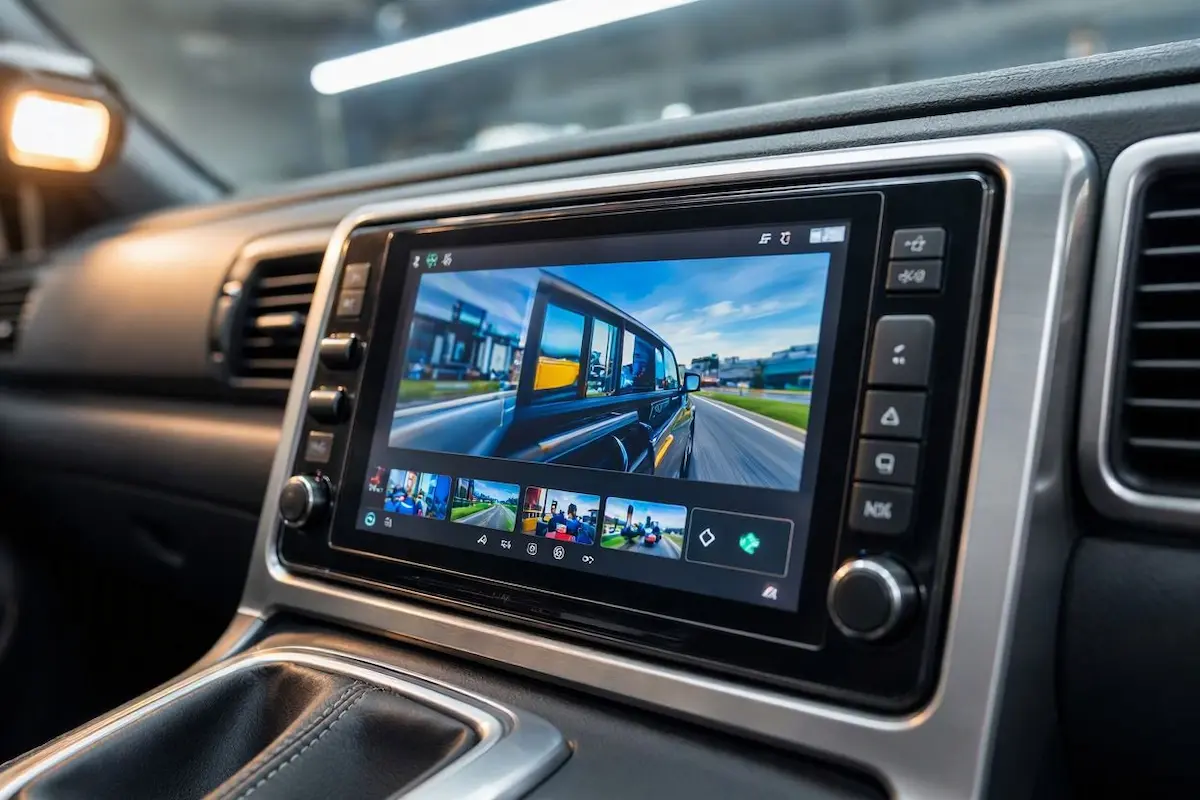
- Connect your car stereo to a stable smartphone Wi-Fi hotspot or home wireless network.
- Open the built-in browser (Google Chrome or native AOSP Browser) on your car head unit.
- Navigate directly to the official project repository:
https://smarttubeapp.github.io. - Tap the download button labeled “Download Stable APK”.
- Once the package downloads, open the stereo File Manager → Downloads folder and tap the
smarttube_stable.apkfile. - If prompted by a security dialog, tap Settings, toggle “Allow installation of apps from unknown sources” to ON, and confirm the installation prompt.
- Launch SmartTube from your stereo application drawer.
The interface runs immediately without requiring an active Google login, or you can link your personal YouTube profile using standard TV activation codes.
Deploying this dedicated television client permanently fixes scenarios where youtube not working on android car stereo players crash on startup, giving you full steering wheel control support.
⚠️ Road Safety & Legal Compliance: Operating video displays within view of the driver while a vehicle is in motion is strictly prohibited by traffic regulations and creates severe driving distraction. Ensure video playback is utilized solely while safely parked, or route auxiliary video feeds strictly to rear passenger headrest screens.
RELATED TROUBLESHOOTING GUIDE
Method 2: Install NewPipe (Optimized for 1GB / 2GB RAM Units)
If your head unit features entry-level hardware (such as 1GB or 2GB of RAM paired with an older quad-core Allwinner or MediaTek processor), running heavy streaming applications triggers aggressive memory management shutdowns.
When low system memory causes an issue with youtube not working on android car stereo systems, NewPipe provides an ultra-lightweight, battery-efficient alternative that consumes under 80MB of active RAM:
- Open your car stereo web browser and navigate to the official portal:
https://newpipe.net. - Scroll down to the download section and tap “Get NewPipe” to download the latest installer APK.
- Open your File Manager, tap the downloaded APK, and grant installation permissions.
- Launch NewPipe from your application launcher.
Fixing Green Screen Video Flickering in NewPipe:
Certain entry-level automotive graphics decoders struggle with hardware video sync, producing a bright green tint or strobe artifact across full-screen playback.
Apply this quick configuration fix inside the player:
- Open NewPipe and tap the three-dot menu icon in the upper right corner.
- Select Settings → Video & Audio.
- Scroll down to ExoPlayer settings.
- Toggle the switch for “Always use ExoPlayer configuration” to ON.
- Restart the application.
This forces the media renderer to use software color mapping, curing green screen distortion and stopping errors where youtube not working on android car stereo screens lock up during hardware decoding.
RELATED TROUBLESHOOTING GUIDE
Method 3: Create a Dedicated Chrome Web Application Shortcut
If your stereo’s internal flash storage is completely full, or if restrictive system permissions block third-party APK sideloading, a direct browser progressive web app is the fastest workaround.
Modern mobile web browsers support progressive media rendering, which solves a youtube not working on android car stereo failure without requiring external background daemons:
- Open Google Chrome on your car stereo display.
- In the URL navigation bar, type
m.youtube.comand press Enter. - Once the mobile web player finishes loading, tap the three vertical dots in the upper right corner of Chrome.
- Select “Add to Home screen” from the dropdown menu.
- Set the shortcut title to “YouTube” and tap Add.
A dedicated launcher icon will appear on your stereo home screen.
Tapping this icon opens a streamlined web viewport that bypasses all native Google Play Services checks, preventing the recurring fault where youtube not working on android car stereo clients refuse to load video streams.
Method 4: Bypass Parking Brake Video Lockout (Handbrake Wire)
If video audio plays through your car speakers normally while the display remains pitch black with a warning message stating “Do not watch video while driving”, your application is functioning properly.
Automotive head units incorporate a dedicated 12V safety interlock designed to suppress video rendering unless the emergency handbrake is fully engaged.
When misconfigured, this interlock mimics a condition where your youtube not working on android car stereo setup appears completely broken:
- Software Menu Override: Navigate to your stereo Car Settings → Video Settings (or Factory Settings using your administrative PIN). Locate the toggle labeled “Brake Wire Detection”, “Handbrake Lock”, or “Watch Video While Driving” and set it to OFF / Allow. Grab your unlock PIN from our Android car stereo factory settings passwords list if the menu is locked.
- Hardware Grounding Bypass: If your unit lacks a software override, slide the head unit forward from the dashboard. Locate the pink or brown wire on the 16-pin harness labeled “BRAKE” or “PARKING”. Cut this wire from the vehicle chassis harness and connect its bare copper end directly to the stereo’s metal aluminum chassis (Ground). Grounding this pin tells the firmware the car is continuously parked. Check our harness guide to connect factory wiring to android head unit pins correctly.
RELATED TROUBLESHOOTING GUIDE
Method 5: Apply Performance Tweaks (Lock Stream Resolution to 720p)
After installing a functional alternative client, optimizing core Android operating system settings prevents playback stutter and dashboard freezing during long commutes.
Applying these adjustments eliminates system lockups that make youtube not working on android car stereo devices crash under sustained processing load:
- Lock Streaming Resolution to 720p: Most 9-inch and 10.1-inch automotive displays have native screen resolutions of 1024×600 or 1280×720. Forcing your player to stream 1080p or 4K wastes hotspot data and overheats the dashboard SoC. Lock default streaming resolution to 720p (30fps) inside SmartTube or NewPipe settings.
- Disable Battery Optimization: Navigate to Android Settings → Apps → SmartTube (or NewPipe) → Battery and select Unrestricted. This prevents the Android memory management service from terminating your audio when switching over to Google Maps.
- Disable the Stock Factory App: Open Settings → Apps → YouTube (Stock) and tap Disable / Force Stop. This halts background update attempts and stops persistent crash notifications from popping up over your navigation screen, ending the cycle where youtube not working on android car stereo notifications disrupt your driving. If your stereo cycles on reboot, check our guide to fixing an Android car stereo boot loop.
Resolving an issue where youtube not working on android car stereo units lock up does not require purchasing a new head unit or flashing risky custom firmware.
In most vehicles, the true culprit is an outdated Google Play Services framework running on a spoofed legacy Android kernel.
Bypassing Google’s framework with an independent client like SmartTube or NewPipe restores reliable, high-definition video playback to your dashboard.
Frequently Asked Questions (FAQ)
What should I check first when youtube not working on android car stereo screens occurs?
When youtube not working on android car stereo displays occurs, check whether your head unit is displaying the “Switch to youtube.com” error or crashing immediately. This indicates outdated Google Play Services on a legacy Android kernel. Installing an independent client like SmartTube bypasses this restriction completely.
Why does YouTube say “Switch to youtube.com” on my Android car stereo?
This message occurs because Google deprecated older API handshakes for legacy Android operating systems. Most aftermarket head units run underlying Android 6, 7, or 8 kernels that can no longer communicate with official YouTube application servers.
Can I update Google Play Services on an Android car stereo?
Rarely. Most generic Chinese car stereos lack official Google Play Protect certification. Attempting to manually sideload newer Google Play Services APKs often causes boot loops or triggers “Google Play Services has stopped” error loops.
What is the best YouTube alternative for an Android car stereo?
SmartTube is the highest-rated client for automotive touchscreens. It features an intuitive landscape television layout, supports physical steering wheel control buttons, skips sponsored segments automatically, and functions independently of Google Play Services.
Why does YouTube audio play while the screen stays black?
This is triggered by the vehicle safety parking brake lockout. Automotive stereos contain a dedicated “Brake” wire that disables video display rendering while the car is moving. You can bypass this in stereo factory settings or by grounding the pink brake wire.