
Carlinkit Keeps Disconnecting? 5 Easy & Proven Fixes (100% Working)
Tired of random drops at toll booths or audio lag during calls? If your Carlinkit keeps disconnecting, access the hidden 192.168.50.2 backend to lock non-DFS Wi-Fi channels, resolve USB brownouts, and tune media buffer delay for solid stability.

Troubleshooting an issue where your carlinkit keeps disconnecting every few miles—or drops projection the instant you approach a highway toll gantry—points to an electrical or frequency conflict rather than a dead wireless chip or broken hardware adapter.
Carlinkit wireless adapters (including the Carlinkit 3.0, 4.0, and 5.0 2air series) operate an onboard embedded Linux microkernel.
This internal controller runs a local web configuration server while bridging hardware USB emulation, Bluetooth 5.0 authentication handshakes, and a dedicated 5.8 GHz Wi-Fi Direct video pipeline.
Because the adapter continuously transcodes 60fps video packets while negotiating dynamic cellular data streams, current draw surges past 1.0 Amp during navigation rendering.
When paired with older factory vehicle USB ports rated for only 500mA, supply voltage sags below 4.75V, triggering an immediate watchdog brownout reset.
Furthermore, if the dongle is left on dynamic Wi-Fi channels, external microwave signals from overhead toll scanners force the adapter to vacate its frequency under international Dynamic Frequency Selection (DFS) regulations.
This automated regulatory channel hop drops your center console display instantly.
In our workshop bench testing, this failure is almost never an unrecoverable hardware defect.
Before unpairing your smartphone or submitting a warranty return, accessing the dongle’s internal hardware management gateway isolates the exact communication bottleneck.
Here are five practical workshop steps to diagnose why a carlinkit keeps disconnecting and lock in a permanent, rock-solid wireless bridge.
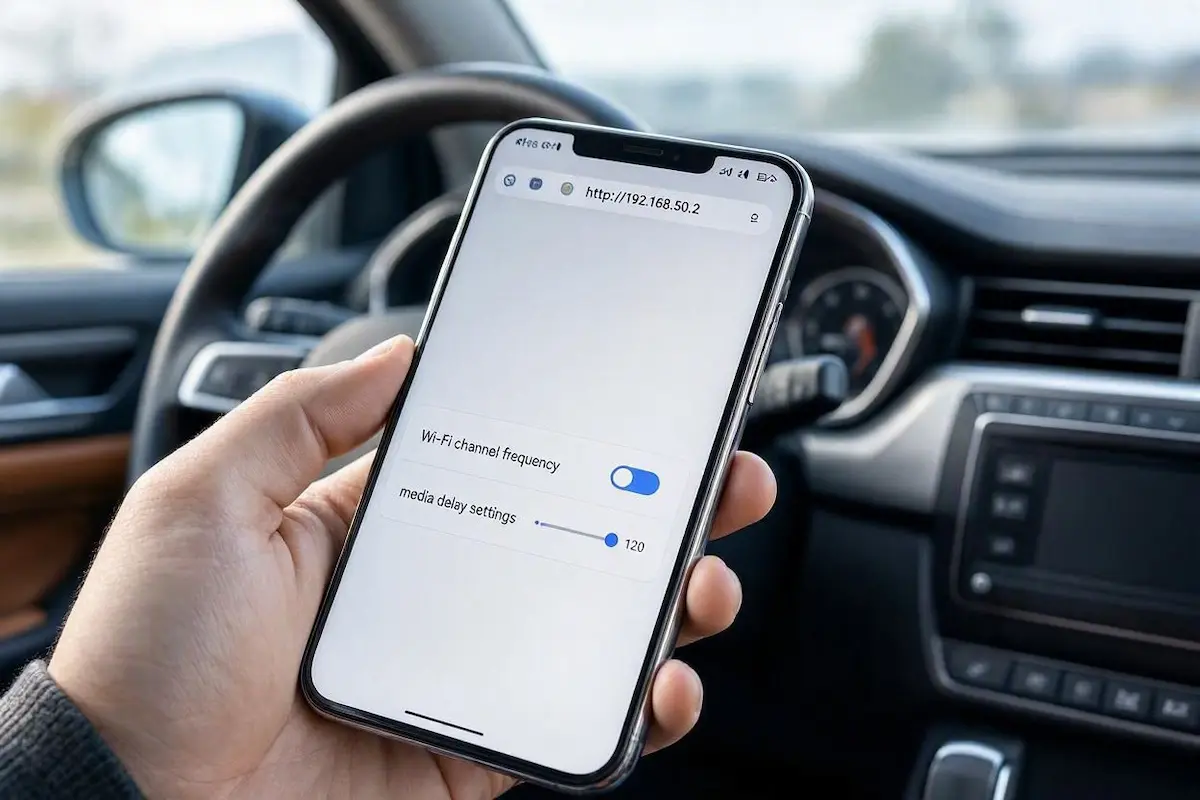
Diagnostic Matrix: Why Carlinkit Keeps Disconnecting
Match your specific connection behavior against our workshop matrix to isolate why your carlinkit keeps disconnecting before adjusting deeper firmware parameters:
| Observed Vehicle Symptom | Underlying Hardware / Software Cause | Immediate 192.168.50.2 Workshop Action |
|---|---|---|
| Drops connection near highway tolls or airport zones | 5GHz Wi-Fi radar preemption scanning on dynamic DFS channels. | Lock Wi-Fi Band to fixed non-DFS Channel 36 or Channel 149. |
| 1–2 second audio delay during phone calls or track skips | Hardware media jitter buffer set to conservative factory default. | Lower Media Delay slider from 1000ms down to 300ms–400ms. |
| Dongle restarts abruptly during heavy bass or acceleration | Vehicle USB bus voltage dropping below 4.75V under processing load. | Install a 12V auxiliary USB-Y power splitter cable to supply 2.4A. |
| Screen stutters, freezes, or displays green artifacts | 60fps video feed choking low-spec vehicle infotainment GPU. | Switch Frame Rate setting from 60fps down to 30fps. |
| Screen turns solid black when shifting out of reverse | Video multiplexer deadlock during backup camera interrupt handoff. | Switch Background Mode configuration from Default to DVD or Standard. |
Step 1: Access the 192.168.50.2 Management Menu and Lock Wi-Fi Channel
The single most frequent operational trigger behind why a carlinkit keeps disconnecting near city overpasses, airport corridors, and highway toll collection gantries is dynamic radio frequency channel hopping.
Every genuine Carlinkit adapter broadcasts a localized Wi-Fi hotspot that houses an internal web configuration server.
If the adapter’s Wi-Fi channel is left set to “Auto”, nearby automated toll transponders or municipal radar signals force the internal radio to perform a mandatory frequency clearance scan, terminating your active dashboard session:
- Plug the Carlinkit dongle into your vehicle’s primary multimedia USB data port and switch the ignition to ON / RUN.
- On your smartphone, open Wi-Fi settings and connect to the adapter’s network (typically named AutoKit_xxxx, Carlinkit_xxxx, or VOLK_xxxx). The default factory network password is 12345678.
- Disable Mobile Data: Temporarily switch OFF cellular data (4G/5G) on your handset to prevent your mobile browser from routing local traffic through your cellular carrier.
- Launch Safari or Google Chrome and enter the gateway IP address:
http://192.168.50.2. - Tap the Settings (Gear icon) at the bottom of the interface to reveal hardware configuration options.
- Locate Wi-Fi Band / Wi-Fi Frequency and ensure it is locked to 5.8 GHz (or 5.0 GHz).
- Locate Wi-Fi Channel and change it from Auto to a dedicated non-DFS frequency:
- Channel 36 or Channel 44: Recommended for urban driving to completely bypass overhead toll radar scanners.
- Channel 149: Recommended for open highway driving requiring maximum transmission power.
- Tap Save & Reboot.
Locking the channel prevents background frequency scanning, which permanently resolves scenarios where a carlinkit keeps disconnecting during highway commutes.
⚠️ Gateway IP Timeout: If the
192.168.50.2portal refuses to load, your smartphone has likely switched back to mobile data. Verify that your phone is actively connected to the dongle’s Wi-Fi network with cellular data toggled off, and ensure any third-party VPN profiles are disconnected.
RELATED TROUBLESHOOTING GUIDE
Step 2: Prevent USB Port Voltage Brownouts with an Auxiliary Splitter
Automotive USB ports in many factory vehicles conform to baseline legacy standards according to older USB hardware power specifications.
These older ports deliver only 500mA (0.5A at 5 Volts = 2.5 Watts) of operating power.
When a Carlinkit adapter renders complex 3D satellite navigation maps while concurrently decoding lossless audio, internal processor current draw surges up to 1.2 Amps.
If the vehicle’s factory wiring harness cannot supply this dynamic current, bus voltage drops below 4.75V.
This drop triggers an emergency microprocessor reset that causes an intermittent fault where your carlinkit keeps disconnecting under electrical load:
- Identify the Brownout Symptom: If the adapter’s status LED suddenly turns dark, blinks red, and reboots right when you accelerate, turn on headlights, or play audio with heavy bass notes, the USB port is starving the adapter of current.
- Eliminate Unpowered Hubs: Remove aftermarket USB splitters, loose glovebox extension leads, or decorative adapters, which introduce electrical resistance. Check our harness guide to connect factory wiring to android head unit ports if you need hardware pinouts.
- Deploy a USB-Y Power Splitter: Connect a dual-USB USB-A Power Splitter Cable (Y-Cable). Plug the primary data connector into your vehicle’s multimedia port, connect the auxiliary power lead into a 12V cigarette lighter fast charger pushing clean 5V at 2.4A, and plug the Carlinkit dongle into the female port.
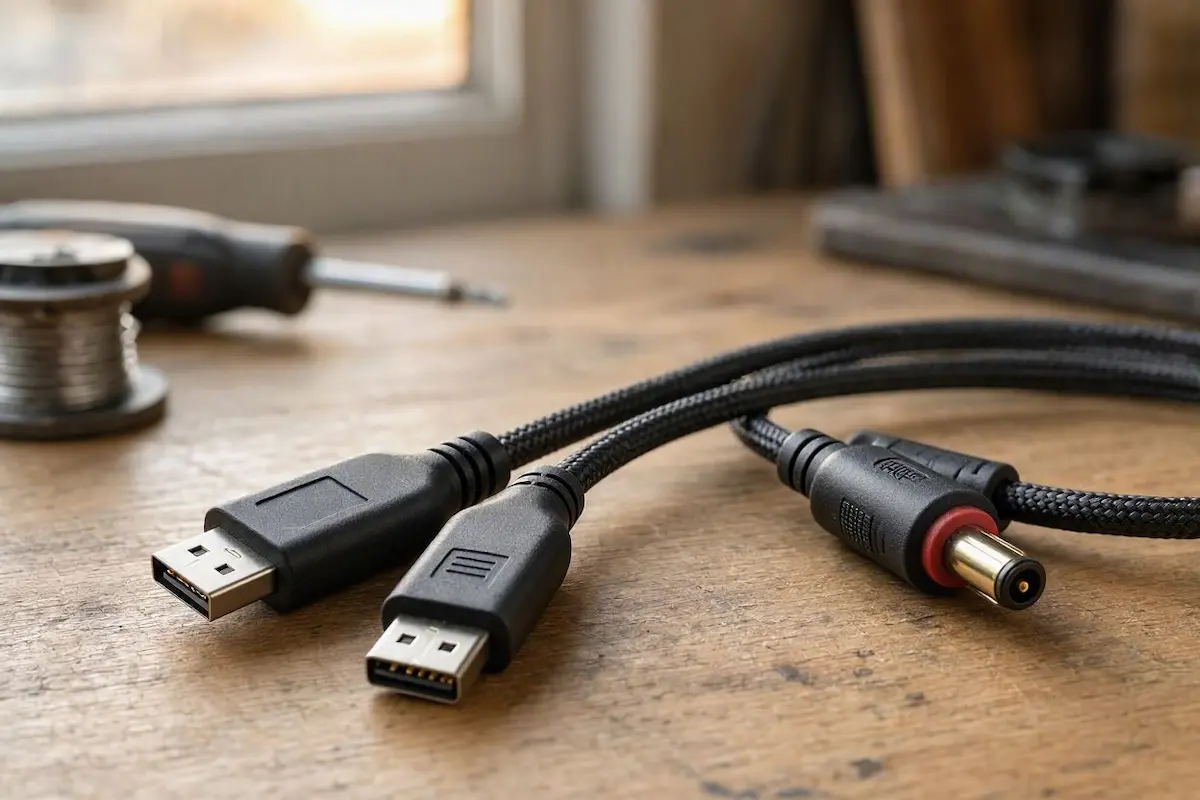
Delivering clean 2.4A current completely stops the cycle where a carlinkit keeps disconnecting during sudden vehicle acceleration or engine start-stop cycles.
Step 3: Tune Media Delay Buffer and Audio Transfer Latency
By default, Carlinkit firmware configures an overly conservative safety buffer to prevent audio stuttering on slow head unit processors.
This setting creates a frustrating 1.5 to 2-second delay between tapping track skip buttons on the steering wheel and hearing the audio change through vehicle speakers.
If your carlinkit keeps disconnecting or suffers from noticeable speech lag during hands-free phone calls, calibrating this buffer inside the web interface tightens audio latency without causing packet stutter:
- Open
http://192.168.50.2in your phone browser while connected to the adapter. - Navigate to the settings menu and locate the slider labeled Media Delay (or Audio Transfer Delay).
- The factory default is typically set to
1000ms. Lower this value to 300ms or 400ms. - If your unit includes an option for Audio Quality (or Bitrate Mode), select CD Quality or Fluency rather than High Bitrate to minimize transmission lag.
- Scroll down, tap Save, and allow the dongle to reboot. When the LED cycles solid green, test track switching—commands will now feel crisp and immediate.
- Caution: Never lower Media Delay below
200ms. While lower values reduce latency, road bumps and external cellular handoffs will cause micro-stutters in the audio stream.
RELATED TROUBLESHOOTING GUIDE
👉 Hearing an echo or lag in your music or navigation voice? How to fix wireless CarPlay audio delay →
Step 4: Optimize Video Frame Rate (30fps) and Background Mode
If your car display shows a sluggish interface, dropped frames, or occasional visual distortion, the incoming 60fps video feed is saturating the vehicle’s infotainment GPU decoder.
Most factory infotainment displays operate at a native refresh rate of 30Hz or 60Hz with limited onboard video processing power.
Lowering video bandwidth prevents GPU decoder crashes and stops the cycle where a carlinkit keeps disconnecting during heavy 3D satellite map rendering:
- Inside the
192.168.50.2settings menu, locate Frame Rate. - If set to 60fps, switch the parameter to 30fps. Capping the frame rate cuts incoming graphic bandwidth in half, freeing up onboard processor cycles and stabilizing connections during complex route navigation.
- Locate the setting labeled Background Mode. If your center console screen turns completely black or fails to exit projection mode when shifting out of reverse, change Background Mode to DVD or Standard.
- Locate Start Delay (Boot Delay) and set the timer to 5 or 8 seconds. This delay gives the vehicle’s factory infotainment computer adequate time to boot its internal USB hub before the Carlinkit begins negotiating handshake requests. If your radio cycles on reboot, check our guide to fixing an Android car stereo boot loop.
Optimizing these video frame buffers prevents system crashes that make an issue where your carlinkit keeps disconnecting occur when exiting reverse gear.
Step 5: Rollback Firmware or Perform an Offline USB Recovery Flash
When mobile operating systems push major version updates, Bluetooth pairing handshakes and Wi-Fi Direct protocols often shift.
If your carlinkit keeps disconnecting only after an over-the-air (OTA) firmware upgrade, reverting to the factory baseline firmware resolves driver incompatibilities:
- Connect to the adapter Wi-Fi network and open
http://192.168.50.2. - Scroll to the bottom of the management page and locate Rollback / Revert Firmware.
- Tap the rollback button and allow the adapter 3 to 5 minutes to restore the previous stable ROM build. Never unplug the adapter while the status LED blinks rapidly.
- Emergency Offline USB Flash: If the unit is trapped in a reboot loop and cannot broadcast Wi-Fi, download the matching firmware
.imgfile from the official manufacturer support repository, load it onto a FAT32-formatted USB flash drive, and plug it directly into the Carlinkit’s USB-A pass-through port while connected to a 5V wall charger to force a clean hardware recovery.
Executing an offline firmware restore guarantees that a carlinkit keeps disconnecting fault is not caused by corrupted flash partition sectors.
RELATED TROUBLESHOOTING GUIDE
👉 Using an AAWireless dongle instead? Master workshop troubleshooting guide for AAWireless drops →
Diagnosing why a carlinkit keeps disconnecting comes down to managing USB bus power and eliminating Wi-Fi interference.
Accessing the 192.168.50.2 web backend to lock your wireless transceiver to non-DFS Channel 36, supplying steady 5V current through an auxiliary USB-Y splitter, and tuning Media Delay to 300ms restores instant, reliable wireless projection.
Following this structured diagnostic procedure permanently clears a carlinkit keeps disconnecting defect without the unnecessary expense of returning the adapter or buying replacement units.
Frequently Asked Questions (FAQ)
Why can’t I open 192.168.50.2 in my phone browser?
To access 192.168.50.2, your smartphone must be actively connected to the Carlinkit Wi-Fi network with cellular mobile data turned completely OFF. If mobile data is active, your browser routes the request across cellular towers rather than the local adapter gateway, causing the page to time out.
Why does my Carlinkit disconnect when shifting into reverse?
When reverse gear is engaged, the vehicle’s CANbus network prioritizes the backup camera video feed, interrupting the projection video pipeline. If the adapter runs at 60fps or an incompatible background mode, this video interrupt causes a crash where your carlinkit keeps disconnecting. Changing Background Mode to DVD or Standard in the 192.168.50.2 menu resolves this conflict.
Can a weak car battery cause Carlinkit disconnections?
Yes. When your vehicle alternator fluctuates at stoplights under heavy air conditioning or audio load, the vehicle Body Control Module (BCM) drops voltage to auxiliary USB ports. If voltage sags below 4.75V, the adapter reboots immediately. Installing an auxiliary USB-Y power cable prevents brownout resets.
Can Carlinkit work on stereos without factory wired CarPlay?
No. Standard Carlinkit adapters (3.0, 4.0, and 5.0) require your vehicle or aftermarket stereo to have factory OEM wired CarPlay already functional. For aftermarket Android head units lacking wired CarPlay licenses, an AutoKit-compatible USB dongle is required instead.