
How to Fix Apple CarPlay Connected But No Sound (Music & Navigation Audio Fix)
Apple CarPlay connected with songs playing and GPS tracking, but your speakers remain dead silent? Learn how to fix independent volume gain traps, re-route audio output in iOS Control Center, disable Siri audio ducking locks, and reset infotainment daemons.

When you have apple carplay connected but no sound output through vehicle speakers, the failure is almost never a blown amplifier or damaged speaker voice coils. Apple CarPlay separates audio delivery from video projection, streaming a 60fps H.264 display mirror while allocating audio across virtual software sinks managed by iOS and the vehicle’s digital sound processor (DSP).
When track progress bars roll forward while car speakers stay silent, the video link is healthy, but the audio stream has been intercepted. The breakdown usually traces back to an unselected AirPlay routing destination, independent volume channel attenuation, a frozen Siri audio ducking session, or high-bitrate audio codec buffer overruns.
Before replacing factory cables or scheduling dealership diagnostics, a quick sequence of bench checks will identify whether the dropout is inside iOS audio routing or vehicle head unit gain staging. Here are six practical workshop steps to resolve why an apple carplay connected but no sound error occurs and restore crystal-clear playback.
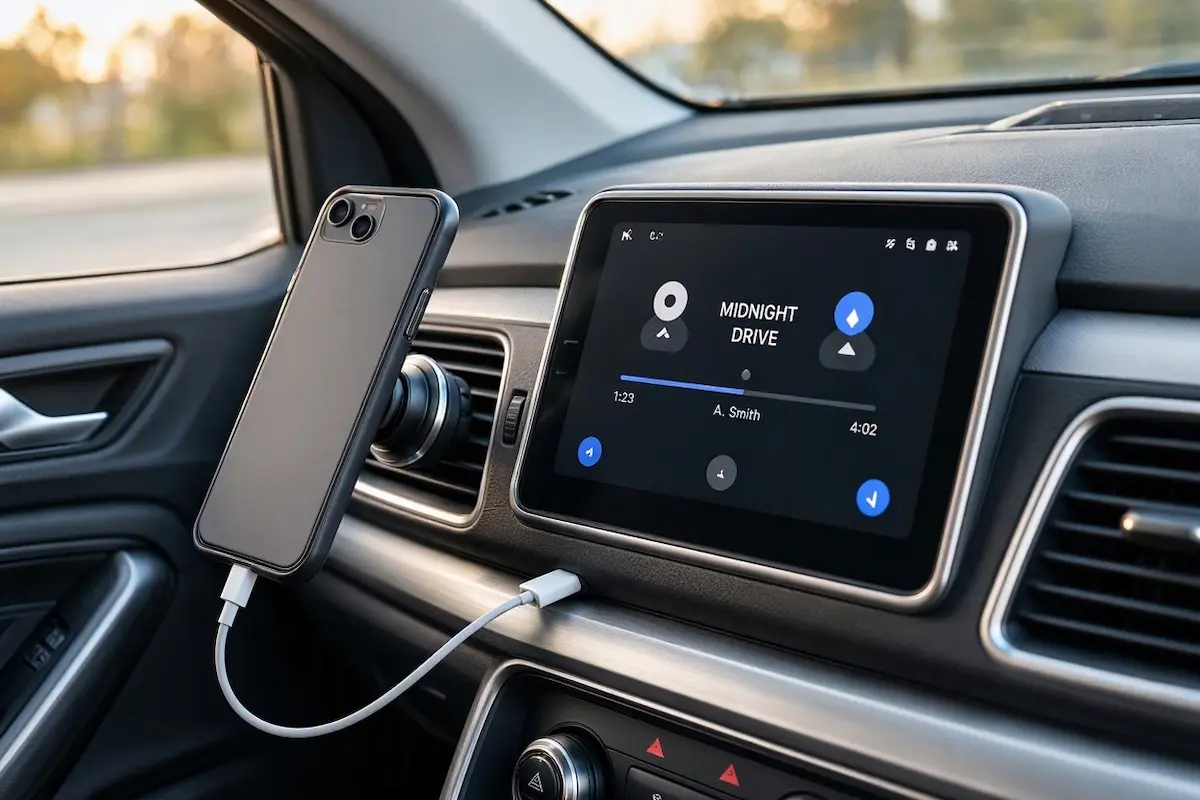
Diagnostic Matrix: When Apple CarPlay Is Connected But Has No Sound
Match your specific audio behavior against our workshop matrix to isolate the failure point before changing complex system settings:
| Observed Audio Behavior | Underlying Software Root Cause | Immediate Workshop Action |
|---|---|---|
| Music counter advances; zero speaker output | Audio stream routed to AirPods, Apple Watch, or internal phone speaker. | Switch audio output to CarPlay in the iOS Control Center AirPlay tile. |
| Phone calls work clearly, but music stays silent | Media volume channel dialed to zero on the car infotainment unit. | Turn the physical volume knob while music is actively playing. |
| Music plays, but navigation guidance never speaks | Navigation Guidance set to “No Voice” or Prompt channel muted. | Adjust volume knob during an active turn-by-turn spoken instruction. |
| Music drops to 20% volume and never recovers | Siri audio ducking state frozen in a background listener loop. | Toggle “Listen for Siri” off and on in iPhone settings. |
| Audio plays for 3 seconds, then cuts off permanently | Wi-Fi / Bluetooth audio sink handshake conflict on wireless dongle. | Forget vehicle profile in CarPlay settings and re-pair cleanly. |
Quick Reality Check: Does the iPhone Mute Switch Affect CarPlay?
A widespread misconception among vehicle owners is that the physical Ring/Silent switch on the side of the iPhone (or the Action Button on newer iPhone 15 and 16 models) mutes Apple CarPlay. It does not.
According to official Apple CarPlay architecture, iOS is programmed to bypass the mechanical silent switch for media playback, music streaming, and navigation voice guidance. If your iPhone is on silent, CarPlay audio continues playing normally through cabin speakers. The issue is strictly related to digital audio bus allocation or firmware gain levels.
Step 1: Check the Independent Volume Channel Trap
Modern automotive infotainment systems (including Ford SYNC, Toyota Audio Multimedia, Honda Display Audio, and GM Infotainment) maintain three separate digital volume channels:
- Media Volume: Controls music applications like Apple Music, Spotify, YouTube Music, and podcasts.
- Navigation Guidance Volume: Controls spoken turn-by-turn directions from Apple Maps, Google Maps, and Waze.
- Prompt Volume: Dictates Siri feedback, incoming message readouts, and phone ringtones.
If you turn your steering wheel volume knob while a silent navigation pause or a Siri voice prompt is active, you inadvertently turn the Prompt Volume down to zero, which can leave your media permanently ducked:
- Launch your music app inside CarPlay and verify that the track progress timer is actively moving.
- While the track plays, turn your car’s physical volume knob up. Ensure the onscreen pop-up shows “Audio Volume” or “Media Volume”, not “Prompt Volume” or “Nav Volume”.
- Next, open Apple Maps on your iPhone, tap your profile icon, go to Navigation Guidance, and ensure Voice Directions is set to “Higher Volume” rather than “No Voice”.
⚠️ The Navigation Knob Rule: To adjust navigation volume independently, you must turn the car volume knob during the exact second Siri or Google Maps is speaking a driving instruction. Turning the knob between instructions adjusts only background media.
Step 2: Force Audio Output Routing in iOS Control Center
During wireless or wired CarPlay sessions, iOS occasionally transmits video mirror packets to the dashboard while routing audio to a connected Apple Watch, Bluetooth headset, or the phone’s internal earpiece. This audio sink desync leaves you with apple carplay connected but no sound playing from your speakers.
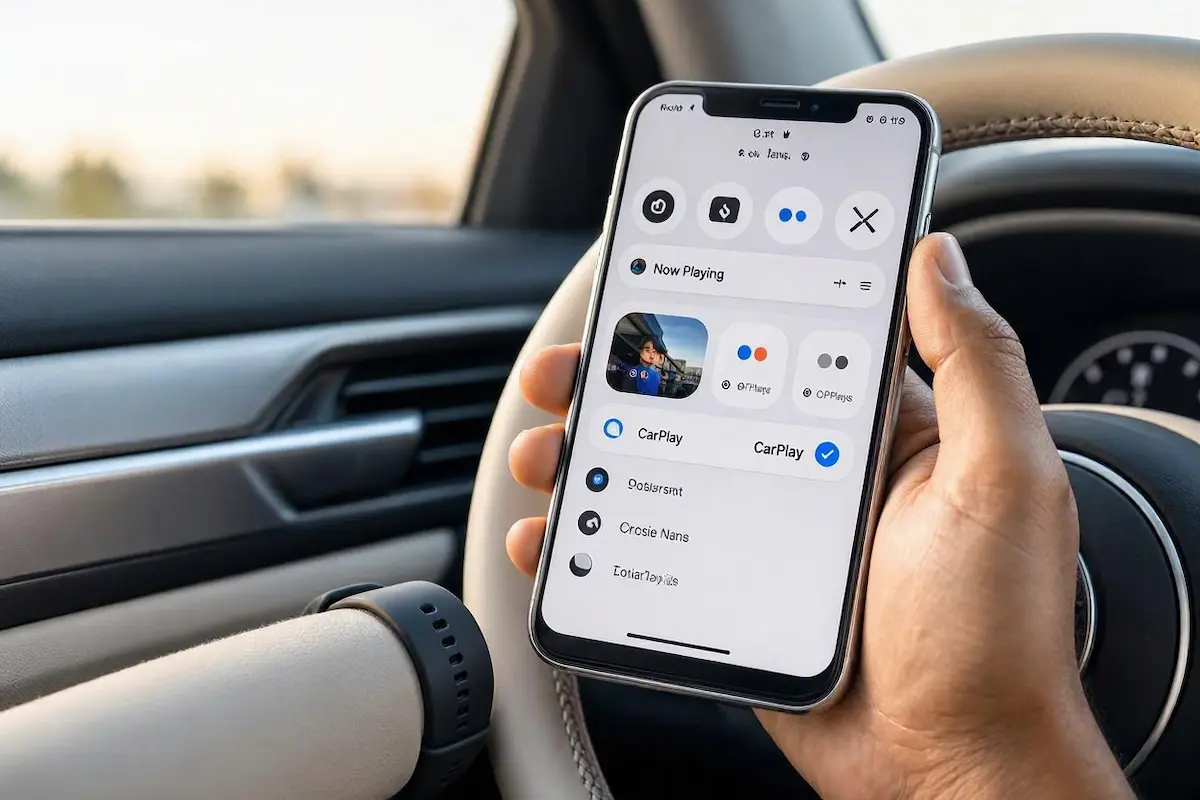
- While your iPhone is connected to CarPlay, swipe down from the top-right corner of your screen to open Control Center.
- Locate the Now Playing widget in the upper right.
- Tap the small triangular AirPlay icon in the top-right corner of the playback tile.
- Review the active output destination list:
- If a checkmark appears beside iPhone, AirPods, or a secondary Bluetooth device, tap directly on CarPlay or your vehicle name (e.g., Ford SYNC, CarMedia).
- The audio channel will immediately route back to your vehicle cabin speakers.
RELATED TROUBLESHOOTING GUIDE
Step 3: Toggle Siri “Listen For” Trigger to Clear Audio Ducking
Whenever Siri engages, CarPlay automatically reduces media volume by roughly 80% (known as audio ducking) so the system can clearly capture your voice through the cabin microphone. If the background Siri listener daemon fails to close properly, the stereo remains locked in this ducking state.
- On your iPhone, navigate to Settings → Siri & Search (or Apple Intelligence & Siri).
- Locate “Listen for” and toggle it OFF, wait 5 seconds, and toggle it back ON.
- Press the physical voice command button on your steering wheel once, ask “What is the weather?”, let Siri finish speaking, and allow the voice banner to dismiss naturally.
- This sequence forces the vehicle sound processor to release the audio ducking lock and restore standard media gain.
RELATED TROUBLESHOOTING GUIDE
👉 Is Siri failing to hear your voice commands altogether? Apple CarPlay microphone fix guide →
Step 4: Disable EQ Conflicts and Sound Check in Streaming Apps
Certain third-party media players and iOS audio post-processing settings can conflict with the digital-to-analog converters (DACs) inside automotive head units, triggering codec buffer overruns that mute audio output entirely.
| Music Application | Specific Setting to Modify | Why It Restores Audio Playback |
|---|---|---|
| Apple Music | Settings > Music > Turn OFF Sound Check & Lossless Audio | Uncompressed 24-bit streams saturate wireless CarPlay adapters, causing digital audio buffers to stall. |
| Spotify | Settings > Playback > Turn OFF Normalize Volume | Prevents aggressive dynamic range compression from muting audio below audible stereo decibel floors. |
| YouTube / Amazon Music | App Settings > Streaming Quality > Set to High (Avoid Auto) | Prevents mid-stream codec bit-rate changes that cause head unit DSP chips to lock into silent pause states. |
Step 5: Forget Vehicle Profile and Re-pair CarPlay Connection
Over months of daily driving, your iPhone accumulates temporary connection tokens. When these handshake keys degrade, iOS may maintain the video mirroring connection while silently dropping the virtual soundcard channel.
- On your iPhone, open Settings → General → CarPlay.
- Select your vehicle under “My Cars” and tap Forget This Car.
- Open Settings → Bluetooth, locate your car’s Bluetooth profile, tap the blue (i) info icon, and select Forget This Device.
- Turn off your vehicle ignition, open the driver door to cut retained accessory power (RAP), and wait 30 seconds.
- Restart your vehicle, plug your iPhone in using an Apple-certified MFi cable, and tap Allow CarPlay While Locked when prompted.
RELATED TROUBLESHOOTING GUIDE
Step 6: Hard Reboot the Car Infotainment System
Factory vehicle head units run automotive operating systems (like BlackBerry QNX, Linux, or Android Automotive) that rarely complete a cold reboot during normal daily ignition cycles. A soft crash inside the audio routing daemon will mute sound until a hardware restart flushes memory registers.
- Ford SYNC 3 / SYNC 4: Press and hold the Audio Power (Volume Knob) and Seek Forward (>>) buttons together for 10 seconds until the screen reboots.
- Toyota / Lexus: Press and hold down the physical Volume Knob for 12 seconds until the brand splash screen appears.
- Honda: Press and hold the primary Audio Power button for 10 seconds until prompted with a reboot confirmation dialog.
- Volkswagen / Audi / Skoda (MIB2 / MIB3): Hold the rotary volume knob down for 15 seconds until the display cycles completely dark and restarts.
Diagnosing an audio dropout where apple carplay connected but no sound occurs is straightforward once you separate video projection from digital sound channels. Re-routing audio through the iOS Control Center AirPlay tile, turning up the independent media channel, and clearing Siri audio ducking resolves the issue without unnecessary dealer service visits.
Frequently Asked Questions (FAQ)
Why does Apple CarPlay show the song playing, but there is no sound?
This occurs when iOS routes audio to an alternate AirPlay device (such as AirPods or an Apple Watch), or when the vehicle head unit’s independent media volume channel has been dialed down to zero while navigation volume remains audible.
Why do phone calls work on CarPlay, but music has no sound?
Vehicle infotainment systems manage voice calls and media streaming on completely independent channels. Hands-Free Profile (HFP) phone calls utilize a dedicated voice bus, while music streaming requires the digital media pipeline. If media gain is muted or audio ducking is stuck, calls remain audible while music stays muted.
Can a dirty Lightning or USB-C port cause CarPlay to lose audio?
Yes. USB connectors use dedicated high-speed data pins to transmit the digital audio stream. Compacted pocket lint or debris inside your iPhone charging port can block data pins while leaving charging pins connected, allowing video projection to initialize while dropping audio packets completely.
Why does Apple Maps have no voice navigation on CarPlay?
If music plays but navigation is silent, open Apple Maps on your iPhone, go to Settings → Navigation Guidance, and ensure Voice Directions is set to “Higher Volume”. Additionally, turn your car volume knob up precisely while a navigation instruction is actively being spoken.