
CarPlay Google Maps Voice Not Working: 5 Best Proven Fixes for Silent Audio
Fix Google Maps voice directions being silent on Apple CarPlay by adjusting navigation audio channels, disabling Bluetooth phone call emulation, and raising prompt volume.

Navigating through heavy traffic only to realize your carplay google maps voice not working forces you to constantly look down at your dashboard screen for upcoming turns.
Your Spotify or Apple Music tracks play through vehicle speakers without interruption, but turn-by-turn spoken guidance remains completely muted.
In professional 12-volt car audio diagnostics, silent navigation speech rarely indicates a broken infotainment amplifier or a damaged dashboard speaker.
Common causes typically include unlinked secondary navigation audio attenuation levels, incorrect in-app Bluetooth phone call emulation toggles, muted guidance states inside the active route interface, or iOS spoken direction volume caps.
Because Apple CarPlay routes media audio and voice guidance through two separate audio channels, the system can mute navigation prompts while leaving background music at full volume, directly causing a carplay google maps voice not working condition.
Before deleting apps, wiping phone settings, or replacing your USB cable, methodical software audio checks will restore vocal directions in under five minutes.
Here are five practical workshop procedures to troubleshoot why your carplay google maps voice not working and restore clear spoken navigation alerts.
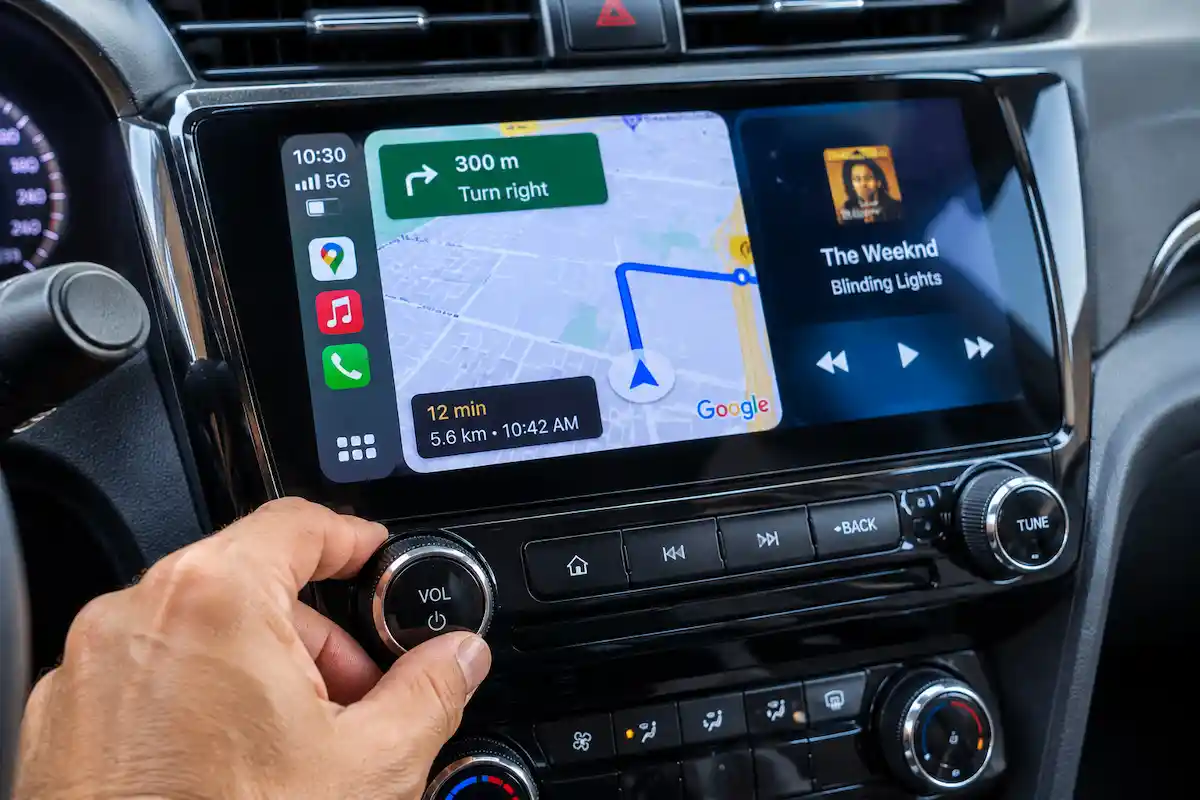
Diagnostic Matrix: Decoding Silent CarPlay Navigation Prompts
Cross-reference your vehicle’s audio behavior against our workshop matrix whenever a carplay google maps voice not working issue occurs during travel:
| Observed Navigation Symptom | Underlying Software or Audio Stream Cause | Immediate Workshop Action |
|---|---|---|
| Music dips in volume, but no voice directions play | CarPlay navigation speech channel volume is turned all the way down. | Rotate vehicle physical volume knob while a voice prompt is actively speaking. |
| Google Maps is silent, but Apple Maps speaks normally | “Play as Bluetooth phone call” enabled inside Google Maps app settings. | Turn off “Play as Bluetooth phone call” in Google Maps Navigation settings. |
| No sound and no music attenuation occurs at junctions | Route guidance audio state set to “Mute” or “Alerts Only” in active UI. | Tap the speaker icon on the CarPlay display map and select “Unmuted”. |
| Voice cuts out after answering an incoming phone call | Audio focus handover glitch between telematics gateway and iOS core audio. | Disconnect and reconnect the USB data cable to re-initialize audio streams. |
| Voice plays only from iPhone bottom speaker, not car speakers | Audio output routing forced to handheld receiver inside iOS Control Center. | Switch audio destination to CarPlay in iOS AirPlay / output picker. |
Step 1: Adjust the Independent Navigation Volume Channel During Speech
Apple CarPlay utilizes multi-channel audio mixing to separate foreground speech from background entertainment.
Your head unit maintains two distinct digital volume levels: one for general media (music and podcasts) and a dedicated sub-channel for spoken navigation prompts.
If you turned the volume knob down while a voice alert was speaking in a previous drive, the prompt level remains at zero, resulting in your carplay google maps voice not working even while music plays loudly:
- Start an active route on Google Maps inside your CarPlay display.
- Tap anywhere on the map screen to bring up the route overview and tap Re-center or hit a test waypoint so the system speaks an instruction.
- The precise moment Google Maps attempts to speak (or when your music volume drops down slightly), immediately rotate the vehicle’s physical dashboard volume dial or press the steering wheel Volume (+) key.
- Look at the dashboard screen; the volume overlay should display “Voice Volume”, “Prompt Volume”, or “Navigation” rather than “Media Volume”.
- Raise this level to at least 60% to 75% to lock in the baseline spoken direction threshold.
Whenever your carplay google maps voice not working, raising this isolated speech channel is the single most frequent fix because standard media volume controls have zero effect on guidance prompts.
For technical reference on automotive audio stream channel isolation, review the Apple CarPlay Audio Architecture Standards.
RELATED AUDIO FIX
👉 Experiencing delayed navigation speech or audio lag? Step-by-step audio sync guide →
Step 2: Disable “Play as Bluetooth Phone Call” in Google Maps Settings
Google Maps includes an internal legacy setting designed for older basic car stereos that only support Bluetooth Hands-Free Profile (HFP) rather than high-fidelity media streaming.
This setting forces voice prompts to emulate an incoming telephone call to interrupt FM radio.
However, modern Apple CarPlay systems use direct digital audio mixing over USB or 5 GHz Wi-Fi. Enabling this toggle creates a transmission protocol loop that leaves your carplay google maps voice not working completely:
- Unplug your iPhone from the vehicle USB port (or disconnect wireless CarPlay).
- Open the Google Maps application directly on your iPhone.
- Tap your profile avatar or account circle in the top-right corner and select Settings.
- Navigate to the Navigation settings section.
- Locate the toggle labeled “Play as Bluetooth phone call” and turn it completely OFF.
- Ensure that “Play voice over Bluetooth” is toggled ON and verify that the Guidance Volume is set to “Louder”.
Reconnecting to your car stereo with phone call emulation disabled ensures guidance packets stream through CarPlay’s native speech channel instead of crashing the digital audio buffer.
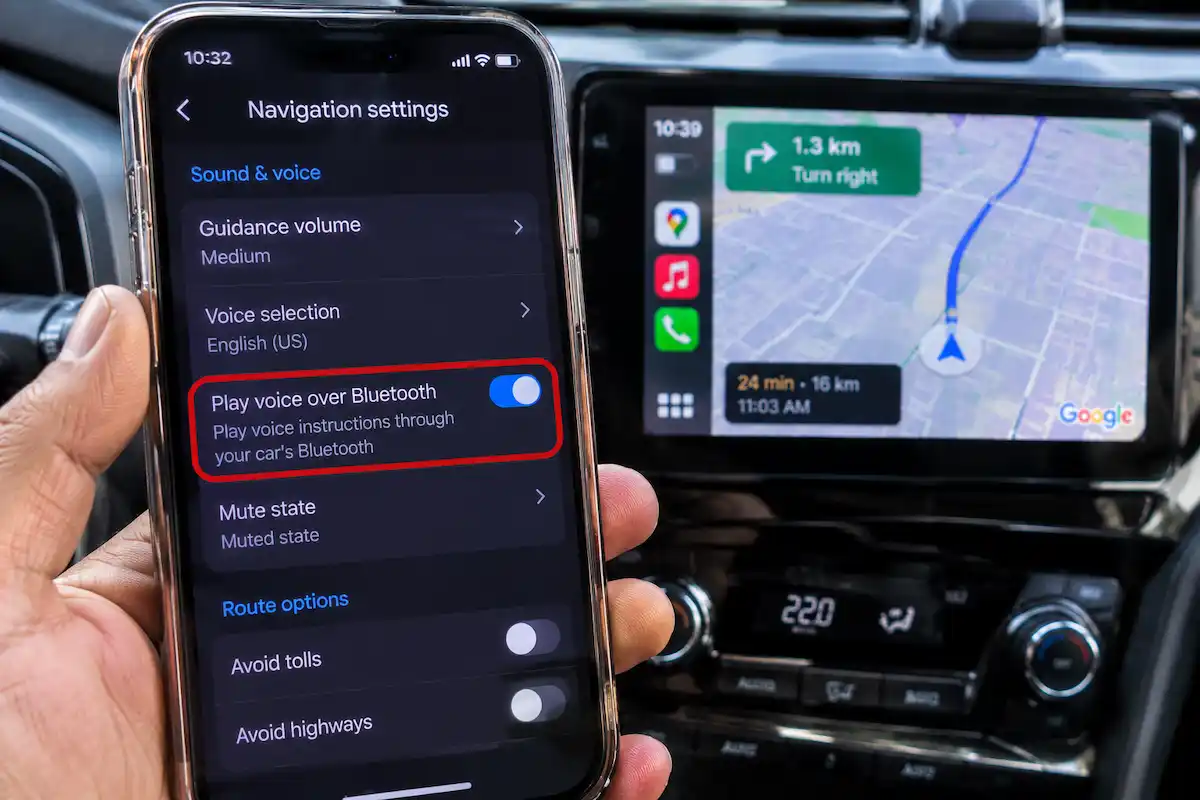
Step 3: Unmute the Active Route Speaker State on the Dashboard UI
Inside the CarPlay Google Maps interface, the navigation screen features an on-screen audio toggle that overrides global smartphone volume levels.
It is surprisingly easy to brush this toggle inadvertently while tapping navigation search bars or zooming the map grid.
If set to “Muted” or “Alerts Only”, the navigation engine suppresses spoken intersection commands, directly leading to a carplay google maps voice not working fault on active trips:
- Launch an active navigation route on the vehicle’s CarPlay dashboard display.
- Look at the upper right or right-hand control strip on the vehicle touchscreen.
- Locate the Speaker Icon.
- If the icon shows a speaker with a slash through it (Muted) or an exclamation mark (Alerts Only), tap the icon.
- Select the solid Speaker Icon (Unmuted) so all vocal maneuver commands are actively enabled.
Checking this on-screen mute status ensures that UI-level mutes are not masquerading as a broader carplay google maps voice not working hardware or firmware failure.
⚠️ Apple Do Not Disturb Precaution: Avoid setting iOS Driving Focus to aggressively suppress audio alerts. Certain vehicle profiles mistakenly flag navigation voice prompts as third-party app notifications, silencing turn instructions completely unless explicit exceptions are added in iPhone Focus settings.
RELATED DISPLAY FIX
👉 CarPlay screen goes black while audio still plays? Complete video decoder isolation guide →
Step 4: Check iOS Spoken Directions and Sound Haptics Baseline
Under the iOS operating system architecture, third-party navigation apps (including Google Maps and Waze) hook into the core system audio framework.
If master iOS navigation audio parameters are restricted, individual application volume controls are bypassed.
Adjusting these primary system settings removes operating-system-level audio limits that keep your carplay google maps voice not working:
- Disconnect the iPhone and open Settings on your phone.
- Scroll down and tap Maps (the native Apple Maps settings tab, which governs iOS system speech outputs).
- Tap Spoken Directions.
- Under the “Voice Volume” section, select Loud Volume.
- Ensure that “Directions Pause Spoken Audio” is toggled ON. This instructs CarPlay to deliberately pause music or podcasts during a spoken turn prompt rather than simply ducking background volume.
Configuring system spoken directions creates a clear audio priority window across iOS, preventing background media from drowning out navigation instructions when your carplay google maps voice not working.
RELATED HARDWARE FIX
👉 CarPlay dropping connection when driving over bumps? Loose USB port diagnostic guide →
Step 5: Reset CarPlay Projection Profile and Clear Audio Focus Cache
Corrupted communication handshakes between your iPhone and the vehicle’s infotainment telematics module can lock the navigation audio pipeline in a permanent mute state.
This often occurs after an iOS system update or head unit firmware flash.
Performing a complete profile reset flushes stale audio channel routing tables, permanently resolving a carplay google maps voice not working glitch:
- On your iPhone, go to Settings > General > CarPlay.
- Select your vehicle from the paired car list and tap Forget This Car.
- On your car’s dashboard display, access the Bluetooth and Smartphone connection menu and delete your iPhone from stored devices.
- Perform a hard reset on your iPhone (press Volume Up, press Volume Down, then hold the Side Power button until the Apple logo appears).
- Reboot your car stereo by holding down the power knob for 10 seconds.
- Plug in your high-quality MFi cable to initialize a fresh CarPlay pairing handshake.
- If your stereo suffers from erratic power cutouts during startup, review our walkthrough on car stereo turns off when starting engine.
Troubleshooting a persistent carplay google maps voice not working fault comes down to understanding how CarPlay isolates voice prompts from entertainment streams.
Raising the independent voice volume during active speech, disabling Bluetooth phone call emulation inside Google Maps, unmuting the dashboard route icon, and re-establishing clean iOS audio focus restores loud, crisp turn-by-turn guidance reliably.
Follow these workshop steps whenever silent navigation alerts leave your dashboard receiver without spoken turn instructions, ensuring you eliminate any carplay google maps voice not working errors permanently.
Frequently Asked Questions (FAQ)
Why is my carplay google maps voice not working suddenly?
A carplay google maps voice not working condition usually occurs because the dedicated navigation prompt volume is turned all the way down on the car stereo, the “Play as Bluetooth phone call” setting is active, or the route speaker icon is set to muted.
How do I turn up the Google Maps voice on CarPlay?
To turn up the voice, initiate an active route and turn your car’s physical volume knob at the exact moment Google Maps speaks a direction. This specifically adjusts the prompt channel rather than background music volume.
Why does music play on CarPlay but Google Maps has no sound?
CarPlay splits music and navigation into two independent audio streams. If the navigation channel volume was lowered previously or speech output is routed incorrectly in app settings, music continues playing while navigation directions remain silent.