
Motorola MA1 Keeps Disconnecting or Blinking Red? 5 Best Fixes (100% Working)
Frustrated because your Motorola MA1 keeps disconnecting mid-commute or flashing an error LED? Learn how to perform a 30-second factory reset, eliminate DFS channel clashes, and build a USB Y-cable power booster to fix a Motorola MA1 blinking red status instantly.

Troubleshooting a persistent issue where your motorola ma1 keeps disconnecting mid-drive—or suddenly drops your navigation route and flashes an error light—exposes an electrical or handshake timing breakdown rather than a fried internal Wi-Fi chip.
Manufactured by SGW Global under direct license from Google, the Motorola MA1 operates as a pure hardware bridge.
It is engineered to run native Android Auto wireless projection protocols without third-party companion apps or custom web configuration gateways.
Because the MA1 lacks an onboard web server, all hardware handshakes, encryption tokens, and 5GHz Wi-Fi Direct streaming profiles negotiate directly between your smartphone OS and the vehicle’s factory USB controller.
When the adapter encounters an unbuffered voltage dip below 4.75V on the dashboard USB rail, the wireless bridge collapses.
Similarly, when Bluetooth security tokens desynchronize following a mobile OS patch, the adapter drops into an emergency reboot loop.
In our workshop bench testing, this failure is rarely caused by broken internal silicon.
Before replacing factory dashboard sockets or giving up on wireless convenience, a structured sequence of bench checks will isolate whether the dropouts stem from power starvation, radio frequency interference, or corrupted pairing registers.
Here are five practical workshop steps to resolve why a motorola ma1 keeps disconnecting and lock in a permanent, rock-solid connection.
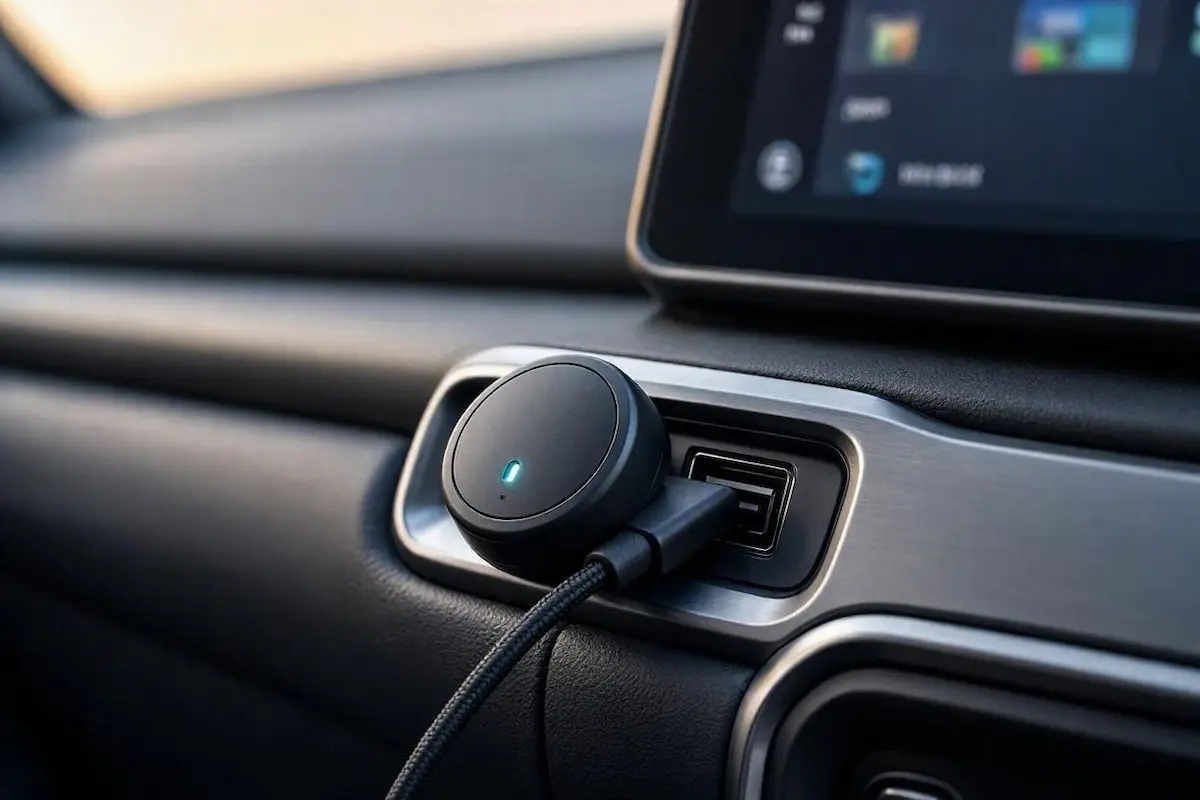
Diagnostic Matrix: Why Motorola MA1 Keeps Disconnecting
The single multi-color LED on the top casing provides live hardware telemetry. Match your light pattern against our workshop matrix to isolate why your motorola ma1 keeps disconnecting before altering phone settings:
| Observed LED State | Hardware Operational Meaning | Immediate Workshop Action |
|---|---|---|
| Blinking Red Light | Cryptographic handshake failure or Bluetooth token timeout. | Clear phone Android Auto cache and execute a 30-second hardware reset. |
| Blinking Blue Light | Adapter in discovery/pairing mode searching for phone. | Initiate manual Bluetooth pairing directly from phone connections menu. |
| Solid Green or Cyan Light | Active 5 GHz Wi-Fi projection bridge established. | Normal operation. If drops occur here, investigate localized RF interference. |
| Solid Yellow or Orange Light | Hardware bootloader initializing or memory flash in progress. | Wait 60 seconds; do NOT unplug adapter while memory registers rebuild. |
| No LED Light (Completely Dark) | Total loss of 5V DC electrical power from the car USB port. | Check vehicle multimedia fuse or install an inline USB power booster cable. |
Step 1: Execute the 30-Second Physical Pinhole Reset (Blinking Red Fix)
A flashing red status indicator communicates that the adapter has experienced a critical TLS/WPA2 cryptographic handshake failure.
Because the Motorola MA1 functions as a protocol translator between Bluetooth and high-speed Wi-Fi, a corrupted authentication token stored in flash memory will lock the device into a boot loop.
Performing a complete physical hardware wipe is the most reliable workshop fix when your motorola ma1 keeps disconnecting with a flashing red light:

- Clear Phone Pairing Records: On your Android phone, open Settings → Connected Devices → Bluetooth. Find your adapter profile (typically labeled AndroidAuto-xxxx or Motorola MA1_xxxx), tap the gear icon, and select Unpair / Forget.
- Flush App Storage: Navigate to Settings → Apps → Android Auto. Tap Force Stop, then select Storage & Cache → Clear Storage (Clear Data).
- Power the Adapter: Plug the Motorola MA1 into a live, powered USB port inside your vehicle with the ignition switched to ON.
- Depress the Pinhole Switch: Locate the tiny, recessed reset button on the side edge of the MA1 casing. Using a SIM ejector tool or unbent paperclip, press and hold the button down continuously for at least 30 full seconds.
- Observe the LED Cycle: The light will begin blinking rapidly, flash amber/yellow during memory purging, and eventually settle into a slowly blinking blue pattern.
- Re-establish Handshake: Once the blue light pulses slowly, open Bluetooth settings on your smartphone, select the MA1, and approve the initial pairing prompts in compliance with official Google Android Auto support guidelines.
Flushing the internal EEPROM table terminates software deadlocks that make a motorola ma1 keeps disconnecting warning flash upon ignition start.
⚠️ Reset Timing Note: Holding the button for only 5 to 10 seconds executes a soft reboot, which does not clear corrupted Wi-Fi encryption certificates. You must hold the microswitch for the full 30 seconds until the LED turns amber to guarantee a clean EEPROM wipe.
RELATED TROUBLESHOOTING GUIDE
👉 Using Carlinkit instead of Motorola MA1? How to fix Carlinkit wireless adapter connection drops →
Step 2: Prevent USB Bus Voltage Brownouts with a Powered Y-Cable
The leading electrical reason why a motorola ma1 keeps disconnecting after twenty to thirty minutes of driving is automotive USB voltage starvation.
Most factory automotive USB ports engineered before 2020 conform strictly to legacy USB 2.0 specifications.
These factory ports supply a maximum current of 500mA (0.5A at 5 Volts = 2.5 Watts).
While 500mA is adequate for basic MP3 thumb drives, the Motorola MA1 features a high-performance system-on-chip that must continuously decode uncompressed 1080p video packets.
During heavy processing spikes—such as rendering complex 3D satellite navigation maps while streaming high-bitrate music—the MA1’s current draw surges between 800mA and 1.1 Amps.
When drawing double the rated port capacity, supply voltage drops below 4.75V, triggering an emergency undervoltage reset:
- The Workshop Symptom: The adapter initializes cleanly when parked, but abruptly drops the video feed whenever the vehicle accelerates, when headlights activate, or when heavy bass notes play.
- Eliminate Extension Leads: Remove decorative USB hub splitters or long glovebox extension cords, which introduce significant voltage resistance. Check our harness guide to connect factory wiring to android head unit ports properly.
- Install a Dedicated USB-Y Power Cable: Connect a high-speed USB-A Power Splitter (Y-cable). The primary male data lead connects to your car’s media USB port, the secondary male power lead connects to an auxiliary 12V cigarette lighter charger pushing clean 5V at 2.4A, and the female port feeds the Motorola MA1.
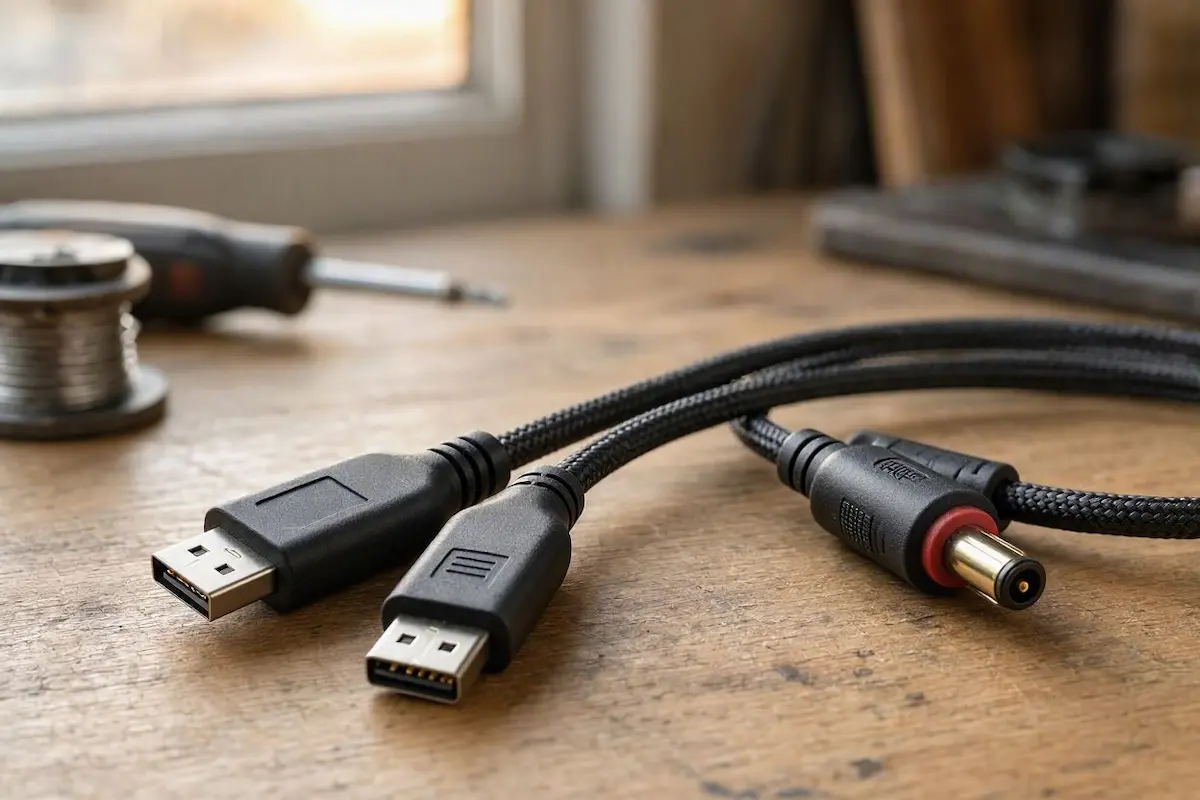
Supplying steady external power completely isolates the unit from factory line resistance, curing an issue where your motorola ma1 keeps disconnecting on rough roads.
Step 3: Remove Background Smartphone Battery Throttling (Doze Mode)
Aggressive operating system power managers on Samsung Galaxy (One UI), OnePlus (OxygenOS), and Google Pixel devices routinely terminate background projection processes to preserve battery runtime.
When the phone display turns dark, Android’s internal Doze daemon throttles CPU cycles and restricts Wi-Fi socket listeners.
If the projection daemon misses three consecutive acknowledgment packets, the car head unit cuts the session.
This power-saving kill creates a scenario where your motorola ma1 keeps disconnecting without any visible error alert on the handset:
- Open your smartphone’s Settings → Apps → See all apps.
- Scroll down and select Android Auto.
- Tap Battery (or App battery usage) and change the configuration from Optimized to Unrestricted.
- Ensure the toggle for Allow background activity is switched ON.
- Return to the applications list, locate Google Play Services, and confirm its battery profile is also set to Unrestricted.
- Open Settings → Battery and turn OFF Adaptive Battery (or Sleep standby optimization).
Disabling these background restrictions stops operating system task-killers that leave your motorola ma1 keeps disconnecting setup unresponsive after screen lock.
RELATED TROUBLESHOOTING GUIDE
Step 4: Resolve Dynamic Frequency Selection (DFS) and Thermal Drops
Unlike aftermarket adapters that allow users to manually change Wi-Fi channels through a web IP address, the Motorola MA1 runs closed firmware that selects wireless frequencies automatically.
The adapter streams data across the 5 GHz spectrum.
When driving past municipal airport radar installations, overhead commuter rail lines, or highway toll collection gantries, external microwave bursts force the adapter’s internal radio to vacate the frequency immediately under international Dynamic Frequency Selection (DFS) regulations.
This automated regulatory hop drops your dashboard screen instantly, mimicking a hardware defect:
- Manage Cabin Thermal Dissipation: The MA1 utilizes an ultra-compact plastic enclosure engineered to dissipate heat passively through its casing. In our workshop testing, when the adapter sits directly on top of the dashboard in baking summer sun, internal temperatures exceed 65°C. At this threshold, thermal protection throttles the CPU, leading directly to a condition where a motorola ma1 keeps disconnecting over extended highway trips.
- Mount in Airflow: Affix the adapter using the bundled gel pad inside the center console lower pocket or near an air conditioning vent, keeping it completely out of direct windshield sunlight.
- Avoid MagSafe Induction Pads: Never place your phone on an uncooled Qi wireless charging pad while projecting wirelessly. Combined handset heat and adapter thermal throttling will cause wireless transmission to drop within 15 minutes. If your stereo cycles on reboot, check our guide to fixing an Android car stereo boot loop.
Step 5: Unpair Conflicting Vehicle Bluetooth Hands-Free Profiles
A widespread setup error occurs when a smartphone maintains simultaneous connections to both the car’s native factory Bluetooth system and the Motorola MA1 dongle.
When an incoming telephone call or navigation prompt triggers, the vehicle’s factory infotainment unit attempts to snatch exclusive Hands-Free Profile (HFP) control over standard Bluetooth.
This audio sink collision collapses the active Wi-Fi projection bridge, leaving drivers wondering why their motorola ma1 keeps disconnecting during phone conversations:
- Sit inside your car with the engine idling.
- Open Settings → Connected Devices → Bluetooth on your Android phone.
- Locate your vehicle’s factory stereo connection (commonly named SYNC, HandsFree, MyCar, or Uconnect).
- Tap the settings cog or info icon beside the factory connection and select Unpair / Forget.
- Leave only the Motorola MA1 Bluetooth profile paired on your phone. Android Auto manages hands-free calls, text readouts, and media streaming natively through the projection data tunnel.
- If your vehicle battery struggles after sitting parked, review our diagnostic checklist to prevent car stereo parasitic battery drain.
Removing duplicate vehicle profiles terminates channel contention, permanently resolving errors where an motorola ma1 keeps disconnecting fault interrupts hands-free calls.
RELATED TROUBLESHOOTING GUIDE
👉 Using an AAWireless dongle instead? Master workshop troubleshooting guide for AAWireless drops →
Diagnosing why a motorola ma1 keeps disconnecting comes down to managing USB bus power, clearing corrupted cryptographic handshakes, and preventing thermal throttling.
Executing a 30-second physical reset to purge stale pairing tokens, setting phone power management to Unrestricted, and supplying dedicated 5V power via a USB-Y splitter eliminates dropouts on nearly every vehicle.
Following this structured diagnostic sequence ensures your motorola ma1 keeps disconnecting trouble disappears permanently, returning smooth, uncompressed Android Auto navigation to your dashboard on every commute.
Frequently Asked Questions (FAQ)
Why is my Motorola MA1 blinking red and refusing to connect?
A blinking red light indicates an aborted wireless handshake or corrupted cryptographic pairing key between the adapter and your smartphone. When an issue where a motorola ma1 keeps disconnecting is paired with this red light, clear storage on the Android Auto app, unpair the dongle from your phone’s Bluetooth menu, and hold the physical pinhole reset button down for 30 full seconds until the LED turns amber.
Can I manually update the firmware on the Motorola MA1?
No. The Motorola MA1 does not feature a companion mobile app or a web browser IP interface for manual firmware installation. System protocol updates and bug patches are delivered automatically through Google Play Services updates for the Android Auto core package on your connected smartphone.
Why does my Motorola MA1 get extremely hot while driving?
Transmitting continuous 1080p navigation video frames over a 5 GHz Wi-Fi Direct bridge places heavy processing demands on the adapter’s micro-controller. The MA1 casing is engineered to act as a passive heatsink. Moderate heat is normal; however, keeping the adapter out of direct windshield sunlight prevents thermal shutdowns that make a motorola ma1 keeps disconnecting problem recur.
Will a powered USB-Y cable prevent the Motorola MA1 from rebooting?
Yes. Many factory car USB ports deliver only 500mA of current, whereas active 5GHz video projection can draw over 900mA. A USB-Y splitter delivers dedicated 2.4A current directly from a 12V cigarette lighter socket, completely preventing low-voltage brownout reboots during heavy navigation rendering.