
Android Auto Audio Delay Fix: 6 Proven Ways to Stop Sound Lag (Tested)
Tired of your car stereo audio lagging 1 to 2 seconds behind navigation prompts and music controls? Learn how to trim wireless media buffers, reconfigure Bluetooth AVRCP, and fix Android Auto sound latency permanently.

Implementing an effective android auto audio delay fix becomes essential when track skips take two full seconds to respond or hands-free callers hear an echo of their own voice.
This playback latency is rarely caused by blown door speakers or failing stereo amplifiers.
Wired USB connections deliver uncompressed PCM audio with imperceptible latency.
However, wireless projection setups introduce mandatory network buffering to manage simultaneous data streams.
Your smartphone must encode 60fps video frames and high-definition audio simultaneously over a local 5GHz Wi-Fi Direct network.
To prevent playback stutter when cellular signals dip, Android Auto and wireless adapters inject an intentional media jitter buffer ranging from 500ms to 2000ms.
When paired with budget head unit processors or mismatched Bluetooth handshake profiles, this safety buffer turns into severe sound lag.
Before replacing dashboard hardware or reverting entirely to cumbersome cables, structured bench adjustments eliminate redundant software queues.
Here are six workshop-tested steps to implement a lasting android auto audio delay fix across both factory and aftermarket systems.
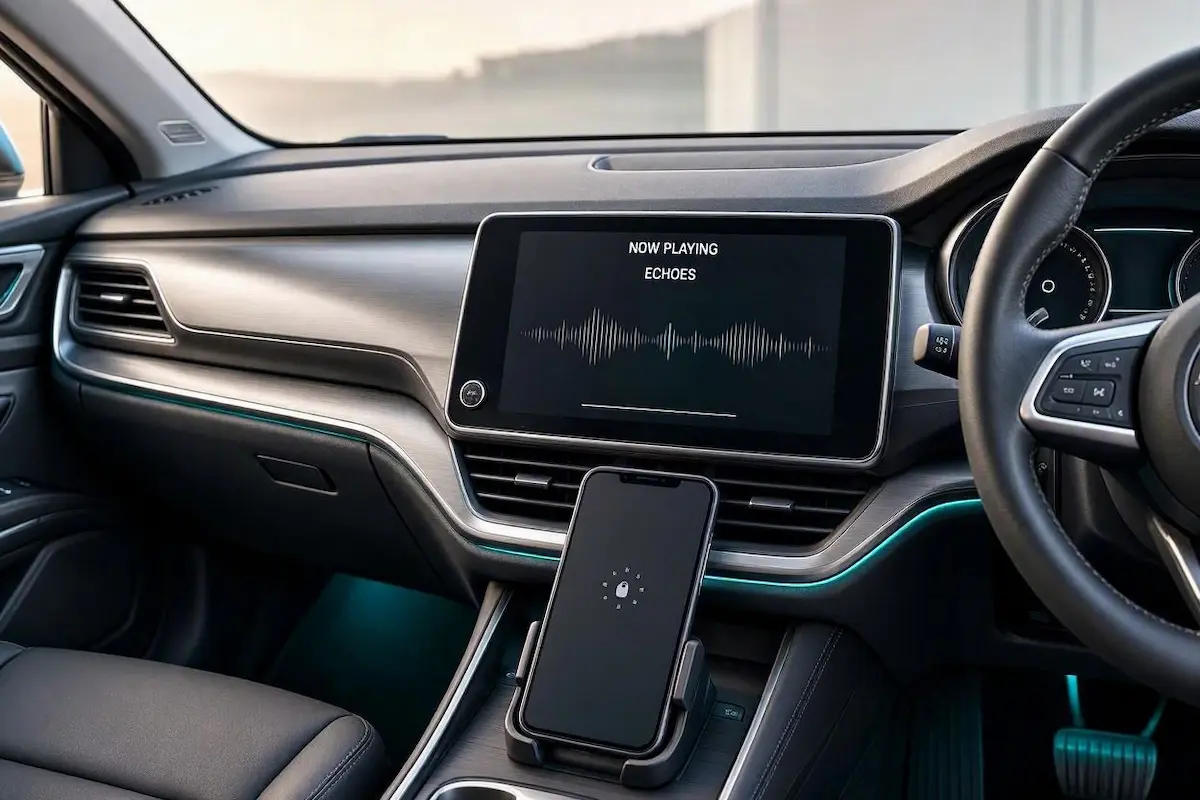
Diagnostic Matrix: Finding the Right Android Auto Audio Delay Fix
Match your specific vehicle sound latency behavior against our workshop matrix to apply an accurate android auto audio delay fix before modifying developer settings:
| Observed Audio Lag Symptom | Underlying Software Root Cause | Immediate Workshop Action |
|---|---|---|
| 1–2 second delay when pausing or skipping music tracks | Wireless adapter safety jitter buffer set excessively high. | Lower media delay from 1000ms down to 300ms in adapter settings. |
| Noticeable voice echo during hands-free phone calls | Bluetooth AVRCP profile handshake mismatch with stereo DSP. | Downgrade Bluetooth AVRCP from 1.6 down to 1.4 in Developer Options. |
| Audio micro-stutters and crackles alongside interface lag | 1080p video stream saturating head unit CPU decoding pipeline. | Cap projection resolution to 720p in Android Auto Developer Settings. |
| Sound synchronization drifts progressively over long drives | Accumulated cache bloat in Google Play Services audio sinks. | Clear storage and cache for Android Auto and Google Play Services. |
| Severe audio-video desync when parked watching videos | Lack of native A/V lip-sync compensation in the Android Auto stack. | Reroute audio output directly to the vehicle’s native Bluetooth channel. |
Step 1: Lower the Media Jitter Buffer in Wireless Adapter Settings
If you connect wirelessly through an aftermarket adapter such as AAWireless or Carlinkit, the dongle adds its own hardware safety buffer on top of Android Auto’s native stream.
This dual-buffering queue is the single most common reason drivers experience a 2-second gap when skipping tracks.
Trimming this hardware queue serves as a primary android auto audio delay fix, reducing delay without creating playback instability:
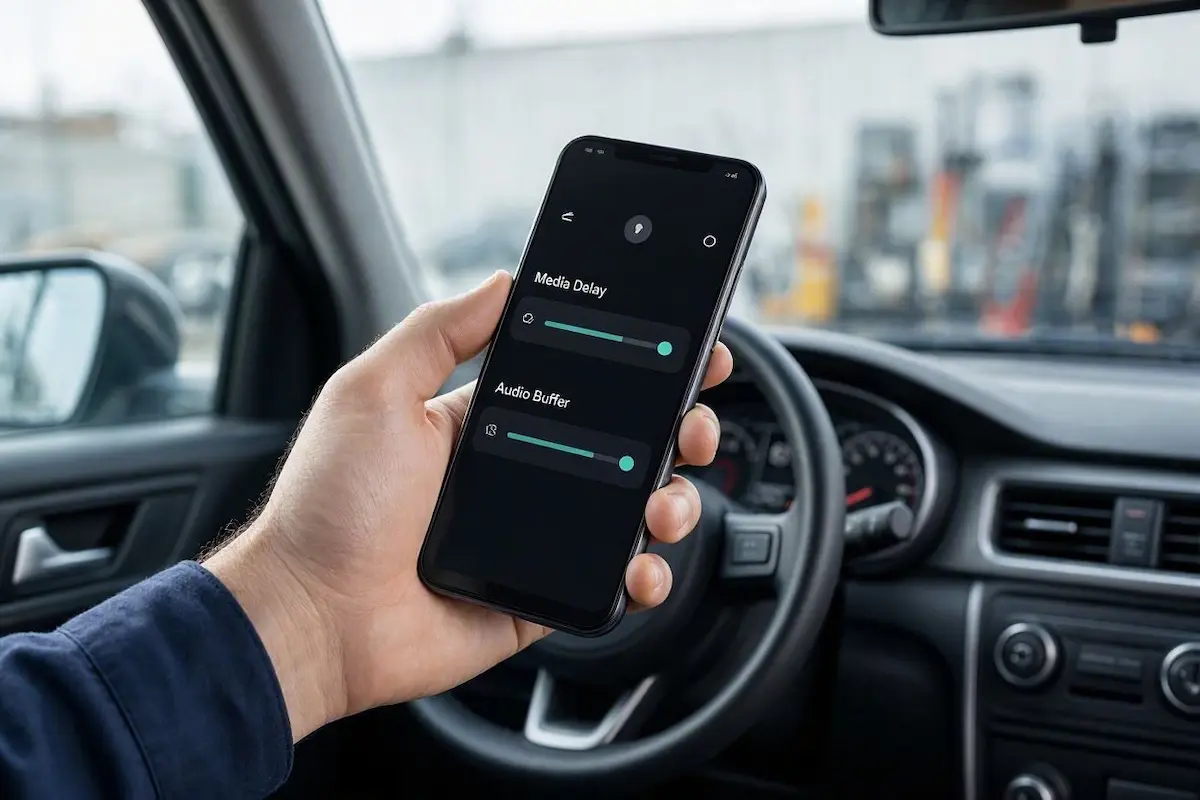
- For AAWireless Users: Open the companion AAWireless app on your phone, go to Settings, locate Audio Sink / Media Delay, and change the profile from Default to Low Latency (or toggle Passthrough Mode ON). Review our guide on fixing AAWireless connection drops for optimal companion app configuration.
- For Carlinkit Users: Connect your smartphone to the Carlinkit adapter’s Wi-Fi network, launch your mobile browser, and navigate to IP address
192.168.50.2. Scroll down to Media Delay / Audio Buffer and reduce the factory default1000mssetting down to 300ms–500ms.
⚠️ Buffer Tuning Warning: Never reduce wireless adapter media delay all the way to
0ms. While zero buffer yields instant response, cellular tower handoffs and highway RF noise will cause the audio stream to cut out repeatedly over bumps.
RELATED TROUBLESHOOTING GUIDE
Step 2: Downgrade Bluetooth AVRCP in Android Developer Options
Android Auto splits your connection architecture across distinct wireless channels.
Media audio streams across Wi-Fi Direct, but track-skip commands, pause actions, and hands-free phone calls travel across the Bluetooth AVRCP profile.
Recent Android versions default to AVRCP 1.5 or 1.6 protocols.
Many factory head units and older automotive DSP chips struggle with the packet overhead of these newer standards, introducing noticeable command lag.
Stepping down to legacy AVRCP standards functions as a dependable android auto audio delay fix for steering wheel button delays:
- Open your smartphone’s Settings → About Phone.
- Tap the Build Number 7 times consecutively until an alert confirms that Developer Options are unlocked.
- Go back to Settings → System → Developer Options.
- Scroll down to the Networking section and tap Bluetooth AVRCP Version.
- Switch the selection from AVRCP 1.5 / 1.6 down to AVRCP 1.4.
- Restart your smartphone to force a clean Bluetooth profile handshake with your vehicle.
Reverting to AVRCP 1.4 strips heavy metadata checks, providing an instant android auto audio delay fix whenever you skip songs via steering wheel controls.
Step 3: Cap Projection Video Resolution to 720p
Many aftermarket Android head units and older factory displays run entry-level quad-core processors.
When forced to decode uncompressed 1080p video frames while simultaneously unpacking real-time digital audio packets, the stereo processor chokes.
To avoid dropping navigation video frames, the infotainment operating system throttles the audio playback queue.
Restricting projection bandwidth frees up hardware decoding cycles for real-time sound delivery, serving as an effective android auto audio delay fix for budget touchscreens:
- Open Settings → Connected Devices → Android Auto on your smartphone.
- Scroll to the bottom of the screen and tap the Version field 10 times consecutively to unlock Developer Settings.
- Tap the three vertical dots in the top-right corner and select Developer settings.
- Tap Video resolution.
- Select Allow up to 720p instead of 1080p.
Capping resolution cuts processor load significantly, allowing the internal DAC to process sound packets without artificial delays.
Step 4: Eliminate Samsung Dual Messenger and Cloned App Conflicts
On Samsung Galaxy devices running One UI, secondary cloned app profiles create hidden network contention.
The operating system’s dual-instance sandbox actively intercepts system media listeners, introducing packet processing latency.
Disabling these duplicated background sandboxes provides a critical android auto audio delay fix for Galaxy device owners:
- Disable Dual Messenger: Navigate to Settings → Advanced features → Dual Messenger. Toggle OFF secondary instances of WhatsApp, Telegram, or Facebook. Cloned user profiles trigger communication locks, as detailed in our guide on resolving Android Auto communication error 16.
- Adjust Auto Blocker Settings: Go to Settings → Security and privacy → Auto Blocker. Confirm that USB data protections permit unrestricted communication with your vehicle harness. Check our harness guide to connect factory wiring to android head unit pins properly.
RELATED TROUBLESHOOTING GUIDE
Step 5: Flush Android Auto and Google Play Services Cache
Over months of daily ignition cycles, accumulated audio buffer tokens and stale projection handshakes inside Google Play Services can cause audio timing to drift.
This cache fragmentation turns a normal 200ms wireless overhead into an irritating two-second desync.
Purging temporary cache files acts as a clean android auto audio delay fix that resets digital audio synchronizers:
- On your smartphone, navigate to Settings → Apps → See all apps.
- Tap Android Auto, select Force Stop, then tap Storage & Cache → Clear Storage.
- Return to the applications list, locate Google Play Services, tap Storage & Cache, and select Manage Space → Clear All Data.
- Reboot your phone before reconnecting to the car according to standard Google Android Auto connection standards. If your stereo cycles on reboot, check our guide to fixing an Android car stereo boot loop.
Step 6: Bypass the Network Jitter Buffer via Direct Bluetooth Output
If your vehicle is safely parked and you want true zero-latency audio for watching video content, you can bypass the projection queue entirely.
Android Auto was designed strictly for driving safety rather than parked video entertainment.
Because of this safety focus, Google never included active Audio/Video lip-sync compensation in the projection framework.
Rerouting audio directly through vehicle Bluetooth delivers the ultimate android auto audio delay fix for parked media:
- Keep your phone paired with Android Auto so navigation maps remain visible on the center console.
- Swipe down the phone’s notification panel and tap the Media Output (or Audio Output) switcher tile.
- Switch playback routing from Android Auto directly to your vehicle’s native Bluetooth Audio channel or a physical 3.5mm Aux input.
- Because sound streams straight to the vehicle’s digital-to-analog converter (DAC) instead of compressing across the Wi-Fi Direct network pipeline, latency drops below 100ms.
RELATED TROUBLESHOOTING GUIDE
👉 Experiencing audio lag on an iPhone setup instead? Apple CarPlay wireless audio delay fix guide →
Resolving sound lag across wireless projection systems comes down to eliminating redundant software queues.
Lowering your wireless adapter’s media buffer to 300ms, stepping down to AVRCP 1.4 for faster command registration, and capping video resolution at 720p strips away latency while keeping your connection rock-solid.
Following this structured sequence guarantees a permanent android auto audio delay fix, returning responsive media playback and echo-free phone calls to your dashboard on every commute.
Frequently Asked Questions (FAQ)
Why does Android Auto have an audio delay when watching videos?
Android Auto projection enforces a mandatory 500ms to 1200ms Wi-Fi Direct network jitter buffer to prevent playback stutter during weak cellular reception. Because Android Auto is engineered strictly for driving navigation rather than parked video streaming, Google excluded an active Audio/Video lip-sync compensation engine. Applying an android auto audio delay fix like routing audio via native Bluetooth resolves this gap.
Does a wired USB connection fix the Android Auto audio delay?
Yes. A direct high-speed USB data cable completely bypasses the wireless Wi-Fi packet compression buffer. While Android Auto still processes audio through an internal system sink, wired transmission drops latency from 1000ms down to under 100ms, making lag virtually imperceptible during normal driving.
Can stereo brands like Kenwood, Alpine, or Pioneer remove this delay?
No. Aftermarket manufacturers must comply strictly with Google’s Android Auto projection framework certifications. Their stereo firmware cannot shorten or bypass the hardcoded media buffer. Any lasting android auto audio delay fix must be configured on your smartphone or inside wireless adapter settings.
Why do steering wheel controls have a delay when skipping tracks?
Steering wheel skip commands travel across the Bluetooth AVRCP channel. If your phone uses AVRCP 1.5 or 1.6, packet metadata verification introduces a delay. Stepping down to AVRCP 1.4 in phone developer options restores instant track skipping.