
Android Car Stereo Wi-Fi Keeps Disconnecting? 5 Proven Fixes (100% Working)
Tired of your head unit dropping mobile hotspot connection mid-drive? If your Android car stereo Wi-Fi keeps disconnecting, discover how to eliminate antenna bottlenecks, configure static IP leases, and disable background sleep mode for uninterrupted streaming.

Troubleshooting an issue where an android car stereo wifi keeps disconnecting from your phone hotspot—dropping live navigation maps or buffering streaming audio every three minutes—exposes a radio frequency or antenna mismatch rather than a burned-out internal wireless module.
Budget and mid-tier Android head units (built on Allwinner T3L, AC8227L, Topway TS7, or UIS7862 platforms) utilize single-band 2.4 GHz RTL8188 or MediaTek wireless transceivers.
These entry-level chips are sensitive to automotive antenna impedance, dynamic IP lease renegotiation, and Wi-Fi Direct projection clashes.
Modern smartphones automatically negotiate high-frequency 5 GHz channels and aggressively throttle personal hotspots to conserve battery.
Because of this power saving, the head unit’s Wi-Fi adapter struggles to maintain an unbroken TCP/IP connection.
Furthermore, many installers leave the stereo’s rear antenna pigtail disconnected inside the dashboard cage, reducing wireless reception from a healthy -50 dBm down to an unusable -85 dBm.
In our workshop bench testing, this failure is almost never an unrecoverable motherboard defect.
Before assuming your head unit is defective or resetting system firmware, fifteen minutes of structured bench troubleshooting will isolate whether the dropouts stem from radio frequency band mismatch, antenna physical disconnections, or DHCP timeouts.
Here are five practical workshop steps to resolve why an android car stereo wifi keeps disconnecting and lock in a permanent, rock-solid hotspot connection.
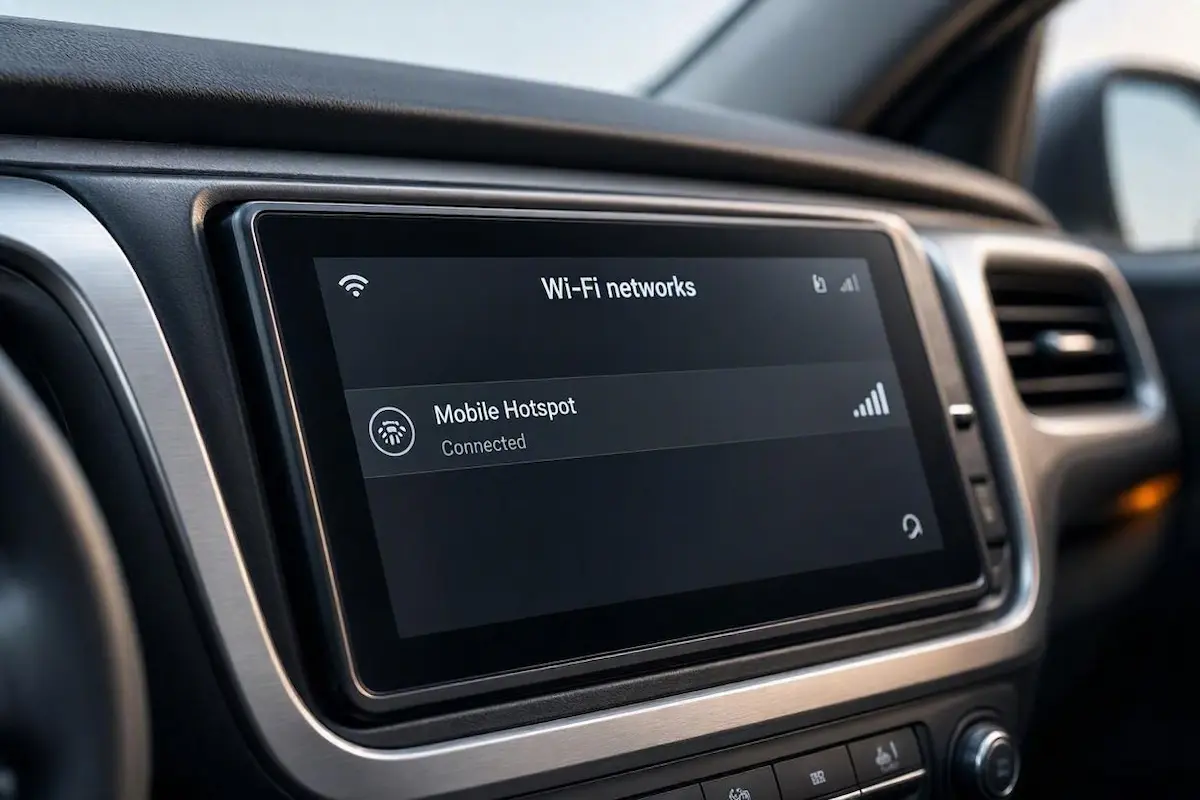
Diagnostic Matrix: Why Android Car Stereo WiFi Keeps Disconnecting
Match your specific connection symptoms against our workshop failure matrix to isolate why your android car stereo wifi keeps disconnecting before pulling dashboard panels:
| Observed Hotspot Symptom | Underlying Hardware / Software Cause | Immediate Workshop Action |
|---|---|---|
| Drops within 1–2 minutes of starting your drive | Phone hotspot broadcasting on 5 GHz or dynamic DFS channels. | Lock mobile hotspot AP band strictly to 2.4 GHz (or Maximize Compatibility). |
| Disconnects the exact second phone screen locks | Aggressive smartphone OS battery saver killing hotspot broadcast. | Set mobile hotspot battery policy to Unrestricted / Never Sleep. |
| Signal drops to 1 bar or vanishes inside the cabin | Rear RCA camera harness Wi-Fi antenna pigtail unplugged. | Plug in camera harness and ensure “WIFI ANT” lead is uncoiled. |
| Stuck in loop saying “Obtaining IP Address…” | Smartphone DHCP lease timeout during cellular tower handoffs. | Assign a static manual IP address (e.g., 192.168.43.150) in stereo settings. |
| Wi-Fi disconnects the moment Zlink / CarPlay launches | Hardware transceiver cannot bridge STA (Internet) and SoftAP simultaneously. | Normal framework behavior; screen projection claims exclusive Wi-Fi link. |
Step 1: Lock Smartphone Hotspot to 2.4 GHz Compatibility
The single most frequent trigger that causes an android car stereo wifi keeps disconnecting issue during daily driving is dual-band mobile hotspot frequency hopping.
Modern iOS and Android smartphones default their personal hotspots to high-bandwidth 5 GHz bands utilizing 802.11ac or 802.11ax protocols.
However, the vast majority of aftermarket Android car stereos utilize legacy 802.11b/g/n hardware transceivers that operate strictly across the 2.4 GHz spectrum (Channels 1 through 11).
When a dual-band smartphone dynamically shifts frequencies or hops to radar-restricted DFS channels, the car stereo drops the wireless packet stream instantly:
- On Android Smartphones (Samsung, Pixel, OnePlus): Navigate to Settings → Portable Hotspot (or Personal Hotspot / Tethering). Tap Configure Hotspot, find the setting labeled AP Band, and switch it from 5.0 GHz Preferred to 2.4 GHz Band.
- On Apple iPhones: Navigate to Settings → Personal Hotspot and toggle the switch for Maximize Compatibility to ON. This forces the iPhone to broadcast a legacy 2.4 GHz beacon rather than 5 GHz.
- Turn off your mobile hotspot, wait 5 seconds, turn it back on, and reconnect your car stereo. The 2.4 GHz frequency band penetrates dashboard plastics and metallic window tint significantly better, providing stable reception over long drives.
Enforcing single-band broadcasting prevents dynamic frequency shifts that leave an android car stereo wifi keeps disconnecting alert active on your screen.
⚠️ RF WPA3 Encryption Conflict: Many modern smartphones default to modern WPA3 personal security. Older Android head unit ROMs cannot parse WPA3 handshakes. Inside hotspot settings, ensure your security protocol is assigned strictly to WPA2-Personal (AES) to prevent authentication timeouts.
RELATED TROUBLESHOOTING GUIDE
👉 Experiencing screen dropouts alongside hotspot drops? How to fix wireless Android Auto disconnects →
Step 2: Inspect the Rear Camera Harness Wi-Fi Antenna Pigtail
The leading hardware fault that causes a condition where your android car stereo wifi keeps disconnecting whenever your phone is placed in a pocket or cupholder is an unseated external antenna wire.
Unlike smartphones with internal ceramic patch antennas, aftermarket stereos house their main motherboard inside a thick aluminum or pressed-steel chassis that acts as a Faraday cage.
To receive signals, the motherboard routes its internal RF transceiver trace to a specific pin on the rear 10-pin or 12-pin auxiliary RCA camera breakout harness:
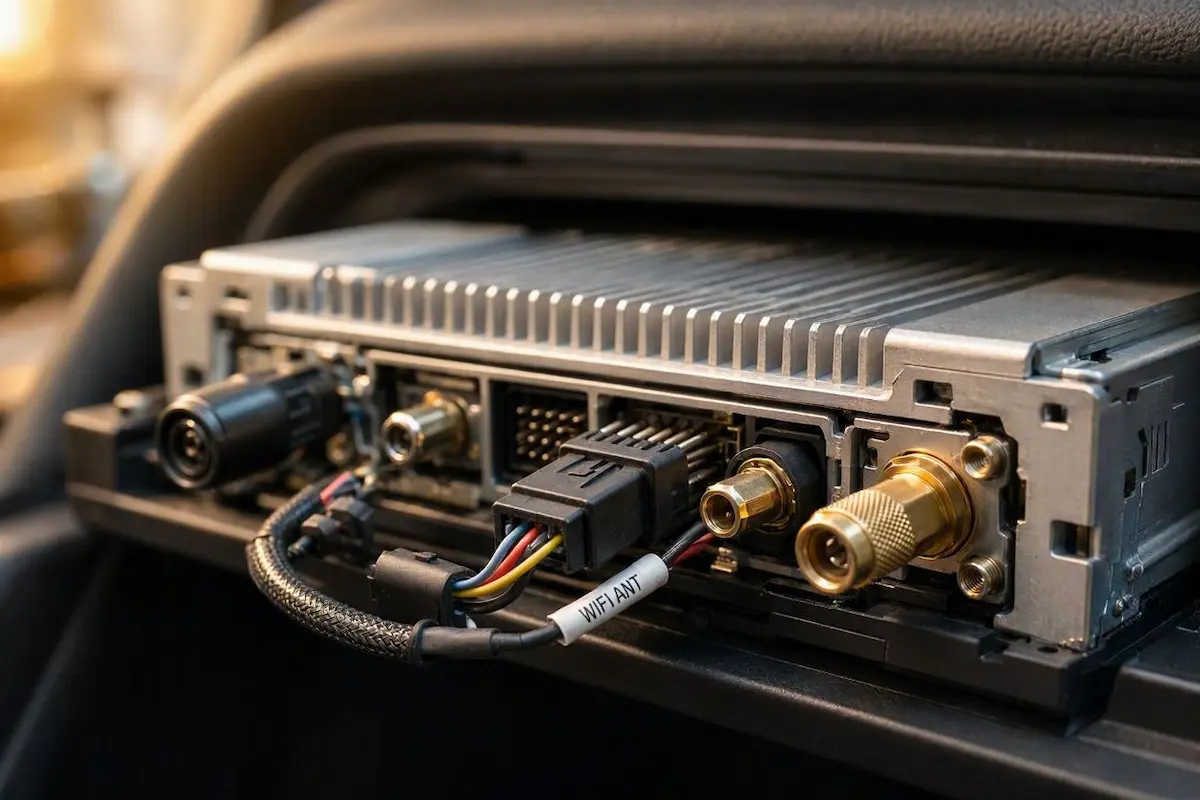
- Use plastic pry tools to extract the Android stereo from the dashboard cavity.
- Inspect the multi-pin auxiliary RCA harness plugged into the rear heatsink (this is the harness that contains the yellow CAM-VIN backup camera input). Review our pinout guide to connect factory wiring to android head unit ports if you need exact wiring layouts.
- Look for two short, isolated wires sprouting from the plastic block, typically labeled “WIFI ANT” and “BT ANT”.
- The Common DIY Mistake: Many installers leave this entire multi-pin RCA plug in the stereo box because they are not installing a reverse camera. However, unplugging that harness removes the Wi-Fi antenna entirely! You must plug this harness in even if no cameras are attached.
- Ensure the short black antenna pigtail is fully extended and not pinched tightly against the steel dashboard subframe. If your unit features a threaded brass SMA port, verify that the external high-gain stubby antenna is securely screwed in finger-tight.
Securing the antenna pigtail increases signal strength from -85 dBm to -50 dBm, ending cycles where an android car stereo wifi keeps disconnecting over minor road bumps.
Step 3: Assign a Static IP Address to Eliminate DHCP Lease Drops
When you navigate long distances, your smartphone continuously hands off data connections between cellular base stations.
During these tower transitions, the mobile operating system updates internal network routing tables.
This network renegotiation frequently drops the dynamic DHCP IP lease assigned to the car stereo.
Configuring a permanent static IP address directly inside the car stereo stops the cycle where an android car stereo wifi keeps disconnecting during route navigation:
- On your Android head unit, open Settings → Network & Internet → Wi-Fi.
- Locate your connected phone hotspot network, long-press the network name, and tap Modify Network.
- Tap Advanced Options and change the IP Settings toggle from DHCP to Static.
- Input the following static network parameters:
- IP Address:
192.168.43.150(for Android phone hotspots) or172.20.10.15(for iPhone hotspots). - Gateway:
192.168.43.1(Android) or172.20.10.1(iPhone). - Network Prefix Length:
24 - DNS 1:
8.8.8.8(Google Public DNS). - DNS 2:
8.8.4.4(Cloudflare or Google backup).
- IP Address:
- Tap Save and reboot the head unit. Bypassing dynamic DHCP negotiation ensures the stereo retains its network lease permanently.
FACTORY CONFIGURATION RESOURCE
Step 4: Configure Android OS “Keep Wi-Fi On During Sleep” Policies
Aftermarket Android head units utilize low-power fast-boot sleep states (ACC standby) to display the home screen in under two seconds when you start your vehicle.
However, aggressive system power-saving protocols frequently disable internal USB and Wi-Fi transceivers to prevent parasitic vehicle battery drain.
When this power profile is misconfigured, your android car stereo wifi keeps disconnecting every time the screen wakes from standby or when vehicle accessory voltage fluctuates:
- Open the application drawer and navigate to Car Settings → Android Settings → Wi-Fi Preferences.
- Locate the setting labeled Keep Wi-Fi on during sleep and switch the parameter to Always.
- Disable the toggle for Turn off Wi-Fi automatically if present in your specific board ROM.
- Navigate to Apps & Notifications → Special App Access → Battery Optimization, select All Apps, locate Wi-Fi Service (or wpa_supplicant), and select Don’t Optimize.
- If your vehicle battery struggles after sitting parked, review our diagnostic checklist to prevent car stereo parasitic battery drain.
Allowing unthrottled wireless background processing stops operating system timeouts that make an android car stereo wifi keeps disconnecting error appear every time the engine turns on.
Step 5: Resolve Wi-Fi Direct and Zlink Projection Channel Contention
A widespread point of confusion among vehicle owners occurs when running wireless screen mirroring platforms such as Zlink, AutoKit, or SpeedPlay alongside standard internet hotspots.
Entry-level automotive Wi-Fi transceivers cannot operate in Station Mode (connecting to an external hotspot for internet) and SoftAP / P2P Mode (broadcasting a local network for wireless CarPlay or Android Auto) simultaneously.
Understanding this hardware limitation prevents drivers from mistaking normal projection switching for a defect where an android car stereo wifi keeps disconnecting unexpectedly:
- The Protocol Priority Conflict: When wireless CarPlay or Android Auto initializes, the projection software commands the stereo’s Wi-Fi chip to disconnect from your phone’s internet hotspot and establish an ad-hoc Wi-Fi Direct link directly with the phone.
- The Normal State: The Wi-Fi icon on the stereo status bar may disappear or show disconnected from your hotspot. This is completely normal; mobile apps on the car screen pull cellular internet directly through your phone’s data plan via the projection tunnel.
- The Fix for Standalone Apps: If you want to run native apps installed directly on the Android stereo (such as YouTube, Spotify, or Google Chrome via the Play Store), you must disconnect wireless CarPlay/Zlink entirely before connecting to your hotspot. Review our troubleshooting guide on fixing Zlink connection errors for detailed projection toggles. If your unit is stuck cycling on reboot, check our guide to fixing an Android car stereo boot loop.
RELATED TROUBLESHOOTING GUIDE
Diagnosing an android car stereo wifi keeps disconnecting failure comes down to managing radio frequencies and verifying antenna physical continuity.
Locking your mobile hotspot to the 2.4 GHz band, ensuring the rear RCA harness antenna wire is uncoiled outside the dashboard metal cage, and assigning a static IP address to prevent DHCP lease drops establishes a rock-solid wireless connection for navigation and streaming.
Following this structured workshop procedure permanently resolves an android car stereo wifi keeps disconnecting defect without the unnecessary expense of replacing your head unit or buying auxiliary equipment.
Frequently Asked Questions (FAQ)
Why does my car stereo disconnect from my phone hotspot while driving?
When an android car stereo wifi keeps disconnecting issue occurs while driving, smartphones have usually enabled aggressive battery savers that terminate personal hotspot broadcasting when the phone screen locks. Furthermore, dynamic 5 GHz frequency hopping causes packet loss on budget 2.4 GHz car stereos. Setting your hotspot to 2.4 GHz and configuring battery policy to Unrestricted resolves the drops in accordance with standard Google Android Wi-Fi support guidelines.
Can I connect an external high-gain Wi-Fi antenna to an Android head unit?
Yes. If your stereo chassis features a threaded brass SMA connector on the rear heatsink, threading on a dedicated 2.4 GHz high-gain rubber-duck antenna significantly improves signal sensitivity through metallic windshield tint and vehicle firewall sheet metal.
Why does Wi-Fi disconnect when wireless CarPlay or Android Auto starts?
Most aftermarket Android head units house single-channel Wi-Fi hardware that cannot connect to an internet hotspot (Station mode) and stream phone projection (Wi-Fi Direct mode) at the same time. The stereo intentionally severs the hotspot connection to dedicate 100% of wireless bandwidth to the phone screen projection stream, which is not an android car stereo wifi keeps disconnecting defect.
Why is my Android head unit stuck on “Obtaining IP Address”?
Being stuck on “Obtaining IP Address” indicates that the head unit’s DHCP client timed out while waiting for your smartphone to assign a local network IP lease. Manually configuring a Static IP address (such as 192.168.43.150) in stereo Wi-Fi settings completely bypasses DHCP assignment delays.