
How to Fix Android Auto Black Screen With Audio Playing (2026)
Facing an Android Auto black screen glitch while music keeps playing in the background? Learn 5 proven workshop fixes, from video resolution tweaks in developer options to cache resets, to restore your vehicle display immediately.

Confronting an unexpected android auto black screen while your music continues playing smoothly through the speakers exposes a video rendering desync rather than a burned-out LCD panel or destroyed touchscreen digitizer.
Android Auto splits phone projection into two completely independent hardware channels.
The audio pipeline routes across standard system audio sinks.
Conversely, the high-definition visual feed depends on a dedicated video streaming pipeline managed by your smartphone’s GPU.
Because visual frames require hardware-accelerated H.264 or H.265 video encoding, any handshake desynchronization between your smartphone and the head unit’s display controller will halt video rendering instantly.
The audio stream continues unobstructed over separate digital data packets, leaving the car touchscreen totally dark while navigation prompts and media play through your speakers as normal.
In our workshop bench testing, this glitch rarely stems from unrecoverable motherboard failures.
Before purchasing replacement dashboard displays or paying for dealership electrical diagnostics, fifteen minutes of structured bench troubleshooting will isolate whether the fault is an aspect ratio negotiation timeout or an unseated USB data pin.
Here are five practical workshop steps to diagnose why an android auto black screen occurs and restore full dashboard video projection.
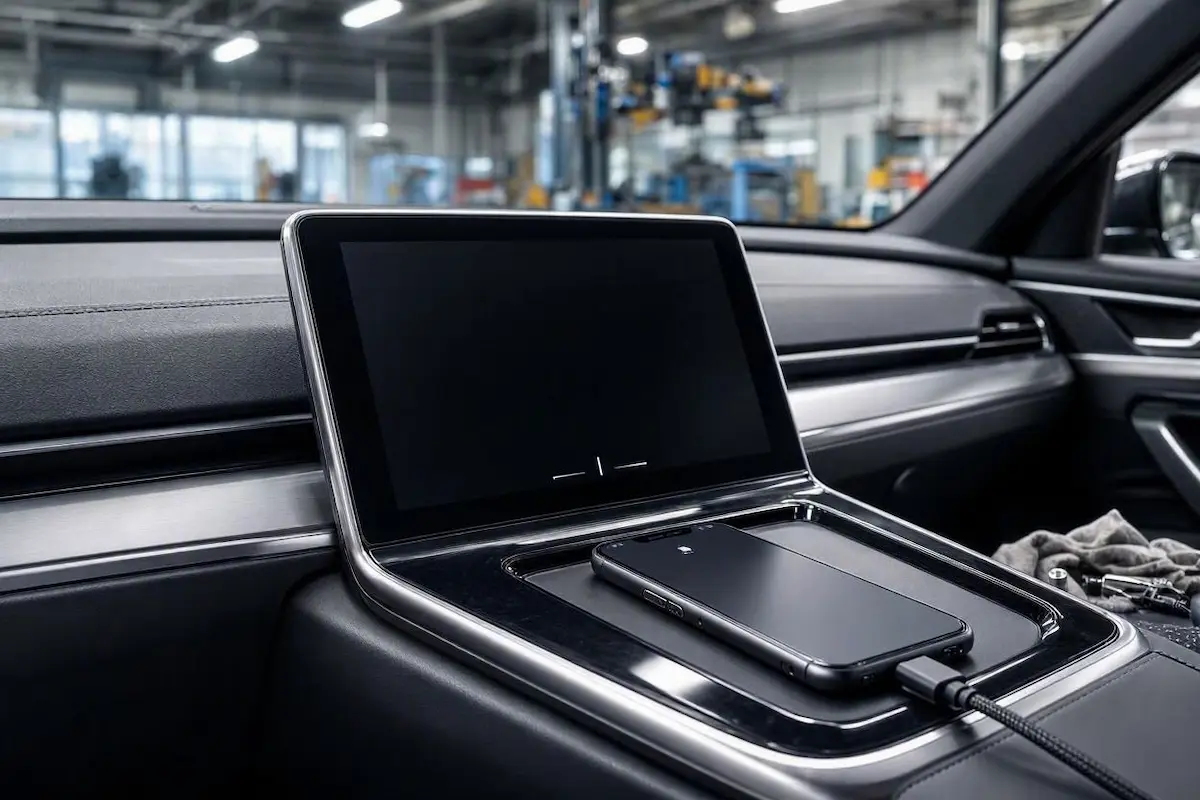
Diagnostic Matrix: Why an Android Auto Black Screen Occurs
Match your display symptoms against our workshop matrix to isolate an android auto black screen before disassembling dashboard trim:
| Observed Display Symptom | Underlying Hardware / Software Cause | Immediate Workshop Action |
|---|---|---|
| Audio plays normally; touchscreen completely blank | Video resolution handshake timeout between phone and car GPU. | Force 720p or 1080p output in Android Auto Developer Settings. |
| Screen goes black the second Google Maps opens | Corrupted video shader cache inside Google Play Services. | Clear Cache and App Data for Google Maps and Google Play Services. |
| Display turns black randomly over road bumps | Damaged D+ or D- high-speed data pins inside the USB cable. | Replace cable with a short, USB-IF certified 480Mbps data lead. |
| Screen blanks out whenever phone display turns off | Aggressive OS battery optimization terminating video compositor. | Set Android Auto and Play Services battery policy to Unrestricted. |
| Wireless projection connects, but display stays dark | Local 5GHz Wi-Fi frame drops or packet congestion on 2.4GHz. | Switch head unit wireless hotspot to dedicated 5.0 GHz Channel 36. |
Step 1: Force Fixed Video Resolution in Developer Settings
By default, Android Auto negotiates screen resolution automatically with your car’s infotainment system.
During initialization, the smartphone GPU queries the car stereo for its native display width, pixel density, and refresh rate.
If your head unit features an ultrawide screen or an uncommon aspect ratio, automatic negotiation frequently fails.
When the phone cannot determine the correct frame dimensions, the video compositor stalls while the audio daemon initializes normally.
If your head unit requests an unsupported aspect ratio or refresh rate, the phone GPU may fail to compile video frames, locking you into an android auto black screen display loop:
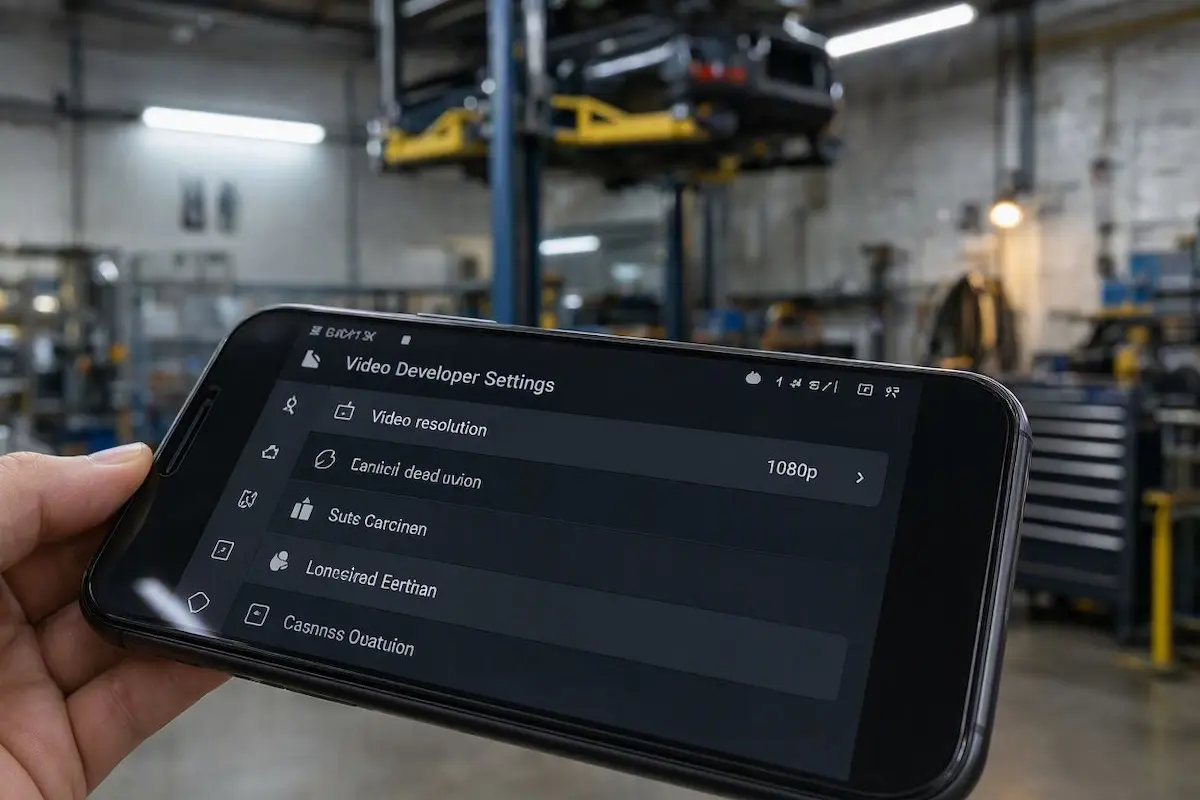
- On your Android phone, open Settings → Connected Devices → Android Auto (or search for Android Auto in the system settings search bar).
- Scroll down to the bottom of the menu and tap the Version field 10 times consecutively until a popup confirms “Developer mode enabled”.
- Tap the three vertical dots (
⋮) in the top-right corner and select Developer settings. - Tap on Video resolution.
- Change the setting from “Allow car and phone to negotiate” to “Allow up to 1080p”. (If you are using an older aftermarket stereo with a 1024×600 display, select “Allow up to 720p” instead).
- Disconnect your phone, restart the car stereo, and plug the USB cable back in to enforce the new fixed video pipeline.
Forcing this fixed display configuration stops automatic negotiation timeouts that leave an android auto black screen greeting you on startup.
⚠️ Developer Code Distinction: If your aftermarket Android stereo prompts for an engineering passcode when accessing factory menus, do not confuse it with Android Auto developer settings. Check our verified directory of Android car stereo factory settings passwords for hardware-level panel configurations.
Step 2: Flush Google Play Services and Maps Video Buffer Cache
Android Auto draws its graphic assets and map tiles using shared rendering libraries managed by Google Play Services.
Over months of software updates, accumulated shader cache files and expired encryption tokens can cause the video rendering pipeline to crash during startup.
Purging these cache directories is a proven workshop remedy when an android auto black screen follows an application update or phone firmware patch:
- Open your smartphone’s Settings → Apps → See all apps.
- Locate Android Auto, tap Force Stop, then select Storage & cache → Clear Storage.
- Return to the application list, select Google Play Services, and tap Storage & cache.
- Tap Manage Space (or Clear Storage) and select Clear All Data.
- Open Google Maps, tap Storage & cache, and tap Clear Cache.
- Restart your smartphone. This forces Android to rebuild its local video rendering buffers from scratch before reconnecting to the car.
Clearing corrupted shader caches ensures graphics libraries do not freeze, permanently solving instances where an android auto black screen triggers right as navigation begins.
RELATED TROUBLESHOOTING GUIDE
Step 3: Inspect USB Cable D+/D- Data Lines and Port Bandwidth
A common misconception among drivers is that if a USB cable charges the phone battery and plays music, the cable must be electrically healthy.
In reality, USB cables house separate physical wires for electrical power (+5V and Ground) and bidirectional data communication (D+ and D-).
Audio playback requires minimal bandwidth, but high-definition 60fps video projection demands an unbroken 480Mbps data stream compliant with Android Automotive audio and video projection guidelines.
When high-frequency data lines degrade, the connection can maintain audio streaming while dropping video frames, resulting in an android auto black screen across the center console:
- Inspect Cable Pin Contacts: Examine the Type-C or Type-A connector pins under bright light. If gold contacts look pitted, black, or corroded, electrical resistance is attenuating high-frequency video data.
- Use Certified Data Cables: Ditch thin convenience cords. Always use a short (under 3.3 feet / 1 meter) USB-IF certified data cable capable of high-speed transmission.
- Select the Correct Harness Port: On aftermarket Android stereos, verify your cable is connected to the primary 4-pin OTG port. As outlined in our guide on troubleshooting vehicle ports that only charge phones, secondary 6-pin auxiliary leads are wired strictly for low-speed USB flash storage and cannot process video projection streams.
Supplying unbroken digital continuity terminates cable-related packet drops that cause an android auto black screen condition over highway expansion joints.
Step 4: Disable Aggressive Battery Optimization Policies
Modern Android operating systems (particularly custom skins like Samsung One UI, Xiaomi HyperOS, and OnePlus OxygenOS) enforce aggressive power management policies to preserve battery life.
Once the handset screen locks or dims, background processes are aggressively throttled.
If power-saving daemons terminate the projection compositor, the operating system shuts down the video projection daemon.
This power-saving kill triggers an unexpected android auto black screen on the center console while audio keeps playing through the car speakers:
- On your smartphone, navigate to Settings → Apps → Android Auto.
- Tap Battery (or App battery usage) and select Unrestricted.
- Ensure Allow background activity and Allow auto-launch are toggled ON.
- Repeat this exact battery setting check for Google Play Services and your primary navigation apps (Google Maps or Waze).
- Disable third-party battery cleaner or performance-boosting applications that forcefully kill background services during driving.
Granting unrestricted background execution stops operating system timeouts that make an android auto black screen recur whenever your phone goes into standby.
RELATED TROUBLESHOOTING GUIDE
👉 Experiencing screen dropouts alongside video lag? How to fix wireless Android Auto disconnects →
Step 5: Flush Infotainment Display Memory with a Cold Hardware Reboot
Automotive head units operate embedded microkernels that manage onboard hardware decoders.
Over weeks of daily driving, cached navigation textures, video packet headers, and album artwork can exhaust the head unit’s volatile RAM.
If multiple phones experience an android auto black screen in the same car, the head unit’s video decoder buffer has locked up and requires a forced cold reboot to clear internal registers:
- Aftermarket Android Stereos (Zlink / TLink): Locate the tiny recessed RST pinhole on the front faceplate bezel. Insert an unbent paperclip and hold the tactile microswitch down for 5 seconds until the display shuts off and reboots from the brand logo. If Zlink fails to authenticate, review our guide to fixing Zlink not connecting on Android car stereos.
- Ford SYNC 3 / SYNC 4: Press and hold the physical Power (Volume knob) and Seek Right (>>) buttons together for 10 seconds until the screen cycles black. For deep Ford infotainment diagnostics, read our guide on resolving Ford SYNC black screen issues.
- Honda / Chevrolet / Hyundai: Turn off the engine, open the driver door to cut retained accessory power (RAP), wait 3 full minutes for the body control module to sleep, and restart the engine. Check our harness guide to connect factory wiring to android head unit ports if you need hardware pinouts.
Clearing volatile system memory flushes hung decoders, ending cycles where an android auto black screen halts projection upon vehicle start.
RELATED TROUBLESHOOTING GUIDE
👉 Is your screen strobing or showing scan lines instead? Workshop guide to screen flickering →
Diagnosing an android auto black screen comes down to separating audio pipelines from high-speed video rendering.
Forcing display resolution to 1080p in developer settings, purging corrupted Google Play Services cache files, and ensuring clean D+/D- data continuity over certified USB cables restores sharp dashboard graphics on nearly every vehicle.
Following this structured diagnostic sequence permanently resolves an android auto black screen defect without the unnecessary expense of replacing factory screens or scheduling dealership repairs.
Frequently Asked Questions (FAQ)
Why does an android auto black screen happen while music keeps playing?
An android auto black screen occurs while audio plays because Android Auto splits communication into separate channels. Media audio streams over a standard low-bandwidth audio sink, while the display requires real-time H.264/H.265 hardware video encoding. If the phone and stereo fail to negotiate video resolution, the video compositor stalls while audio continues playing normally.
Does enabling Developer Settings in Android Auto void my phone warranty?
No. Unlocking Android Auto developer options only exposes advanced projection settings such as video resolution limits and day/night themes without modifying core operating system files or tripping device security flags.
Can a damaged USB cable cause Android Auto to show a black screen?
Yes. USB cables have separate pins for power (+5V) and high-speed data (D+ and D-). If the data pins develop hairline fractures or oxidization, the cable can carry enough current to power your phone and stream audio, yet fail to maintain the 480Mbps bandwidth required for video projection, resulting in an android auto black screen.
Will resetting my car stereo delete my personal files and apps?
Pressing the physical RST pinhole performs a soft hardware reboot and does not delete your installed apps, offline maps, or system settings. Only executing a full Factory Data Reset inside Android system settings will erase internal storage.
[…] […]