
Android Auto Communication Error 16: 5 Proven Fixes (Tested)
Encountering Android Auto communication error 16 with a red screen on your car stereo? Follow this workshop guide to remove Dual App sandbox conflicts, flush Play Services tokens, and restore screen projection.

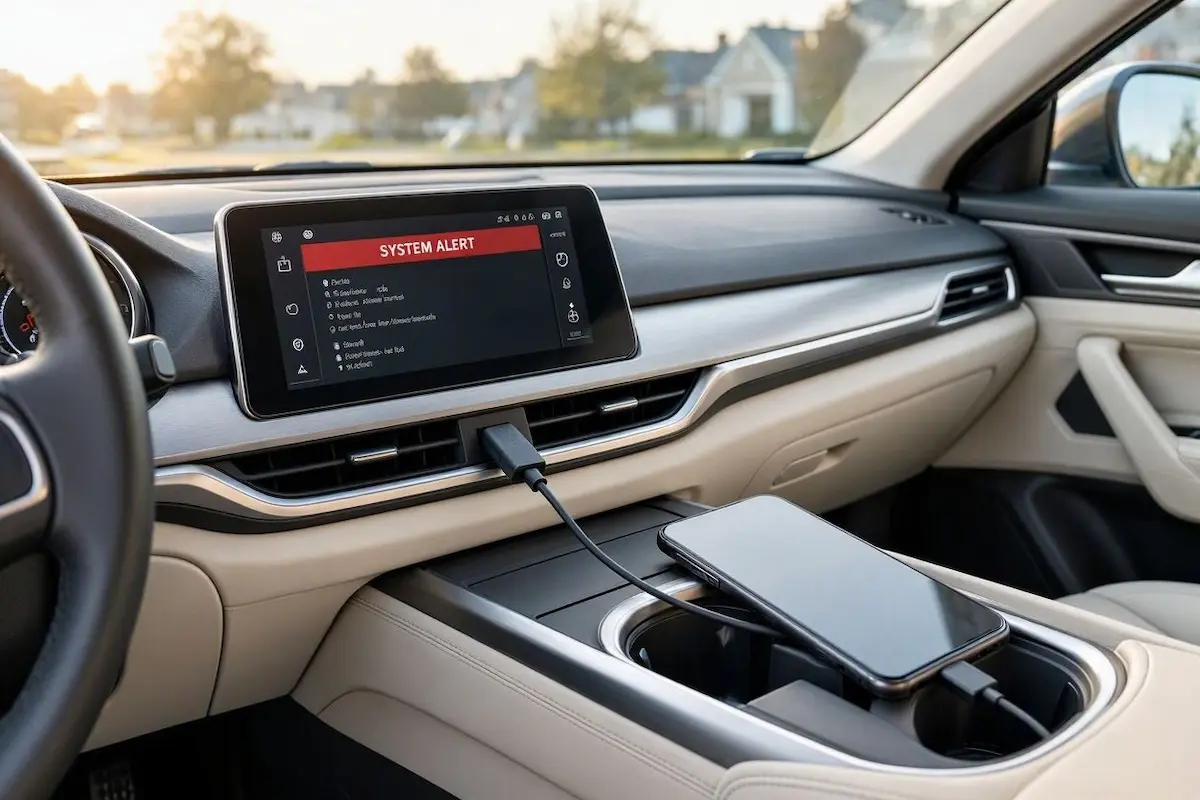
Confronting a red warning banner where an android auto communication error 16 locks up your vehicle display—declaring “Your phone’s software is currently not working with Android Auto”—points directly to an operating system authentication collision rather than a physically damaged USB port or burned-out infotainment screen.
Android Auto establishes an encrypted session tied strictly to your smartphone’s primary user directory (User 0).
When manufacturer software builds create cloned messaging apps (such as Xiaomi Dual Apps, Samsung Dual Messenger, or OnePlus Parallel Apps), the operating system spins up a secondary sandbox container (User 999).
This secondary user space intercepts background Google Play Services authentication certificates.
Intercepting these tokens breaks the cryptographic handshake required by the vehicle head unit, triggering an immediate red screen lockout.
In our workshop bench testing, this failure is almost never an unrecoverable hardware fault.
Before replacing factory wiring harnesses or formatting your smartphone, a few minutes of structured troubleshooting will purge this profile collision.
Here are five practical workshop procedures to resolve an android auto communication error 16 lockout and restore responsive dashboard projection.
Diagnostic Matrix: Why Android Auto Communication Error 16 Occurs
Review our workshop failure matrix to isolate your specific device configuration before modifying vehicle settings when an android auto communication error 16 occurs:
| Primary Diagnostic Check | Technical Failure Mechanism | Immediate Workshop Action |
|---|---|---|
| Dual Apps / Cloned Messengers | Secondary sandbox (User 999) conflicts with Play Services certificates. | Delete cloned application accounts and purge dual-space containers. |
| Google Play Services Cache | Stale cryptographic projection tokens stored in device system flash. | Force Stop & Clear Storage for Google Play Services and Android Auto. |
| Infotainment Clock Desync | Vehicle clock drift exceeding 2 minutes rejects SSL/TLS timestamps. | Synchronize head unit clock and phone time via GPS / Network sync. |
| USB Data Port Handshake Stall | Harness port defaults to Charge Only without digital enumeration. | Switch Default USB Configuration to File Transfer / Android Auto (MTP). |
| Head Unit Daemon Lockup | Infotainment projection listener process frozen in volatile RAM. | Perform a cold 12V accessory key-cycle or press hardware RST pinhole. |
Step 1: Delete Dual Apps and Sandboxed Clones (The Primary Fix)
Over 95% of confirmed instances where an android auto communication error 16 appears are caused directly by application cloning features.
Manufacturer interfaces—such as Xiaomi/Redmi MIUI/HyperOS (Dual Apps), Samsung One UI (Dual Messenger), OnePlus OxygenOS (Parallel Apps), or Realme UI (App Cloner)—duplicate applications like WhatsApp or Telegram by creating an isolated sandbox profile labeled User 999 or u10_.
The official Google Android Auto communication protocol demands an unbroken security token bound strictly to your primary administrative profile (User 0).
When the secondary container hijacks the initialization channel, the projection daemon fails, creating an android auto communication error 16 lockout on the screen:
⚠️ Crucial Profile Deletion Note: Merely disabling individual app clones often leaves the underlying
User 999container alive in the background. You must delete the clone profile accounts completely to prevent Android from generating conflicting security certificates.

- On Xiaomi / POCO / Redmi devices: Navigate to Settings → Apps → Dual apps. Tap the gear icon in the top-right corner, select Delete dual apps’ accounts, and confirm the restart prompt.
- On Samsung Galaxy devices: Open Settings → Advanced features → Dual Messenger. Toggle OFF every active cloned application and confirm the removal of all secondary profile data.
- On OnePlus / Realme / Oppo devices: Go to Settings → App management → App cloner (or Parallel Apps), select each cloned app, and choose Delete / Turn off.
- Enterprise Profiles (Island / Shelter / Work Profile): If you utilize sandboxing apps for enterprise security, pause or temporarily remove the work profile before establishing your vehicle connection.
Purging these duplicated accounts permanently clears an android auto communication error 16 bug by returning full cryptographic priority to User 0.
Step 2: Force Clear Google Play Services and Android Auto Storage
Even after deleting secondary user profiles, expired cryptographic tokens often remain cached in application storage.
These stale security certificates cause an android auto communication error 16 warning to reappear upon reconnecting.
Purging these directories forces the operating system to negotiate fresh security certificates from scratch:
- Open your smartphone’s Settings → Apps → See all apps.
- Locate Android Auto, tap Force Stop, then select Storage & cache → Clear Storage.
- Return to the applications list, locate Google Play Services, and tap it.
- Tap Storage & cache, select Manage Space (or Clear Storage), and tap Clear All Data.
- Restart your smartphone. This forces Google Play Services to rebuild its baseline framework directories cleanly.
Flushing system storage ensures that an android auto communication error 16 prompt does not recur when the projection thread initializes.
RELATED TROUBLESHOOTING GUIDE
Step 3: Synchronize Vehicle Infotainment Clock with Network Time
When launching Android Auto, your phone and the car head unit establish a secure, encrypted SSL/TLS tunnel.
If the vehicle stereo’s internal system clock drifts out of alignment with your smartphone by more than two minutes, the handshake fails validation.
This expired timestamp rejects the communication session, triggering an unexpected android auto communication error 16 on the display:
- Open the Settings menu on your vehicle’s factory infotainment unit or aftermarket Android screen.
- Navigate to Date & Time.
- Ensure Automatic Date & Time (Network-provided time) or Sync with GPS is actively selected.
- On your smartphone, verify that Settings → System → Date & time → Set time automatically is enabled.
- Constant 12V Wiring Check: If your vehicle clock resets to 12:00 every time you turn the car off, your head unit’s constant 12V wire (Yellow lead) is miswired or lacks battery voltage, causing memory loss between key cycles. Check our guide on how to connect factory wiring to android head unit looms if you need pinout references.
Step 4: Configure Default USB Data Mode and Check Harness Leads
If your vehicle head unit cannot complete digital enumeration, the USB data bridge drops during the initialization sequence.
An improper data protocol configuration frequently provokes an android auto communication error 16 message right as navigation attempts to load:
- Unlock Developer Options: Open your smartphone’s Settings → About phone and tap Build number 7 times consecutively until developer mode is unlocked.
- Set USB Protocol: Go to Settings → System → Developer options, scroll to Default USB Configuration, and switch it from Charging only to File Transfer / Android Auto (MTP).
- Verify Cable Data Specs: Inexpensive charging cords lack high-speed data pairs. Always use a certified USB-IF cable rated for minimum 480 Mbps transfer speeds, kept under 3.3 feet (1 meter) in length to prevent signal degradation.
- Select the Correct OTG Port: On aftermarket Android stereos, verify the cable is plugged into the primary 4-pin OTG port. As detailed in our guide on resolving Zlink not connecting on Android car stereos, secondary 6-pin USB leads are restricted to flash media storage and cannot handle real-time video projection.
RELATED TROUBLESHOOTING GUIDE
Step 5: Perform a Hard Power Cycle on the Vehicle Head Unit
Modern vehicle head units do not completely power down when the ignition key is removed.
Instead, they enter an ultra-low-power standby mode to allow rapid startup.
If the infotainment system’s projection listener daemon freezes during an error cycle, that crashed state remains locked in RAM until power is cut completely, keeping your android auto communication error 16 warning persistent across key turns:
- Turn off the vehicle engine completely and remove the key from the ignition barrel.
- Open the driver-side door and wait 3 to 5 minutes to allow the vehicle’s body control module (BCM) and retained accessory power (RAP) relays to shut down completely.
- On aftermarket head units, use a paperclip to depress the front faceplate RST (Reset) pinhole button for 5 seconds to execute an immediate cold hardware restart. If your stereo cycles on reboot, check our guide to fixing an Android car stereo boot loop.
- Start the vehicle, let the head unit finish loading its main home screen, and reconnect your phone via USB.
Diagnosing an android auto communication error 16 failure comes down to eliminating dual-app profile sandboxes and ensuring valid security timestamps.
Deleting cloned messenger profiles, clearing Play Services storage caches, and matching vehicle clock time to GPS satellites clears the error in nearly every vehicle.
Following this structured diagnostic sequence ensures your android auto communication error 16 warning disappears permanently, returning full navigation and media functionality without expensive dealer visits.
Frequently Asked Questions (FAQ)
Why does Android Auto show Communication Error 16 on Xiaomi and Samsung phones?
An android auto communication error 16 occurs because Xiaomi’s Dual Apps and Samsung’s Dual Messenger create a cloned user container (User 999). This secondary profile interrupts Google Play Services’ security handshake. Deleting the dual app accounts resolves the conflict immediately.
Can a bad USB cable cause Android Auto Communication Error 16?
While an android auto communication error 16 is predominantly caused by Dual App software profile clashes, an unstable USB cable that drops high-speed data transmission during certificate verification can trigger the identical error screen. Always use a USB-IF certified data cable under 3 feet in length.
Does clearing Google Play Services data delete personal files?
No. Clearing Google Play Services storage only resets temporary system caches, connected device tokens, and background synchronization files. Your personal photos, contacts, and account credentials remain intact and will re-sync automatically.
Why does the vehicle clock matter for Android Auto?
Android Auto establishes an encrypted SSL/TLS session that validates security certificates against current timestamps. If the vehicle clock drifts by more than two minutes relative to the phone, the certificate is flagged as expired, resulting in a communication error.