
AAWireless Keeps Disconnecting: 5 Proven Fixes & LED Codes (Tested)
Struggling with an AAWireless dongle that keeps dropping connection or freezing on blinking green? Follow our workshop technician guide to decode hardware LED codes, configure Passthrough mode, and lock clean 5 GHz Wi-Fi channels.

Diagnosing an issue where your aawireless keeps disconnecting while driving down the highway points to an interrupted digital handshake rather than a dead automotive USB port or defective hardware dongle.
Unlike basic passive wired cables, the AAWireless unit operates a dedicated micro-Linux operating system.
This internal controller continuously bridges high-speed USB host emulation, Bluetooth pairing tokens, and local 5GHz Wi-Fi Direct video streaming.
Because wireless Android Auto routes heavy 60fps video packets across an ad-hoc Wi-Fi network, tiny electrical disruptions on the vehicle’s 5V USB bus will crash the projection daemon.
Similarly, radio frequency (RF) de-authentication forces the adapter into an emergency recovery loop.
When this happens, the projection stream drops mid-drive or gets trapped in a continuous boot cycle before reaching the dashboard display.
Before wiping your smartphone or ordering replacement dongles, reading the adapter’s multi-color LED provides exact hardware telemetry.
Here are five practical workshop procedures to diagnose why an aawireless keeps disconnecting condition occurs and lock in a permanent, interruption-free connection.
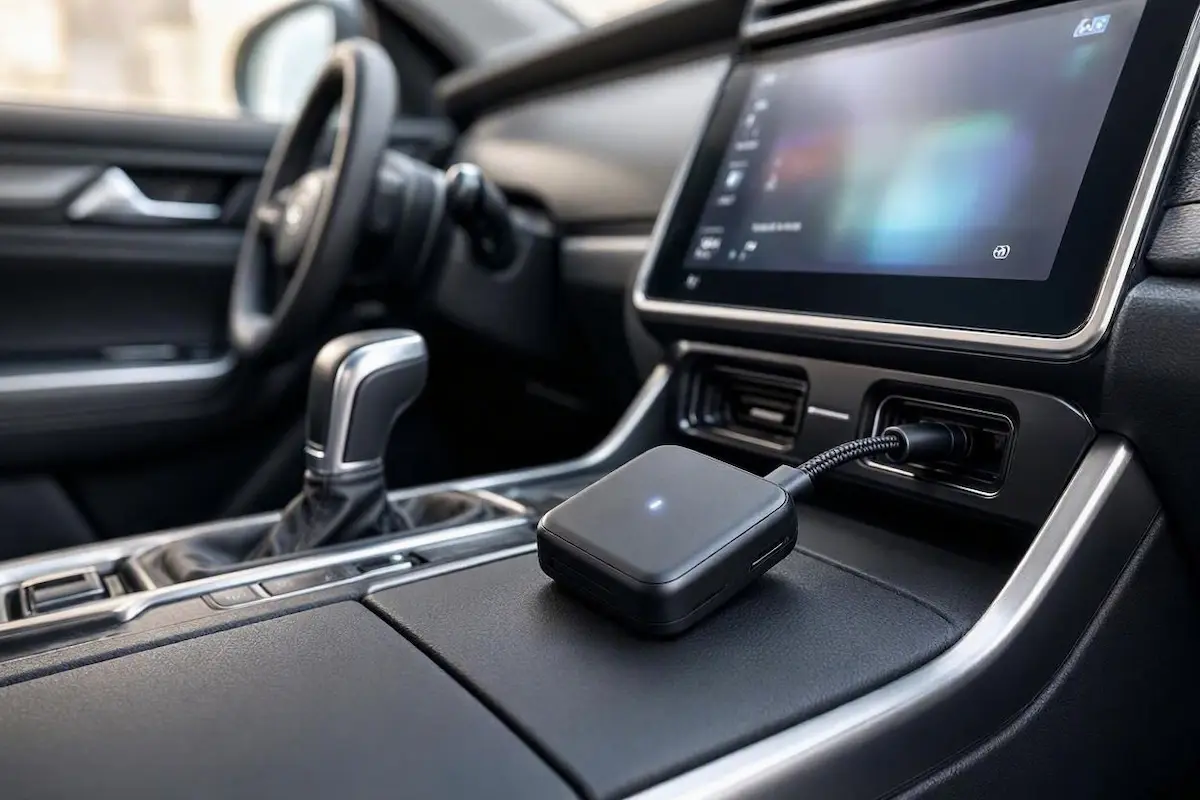
Diagnostic Matrix: Why AAWireless Keeps Disconnecting
The multi-color LED on the top casing communicates live hardware states. Match your light pattern against our workshop matrix to isolate why aawireless keeps disconnecting before modifying software settings:
| LED Color & Pattern | Hardware Operational State | Immediate Workshop Action |
|---|---|---|
| Blinking Green | Searching for paired phone; attempting Wi-Fi handshake. | Toggle phone Wi-Fi/Bluetooth; ensure phone is not locked to home Wi-Fi. |
| Solid Blue / Solid White | Projection session active; video stream transmitting. | Normal operation. If screen stays black, toggle “Passthrough Mode” ON. |
| Blinking Red | USB communication failure with the vehicle head unit. | Swap to a short 10Gbps data cable; plug directly into factory media port. |
| Solid Orange / Amber | Bootloader waiting for stable vehicle USB power delivery. | Measure USB bus voltage; ensure port outputs minimum 5V at 1.0 Amp. |
| Rapid Flashing White | Firmware update flashing or MCU recovery mode active. | Do NOT unplug adapter; allow 3 full minutes to finalize the flash. |
Step 1: Enable “Passthrough Mode” in the Companion App
By default, the AAWireless adapter intercepts vehicle communication packets to allow custom screen DPI resizing and forced focus management.
However, many modern infotainment architectures—specifically Ford SYNC 3/4, Hyundai/Kia Gen5W, and Volkswagen Group MIB3—reject modified USB descriptors.
This rejection causes the vehicle host controller to sever the communication bus after several minutes of driving.
If your aawireless keeps disconnecting right after the initial boot animation, enabling Passthrough Mode commands the adapter to act as a transparent hardware bridge:
- Open the AAWireless Companion App on your smartphone.
- Ensure your phone is actively paired to the adapter via Bluetooth.
- Tap the Settings (Gear icon) in the top-right corner.
- Scroll down and toggle Passthrough to ON.
- Unplug the AAWireless dongle from the vehicle USB port, wait 5 seconds, and reconnect it to execute an uncorrupted hardware enumeration.
Activating passthrough prevents descriptor rejections, eliminating persistent cycles where an aawireless keeps disconnecting error triggers on factory touchscreens.
⚠️ Firmware Note on Passthrough: When Passthrough Mode is active, advanced custom features like DPI density scaling or screen margin cropping inside the companion app will be bypassed. However, standard Android Auto resolution settings configured inside phone developer options will continue to function normally.
RELATED TROUBLESHOOTING GUIDE
Step 2: Change Wi-Fi Channel to Bypass Highway Radar Interference
If you notice that your aawireless keeps disconnecting near highway toll plazas, airport perimeters, or high-density intersections, the breakdown is caused by external radio frequency (RF) de-authentication.
AAWireless streams navigation video across 5GHz Wi-Fi frequencies.
By default, many firmware versions utilize Dynamic Frequency Selection (DFS) channels (channels 52 through 144) to comply with international radio standards.
When ground-based weather radars or municipal toll scanners ping these frequencies, Dynamic Frequency Selection regulations force the adapter to immediately vacate the channel.
This automated regulatory hop drops your dashboard screen instantly, creating a condition where aawireless keeps disconnecting at the exact same geographic spots:
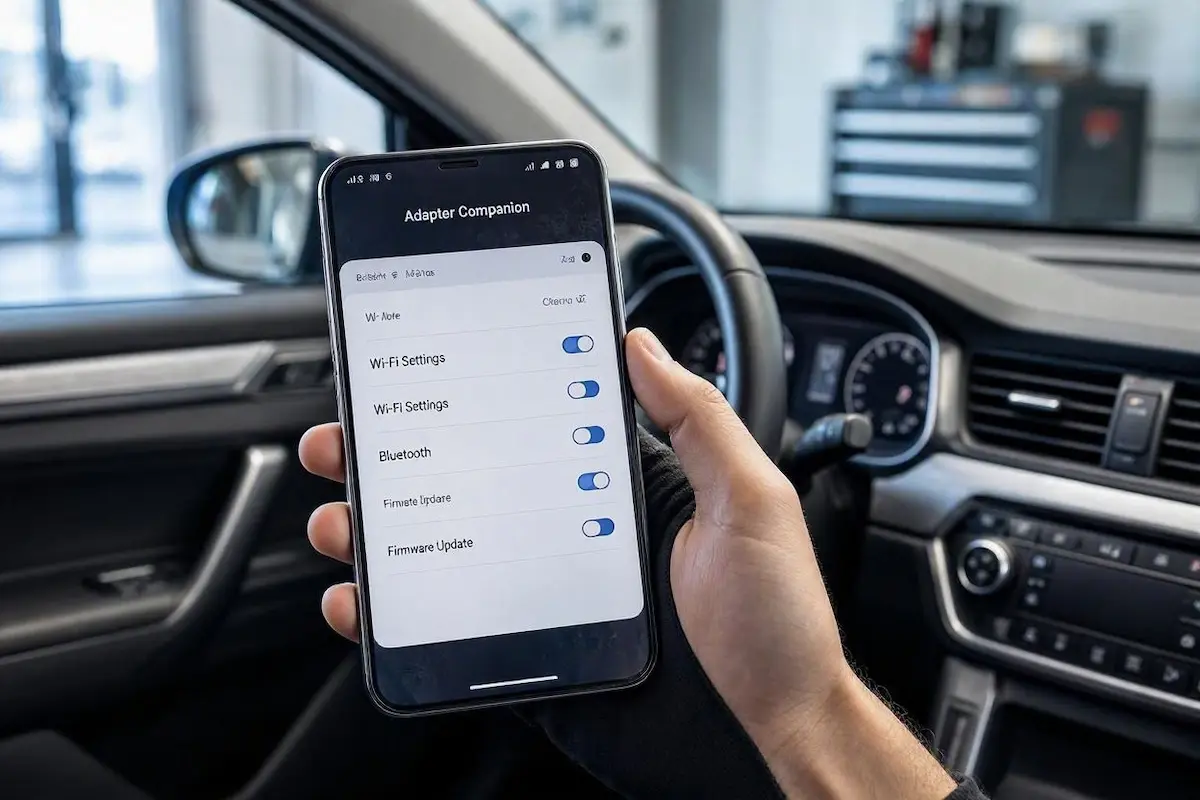
- Launch the AAWireless App and establish a connection to your device.
- Navigate to Settings → Wi-Fi Settings.
- Locate the Wi-Fi Band / Channel selector.
- Switch the channel setting from “Auto” to a dedicated non-DFS frequency: select Channel 36, Channel 40, or Channel 149 (depending on your country’s spectrum availability).
- Save your settings and allow the adapter to reboot its internal transceiver.
Non-DFS channels are immune to radar preemption, permanently resolving dropouts at toll checkpoints.
Step 3: Clear Android Auto Cache and Eliminate Dual App Conflicts
Residual security tokens stored inside Google Play Services or the Android Auto companion daemon frequently cause handshake timeouts during vehicle startup.
Flushing these temporary files rebuilds the wireless projection bridge cleanly.
This software reset terminates scenarios where an aawireless keeps disconnecting glitch prevents morning connection handshakes:
- On your smartphone, navigate to Settings → Apps → See all apps.
- Locate Android Auto, tap Force Stop, then tap Storage & Cache → Clear Cache.
- Locate the AAWireless app, tap Storage & Cache, and select Clear Cache.
- Open Android Auto developer settings, toggle Wireless Projection OFF, wait 5 seconds, toggle it back ON, and restart your smartphone according to standard Google Android Auto connection standards.
⚠️ Dual App Sandbox Conflict: If your phone runs cloned messenger applications (such as Samsung Dual Messenger or Xiaomi Dual Apps), Android’s secondary sandbox profile (User 999) can intercept the Wi-Fi Direct socket. Review our workshop guide on resolving Android Auto communication error 16 to eliminate cloned profile interference.
Step 4: Audit Vehicle USB Port Voltage and Cable Impedance
During active screen projection, AAWireless draws between 350 mA and 650 mA of continuous electrical current.
Vehicle dashboard USB ports undergo heavy thermal cycling inside the cabin.
This continuous heat exposure causes internal DC-DC step-down circuits to degrade over time.
If bus voltage dips below 4.75V, the adapter’s micro-Linux CPU experiences an undervoltage reset, leading to a condition where aawireless keeps disconnecting whenever the car’s alternator electrical load spikes:
- Use Short, Heavy-Gauge Leads: Never power the dongle using thin, multi-conductor phone charging cables. Use a short (under 12 inches / 30 cm) USB-IF certified Type-C cable with 24 AWG power conductors to prevent electrical resistance.
- Bypass Cigarette Lighter Hubs: Do not plug AAWireless into unpowered 12V cigarette lighter splitters or unpowered dashboard hubs. Connect directly to the vehicle’s primary multimedia host socket stamped with a smartphone or USB icon. Check our harness guide to connect factory wiring to android head unit ports properly.
- Compare Alternate Adapters: If your vehicle’s factory USB host controller is inherently unstable with Linux-based micro-dongles, compare behavior with our diagnostic guide for fixing Carlinkit adapter disconnects.
RELATED TROUBLESHOOTING GUIDE
Step 5: Perform a Hardware Pinhole Reset and Factory Rebuild
If the adapter fails to respond to companion app commands or freezes during an over-the-air (OTA) firmware upgrade, corrupted flash memory registers must be purged.
Executing a physical hardware reset restores pristine factory firmware states.
This rebuild terminates persistent software deadlocks that make an aawireless keeps disconnecting problem recur every time you start the engine:
- Keep the AAWireless adapter connected to a live, powered vehicle USB port.
- Locate the small recessed pinhole reset button adjacent to the USB-C socket on the adapter casing.
- Insert a paperclip or SIM ejector tool into the pinhole, press down until you feel the microswitch click, and hold it firmly for 6 to 8 seconds.
- Release the switch when the status LED begins flashing rapidly. The unit will reboot and cycle to a solid amber state.
- On your smartphone, open Bluetooth and Wi-Fi settings, unpairing the AAWireless device profiles completely.
- Open the AAWireless companion app and complete the initial setup wizard freshly from scratch. If your head unit is stuck cycling on reboot, consult our Android car stereo boot loop recovery guide.
Diagnosing why an aawireless keeps disconnecting setup drops out comes down to managing USB bus power and eliminating Wi-Fi interference.
Enabling Passthrough Mode to clear infotainment descriptor rejections, locking the wireless transceiver to non-DFS Channel 36, and using a short, heavy-gauge USB lead resolves connection drops on over 90% of vehicles.
Following this structured diagnostic sequence ensures your aawireless keeps disconnecting problem disappears permanently, returning flawless hands-free navigation and media playback to your center console.
Frequently Asked Questions (FAQ)
Why does my AAWireless keep disconnecting at the same locations?
When an aawireless keeps disconnecting issue occurs near toll booths or airports, it is caused by external radio frequency interference. When AAWireless broadcasts on Dynamic Frequency Selection (DFS) channels, nearby highway radars, toll collection sensors, or cell towers force the adapter to disconnect. Switch the Wi-Fi channel to non-DFS Channel 36 or 149 inside the AAWireless companion app to resolve it.
What does a blinking red light mean on AAWireless?
A blinking red LED indicates an active USB communication failure between the adapter and the vehicle head unit. This is commonly resolved by replacing worn USB cables, cleaning debris from the car’s USB port, or toggling “Passthrough Mode” ON inside the companion app.
Should Passthrough Mode be ON or OFF on AAWireless?
Leave Passthrough Mode OFF by default to access custom resolution tweaks. However, if your aawireless keeps disconnecting randomly or your car head unit fails to detect the device, toggle Passthrough Mode ON. This allows the car and phone to communicate directly without intermediate packet filtering.
Can low USB voltage cause AAWireless to drop connections?
Yes. AAWireless requires a steady 5V supply drawing between 350mA and 650mA. If the vehicle’s USB bus voltage drops below 4.75V due to thin cables or shared dashboard circuits, the internal micro-Linux processor undergoes an undervoltage reboot.