
How to Fix Android Auto GPS Signal Lost (Searching for GPS Fix)
Google Maps or Waze showing a yellow banner saying "Searching for GPS" while driving? Learn how to disable aggressive battery optimization, toggle Precise Location, prevent vehicle-phone GNSS antenna clashes, and clear navigation cache.

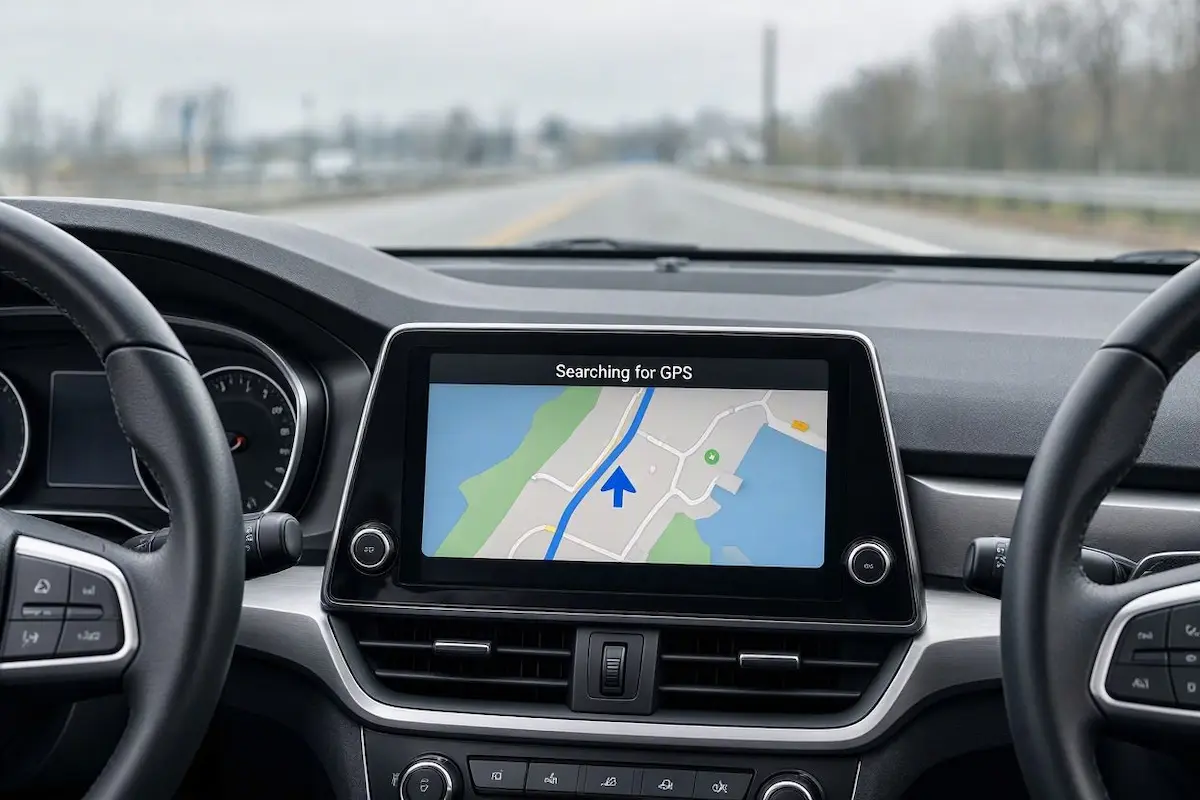
Watching an annoying android auto gps signal lost banner flash across your navigation display usually exposes a software handshake conflict rather than a dead smartphone GNSS satellite chip.
Android Auto relies on a hybrid positioning framework inside the operating system.
The projection protocol attempts to cross-reference your smartphone’s internal satellite receiver with your vehicle’s factory roof antenna over the USB or wireless data bus.
When route guidance freezes or the blue vehicle arrow wanders aimlessly across buildings, the location stream has broken down.
In routine automotive diagnostics, this positioning failure is triggered by aggressive battery optimization, athermal windshield radio shielding, or corrupted Assisted GPS orbit tables inside Google Play Services.
Because Android treats screen-off projection as an idle state, mobile power daemons frequently terminate satellite polling loops without warning.
Before replacing phone mounts or booking expensive auto-electrician appointments, fifteen minutes of methodical troubleshooting will pinpoint the true fault.
Here are five practical workshop procedures to resolve an android auto gps signal lost error and restore precise, reliable turn-by-turn navigation.
Diagnostic Matrix: Why an Android Auto GPS Signal Lost Warning Appears
Match your specific navigation behavior against our workshop failure matrix to isolate an android auto gps signal lost glitch before altering core system settings:
| Observed Navigation Symptom | Underlying System Root Cause | Immediate Workshop Action |
|---|---|---|
| “Searching for GPS” appears after screen powers down | Android Battery Optimization (Doze Mode) killing location bus. | Set Google Maps and Android Auto battery usage to “Unrestricted”. |
| Vehicle arrow drifts across buildings and off-road | “Precise Location” toggle disabled; approximate cell triangulation active. | Enable “Use Precise Location” in phone app permissions. |
| GPS drops only when phone rests in center console | Athermal windshield or cup holder metal blocking GNSS satellite waves. | Relocate phone to an open dashboard vent mount with sky visibility. |
| GPS drops on wireless adapters; works on direct USB cable | Adapter Wi-Fi frequency leaking radio interference into the L1 satellite band. | Switch wireless adapter channel from 2.4GHz to 5.8GHz. |
| Navigation arrow frozen completely at the starting trip point | Corrupted Assisted GPS (A-GPS) cache tokens in Google Play Services. | Clear storage on Google Play Services and restart the smartphone. |
Step 1: Disable Android Doze Battery Throttling for Navigation Apps
Modern mobile operating systems utilize aggressive power management daemons designed to suppress background hardware sensors.
When your smartphone display turns off inside the vehicle cabin, Android initiates deep sleep (Doze mode) to conserve battery reserves.
If power management throttles the GNSS hardware polling loop, an unexpected android auto gps signal lost alert interrupts your driving route:
- On your smartphone, open Settings → Apps → See all apps.
- Locate and select Google Maps (repeat this check for Waze if installed).
- Tap Battery (or App Battery Usage).
- Change the radio button selection from Optimized to Unrestricted.
- Return to the application list, select Android Auto, and switch its battery usage to Unrestricted.
- On Samsung Galaxy devices, open Settings → Battery → Background Usage Limits and ensure Google Maps is added to “Never Sleeping Apps”.
Removing background execution limits ensures your phone keeps polling satellite constellations continuously, eliminating the recurring fault where an android auto gps signal lost notice pops up at every red light.
⚠️ Battery Saver Restriction: Never enable system-wide “Power Saving Mode” while driving with Android Auto. Master battery-saver profiles force the GNSS chip to throttle sampling intervals from once per second to once every thirty seconds, instantly stalling map navigation.
RELATED TROUBLESHOOTING GUIDE
Step 2: Enable Precise Location and Google Location Accuracy
Modern Android permissions differentiate between “Approximate” location (derived from cellular towers and local Wi-Fi nodes) and “Precise” location (direct multi-constellation satellite coordinates).
If a recent security update restricted your mapping permissions to coarse coordinates, highway navigation fails because highway lane guidance demands sub-meter satellite triangulation.
Restoring explicit location permissions stops episodes where an android auto gps signal lost popup derails your trip:
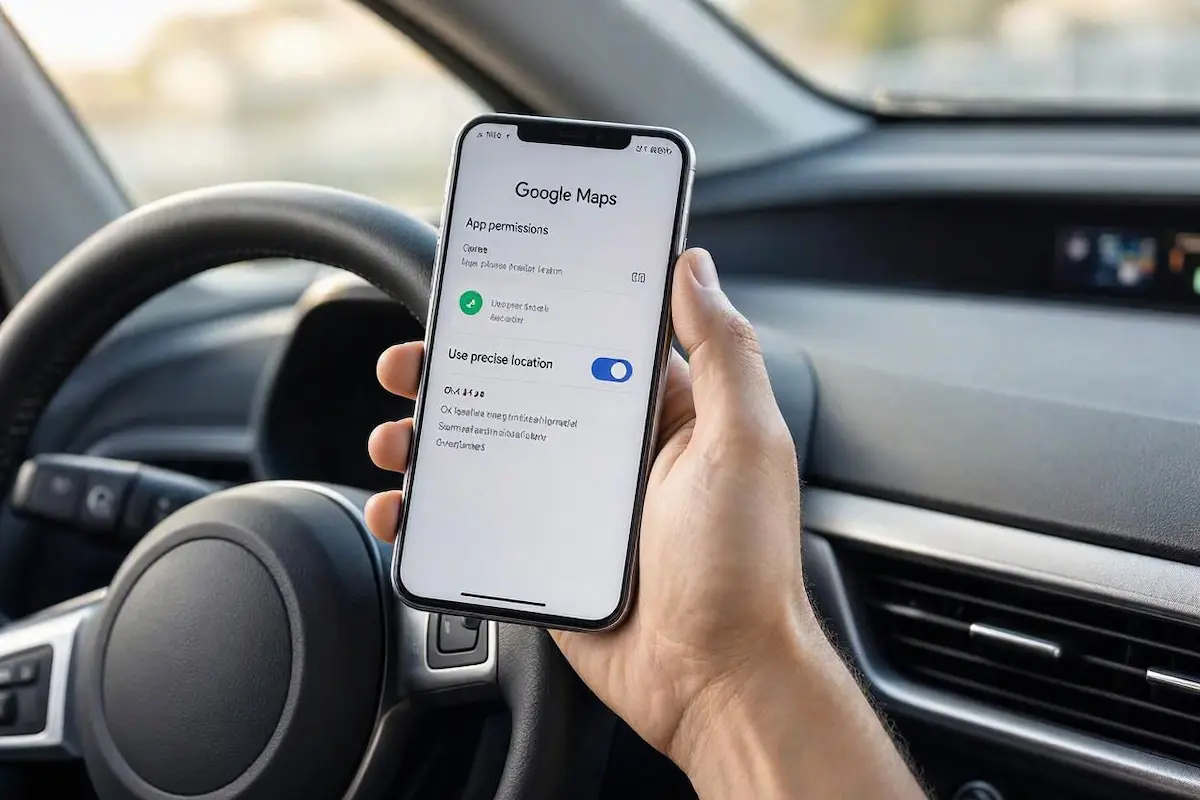
- Open Settings → Apps → Google Maps on your mobile phone.
- Tap Permissions → Location.
- Verify that access is assigned to “Allow all the time” or “Allow only while using the app”.
- Directly beneath the permission options, toggle the Use precise location switch to ON.
- Next, navigate to Settings → Location → Location Services.
- Tap Google Location Accuracy and confirm that the master slider is active.
Enabling Google Location Accuracy allows the operating system to fuse ground-level Wi-Fi and Bluetooth beacon signals with raw orbital telemetry, preventing dead spots in urban tunnels.
Step 3: Relocate Phone Placement to Bypass Athermal Windshield Shielding
Many modern passenger vehicles feature acoustic laminated or “athermal” windshield glass embedded with microscopic metallic oxide thermal barrier films.
These metallic coatings reflect solar heat efficiently, but they also function as an accidental Faraday shield against radio frequencies defined by Global Positioning System standards.
Placing your smartphone inside a deep center console cubby or metal cup holder starves the internal antenna of orbital sky visibility, triggering an immediate android auto gps signal lost warning on the dashboard:
- Use an Elevated Dashboard Air Vent Mount: Remove your handset from transmission tunnel trays, glove compartments, or enclosed wireless charging pads. Mount the device on a dashboard vent where it maintains an unobstructed line of sight through clear vehicle glass.
- Discard Heavy Magnetic Mounting Plates: Ruggedized protective smartphone cases containing thick steel plates for magnetic docking can significantly desensitize internal satellite reception coils.
- Utilize the Windshield Communication Window: Automakers install a small, non-metallized zone (marked by a grid of black ceramic frit dots) around the rearview mirror base. Positioning your phone or external antenna near this cutout allows satellite signals to pass unhindered.
RELATED TROUBLESHOOTING GUIDE
Step 4: Purge Google Play Services and A-GPS Ephemeris Cache
The underlying positioning pipeline for mobile navigation mapping is managed exclusively by the Google Play Services location provider.
To establish quick satellite fixes, the system downloads Assisted GPS (A-GPS) orbital tables that predict exactly where satellites are positioned overhead.
When these temporary ephemeris tables desynchronize or corrupt, cold positioning times stretch out past ten minutes, resulting in an android auto gps signal lost freeze on the map screen:
- Unplug your smartphone from the vehicle dashboard USB port or wireless adapter.
- Open Settings → Apps → See all apps on your mobile device.
- Select Google Maps, tap Storage & Cache, and tap Clear Cache.
- Return to the main apps list, choose Google Play Services, select Storage & Cache, tap Clear Cache, and tap Manage Space → Clear All Data.
- Reboot your smartphone.
Upon restarting, the mobile cellular modem downloads fresh, accurate A-GPS orbital ephemeris tables directly from local network cellular towers, curing the underlying cause of an android auto gps signal lost notification.
Step 5: Resolve Vehicle Head Unit Roof Antenna Data Clashes
When Android Auto establishes an active projection handshake, it attempts to borrow the vehicle’s external roof GPS antenna over the CANbus network to preserve smartphone battery.
If the factory roof antenna has suffered moisture intrusion, or if an aftermarket head unit has its GPS puck buried under interior steel brackets, the car passes blank positioning coordinates to the phone.
This data void causes a continuous loop where your android auto gps signal lost status refuses to clear because both devices are waiting for the other to provide coordinates:
- On your smartphone, open Settings → Connected Devices → Connection Preferences → Android Auto.
- Scroll to the bottom of the interface and tap the Version line rapidly 10 times to unlock hidden Developer Settings.
- Tap the three vertical menu dots in the upper right corner, open Developer Settings, and check for an option labeled “Vehicle GPS data” or “Sensor collection”.
- Toggle this setting OFF to force Android Auto to rely exclusively on your smartphone’s internal GNSS receiver.
- If utilizing an aftermarket touchscreen, confirm that the external GPS antenna puck is mounted on top of the dashboard near the corner pillar, facing skyward with its magnetic base grounded. Review our guide to connect factory wiring to android head unit pins correctly.
RELATED TROUBLESHOOTING GUIDE
Troubleshooting an android auto gps signal lost alert requires eliminating software sensor limits and clearing radio-frequency obstacles.
Configuring unrestricted battery usage for Google Maps, enforcing precise location permissions, and positioning your phone where it can see the sky restores rock-solid satellite tracking.
Applying these bench-tested adjustments ensures your android auto gps signal lost warning disappears permanently, keeping your navigation accurate on every journey.
Frequently Asked Questions (FAQ)
Why does Android Auto keep saying searching for GPS?
When an android auto gps signal lost error appears repeatedly, Android battery optimization (Doze mode) has usually suspended background location polling. It can also indicate that location permissions are limited to approximate tracking or that your vehicle’s metallic windshield is blocking satellite signals.
Does Android Auto use the car GPS antenna or the phone GPS?
Android Auto is engineered to prioritize the vehicle’s factory roof antenna to save smartphone battery. However, if the car antenna experiences hardware faults or bus communication drops, the system falls back to your phone’s internal GPS receiver.
How do I fix GPS lost only when my phone screen is locked?
Navigate to Settings → Apps → Google Maps → Battery, and switch the option to Unrestricted. Additionally, add your navigation apps to the “Never Sleeping Apps” list so Android does not shut down location tracking when the screen turns off.
Can a wireless Android Auto adapter cause GPS signal drops?
Yes. Low-cost wireless adapters operating on 2.4GHz Wi-Fi can leak electromagnetic noise that desensitizes nearby smartphone GPS antennas. Switching your wireless projection adapter to a 5.8GHz Wi-Fi channel resolves radio frequency interference.