
Apple CarPlay GPS Inaccurate: 5 Fixes That Actually Work (Tested)
Is your Apple CarPlay navigation drifting, lagging 500 meters behind, or showing you driving through buildings? Follow our technician guide to fix vehicle GPS handoff conflicts, relocate aftermarket puck antennas, and restore real-time tracking.

Observing a frustrating navigation failure where an apple carplay gps inaccurate reading leaves your vehicle arrow drifting across open fields or lagging 500 meters behind real-world turns points directly to an external vehicle antenna conflict rather than a dead smartphone satellite chip.
Under the official Apple Core Location framework guidelines, iOS intentionally shuts off the phone’s internal assisted GPS (A-GPS) the moment a CarPlay session initializes.
This automated handoff is designed to minimize internal battery drain and prevent aggressive thermal throttling.
Instead of reading internal phone sensors, iOS forces Apple Maps, Google Maps, and Waze to rely exclusively on the vehicle’s external GPS receiver, onboard gyroscopes, and vehicle speed sensor (VSS) pulses transmitted across the head unit data bus.
If that dashboard antenna loses satellite line-of-sight or suffers from radio frequency interference, the phone navigates blind.
In our workshop bench testing, the root cause is almost always improper antenna placement under metal crash bars, an unseated coaxial pin, or a saturated dead-reckoning sensor buffer.
Before booking an expensive dealership diagnostic session, a quick series of field checks will isolate whether the drift is caused by improper aftermarket antenna placement or a corrupted sensor calibration cache.
Here are five workshop-tested steps to resolve why an apple carplay gps inaccurate condition occurs and restore meter-perfect navigation tracking.
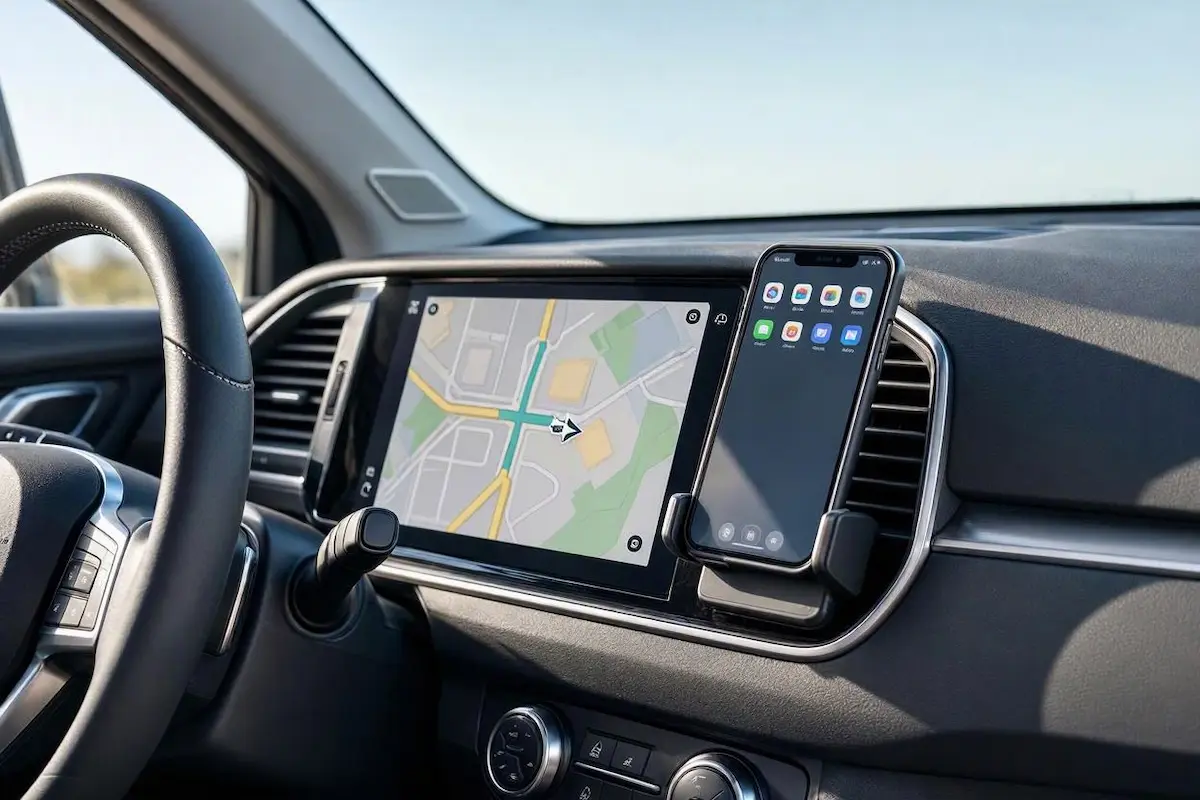
Diagnostic Matrix: Why Apple CarPlay GPS Is Inaccurate
Match your specific navigation behavior against our workshop matrix to isolate an apple carplay gps inaccurate failure before pulling dashboard trim panels:
| Observed Navigation Symptom | Underlying Hardware / Software Cause | Immediate Workshop Action |
|---|---|---|
| Navigation arrow lags 200–500 meters behind real location | NMEA sentence latency or vehicle speed pulse (VSS) desync. | Relocate GPS puck to windshield base; check harness seating. |
| Map drifts into open fields, buildings, or parallel streets | External vehicle GPS receiver has zero clear line-of-sight to sky. | Inspect rear SMA coaxial pin; mount puck facing clear sky. |
| Accurate on handheld iPhone, drifts only when plugged in | Vehicle external antenna circuit unpowered or dead-reckoning hung. | Run the Unplug Test; reboot head unit to dump sensor buffer. |
| Navigation pointer spins wildly at traffic lights or stops | Electromagnetic interference from 12V dashcams or power inverters. | Reroute auxiliary power lines at least 12 inches from the antenna. |
| Wireless CarPlay drops route coordinates intermittently | 5GHz Wi-Fi packet drop or high cellular latency choking NMEA data. | Switch adapter Wi-Fi channels; test over a certified MFi cable. |
Step 1: Perform the Workshop Unplug Test (Phone vs. Vehicle Antenna)
The fastest way to troubleshoot navigation drift is to isolate whether the fault originates inside your iPhone or within your car’s dashboard electronics.
When connected to CarPlay, the vehicle head unit acts as the master location authority.
If the external antenna has failed or has its signal blocked by dashboard sheet metal, the phone receives zero valid satellite data coordinates.
This isolation test proves the root cause behind an apple carplay gps inaccurate warning in thirty seconds:
⚠️ The Workshop Isolation Test: Pull over safely, leave your navigation route actively running, and disconnect the USB cable (or turn off Wi-Fi if using wireless CarPlay). Observe your iPhone screen. Does the navigation pointer instantly snap back to your exact physical lane? If yes, your iPhone GNSS chip is 100% healthy. The breakdown is entirely isolated to your car stereo’s external GPS antenna puck, wiring harness, or vehicle dead-reckoning gyroscopes.
RELATED TROUBLESHOOTING GUIDE
Step 2: Relocate the External GPS Antenna Puck to the Windshield Base
The primary reason drivers find apple carplay gps inaccurate on aftermarket installations (such as Pioneer, Kenwood, Alpine, or Android stereos running Zlink) is improper antenna placement.
Installers frequently place the small square magnetic GPS puck directly on top of the radio chassis inside the dark dashboard cavity.
Modern vehicle dashboards are reinforced with heavy steel crash bars, structural crossmembers, and HVAC ducting.
That metal structure acts as an RF barrier, choking reception from twelve active satellites down to two or three weak multipath reflections.
Properly relocating the receiver ends conditions where an apple carplay gps inaccurate alert spoils highway navigation:
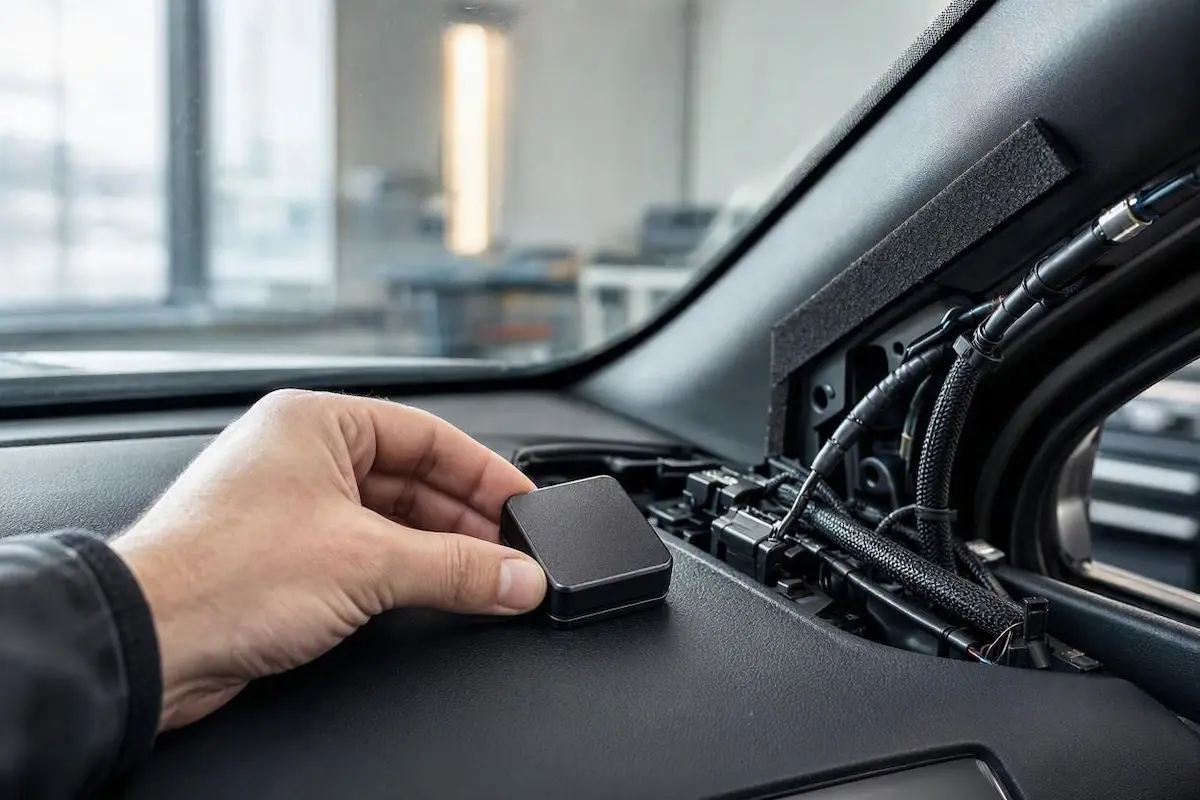
- Remove center dashboard trim to access the rear of your radio chassis.
- Inspect the gold threaded brass SMA GPS connector. Verify that the tiny center copper pin is perfectly straight, and screw the collar down finger-tight.
- Route the thin coaxial cable out from behind the dashboard, running it up along the door weatherstripping and A-pillar trim.
- Mount the GPS puck directly on top of the dashboard surface, positioned in the forward corner nearest the windshield glass.
- Install the included metal adhesive ground plate directly beneath the puck. This metal base acts as an RF ground plane, reflecting satellite signals up into the ceramic antenna element.
- Maintain at least 12 inches (30 cm) of physical separation between the GPS puck and 12V dashcams, electronic toll transponders (Fastag/EZPass), or radar detectors to prevent electromagnetic noise coupling.
Step 3: Flush Corrupted iOS Motion and Compass Sensor Caches
If you regularly transition between outdoor cellular tracking and vehicle satellite navigation, iOS can occasionally cache corrupted motion profiles.
This calibration mismatch leads directly to an apple carplay gps inaccurate drift on straight stretches of highway.
Flushing the internal sensor cache forces iOS to clear stale positioning tables, ensuring precise lane detection:
- On your iPhone, open Settings → Privacy & Security → Location Services.
- Verify that the master toggle for Location Services is switched ON.
- Scroll to the bottom of the menu and tap System Services.
- Confirm that Compass Calibration and Motion Calibration & Distance are both turned ON. If already active, toggle them OFF, wait 10 seconds, and turn them back ON to flush volatile sensor memory.
- Navigate to Settings → General → Transfer or Reset iPhone → Reset.
- Tap Reset Location & Privacy and enter your passcode. (This does not touch apps or photos; it simply wipes saved location access tokens).
- Restart your iPhone before reconnecting to the vehicle.
Resetting these location caches permanently terminates instances where an apple carplay gps inaccurate error causes the navigation compass to spin erratically at stoplights.
RELATED TROUBLESHOOTING GUIDE
👉 Experiencing audio latency or stuttering alongside navigation lag? Wireless CarPlay audio fix →
Step 4: Disable iOS Low Power Mode and Enforce Precise Location
Aggressive operating system power management is another common trigger that leaves apple carplay gps inaccurate when running multiple apps.
iOS cuts background sensor polling cycles to extend battery longevity during high-drain operations.
Enabling full-power location privileges ensures the navigation daemon updates continuously without lag:
- Turn Off Low Power Mode: Go to Settings → Battery and ensure Low Power Mode is switched OFF. When Low Power Mode is engaged, iOS throttles background GNSS polling intervals, causing map arrows to update in jerky 5-second intervals rather than fluid real-time motion.
- Enable Precise Location: Open Settings → Privacy & Security → Location Services. Select Apple Maps, Google Maps, and Waze individually. Confirm permission is set to “While Using the App” and verify that the Precise Location toggle is strictly enabled. If disabled, iOS feeds rough cellular triangulation coordinates instead of exact satellite data, explaining why your apple carplay gps inaccurate display wanders across side streets.
- Enable Background App Refresh: Go to Settings → General → Background App Refresh and confirm your primary navigation apps are permitted to run in the background.
Step 5: Flush Infotainment Dead-Reckoning Tables with a Cold Reboot
Modern infotainment computers blend satellite signals with internal gyroscopes and vehicle speed sensors in a calculation called Dead Reckoning.
This sensor fusion maintains route tracking when entering tunnels or underground parking decks.
If multiple iPhones experience identical coordinate drift in your vehicle, the head unit’s internal sensor fusion buffer has accumulated calculation errors that must be cleared to fix an apple carplay gps inaccurate error:
- Drive the vehicle to an open area with an unobstructed view of the sky (such as an open parking lot). Park the car and turn off the engine.
- Execute a cold hardware restart on your specific infotainment system:
- Ford SYNC 3 / SYNC 4: Press and hold the physical Audio Power knob and Seek Forward (>>) buttons together for 10 seconds until the display turns black.
- Honda / Acura: Press and hold the audio Power knob for 5 seconds until prompted with a reboot confirmation dialog.
- Aftermarket Android Stereos: Insert a paperclip into the small RST pinhole on the front bezel and hold for 5 seconds. Check our harness guide to connect factory wiring to android head unit ports properly.
- Turn the vehicle ignition ON and let the car sit stationary for 3 to 5 minutes without connecting your iPhone. This allows the head unit’s GPS chip to download a fresh satellite almanac without moving coordinate interference.
- Connect your iPhone and verify that the navigation pointer locks firmly onto your lane. If your unit is stuck cycling on reboot, check our guide to fixing an Android car stereo boot loop.
RELATED TROUBLESHOOTING GUIDE
Diagnosing why an apple carplay gps inaccurate reading occurs comes down to understanding that your car antenna—not your phone—is driving location telemetry.
Mounting the external GPS puck on top of the dashboard near the glass, ensuring the center coaxial pin is seated, and performing a cold reboot to dump dead-reckoning buffers resolves the vast majority of drifting navigation arrows.
Following this structured diagnostic procedure permanently eliminates an apple carplay gps inaccurate malfunction without the unnecessary expense of replacing factory screens or visiting dealership technicians.
Frequently Asked Questions (FAQ)
Why is my Apple CarPlay GPS inaccurate when my phone works fine?
When an apple carplay gps inaccurate problem happens while your phone is disconnected, CarPlay has automatically shut off your iPhone’s internal GPS sensor. The system forces all navigation apps to read location data from the car’s external GPS receiver or dashboard antenna. If the car’s antenna is buried inside the metal dash frame or has a weak satellite lock, CarPlay drifts while your unplugged phone remains pinpoint accurate.
How do I fix Apple CarPlay GPS inaccurate readings on Google Maps?
First, open iPhone Settings → Privacy & Security → Location Services → Google Maps, and ensure Precise Location is turned ON. Next, perform the unplug test to isolate the issue. On aftermarket head units, relocate the magnetic GPS puck antenna out of the dashboard cavity and mount it directly onto the top corner of the dash near the windshield.
Can wireless CarPlay cause navigation map lag?
Yes. Wireless CarPlay transmits both map video feeds and GPS coordinate packets over a local 5GHz Wi-Fi link. If you experience channel congestion, packet loss, or electromagnetic interference from dashcams or radar detectors, location data can lag behind your real-time vehicle movements.
Does metal window tint affect CarPlay GPS accuracy?
Yes. Metallic athermal windshields or metallic window tint films act as radio frequency barriers. If your aftermarket external GPS puck is positioned behind heavy metallic film, satellite signal strength drops significantly, resulting in navigation lag and positioning drift.