
How to Fix Apple CarPlay Screen Freezes (Unresponsive Display Fix)
Display completely locked up while turn-by-turn navigation or Spotify music continues in the background? Learn how to purge corrupted iOS SpringBoard frame buffers, resolve Waze offline cache lockups, bypass wireless video packet loss, and force infotainment restarts.

Dealing with an irritating failure where an apple carplay screen freezes while audio continues playing seamlessly in the background points directly to an interrupted video streaming handshake rather than a dead infotainment screen or a broken iPhone.
Apple CarPlay does not execute graphical user interfaces locally inside your car stereo.
Instead, your iPhone renders the desktop environment, compresses a continuous 60fps video feed using hardware-accelerated H.264 video compression, and streams raw transport packets over USB or local ad-hoc Wi-Fi directly to the dashboard monitor.
When the vehicle display locks up, the operating system’s audio daemons often remain fully operational.
This explains why Spotify tracks and Siri voice guidance continue streaming cleanly through your door speakers even while the touch interface and GPS map navigation freeze completely.
In high-volume workshop testing, this display lockup occurs when the iOS SpringBoard display buffer saturates, navigation vector tile databases corrupt, or 5GHz wireless transmission channels suffer sudden packet drops.
Before replacing factory cables or scheduling expensive dealership diagnostics, a structured bench troubleshooting sequence will identify the exact bottleneck in under fifteen minutes.
Here are six practical workshop procedures to resolve why an apple carplay screen freezes and restore fluid touch responsiveness across your vehicle display.
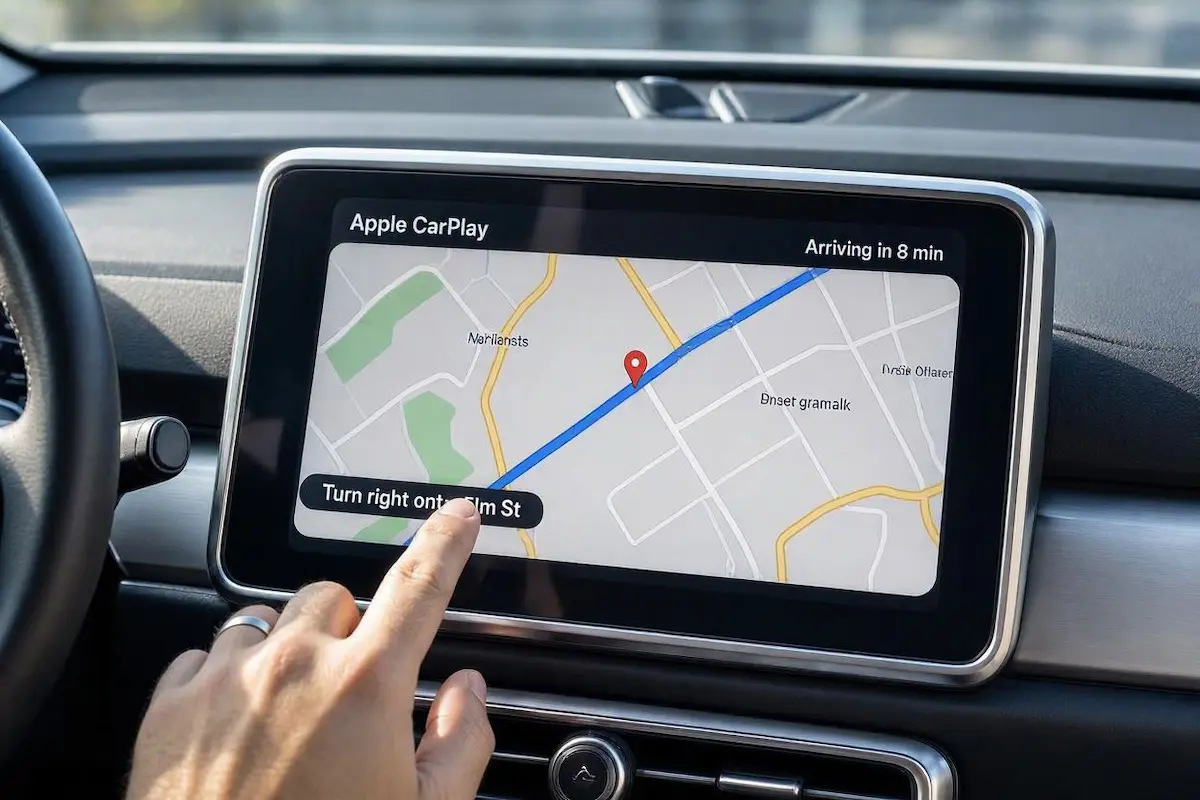
Diagnostic Matrix: Why an Apple CarPlay Screen Freezes
Match your specific screen behavior against our workshop diagnostic matrix to isolate why an apple carplay screen freezes before modifying deeper mobile system files:
| Observed Screen Behavior | Underlying System Root Cause | Immediate Workshop Action |
|---|---|---|
| Screen freezes solid; audio tracks keep playing cleanly | iOS SpringBoard GPU frame buffer deadlock or memory leak. | Perform a hardware-level force restart on your iPhone. |
| Freezes exclusively when using Waze or Google Maps | Corrupted local offline vector map tile database. | Purge navigation cache data or reinstall the navigation client. |
| Freezes on wireless adapters; works reliably over USB cable | Wi-Fi packet drop or 5GHz wireless channel saturation. | Switch the wireless adapter to 5.8GHz (Channel 149 / 161). |
| Screen locks up when receiving incoming calls or text banners | CarPlay notification UI daemon crash. | Turn off CarPlay Announce Messages and banner previews. |
| Entire dashboard display cycles black and reboots after freezing | Infotainment head unit thermal overload or low 12V supply voltage. | Execute a hardware reset on the stereo and check battery charging voltage. |
Step 1: Force Restart the iPhone to Clear the iOS GPU Frame Buffer
Because CarPlay relies on real-time video encoding streamed directly from the iPhone graphics engine, any soft crash inside the iOS rendering pipeline freezes dashboard output instantly.
A standard slide-to-power-off cycle often preserves background crash states in volatile flash storage.
You must execute a hardware-level forced reboot to purge runtime CPU registers and stop instances where an apple carplay screen freezes upon launching navigation:
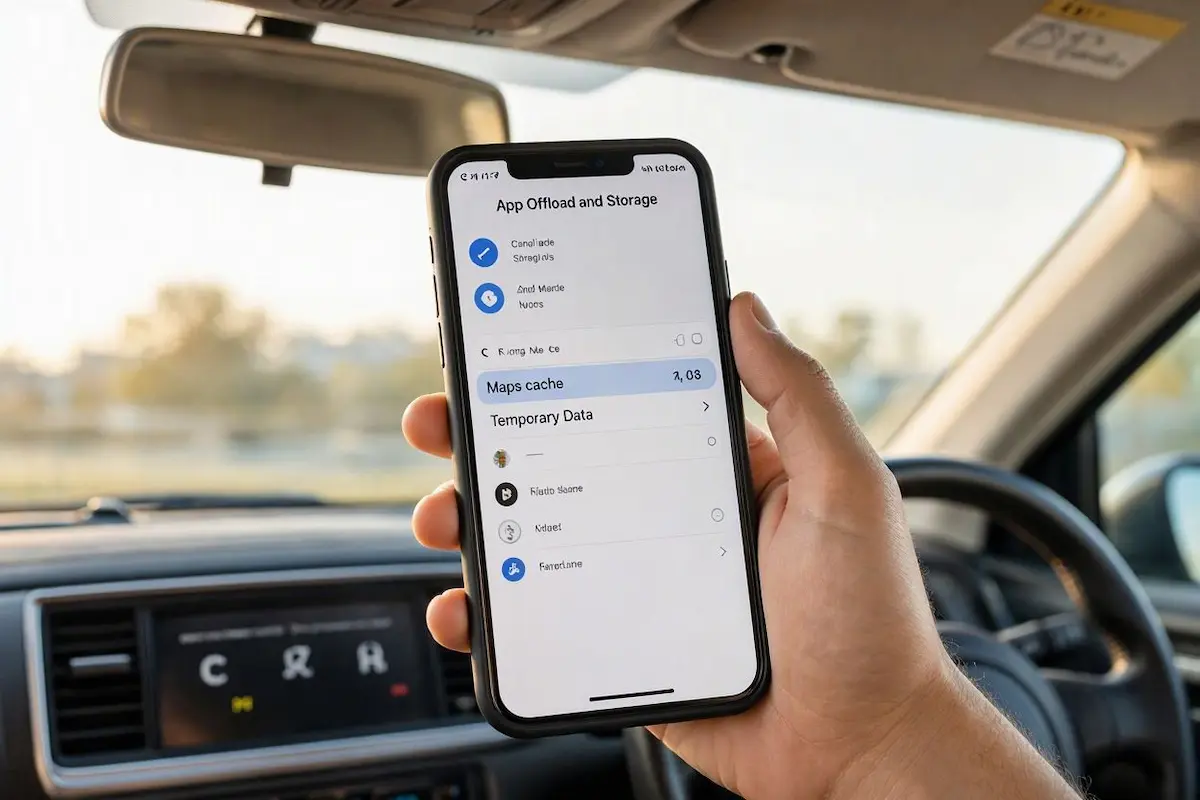
- Unplug the iPhone from the vehicle USB port or disconnect from your wireless CarPlay adapter.
- On iPhone 8, X, 11, 12, 13, 14, 15, and 16 models:
- Press and immediately release the Volume Up button.
- Press and immediately release the Volume Down button.
- Press and continuously hold down the Side (Power) button.
- Ignore the onscreen “Slide to Power Off” slider. Keep holding the button until the screen shuts dark and the white Apple logo appears, then release.
- Unlock the phone with your passcode before reconnecting it to the vehicle to provide a freshly initialized video buffer.
⚠️ Thermal Throttling Warning: If your iPhone gets excessively hot on a dashboard mount or inductive charging pad in direct sunlight, iOS will aggressively throttle GPU clock speeds. Thermal throttling drops video encoding to zero frames per second, locking the vehicle screen completely. Move the phone near an air conditioning vent to cool down.
RELATED TROUBLESHOOTING GUIDE
Step 2: Clear Navigation App Cache Databases (Waze & Google Maps)
Third-party navigation applications continuously stream dynamic map tiles, live traffic telemetry, and satellite textures into local flash storage.
When these temporary database files corrupt, the rendering engine stalls while drawing 3D buildings, creating an issue where your apple carplay screen freezes while leaving background music playing:
- For Waze: Open Waze on your iPhone, tap the Search bar, type
2##2, and press Search. This hidden diagnostic command flushes the offline vector map cache instantly. - For Google Maps: Open Google Maps on your iPhone, tap your Profile Icon, navigate to Settings → About, terms & privacy, and select Clear application data.
- If map lockups persist, delete the navigation app completely from your iPhone, reinstall it from the App Store, and re-download your local offline map territory.
Flushing navigation caches prevents buffer overruns that cause an apple carplay screen freezes glitch during high-speed turn-by-turn guidance.
Step 3: Disable High-Bitrate Lossless Audio and Animated Canvas Streams
CarPlay transmits high-definition audio and 60fps video simultaneously across a single shared hardware bus.
Pushing uncompressed lossless audio files alongside continuous map rendering can saturate interface bandwidth, causing frame stalls whenever tracks change.
| Media App | Setting to Turn OFF | Why It Prevents Screen Lockups |
|---|---|---|
| Apple Music | Settings > Music > Audio Quality > Turn OFF Lossless Audio | Reduces heavy 24-bit/192kHz data throughput that chokes the shared CarPlay USB/Wi-Fi video pipeline. |
| Spotify | Spotify Settings > Playback > Turn OFF Canvas | Prevents the phone from decoding background looping video files while driving CarPlay graphics. |
| Apple Music | Settings > Music > Animated Art > Set to Off | Eliminates animated album art rendering crashes on vehicle infotainment displays. |
Disabling high-bandwidth visual assets frees up memory headroom, ensuring your apple carplay screen freezes issue does not occur during busy playlist transitions.
Step 4: Switch Wireless Adapters to the 5.8GHz Frequency Band
If you use an aftermarket wireless CarPlay adapter (such as Carlinkit, Ottocast, or factory wireless infotainment), the data link relies on an ad-hoc Wi-Fi connection.
When driving past highway toll sensors, smart traffic cameras, or commercial 5G towers, 2.4GHz spectrum congestion drops video packets and freezes the screen while your phone continues operating smoothly in your pocket.
Resolving interference on wireless adapters stops repeated episodes where an apple carplay screen freezes in heavy city traffic:
- Ensure your iPhone is actively paired to the wireless adapter.
- Open Safari on your iPhone and enter the adapter’s management IP address (typically
192.168.50.2or192.168.1.101). - Find the Wi-Fi Band / Frequency setting and change it from 2.4GHz or Auto to 5.8GHz (select Channel 149 or 161).
- Under Frame Rate / FPS, select 30 FPS instead of 60 FPS if your car stereo has an entry-level processor.
- Save settings and allow the adapter to reboot to lock onto an interference-free wireless channel.
RELATED TROUBLESHOOTING GUIDE
Step 5: Replace Damaged USB Cables (D+ and D- Data Pin Degradation)
When running wired Apple CarPlay, the Lightning or USB-C connection requires continuous high-speed digital handshakes.
A low-grade or damaged charging cable can deliver 5V charging current while dropping intermittent data packets over the D+ and D- data conductors.
Cable degradation is a major hidden factor that makes an apple carplay screen freezes fault appear randomly over road bumps:
- Use Genuine Apple MFi Certified Cables: Generic charging cables often lack internal foil shielding and heavy-gauge data pairs. Always use an original Apple or MFi-certified braided cable.
- Keep Cable Length Under 3 Feet: Restrict your cable length to 3.3 feet (1 meter) or less. Cables stretching past 6 feet degrade high-speed digital signals across vehicle wiring looms.
- Inspect and Clean the iPhone Port: Shine a light into your phone’s charging port. Use a wooden toothpick to gently extract compressed pocket lint from the bottom corners so the cable connector seats with a positive mechanical click. If your unit only charges, check out our guide on diagnosing CarPlay only charges phone issues.
GPS SYNCHRONIZATION RESOURCE
Step 6: Perform a Hardware Cold Reboot on the Vehicle Infotainment System
Factory infotainment systems run automotive operating systems (such as BlackBerry QNX, Linux, or Android Automotive) that rarely complete a full cold reboot during normal daily driving.
An internal video decoder buffer overflow will lock the screen until you trigger a hardware-level restart.
Executing a hard console reboot flushes locked decoder memory, preventing cycles where an apple carplay screen freezes immediately upon plugging in your iPhone:
- Ford SYNC 3 / SYNC 4: Press and hold the Audio Power (Volume Knob) and Seek Forward (>>) buttons together for 10 seconds until the display goes black and restarts.
- Honda Infotainment: Press and hold the primary audio Power knob for 10 seconds until the system prompts you with a reboot confirmation dialog.
- Toyota / Lexus: Press and hold the physical Volume knob down continuously for 12 seconds until the brand boot animation appears.
- Volkswagen / Audi / Skoda (MIB2 / MIB3): Hold down the rotary volume power knob for 15 seconds until the display cycles completely off.
- Aftermarket Stereos (Pioneer, Kenwood, Android): Use a paperclip to press the recessed RST pinhole on the faceplate for 10 seconds. If your unit is stuck cycling on reboot, consult our Android car stereo boot loop recovery guide.
Diagnosing an unresponsive CarPlay interface comes down to isolating software frame buffer stalls from physical connection dropouts.
Purging corrupted vector map caches, forcing a fresh frame allocation with a hard iPhone reboot, and shifting wireless links to the cleaner 5.8GHz spectrum will resolve screen lockups permanently without requiring costly dealership hardware replacements whenever an apple carplay screen freezes during your daily drive.
Frequently Asked Questions (FAQ)
Why does Apple CarPlay screen freeze while music keeps playing?
CarPlay routes video encoding and audio streaming over separate software channels. While the background audio daemon continues delivering music to your car speakers, the iOS SpringBoard GPU video frame buffer has crashed or suffered high packet loss, halting screen updates.
Why does CarPlay freeze only when using Waze or Google Maps?
Navigation apps continuously render dynamic 3D map vectors and live traffic textures. When an apple carplay screen freezes on map apps, a corrupted offline map tile database or sudden cellular dead spots has stalled the navigation rendering engine, locking the interface.
How do I fix wireless Apple CarPlay screen freezes?
Access your wireless adapter backend settings page (typically 192.168.50.2 in Safari) and switch the Wi-Fi frequency from 2.4GHz to 5.8GHz. This avoids radio frequency interference from municipal cell towers, toll plazas, and traffic cameras.
Can an overheating iPhone cause CarPlay to freeze?
Yes. When an iPhone overheats from direct sunlight or inductive wireless charging pads, iOS engages thermal throttling. This cuts GPU clock speeds and halts external video encoding to protect the battery, causing the vehicle touchscreen to freeze.