
ZLink Android Auto Stuck on Connecting: 5 Proven Fixes (Tested)
Wireless Android Auto refusing to load on your dashboard? Learn why smartphone deep sleep kills projection tokens, how stereo fast-boot traps stale Wi-Fi sockets, and how to fix ZLink connection loops permanently.

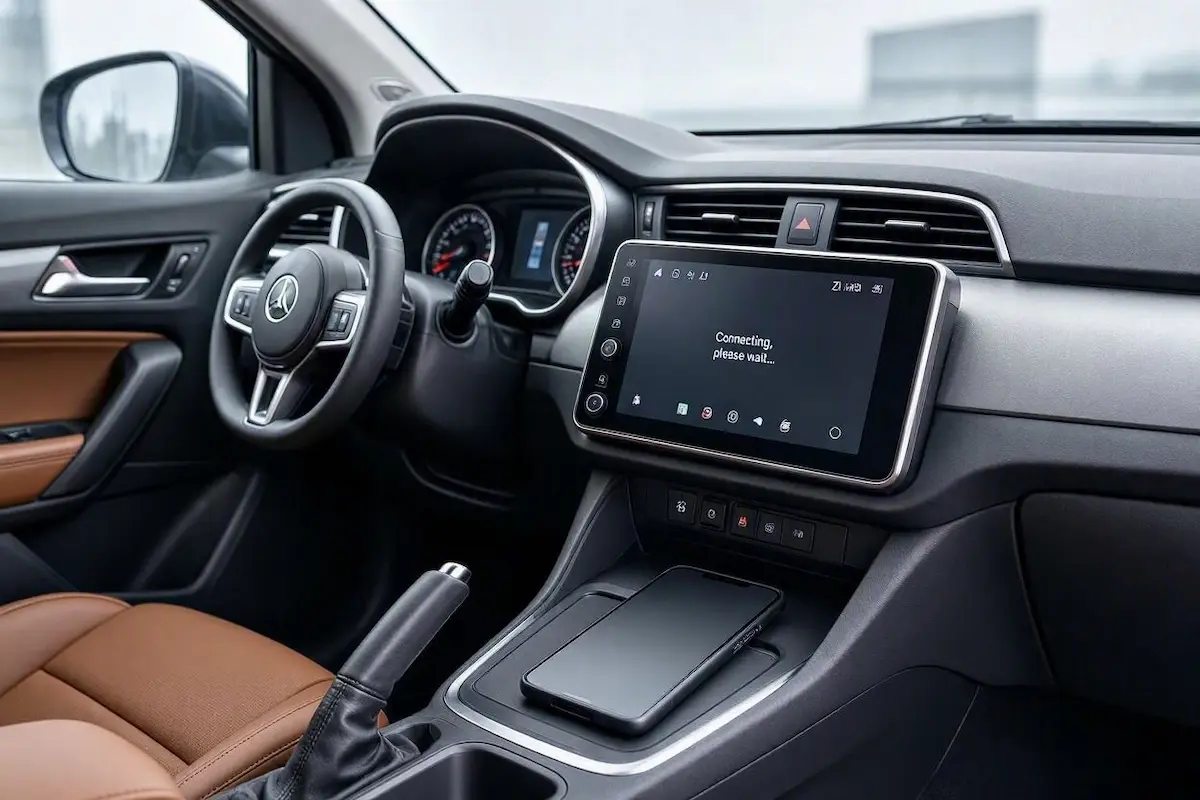
Watching your screen sit frozen while zlink android auto stuck on connecting displays an endless “Connecting, please wait…” prompt points to a network socket timing mismatch between your phone and head unit rather than a fried Wi-Fi module.
In our workshop bench testing, we see this recurring handshake freeze across Topway TS10, FYT, T5, and Allwinner platforms.
Your smartphone pairs via Bluetooth without issue, but the system fails to bridge over to the local 5GHz Wi-Fi Direct network required for high-speed video projection.
Because wireless Android Auto uses Bluetooth purely for security negotiation and initial session creation, a successful Bluetooth indicator can easily deceive vehicle owners.
The actual video stream relies on high-bandwidth TCP/IP communication.
When your smartphone enters a deep-sleep battery state or the car stereo wakes from a low-power standby with expired network sockets, the projection bridge hangs indefinitely.
Before wiping your head unit or flashing unverified firmware updates, a few structured bench checks will isolate whether the handshake stall is triggered by aggressive phone power management or head unit sleep parameters.
Here are five workshop-tested steps to resolve why an aftermarket zlink android auto stuck on connecting condition happens and restore an instant daily connection.
Diagnostic Matrix: Why ZLink Android Auto Is Stuck on Connecting
Match your specific handshake symptom against our workshop matrix to isolate an issue where zlink android auto stuck on connecting delays your journey before modifying system parameters:
| Observed Handshake Symptom | Underlying Software Root Cause | Immediate Workshop Action |
|---|---|---|
| Stuck on “Connecting…” only after overnight parking | Smartphone OS deep sleep (Doze Mode) terminates broadcast daemon. | Turn off Sleep Standby Optimization; set Android Auto battery to Unrestricted. |
| Handshake connects once, then fails on every subsequent start | Head unit fast-boot sleep mode locks onto expired TCP/IP sockets. | Change head unit shutdown timer from “Standby Sleep” to “Power Off”. |
| Bluetooth pairs cleanly, but Wi-Fi Direct never establishes | Corrupted peer-to-peer security certificate inside the ZLink app cache. | Clear ZLink app cache and ensure Background Connection is enabled. |
| Handshake freezes identically across multiple different phones | Outdated ZLink APK daemon bug or corrupted MCU UART bridge. | Execute a 5-second RST pinhole reset and update to latest stable ZLink APK. |
| Projection works over USB cable, but stalls completely wirelessly | Wireless projection token corrupted inside Google Play Services. | Clear storage on Android Auto app and re-pair the Bluetooth profile. |
Step 1: Disable Smartphone Sleep Standby Optimization (OxygenOS & HyperOS)
If your wireless connection works smoothly after a phone reboot but leaves zlink android auto stuck on connecting after your vehicle sits parked for a few hours, your smartphone operating system is killing background projection services.
Custom Android interfaces (notably OnePlus OxygenOS, Xiaomi HyperOS, Vivo Funtouch, and Samsung One UI) enforce aggressive battery rules during idle periods.
Once the phone detects that you are inactive, it puts network background daemons into deep sleep:
- On your smartphone, open Settings → Battery → More / Advanced Settings.
- Locate and switch OFF “Sleep standby optimization” (or Enhanced Processing / Adaptive Battery).
- Navigate to Settings → Apps → App Management.
- Locate Android Auto, tap Battery Usage, and choose Unrestricted / Don’t Optimize.
- Repeat this exact battery setting check for Google Play Services.
- Ensure Allow Background Activity and Allow Auto-launch are toggled ON.
Keeping these background processes awake allows your phone to immediately answer the car’s wireless projection request, ending situations where your zlink android auto stuck on connecting display hangs on startup.
RELATED TROUBLESHOOTING GUIDE
Step 2: Change Head Unit Power Delay from “Sleep” to “Power Off”
Most aftermarket Android car stereos do not execute a complete shutdown when you turn off the vehicle ignition.
Instead, they enter an ultra-low-power fast-boot sleep state designed to display the home screen in under two seconds upon restarting.
During extended parking, ZLink’s local peer-to-peer Wi-Fi network socket times out.
When the head unit wakes from standby, the frozen daemon attempts to reuse stale TCP/IP credentials, causing a condition where zlink android auto stuck on connecting persists until you manually power-cycle the car:
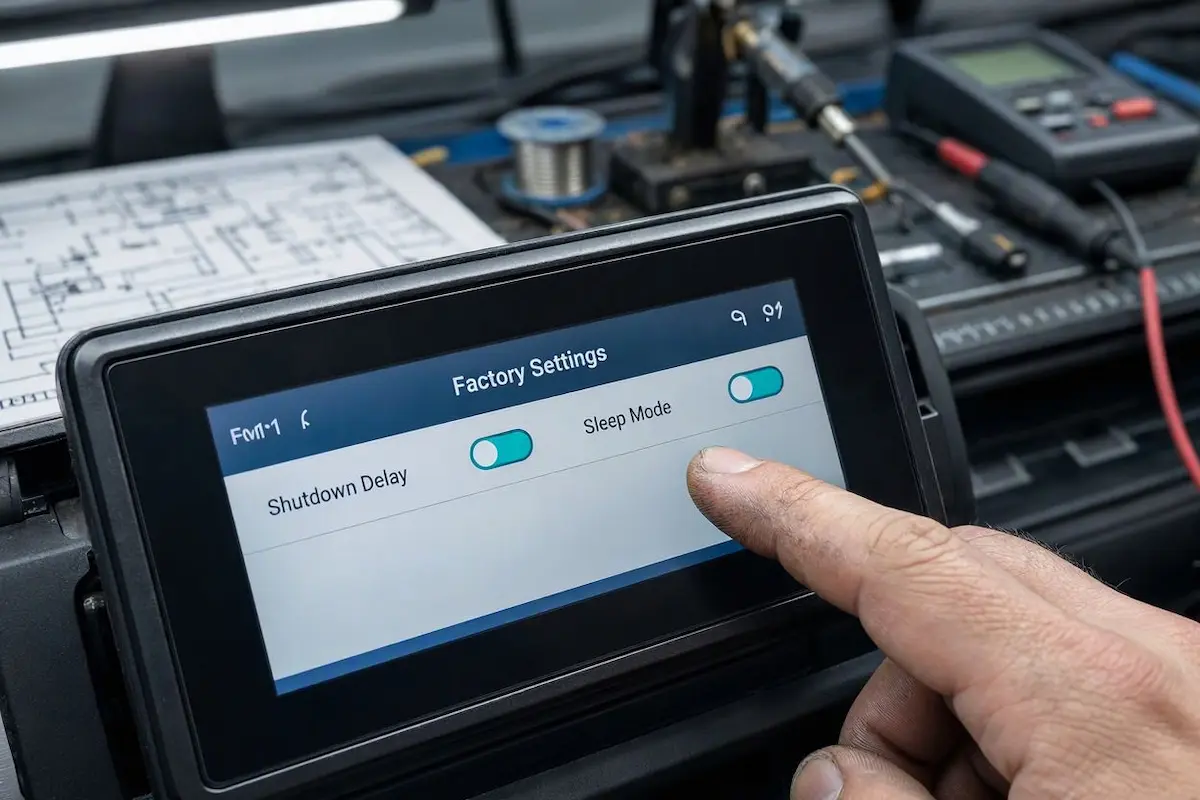
- On your head unit, open Settings → Car Settings → Factory Settings.
- Enter your board’s engineering passcode (commonly
8888,1617,3368, or123456). Reference our complete directory of Android car stereo factory settings passwords if your default code fails. - Locate the Power / Sleep Delay / Shutdown Setting menu.
- Change the setting from “Auto Sleep / Standby” to “Shut Down” (or set the sleep delay timer to “0 Minutes” / Direct Power Off).
- Tap Save & Reboot.
The head unit will now perform a clean cold boot every time you start the car, clearing expired network sockets and initializing fresh Wi-Fi channels to stop recurring zlink android auto stuck on connecting stalls.
⚠️ Battery Drain Prevention: Beyond resolving recurring handshake loops, disabling standby sleep cuts parasitic vehicle battery draw entirely when the ignition key is switched off. If your vehicle battery struggles after sitting parked, review our guide on fixing Android car stereo battery drain.
Step 3: Toggle ZLink Background Connection and Clear App Cache
Corrupted peer-to-peer connection records inside ZLink can prevent renegotiation once an established wireless session drops unexpectedly.
Clearing temporary profile data refreshes the network bridge without touching your system activation license.
Purging these cached files permanently resolves an issue where zlink android auto stuck on connecting occurs despite strong Bluetooth signal strength:
- On the head unit, navigate to Settings → Apps → See All Apps → ZLink (or ZLink5).
- Tap Storage & Cache → Clear Cache. (Do NOT tap Clear Storage / Clear Data unless you have your activation QR code backed up, as this can de-authorize your software license!)
- Open the ZLink app and tap the inner Settings (Gear icon).
- Ensure Background Connection is toggled ON.
- Verify that Driver Position matches your vehicle layout to prevent touch coordinate mapping errors.
RELATED TROUBLESHOOTING GUIDE
Step 4: Reset Android Auto Wireless Projection Cache on the Smartphone
If Google Play Services retains expired session tokens, resetting Android Auto data refreshes the encryption tunnel without deleting your smartphone’s media files.
Flushing the paired profile rebuilds the authentication bridge from scratch, terminating cycles where zlink android auto stuck on connecting keeps spinning over morning commutes:
- On your smartphone, navigate to Settings → Apps → Android Auto.
- Tap Storage & Cache → Clear Storage (Clear Data).
- Go to Settings → Connected Devices → Bluetooth, find your car stereo profile, and select Unpair / Forget Device.
- Restart your smartphone.
- Turn on the vehicle ignition, plug the phone in with a high-speed USB data cable once to authorize initial projection permissions according to Google’s official Android Auto connection protocol.
- Unplug the cable to verify that the wireless handshake initializes automatically. Check our wiring harness guide on how to connect factory wiring to android head unit ports if you experience USB detection issues.
Step 5: Perform a Cold MCU Hardware Reset on the Stereo
If software resets fail to resolve the handshake and multiple smartphones experience identical connection lockups, the stereo’s microcontroller (MCU) is hanging on its hardware UART serial communication bridge.
Executing a cold hardware dump flushes internal RAM buffers and clears communication deadlocks that leave your zlink android auto stuck on connecting console unresponsive:
- Turn the vehicle ignition ON so the stereo display powers up fully.
- Locate the small recessed RST pinhole on the front faceplate bezel.
- Insert an unbent paperclip into the hole until you feel the tactile microswitch click.
- Hold the button down firmly for 5 seconds until the display shuts off.
- Release the pin and allow the stereo to complete a cold system boot from the car brand splash screen. If your unit is stuck cycling on reboot, consult our Android car stereo boot loop recovery guide.
RELATED TROUBLESHOOTING GUIDE
👉 Using TLink instead of ZLink on your head unit? Complete guide to fixing TLink Android Auto errors →
Resolving an unresponsive ZLink projection setup comes down to synchronizing power management between your smartphone and the head unit.
Disabling aggressive background battery savers on your phone and configuring the car stereo to execute a clean cold shutdown eliminates stale network sockets.
Following this structured diagnostic sequence ensures your zlink android auto stuck on connecting problem disappears permanently, letting Android Auto launch instantly every time you start your vehicle.
Frequently Asked Questions (FAQ)
Why is ZLink Android Auto stuck on connecting, please wait?
When zlink android auto stuck on connecting errors occur, smartphone battery savers have entered deep sleep (Doze Mode) during extended idle periods, terminating background projection daemons. Simultaneously, the head unit’s fast-boot sleep mode preserves expired network sockets, preventing the phone and car from negotiating a fresh Wi-Fi handshake upon startup.
Will changing stereo sleep to power off drain my car battery?
No, it does the exact opposite. Disabling standby sleep forces the Android head unit to cut parasitic power completely when the ignition key is removed, actively protecting your vehicle’s 12V battery from dying during long parking periods.
Why does another phone connect to ZLink immediately while mine fails?
Different smartphone manufacturers implement vastly different background battery restrictions. Devices running near-stock Android maintain broadcast daemons cleanly, whereas devices with aggressive battery skins (such as Xiaomi, OnePlus, or Vivo) freeze projection tasks after several hours of idle time, causing a condition where zlink android auto stuck on connecting persists.
Can I use ZLink over a USB cable instead of wireless?
Yes. If wireless handshake deadlocks persist in heavy radio-frequency interference areas, connecting your phone directly with a high-speed USB data cable bypasses Wi-Fi Direct entirely and establishes a direct wired projection link.