
Apple CarPlay Not Working After Update: 6 Proven Fixes (Tested)
Woke up to an iOS update only to find your car stereo ignoring your iPhone? Learn why iOS security patches break USB accessory permissions, corrupt saved vehicle certificates, and how to get CarPlay running again.

Discovering an unexpected issue where apple carplay not working after update installations leaves you stranded without dashboard navigation points to a software authentication clash rather than a dead car stereo or broken USB cable.
Apple CarPlay relies on continuous cryptographic handshakes negotiated between iOS and your vehicle’s multimedia processor.
Major iOS updates frequently tighten background security daemons, alter accessory permissions, and invalidate cached authorization tokens stored in system flash memory.
When the vehicle display hangs on an infinite loading spinner or charges the battery while ignoring CarPlay, the underlying hardware is almost always intact.
In our workshop bench testing, the root cause usually traces back to iOS resetting Siri voice permissions, engaging aggressive USB port restrictions, or trying to authenticate with expired encryption certificates.
Because modern automotive head units cache previous session parameters, they struggle to parse new handshake headers after an operating system migration.
Before booking an expensive dealership diagnostic appointment, fifteen minutes of structured bench troubleshooting will isolate the exact bottleneck.
Here are six workshop-tested steps to resolve why an apple carplay not working after update condition occurs and restore an instant, reliable link.
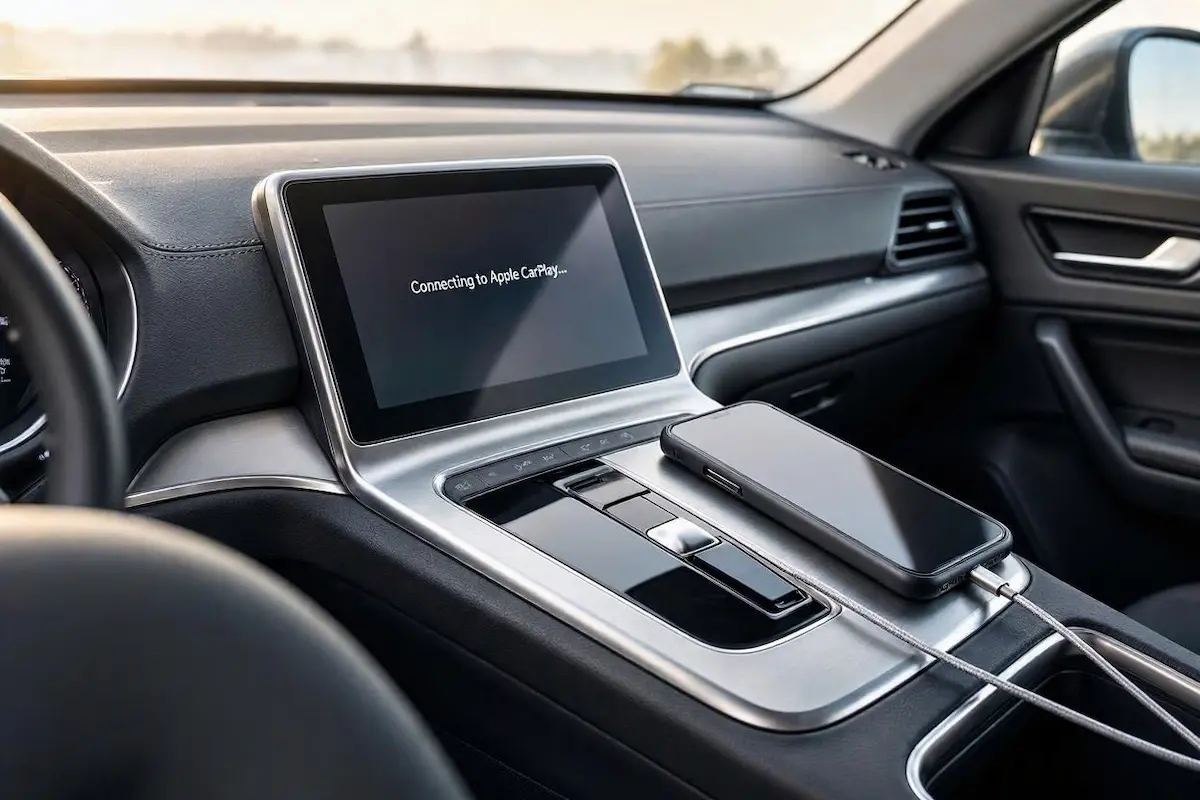
Diagnostic Matrix: When Apple CarPlay Is Not Working After an Update
Match your specific vehicle symptoms against our workshop matrix to isolate an apple carplay not working after update failure before altering system files:
| Observed Connection Symptom | Post-Update System Root Cause | Immediate Workshop Action |
|---|---|---|
| Screen stays dark or ignores iPhone completely | Siri voice settings or Content Restrictions toggled off by iOS update. | Re-enable Siri voice recognition; unblock CarPlay in Screen Time. |
| Display stuck in an infinite “Connecting…” loop | Corrupted cryptographic vehicle certificate in iOS CarPlay registry. | Select “Forget This Car” on iPhone and delete phone from head unit menu. |
| Phone charges normally, but CarPlay icon never appears | iOS USB Restricted Mode blocking data pins while phone is locked. | Turn ON “Accessories” toggle under Face ID & Passcode settings. |
| Wireless CarPlay handshake drops out after 3 seconds | Wi-Fi Direct / Bluetooth encryption token mismatch following update. | Reset iOS Network Settings; re-establish fresh wireless discovery. |
| Audio plays normally, but touchscreen is completely unresponsive | Infotainment display cache holding stale H.264 video buffer data. | Execute a forced cold hardware reboot on the car infotainment unit. |
Step 1: Check Siri and Screen Time Restrictions (The #1 Overlooked Bug)
The first checkpoint our technicians inspect whenever an apple carplay not working after update complaint arrives is Siri voice settings.
Apple’s CarPlay protocol architecture requires Siri to be completely active at the kernel level.
If an iOS update resets your Siri preferences or tightens privacy restrictions, CarPlay is suppressed entirely without displaying an error message on the dash.
Restoring these voice daemons clears an active apple carplay not working after update lockout in minutes:
- On your iPhone, open Settings → Siri & Search (or Apple Intelligence & Siri).
- Verify that Listen for “Hey Siri” (or “Siri”) is switched ON.
- Ensure Press Side Button for Siri is switched ON.
- Confirm that Allow Siri When Locked is turned ON. If Siri is blocked when the device display is locked, the vehicle head unit cannot negotiate session initialization.
- Next, navigate to Settings → Screen Time → Content & Privacy Restrictions.
- If restrictions are enabled, tap Allowed Apps and verify that the switch for CarPlay is turned ON (green). If CarPlay is restricted here, iOS halts all projection services.
⚠️ Critical Protocol Requirement: If Siri is disabled, Apple CarPlay is functionally inactive across the entire operating system. Even over a direct USB cable, your car stereo will only recognize the phone as a generic mass-storage device or iPod music source rather than launching the projection interface.
Step 2: Wipe Corrupted Vehicle Certificates via “Forget This Car”
During an iOS firmware update, Apple frequently updates encryption certificates.
However, your car’s head unit continues attempting to communicate using the old authorization token.
This security mismatch causes an endless loop where your apple carplay not working after update screen attempts to initialize but disconnects after a few seconds.
Flushing the saved vehicle profile establishes a fresh cryptographic bridge to resolve communication lockups:
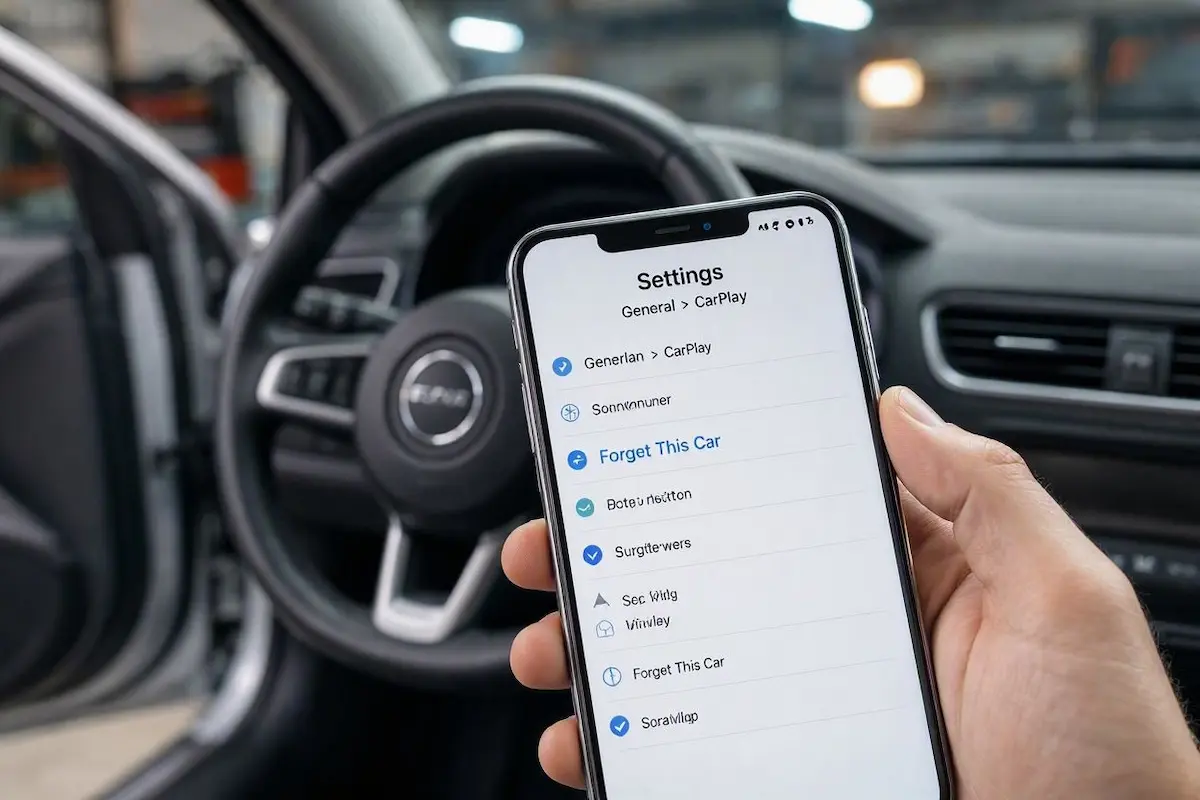
- On your iPhone, open Settings → General → CarPlay.
- Under My Cars, tap your vehicle or aftermarket stereo model name.
- Tap Forget This Car and confirm the prompt.
- On your vehicle’s dashboard touchscreen, open the Phone / Bluetooth / Device List menu, find your iPhone, and select Delete / Remove Device.
- Turn off the car ignition, open the driver door to cut retained accessory power (RAP), wait 30 seconds, and restart the engine.
- Plug your iPhone back in using a certified cable and tap Allow CarPlay While Locked when the security prompt appears on your phone screen.
RELATED TROUBLESHOOTING GUIDE
Step 3: Disable USB Restricted Mode Under Face ID & Passcode
To guard against physical brute-force hardware exploits, iOS includes a security feature known as USB Restricted Mode.
If your iPhone has been locked for more than an hour, the operating system cuts data transmission across the Lightning or USB-C port, allowing only basic 5V charging.
Following a system update, this security daemon can become overly aggressive.
This setting blocks the vehicle head unit from detecting high-speed data lines, explaining why an apple carplay not working after update failure occurs whenever your phone stays in your pocket:
- Navigate to your iPhone Settings → Face ID & Passcode (or Touch ID & Passcode).
- Enter your device passcode to access security settings.
- Scroll down to the section titled Allow Access When Locked.
- Locate Accessories (or USB Accessories) and toggle the switch ON (green).
- When enabled, your iPhone permits the vehicle head unit to access high-speed data lines immediately without requiring you to manually unlock your handset every time you enter the car.
Adjusting this permission terminates recurring issues where your apple carplay not working after update setup only provides power to the battery without projecting maps.
Step 4: Reset iOS Network Settings (Essential for Wireless CarPlay)
Wireless CarPlay relies on a two-tier handshake: Bluetooth negotiates initial authentication tokens, and a local 5GHz Wi-Fi Direct network handles heavy 60fps video projection and audio data frames.
When a system update modifies internal network routing tables, this handoff often breaks down silently.
Purging these network caches resolves a persistent apple carplay not working after update error on wireless adapters:
- Open your iPhone Settings → General → Transfer or Reset iPhone.
- Tap Reset at the bottom of the screen.
- Select Reset Network Settings and enter your device passcode.
- Note: This resets saved Wi-Fi networks, Bluetooth pairings, and VPN configurations, but does not alter your apps, photos, or personal data.
- After the phone reboots, turn on Bluetooth and Wi-Fi, step into the vehicle, and establish a fresh pairing handshake according to official Apple CarPlay connection guidelines.
RELATED TROUBLESHOOTING GUIDE
Step 5: Perform a Hard Cold Restart on Your Infotainment System
Automotive head units operate embedded microkernels (such as BlackBerry QNX, Linux, or Android Automotive).
When you update your iPhone, the car stereo can lock up attempting to parse updated packet headers with cached handshake memory.
Because cycling the car key often places the head unit into a low-power standby sleep state rather than performing a true cold boot, a manual hardware restart is necessary to clear internal registers and stop cycles where apple carplay not working after update loops occur:
- Ford SYNC 3 / SYNC 4: Press and hold the physical Audio Power (Volume knob) and Seek Forward (>>) buttons simultaneously for 10 seconds until the display turns black and restarts.
- Honda / Acura: Press and hold the audio Power knob for 5 seconds until the screen prompts: “Would you like to reboot your system?” Select Yes.
- Hyundai / Kia: Locate the small recessed Reset pinhole beside the volume knob. Depress it with a paperclip or ballpoint pen for 3 seconds.
- Aftermarket Stereos (Pioneer, Kenwood, Alpine, Sony): Depress the front-bezel RST pinhole for 10 seconds, or disconnect the vehicle’s negative 12V battery terminal for 10 minutes to drain internal capacitors completely. If your unit is stuck cycling on reboot, check our guide to fixing an Android car stereo boot loop.
Step 6: Inspect MFi Cable Authentication and Clean the Port
Modern iOS updates routinely tighten verification checks for Apple MFi (Made for iPhone) hardware authentication.
Inexpensive third-party cables that scraped by on older iOS versions are frequently rejected immediately following a security patch.
Physical connector wear compounds this handshake failure, leaving an apple carplay not working after update warning on the dash:
- Test with an OEM Cable: Replace convenience cords with an original Apple OEM cable or an officially certified MFi lead from reputable brands like Anker or Belkin under 3.3 feet (1 meter) in length.
- Clean the Phone Port: Pocket lint, moisture, and dust pack into the bottom of Lightning and USB-C ports. When lint accumulates, the connector seats enough to contact outer 5V power pins, but the shorter high-speed data pins lose mechanical contact. Use a non-conductive wooden toothpick to gently scrape out compacted lint.
- Bypass Auxiliary USB Hubs: If your vehicle utilizes an aftermarket dashboard USB extension or splitter, plug directly into the stereo’s primary rear USB port to verify high-speed data integrity. Review our harness guide to connect factory wiring to android head unit ports properly.
RELATED TROUBLESHOOTING GUIDE
Diagnosing an unresponsive CarPlay interface after an operating system update comes down to clearing expired authentication tokens and ensuring iOS security daemons permit external data transfer.
Re-enabling Siri permissions, forgetting the vehicle profile to rebuild security certificates, and executing a cold head unit reset restores responsive dashboard projection without replacing hardware.
Following this structured troubleshooting sequence ensures your apple carplay not working after update problem disappears permanently, keeping your maps, calls, and music fully accessible on every commute.
Frequently Asked Questions (FAQ)
Why did my Apple CarPlay stop working immediately after an iOS update?
When an apple carplay not working after update failure occurs, major iOS updates have usually tightened accessory security policies, reset Siri permissions, or invalidated saved vehicle authentication certificates. Your car’s head unit then attempts to connect using outdated pairing tokens, causing connection drops or an endless loading loop.
Does Apple CarPlay require Siri to be turned on to connect?
Yes. Apple CarPlay requires Siri voice recognition to be enabled in order to initialize. If Siri was toggled off or restricted during a system update, your iPhone will refuse to launch CarPlay across both wired USB and wireless connections.
Why does CarPlay charge my iPhone but won’t launch after an update?
This typically occurs when iOS USB Restricted Mode is active under Face ID & Passcode settings, blocking data transmission across the cable while the phone is locked. Alternatively, an iOS update may have tightened MFi verification, rejecting low-quality third-party cables that lack proper data handshake chips.
Will resetting iPhone network settings fix CarPlay disconnecting issues?
Yes. Resetting network settings flushes corrupted Wi-Fi Direct certificates, clears stale Bluetooth encryption tokens, and forces iOS to build a fresh, uncorrupted handshake with your vehicle’s infotainment system upon reconnection.