
Apple CarPlay Keeps Disconnecting: 6 Proven Fixes (Tested)
Tired of Apple CarPlay cutting out over bumps, dropping wireless connections on highways, or crashing mid-route? Learn how to inspect Pin 4 carbon buildup, fix 5V USB voltage drops, and stabilize Wi-Fi handshakes permanently.

Dealing with an erratic failure where your apple carplay keeps disconnecting while driving down the highway points to an interrupted digital handshake rather than a dead infotainment screen or damaged iPhone hardware.
Apple CarPlay requires continuous bidirectional data streaming across the physical USB bus or local 5GHz Wi-Fi channels.
If electrical contact resistance spikes for even a microsecond, the high-speed data stream halts.
Similarly, if supply voltage sags under heavy charging loads, the MFi authentication handshake drops instantly.
The vehicle infotainment head unit then terminates projection and dumps you back to the default radio screen.
In our workshop bench testing, random dropouts are rarely caused by mobile operating system bugs alone.
The root cause usually traces back to electrical arcing across cable contact pins, compacted pocket lint preventing full physical pin seating, vehicle 5V USB step-down rail drops below 4.75V, or external RF interference blasting across wireless transmission bands.
Before buying new hardware or scheduling dealership electrical diagnostics, a structured sequence of field tests will isolate the exact point of failure.
Here are six workshop-tested steps to resolve why apple carplay keeps disconnecting and lock in a permanent, uninterrupted link.
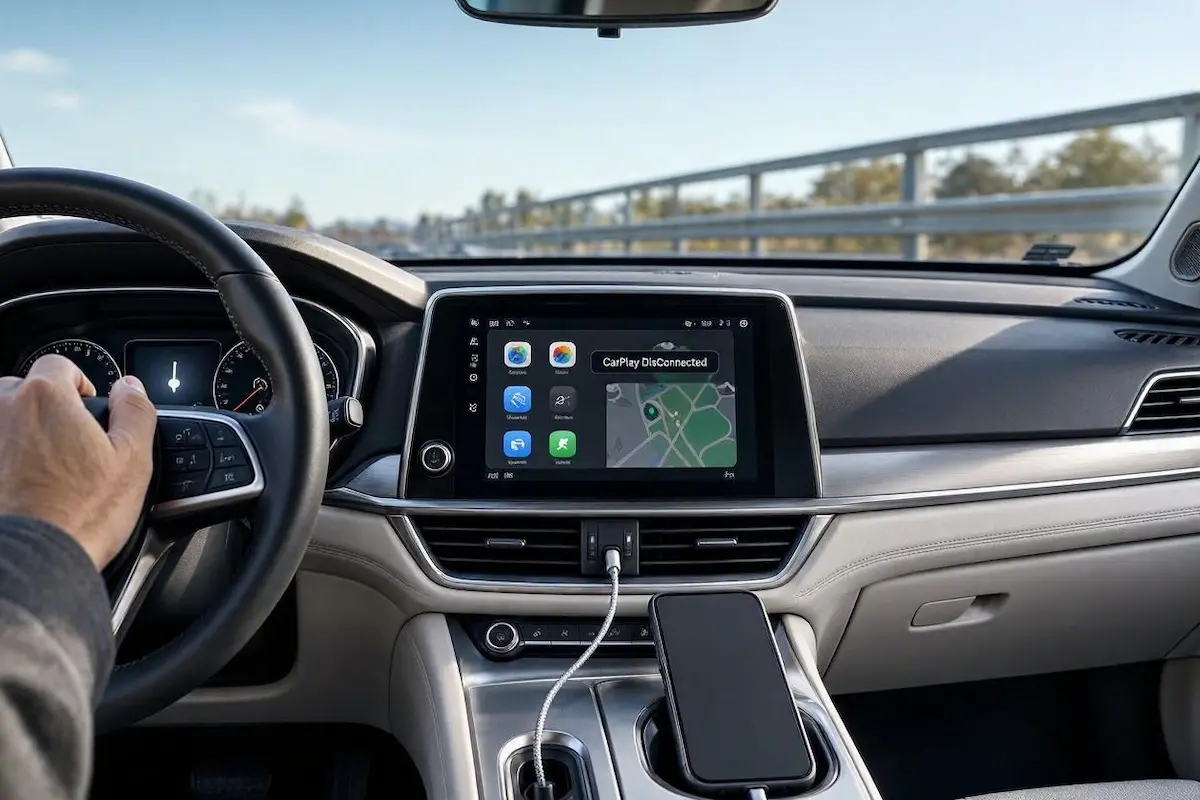
Diagnostic Matrix: Why Apple CarPlay Keeps Disconnecting
Match your specific vehicle symptoms against our workshop failure matrix to isolate why apple carplay keeps disconnecting before altering core settings or disassembling dashboard trim:
| Disconnection Symptom | Underlying Mechanical / RF Root Cause | Immediate Workshop Action |
|---|---|---|
| Disconnects over road bumps or when touching the cable | Compacted pocket lint in phone port or burnt Pin 4/5 on the plug. | Clean port corners with a wooden pick; replace with certified MFi cable. |
| Wireless drops at specific intersections or toll plazas | Severe 5 GHz Wi-Fi interference from municipal radar or cell towers. | Switch wireless adapter channel from DFS to Channel 36 or 149. |
| Drops consistently after 15 to 40 minutes of driving | Infotainment processor or iPhone thermal throttling in direct sunlight. | Remove thick phone cases; mount phone near an active A/C vent. |
| Disconnects the moment bass hits or headlights switch on | Vehicle 5V USB step-down circuit sagging below 4.75V under load. | Test 5V rail with USB tester; bypass long dashboard extension cords. |
| Display freezes completely while audio continues playing | H.264 hardware video decoding buffer crash inside stereo RAM. | Perform a forced cold hardware reboot on the vehicle infotainment unit. |
Step 1: Inspect Cable Contacts for Pin 4 Carbonization and Port Lint
On wired installations, the single most common reason why apple carplay keeps disconnecting over minor road vibrations is physical contact degradation.
Take your charging cable into bright sunlight and inspect the gold connector contacts.
On Lightning cables, Pin 4 (VBUS power) and Pin 5 frequently develop a microscopic black or pitted mark.
This pitting is caused by electrical arcing when plugging in under live 12V vehicle charging current.
This carbonized layer introduces electrical resistance that breaks high-speed data transmission whenever the vehicle chassis flexes:
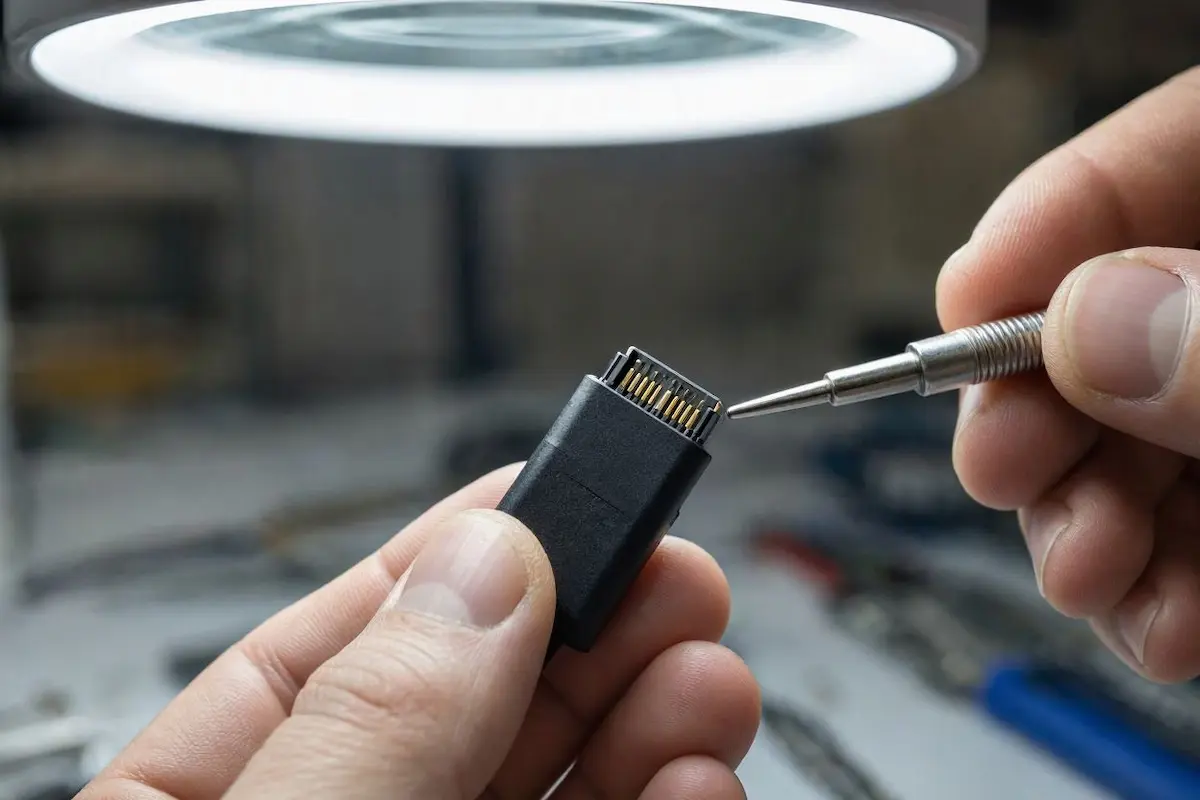
- Inspect the cable connector tip. If any gold contact pin looks black, pitted, or green from corrosion, replace the cable immediately.
- Ditch thin gas-station cords. Use an original Apple cable or an officially certified MFi (Made for iPhone) lead under 3.3 feet (1 meter) in length.
- Inspect your phone’s charging port using a bright flashlight.
- Take a non-conductive wooden toothpick or plastic dental pick and gently scrape the bottom corners of the port. In most workshop cases, tightly compacted pocket lint prevents the cable collar from seating fully, causing the retention latches to back out over rough pavement.
⚠️ Circuit Safety Warning: Never insert metal safety pins, needles, or paperclips into a phone port. Shorting the live battery pins inside a USB-C or Lightning port can permanently destroy the phone’s Tristar/Hydra power management IC.
RELATED TROUBLESHOOTING GUIDE
Step 2: Change Wireless Adapter Wi-Fi Channels to Avoid RF Congestion
If you use wireless CarPlay (factory-installed or through aftermarket adapters like Carlinkit or Ottocast), radio frequency interference is the primary reason why apple carplay keeps disconnecting unexpectedly.
Wireless CarPlay establishes an initial handshake over Bluetooth.
However, it transfers all 60fps video and audio data over a local 5GHz Wi-Fi Direct network.
When driving past highway toll gantries, municipal radar towers, or high-voltage transmission lines, external RF signals blast across default channels, dropping video packet delivery:
- Connect your iPhone to your wireless adapter’s Wi-Fi network while safely parked.
- Open Safari and navigate to your adapter’s backend IP address (typically
192.168.50.2or192.168.1.101). - Locate the Wi-Fi Band / Channel settings menu.
- If the channel is set to Auto or a dynamic DFS channel (Channels 52 through 140), switch it manually to a stable, non-interfering frequency like Channel 36, 40, or 149.
- Save your settings and allow the adapter to reboot to lock onto the clean spectrum, eliminating instances where apple carplay keeps disconnecting near city toll plazas.
Step 3: Measure 5V USB Rail Voltage Drop Under Dynamic Load
Automotive dashboard USB sockets are powered by internal step-down DC-DC buck converters that share electrical paths across the vehicle’s 12V accessory circuit.
When an iPhone with a low battery is connected, the charging controller demands 1.5A to 2.1A of current.
If the vehicle’s internal USB voltage regulator drops below 4.75V, the phone’s MFi authentication chip resets, causing the data connection to terminate instantly:
- Plug an inline digital USB voltage/current tester into the vehicle’s primary multimedia USB port.
- Connect your iPhone to the tester and monitor the live voltage reading while driving.
- If the readout dips below 4.80V when the phone charges or when switching on headlights, the circuit is experiencing severe voltage starvation, explaining why apple carplay keeps disconnecting during night driving.
- The Workshop Solution: On aftermarket stereos, eliminate long dashboard extension cables and plug directly into the short 4-pin or 6-pin USB lead exiting directly from the rear radio chassis. Check our guide on how to connect factory wiring to android head unit ports properly.
- Ensure high-draw 12V accessories (such as dashcams or cigarette lighter fast chargers) are not introducing electrical ripple into the same fuse tap.
RELATED TROUBLESHOOTING GUIDE
Step 4: Wipe Corrupted Vehicle Certificates and Reset Network Settings
Over months of daily use, iOS and your vehicle infotainment computer exchange cryptographic security keys.
Corrupted network handshake tokens frequently cause connection stability problems following major iOS updates.
Flushing the paired profile rebuilds the authentication bridge from scratch, stopping cycles where apple carplay keeps disconnecting within seconds of launching:
- On your iPhone, open Settings → General → CarPlay.
- Under My Cars, tap your vehicle or stereo model name and select Forget This Car.
- On your vehicle’s dashboard touchscreen, open the Bluetooth / Device List menu, locate your iPhone, and delete the profile.
- On the iPhone, open Settings → General → Transfer or Reset iPhone → Reset.
- Tap Reset Network Settings and enter your passcode.
- After the phone reboots, reconnect to the vehicle and confirm the security prompt: “Allow CarPlay while locked” in compliance with standard Apple CarPlay connection guidelines.
Step 5: Flush the Infotainment Memory Buffer with a Cold Hardware Reset
Automotive head units run microkernel operating systems (such as BlackBerry QNX, Linux, or Android Automotive).
Over extended driving cycles, volatile system RAM fills with cached navigation textures, audio stream buffers, and video packet headers.
When memory leaks exhaust the hardware decoder buffer, the system drops projection, creating a condition where apple carplay keeps disconnecting during heavy multi-tasking.
A forced cold reboot clears these internal registers:
- Ford SYNC 3 / SYNC 4: Press and hold the physical Audio Power (Volume knob) and Seek Forward (>>) buttons together for 10 seconds until the display cycles black.
- Honda / Acura: Press and hold the primary audio Power knob for 5 to 10 seconds until the system presents a reboot confirmation prompt.
- Hyundai / Kia: Press the recessed Reset pinhole beside the volume knob for 3 seconds using a paperclip.
- Aftermarket Stereos (Pioneer, Kenwood, Alpine): Depress the front faceplate RST pinhole for 10 seconds, or disconnect the vehicle’s negative 12V battery terminal for 10 minutes to drain internal capacitors. If your unit is stuck cycling on reboot, check our guide to fixing an Android car stereo boot loop.
Step 6: Prevent Thermal Throttling on Phone and Infotainment Hardware
Projecting Apple CarPlay places heavy demands on mobile hardware.
Your iPhone must process GPS coordinates, encode 60fps video, and stream high-bitrate audio simultaneously while pulling 12V charging current.
When cabin temperatures climb in direct sunlight, internal thermal management throttles processing speeds to protect the battery, causing sudden connection drops where apple carplay keeps disconnecting on hot summer afternoons:
- Remove Thick Phone Cases: Bulky armor or leather wallet cases trap heat against the phone’s aluminum chassis, choking passive heat dissipation.
- Avoid Windshield Suction Mounts: Mount your phone near an active air conditioning vent rather than on the windshield glass where direct sunlight bakes the device.
- Never Combine MagSafe and Wired CarPlay: Do not place your phone on an inductive wireless charging pad while simultaneously plugged into a wired CarPlay USB port. This double power input generates extreme internal temperatures that force iOS into emergency thermal shutdown, making your apple carplay keeps disconnecting failure much worse.
RELATED TROUBLESHOOTING GUIDE
👉 Does your screen freeze completely while audio continues playing? Screen freeze diagnosis guide →
Diagnosing an unstable CarPlay connection comes down to verifying physical cable integrity, ensuring clean 5V USB bus power, and eliminating 5GHz wireless interference.
Cleaning compacted lint from the phone port, replacing worn cords with certified MFi leads, and shifting wireless adapters to clear channels will keep your dashboard projection rock solid.
Following this workshop diagnostic sequence permanently resolves an apple carplay keeps disconnecting problem without the unnecessary expense of buying a replacement head unit or scheduling dealer service.
Frequently Asked Questions (FAQ)
Why does Apple CarPlay disconnect over bumps or when moving the cable?
When an apple carplay keeps disconnecting problem occurs over road bumps, it is almost always caused by compacted pocket lint inside the phone’s charging port or burnt contact pins (Pin 4/5) on the cable connector. This physical looseness allows tiny voltage drops that immediately kill the high-speed data connection.
Why does wireless Apple CarPlay drop out at specific road intersections?
Wireless CarPlay uses a 5 GHz Wi-Fi Direct channel to stream dashboard video. Highway toll gantries, municipal radar, and dense high-voltage power lines emit strong radio frequency interference that temporarily knocks the 5 GHz Wi-Fi connection offline, causing disconnections.
Will resetting iPhone network settings fix CarPlay disconnecting issues?
Yes. Resetting network settings flushes corrupted Wi-Fi Direct certificates, clears stale Bluetooth encryption tokens, and forces iOS to build a fresh, uncorrupted handshake with your vehicle’s infotainment system upon reconnection.
Can a weak car battery cause Apple CarPlay to disconnect?
Yes. If the vehicle alternator or battery voltage drops below 12V under load, internal dashboard 5V buck converters will starve the USB port of current. When the USB rail dips below 4.75V, the CarPlay MFi authentication chip resets and drops projection.
[…] will appear. Reconnect your iPhone and test the connection. (You can also read our general guide on fixing Apple CarPlay disconnecting issues for more […]
[…] its background services before plugging your phone back in. You can also reference our guide on resolving stubborn Apple CarPlay dropouts across major automotive […]
[…] and display the Honda logo before plugging your phone back in. You can also read our guide on general Apple CarPlay troubleshooting for more […]
[…] reload its background services before opening CarPlay. You can also review our general guide on handling stubborn wireless CarPlay dropouts across different vehicle […]
[…] services before testing your wireless connection. You can also review our general guide on handling wireless CarPlay dropouts across major vehicle […]
[…] background services before plugging your phone back in. You can also reference our general guide on resolving stubborn Apple CarPlay dropouts across major vehicle […]
[…] background services before plugging your phone back in. You can also reference our general guide on resolving stubborn Apple CarPlay dropouts across major vehicle […]
[…] services before attempting to reconnect your phone. You can also reference our general guide on resolving stubborn Apple CarPlay dropouts across luxury vehicle […]
[…] services before attempting to reconnect your phone. You can also reference our general guide on resolving stubborn Apple CarPlay dropouts across luxury vehicle […]
[…] background services before plugging your phone back in. You can also reference our general guide on resolving stubborn Apple CarPlay dropouts across major vehicle […]
[…] A persistent pioneer nex apple carplay keeps disconnecting error is typically triggered by outdated receiver firmware, corrupted Bluetooth/Wi-Fi pairing profiles, or using uncertified extension cables. If you also encounter other dashboard projection failures, you can check our comprehensive guide on general Apple CarPlay dropouts. […]